Background information
In addition to the "user" entity, it also supports the configuration and management of multi-entity data (such as "vehicle", "store", "shopping guide", etc.) to help users achieve cross-object group selection, insight analysis and marketing touch.
This module requires an additional fee to activate. If you need to activate this module, please contact the customer success manager corresponding to your account.
1. Multi-entity configuration management
1.1 Configuration Entity
Procedure:
1. In the Configuration Management →, click Entity Management → Entity Management.
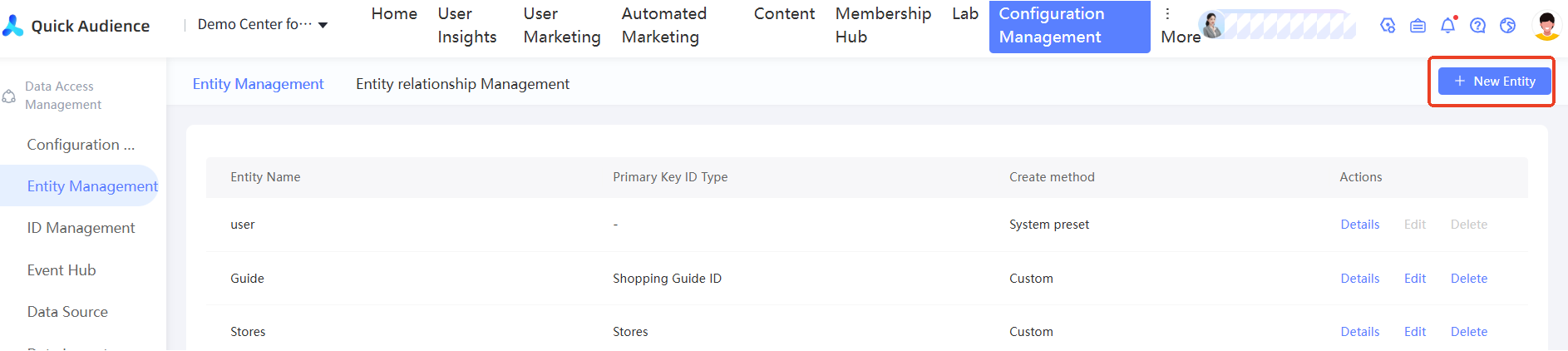
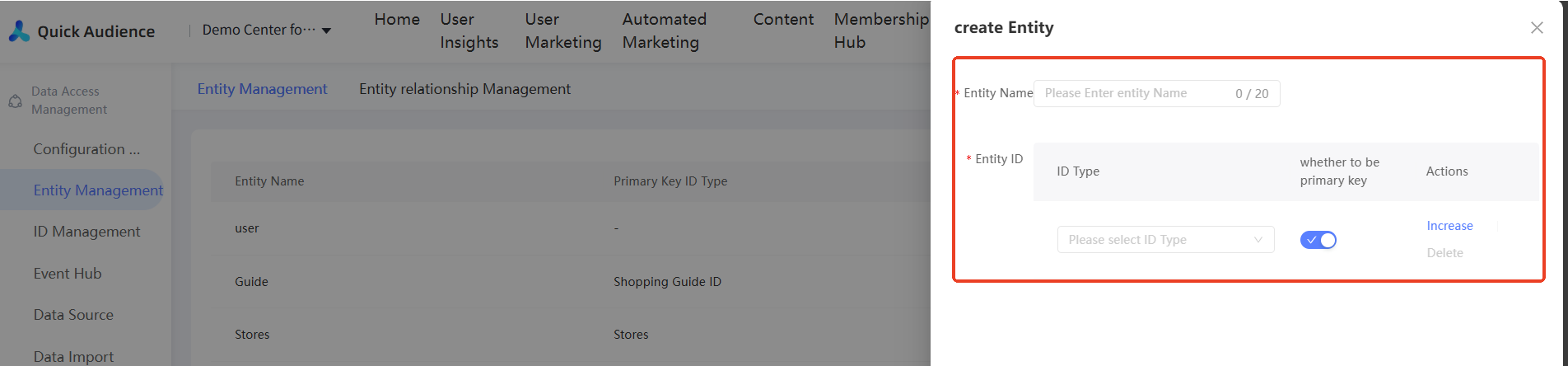
2. Click Add Entity. Enter an entity name and an entity ID to define the entity.
Entity Name: the name of the entity, such as vehicle, shopping guide, and store.
Entity ID: the ID used to identify the entity, such as the frame number of the vehicle, the employee number of the shopping guide, the employee's mobile phone number, and the code of the store. Note that you must select a unique primary key ID. If an entity has multiple IDs, select a primary key ID with caution. Once selected, it cannot be modified.
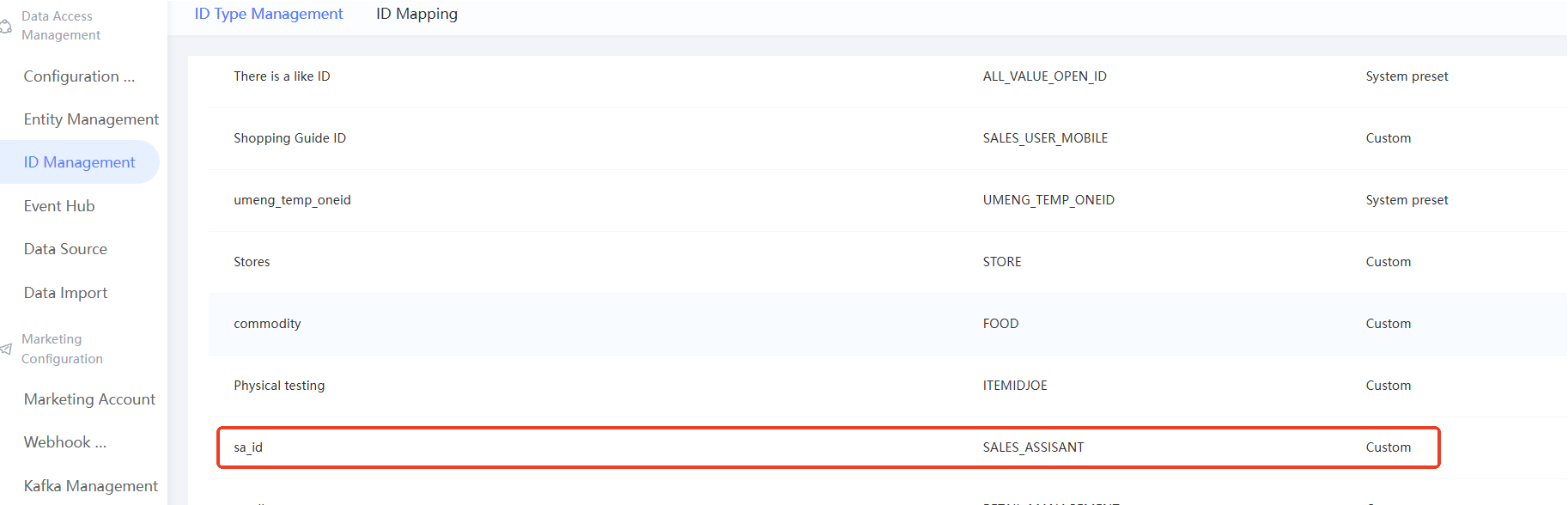
Note that before adding an entity, you need to add the entity ID involved in the new entity in Configuration Management → ID Management→ID Type Management. For more information, see How to manage user ID types.
1.2 entity relationship management
After the new entity is added, choose Configuration Management→Entity Management→Entity Relationship Management to configure the relationship between the entity and the entity, such as the binding relationship between the user and the vehicle, and the attribution relationship between the user and the shopping guide.
Procedure:
1. Click Configuration Management → Entity Management → Add Entity Relationship. 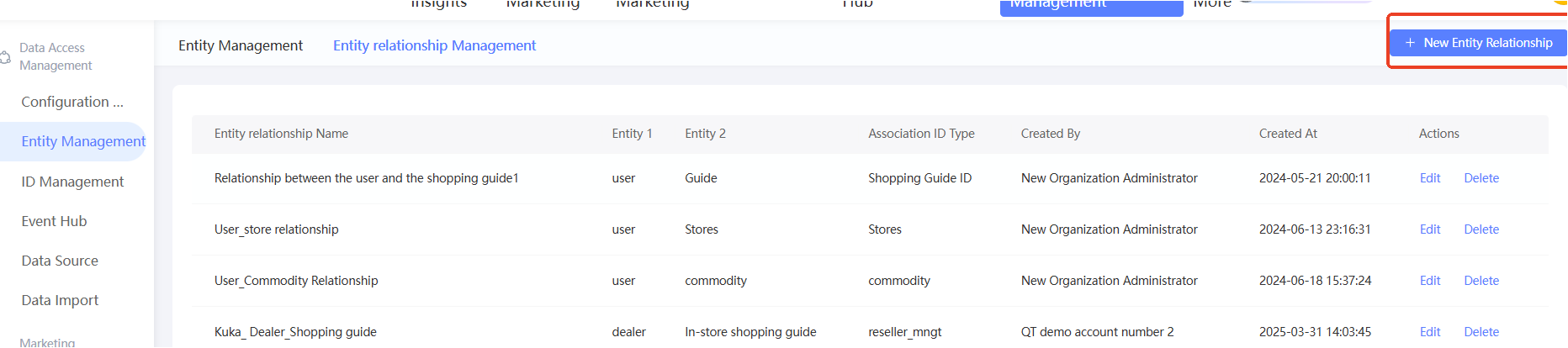
2. Enter an entity relationship name and select an entity to be associated. The association ID type must be a common ID on the two entities to be associated.
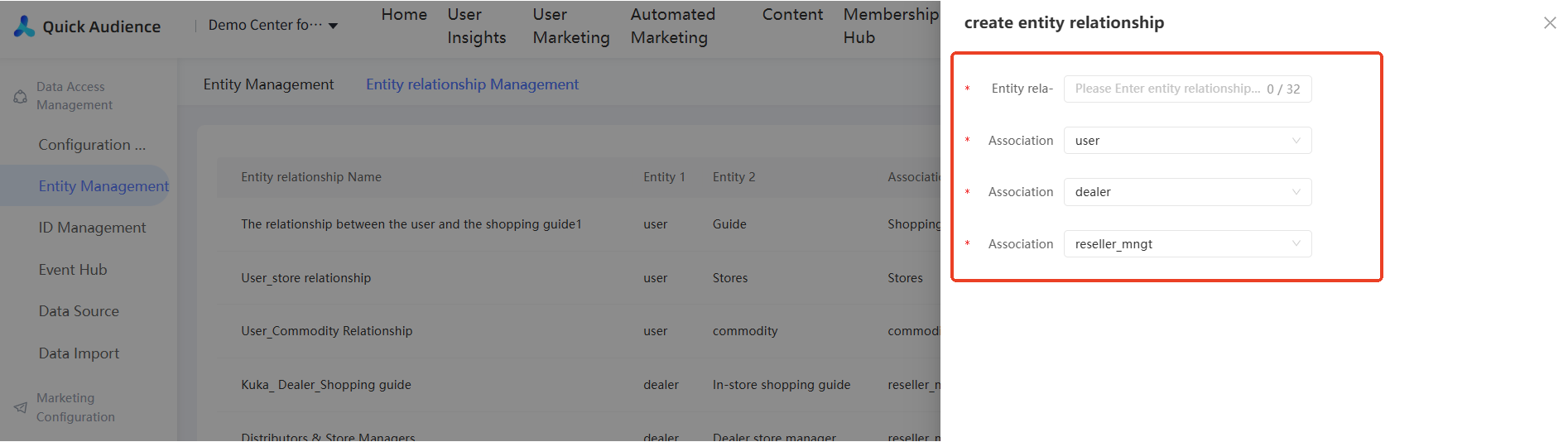
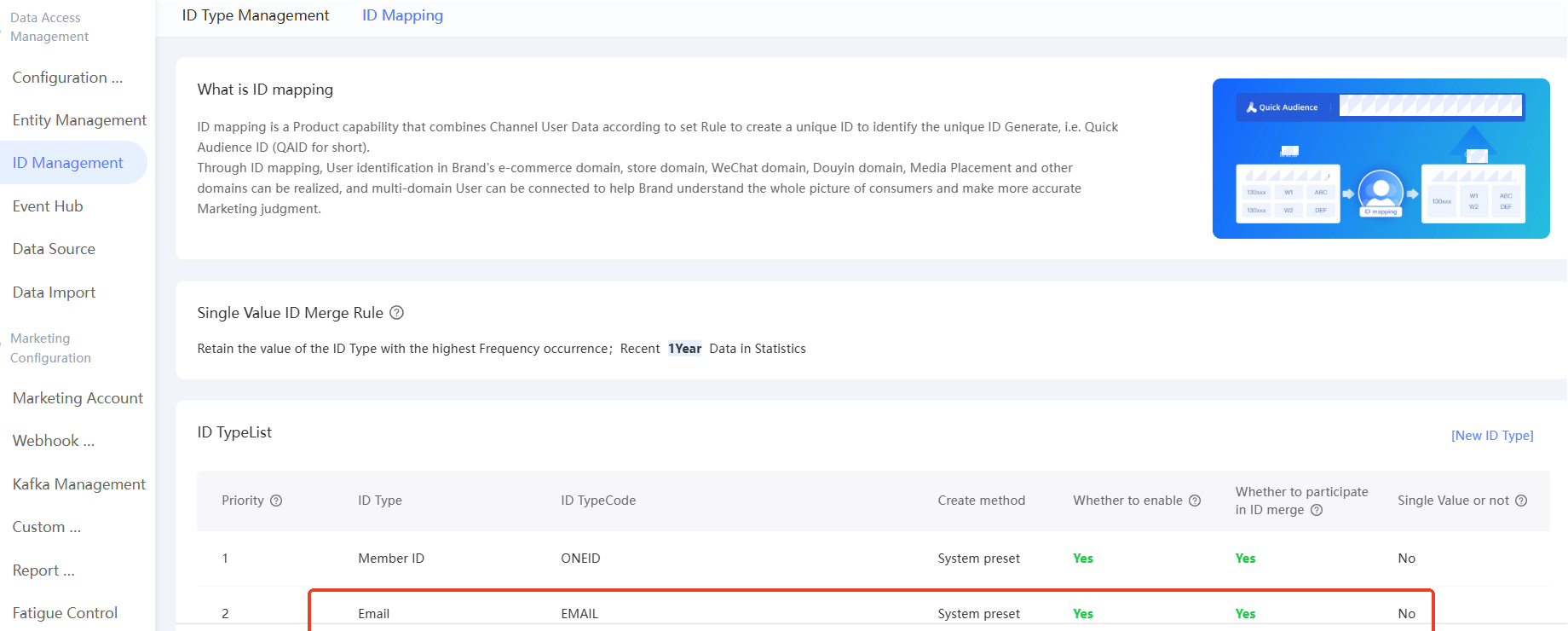
Note that before configuring the entity association relationship, you need to add the ID used to establish the entity relationship to the "user" entity in the Configuration Management → ID Management → ID Mapping. For example, if the "user" and "vehicle" entities are associated by the vehicle number, you need to configure the "vehicle number ID" to the list of "user" ID-Mapping. This ID is only enabled and does not participate in ID-Mapping. For more information, see ID Mapping.
New table configuration under 1.3 entity
After you configure an entity, you can select an entity on the Table Structure Configuration page of the Data Import → to add a table. For more information, see Table structure configuration. You can add a tag table and a behavior table for other entities except the user entity.
The following table types are supported for different entities:
User entities: user tag, statistics table, user behavior, order details, order summary, temporary tag table, and commodity tag
Other entities: tag tables and behavior tables
After the new table is configured, you must configure the scheduling task based on different entities when you configure the scheduling task.
Multi-entity user insights
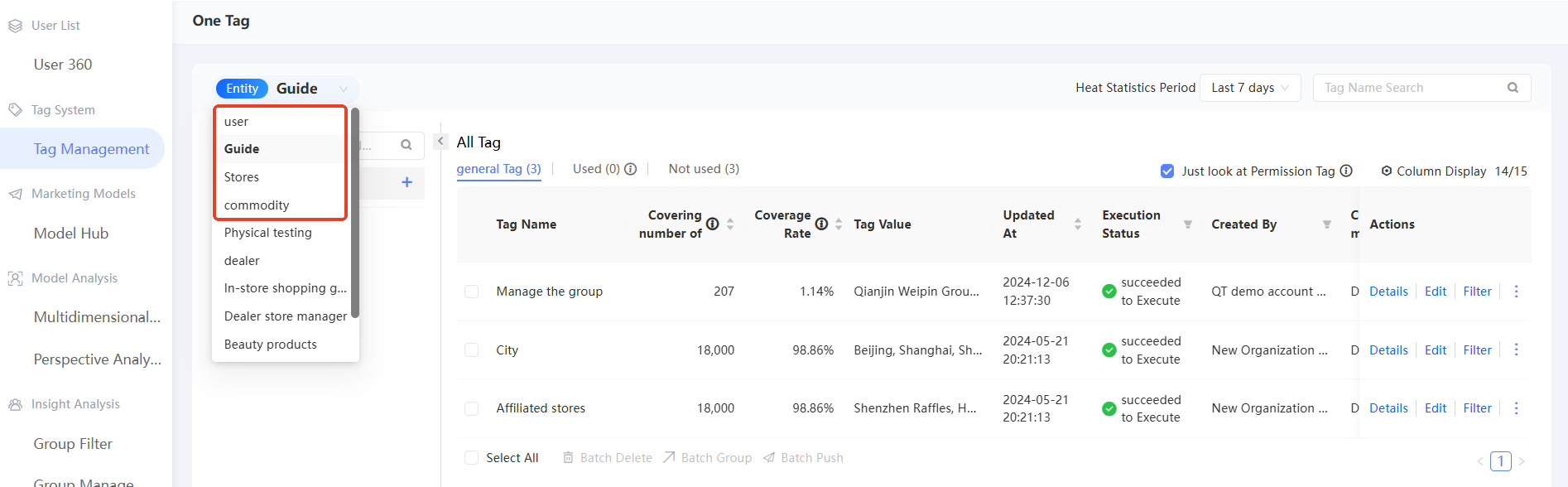
2.1 multi-entity tag management
After you add a tag table, you can click User Insight in the Tag Management section to manage the tags of the corresponding entity.
2.2 group screening
Under each entity, there are tags, behaviors, and groups corresponding to the entity for group screening. At the same time, cross-entity group screening can also be implemented.
Procedure:
1. In the Select Entity drop-down list, select the object entity for this filter.
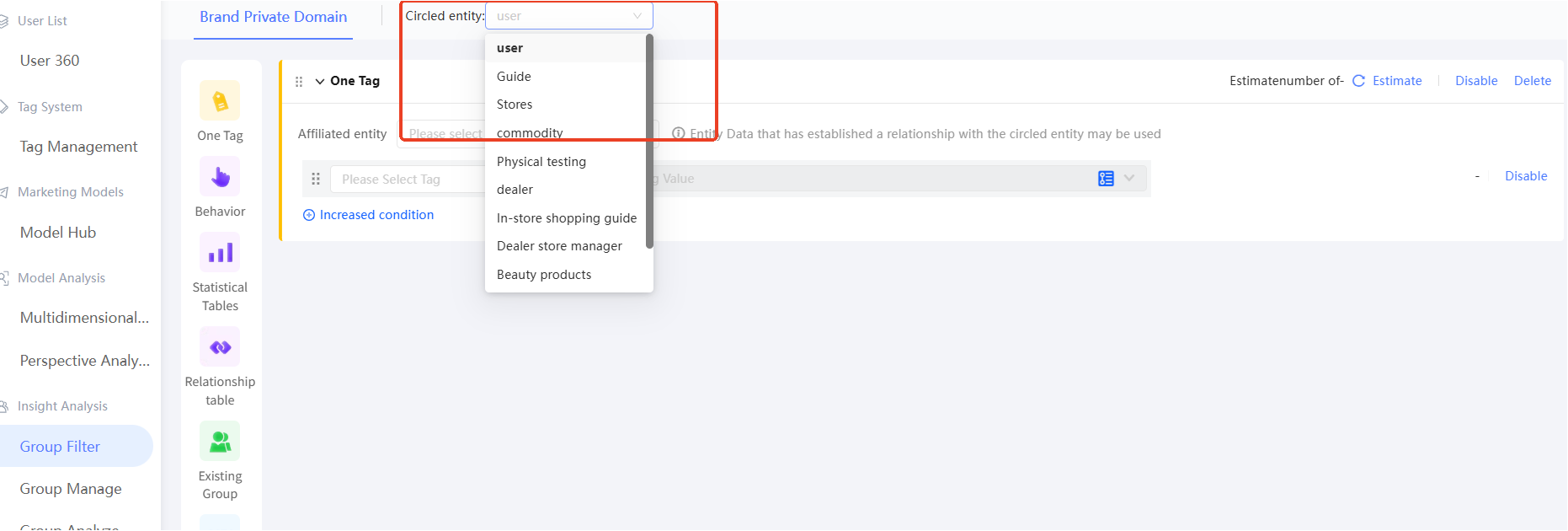
2. In the filtering module, filtering can be performed based on the corresponding data conditions under the entity for which the entity has configured the association relationship, and the combination of data conditions under different entities can be realized. For example, based on the vehicle entity, the system filters out VIP customers in the city where the user is located and the vehicle group has undergone maintenance behavior in the last month.
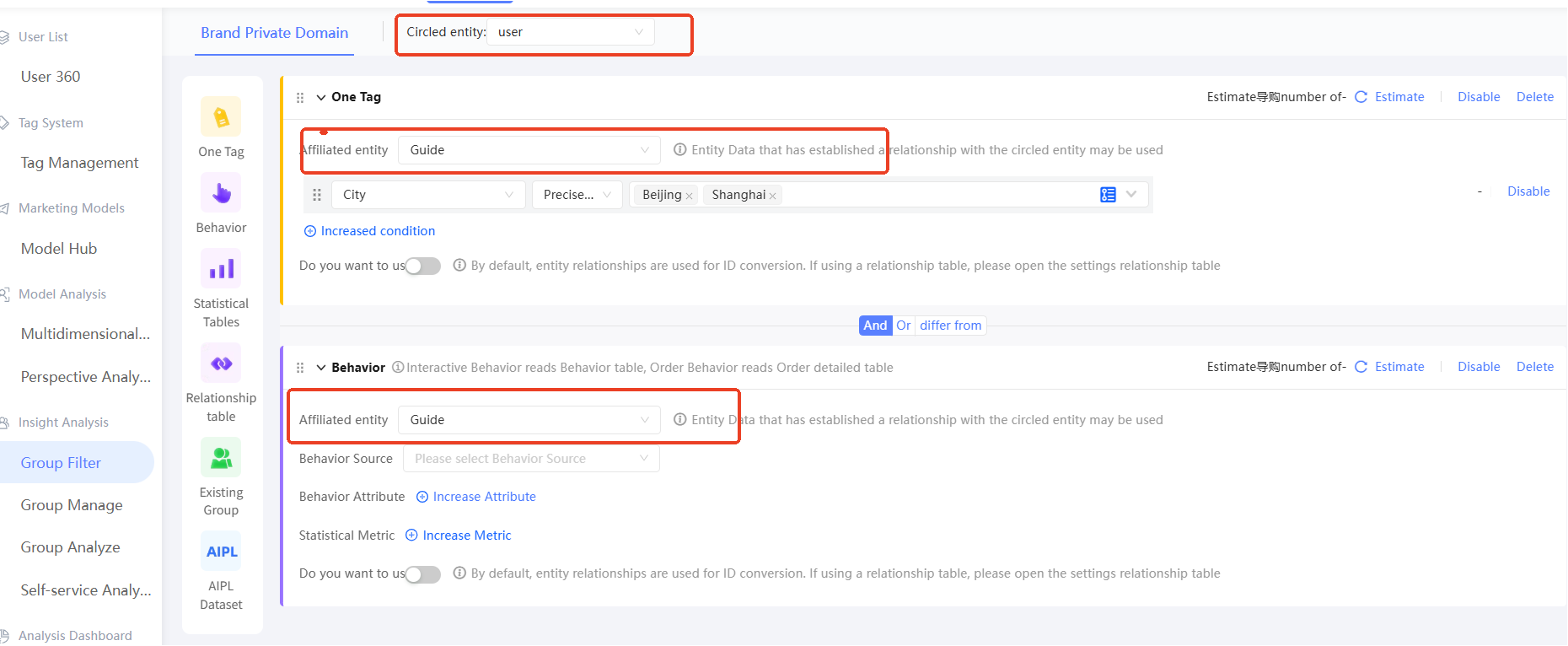
2.3 group management
You can switch entities to view the group information of different entities. When you configure the push information of a group, you can select the ID of the entity in the entity configuration and push it to the downstream system. For other configuration items, see the crowd push function.
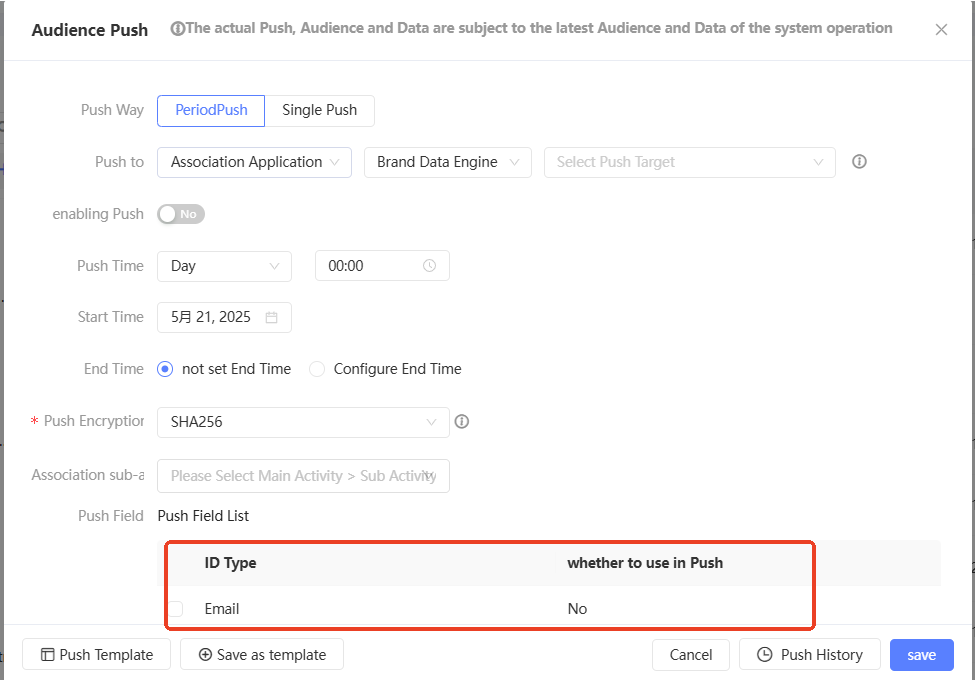
2.4 group analysis
Supports cross-entity analysis. You can select the corresponding entity of the group to be analyzed, and select tags under other entities to implement cross-entity insight analysis. The group comparison function can be used only under the same entity. For other configuration items, see Group Analysis.
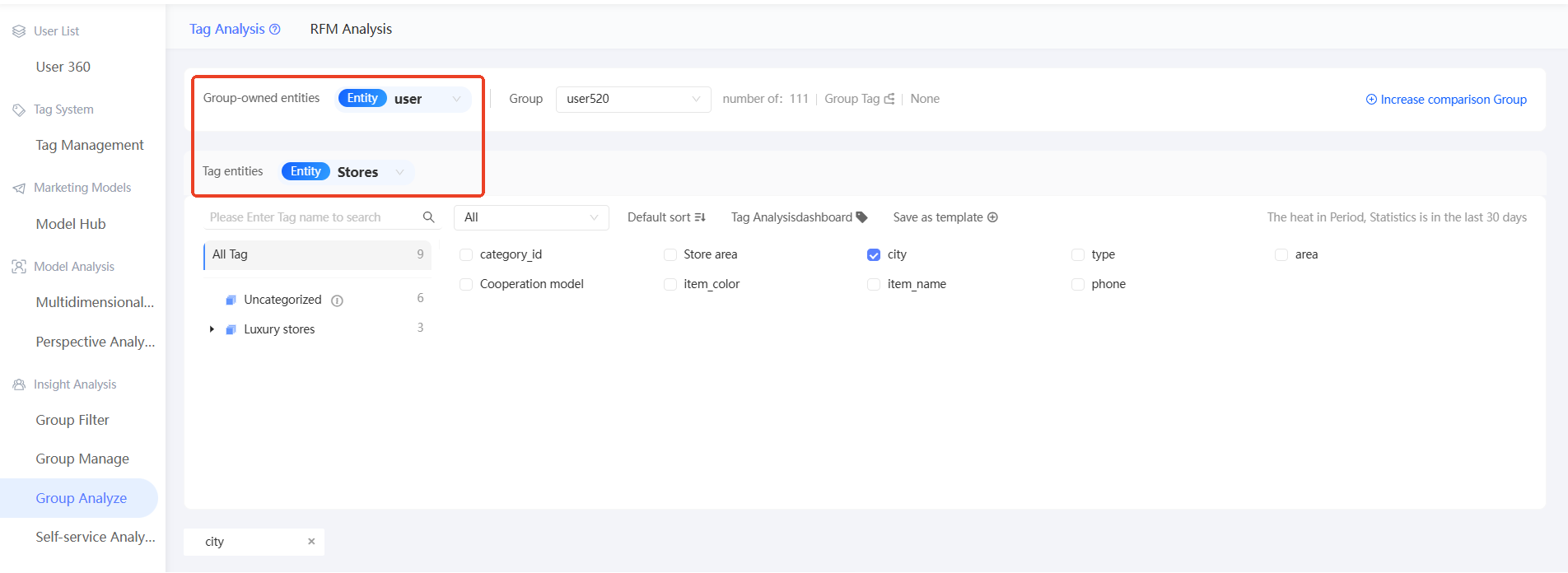
Third, the use of multi-entity relationships in automated marketing.
Quick Audience allows you to configure an automated marketing canvas with multiple entities as target objects and determine the touch conditions based on multi-entity relationships to achieve precise marketing touch. The procedure is as follows:
3.1 New Campaign
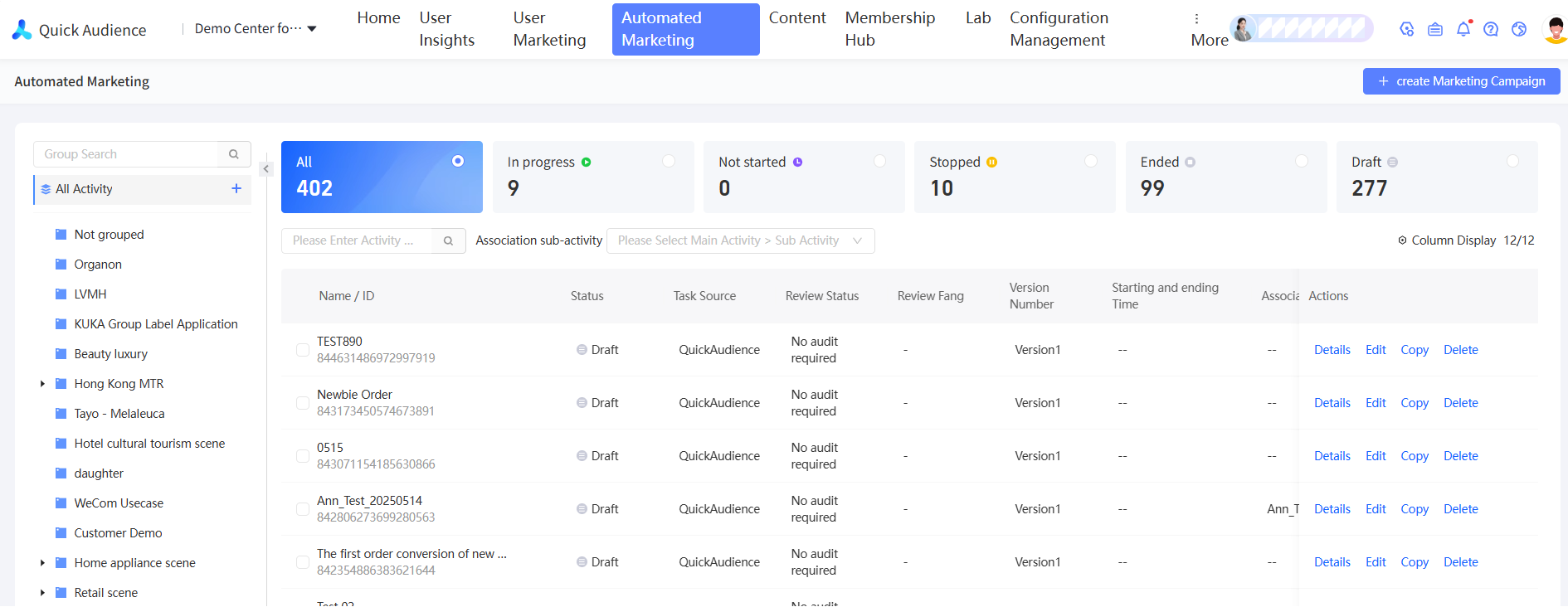
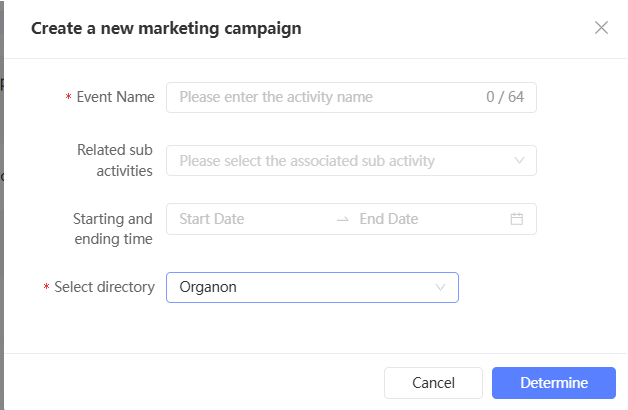
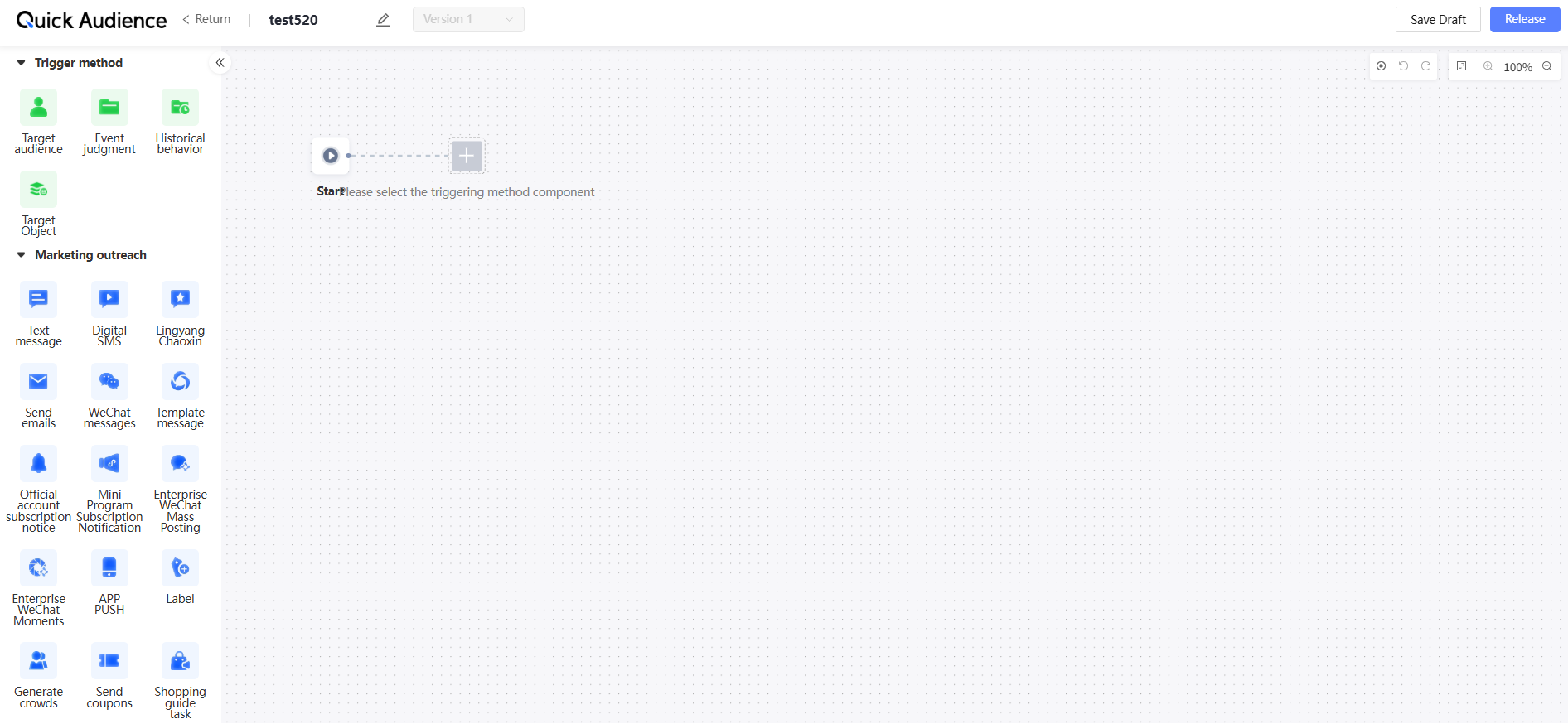
In the upper-right corner of the Automated Marketing page, choose Create Campaign > Customize to go to the Automated Marketing Canvas. For more information, see Create an automated marketing activity.
3.2 add target object component
On the Automated Marketing Canvas tab, set Target Object to the Trigger Method component, and set the Entity Type and Cluster parameters. You can select a maximum of 50 clusters. If the selected entity type has an entity relationship with the user, you can further select Inter-entity relationship for relationship determination in subsequent marketing processes:
All: You can touch the entities in the selected group or all users associated with the entities. You can use Relationship Determination or Relationship Filter in various touch components to filter the results that meet your business requirements.
Specified Link: After you configure this method, users that meet the requirements of the link type are found based on clustering in the beginning. You can only forward the filtered results later.
Do not specify a relationship: You can touch the car and all users associated with it, but you cannot use Relationship Determination or Relationship Filtering in various touch components
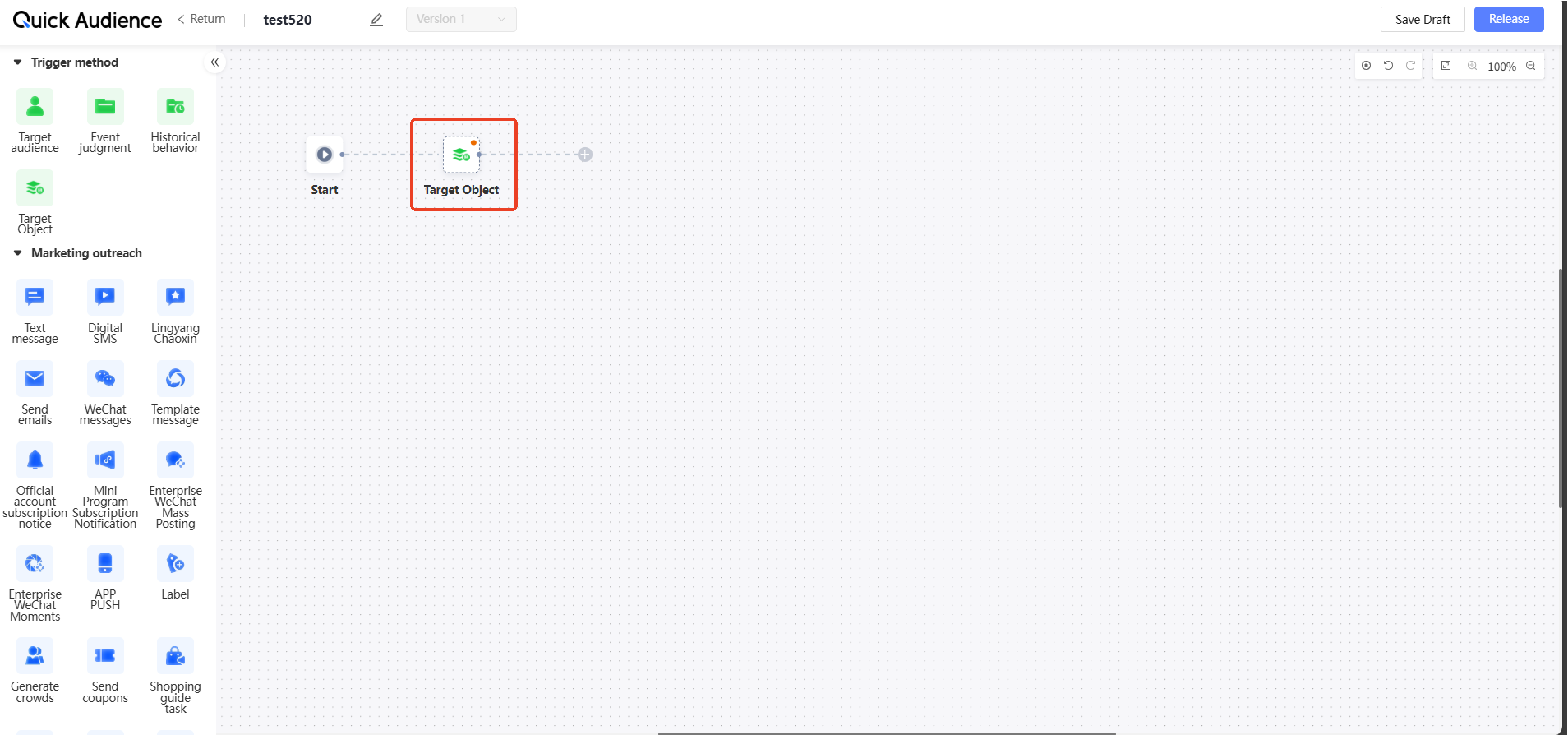
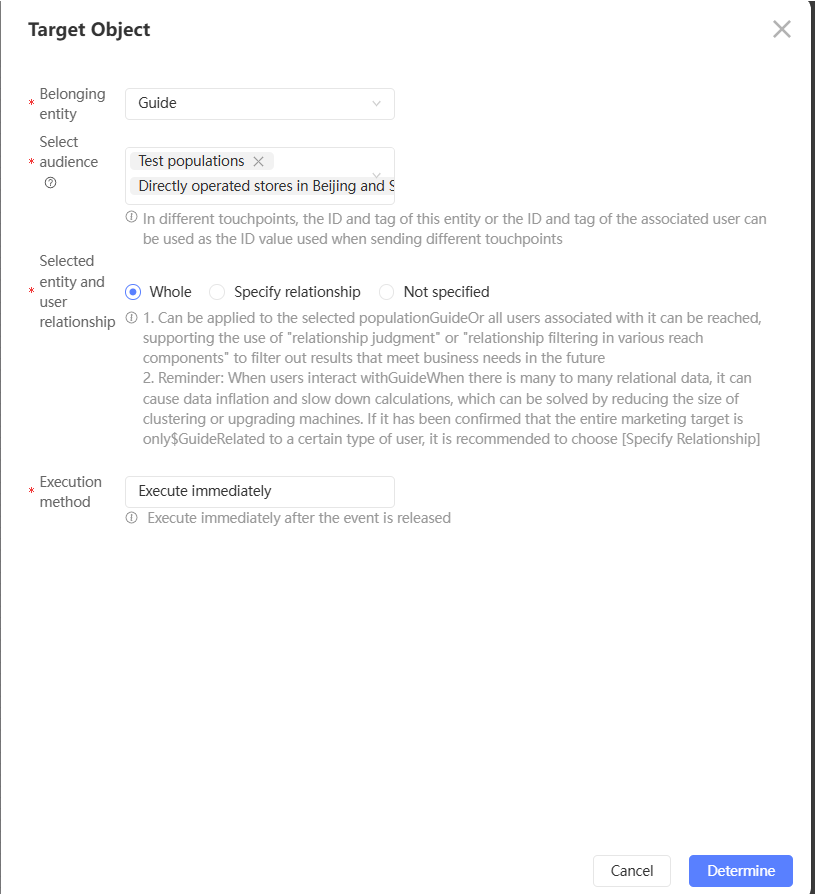
It should be noted that when there is a many-to-many relationship between users and vehicles, data expansion will lead to slow down the calculation, which can reduce the cluster size or machine upgrade to solve the problem. If you have confirmed that the entire marketing object is only a certain type of user associated with the car, we recommend that you select [Specify Relationship].
3.3 Based on entity relationship judgment precision marketing touch
Based on the entity relationships that you have configured, you can filter users that meet your business requirements for touch. The specific methods are as follows:
Method 1: You can add the Relationship Determination component to apply a specific marketing strategy to the target objects that meet the requirements of one or more entity relationships.

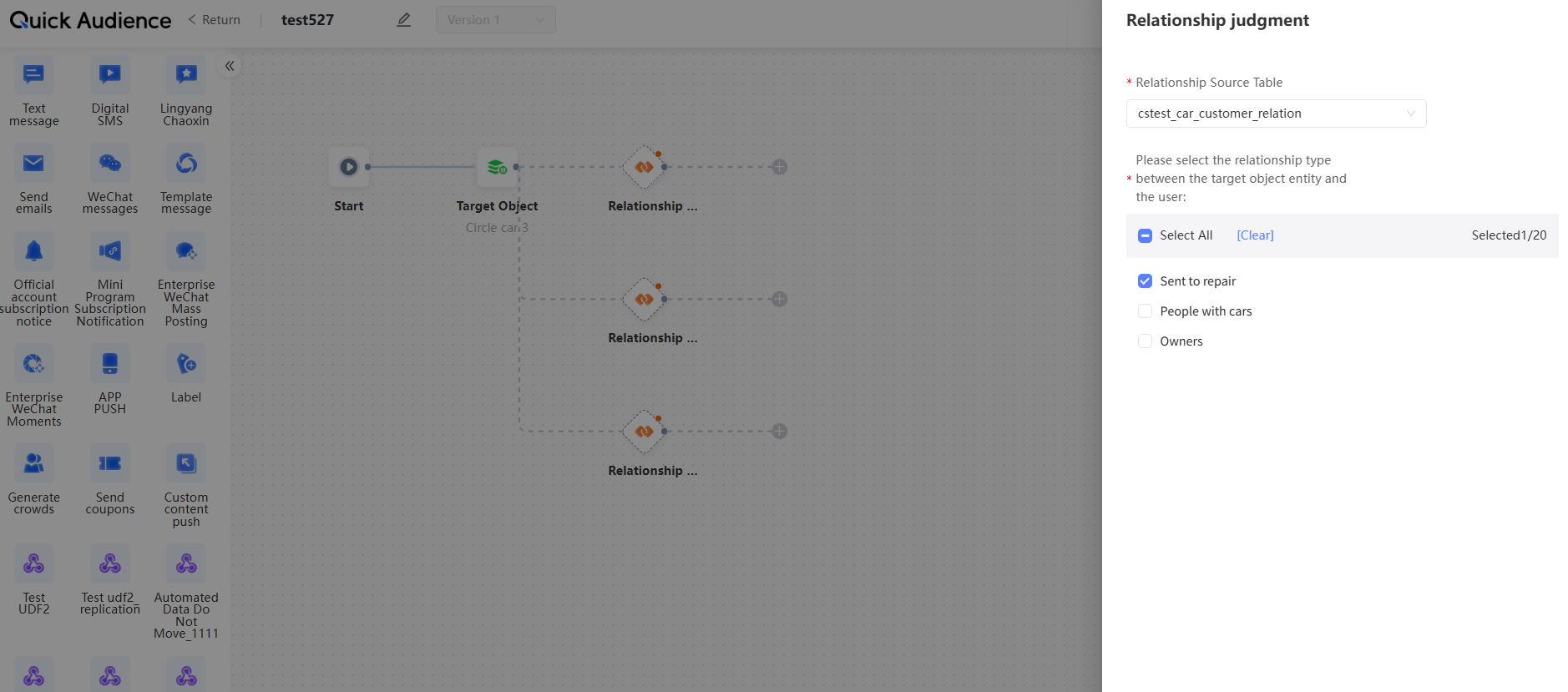
Method 2: You can also use entity relationships in various marketing touch components to filter and apply specific marketing touch strategies to target objects that meet certain entity relationships. For example, SMS A is sent to the user whose entity relationship is "car owner". SMS B is sent to the user whose entity relationship is "car insurance buyer".
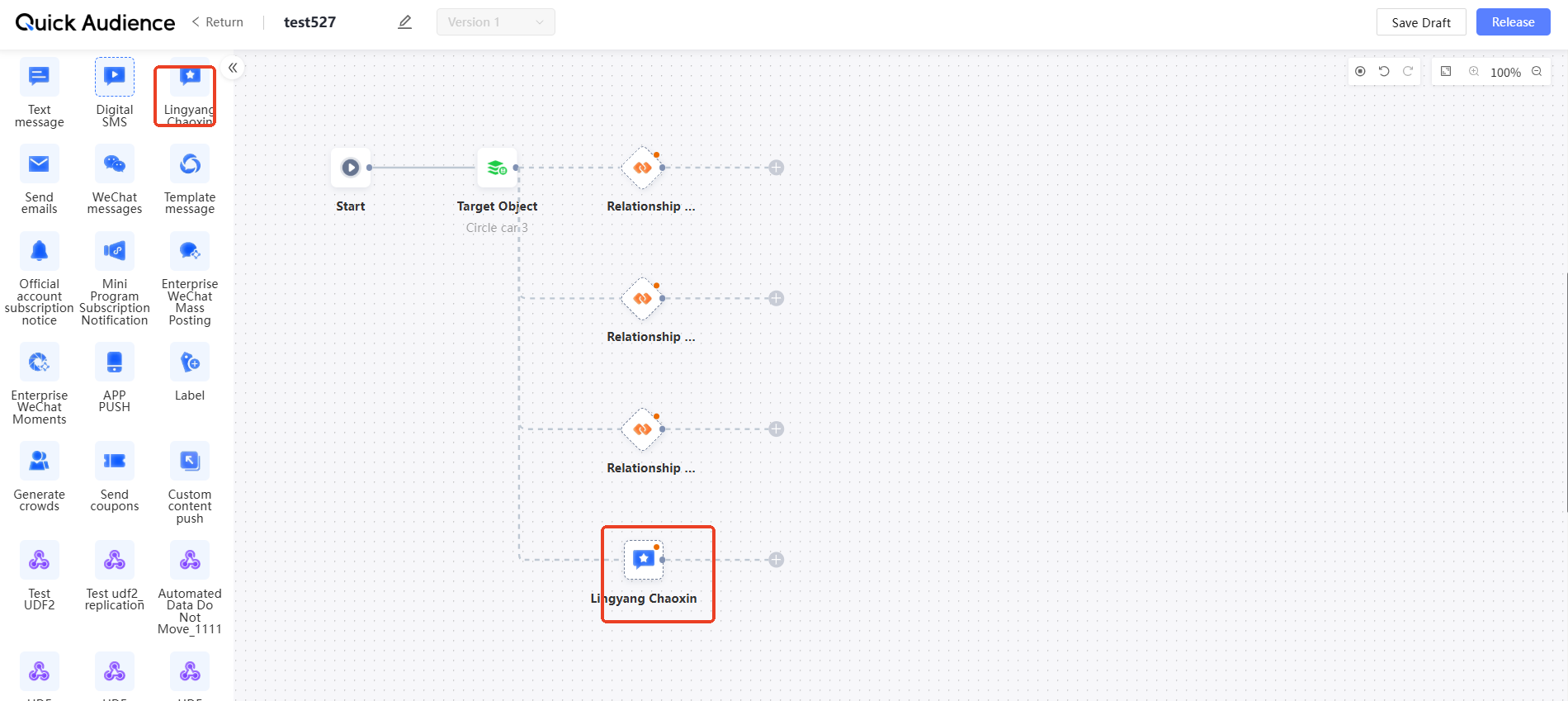
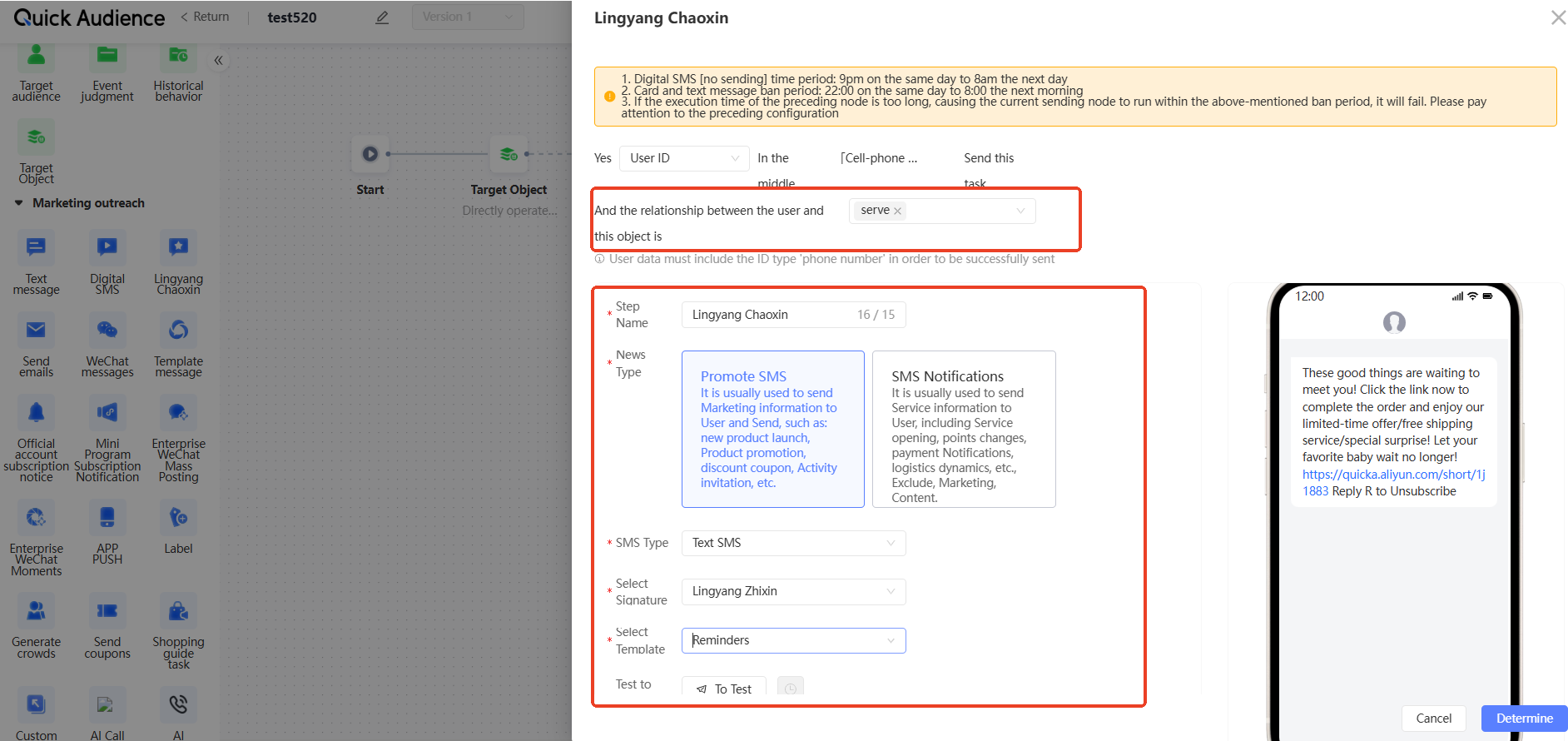
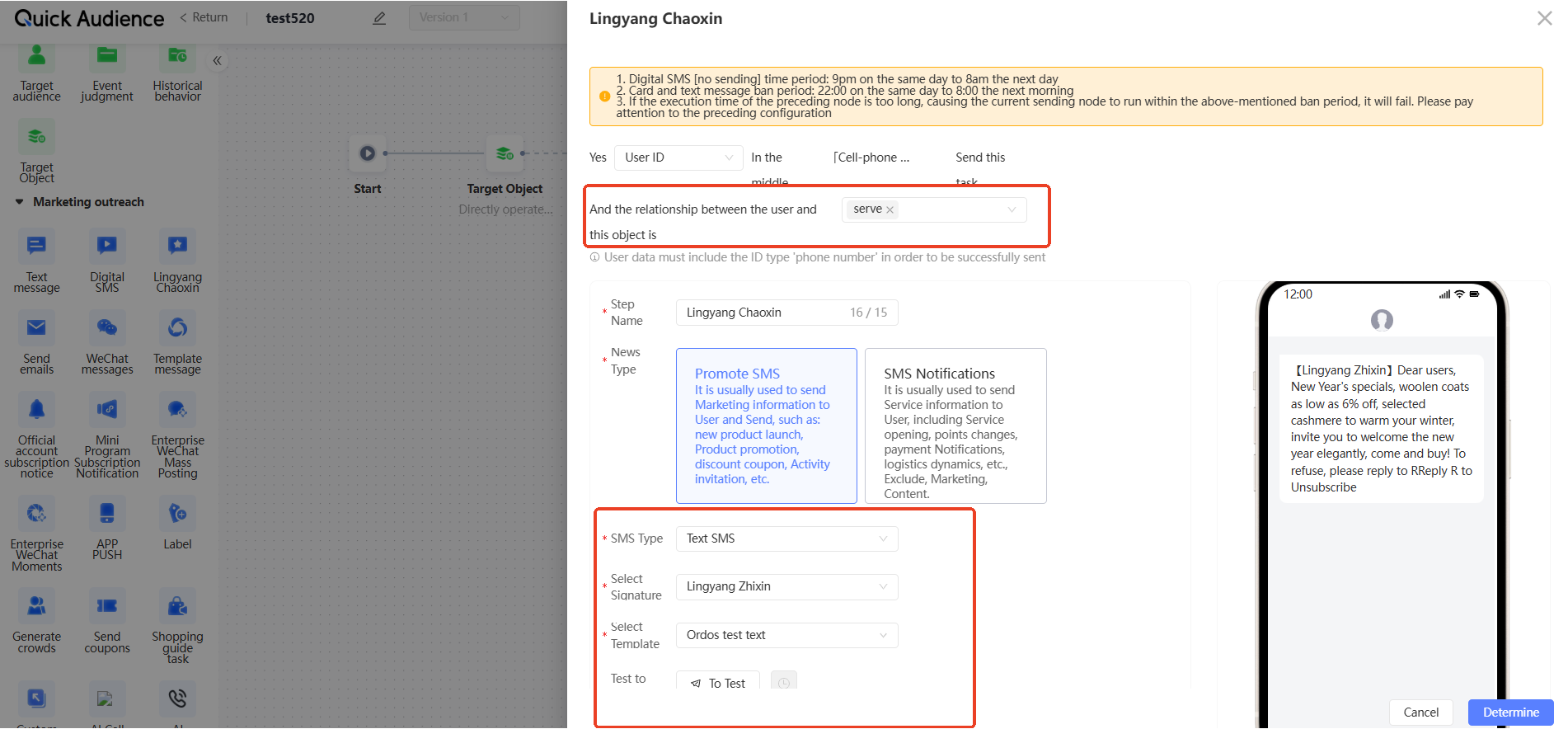
This section describes how to use entity relationship judgment in the automated marketing canvas. For more information about how to edit the regular of the automated marketing canvas, see Canvas operations.
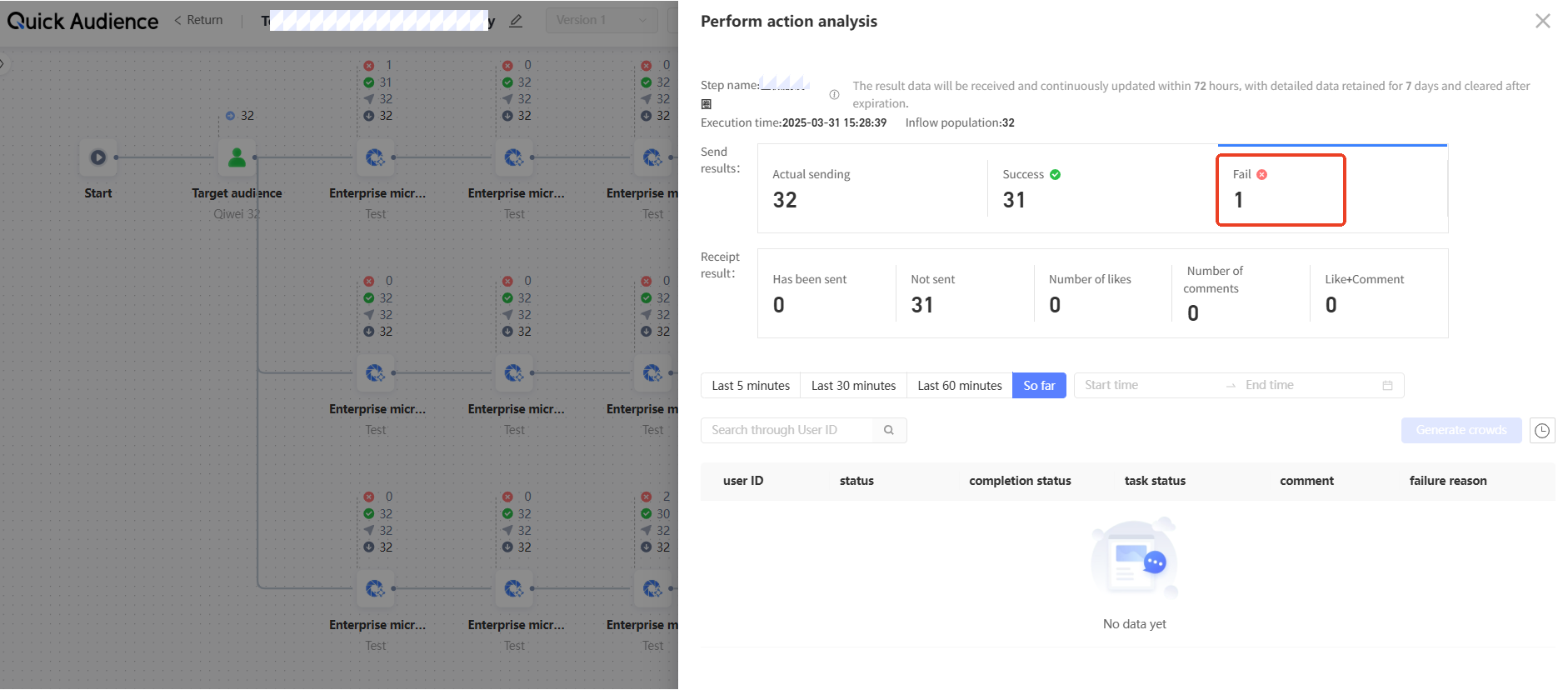
3.4 View Execution Results and Failure Causes
You can select the automated marketing activity that you created from the drop-down list to view the failure cause in the Execution Result section.
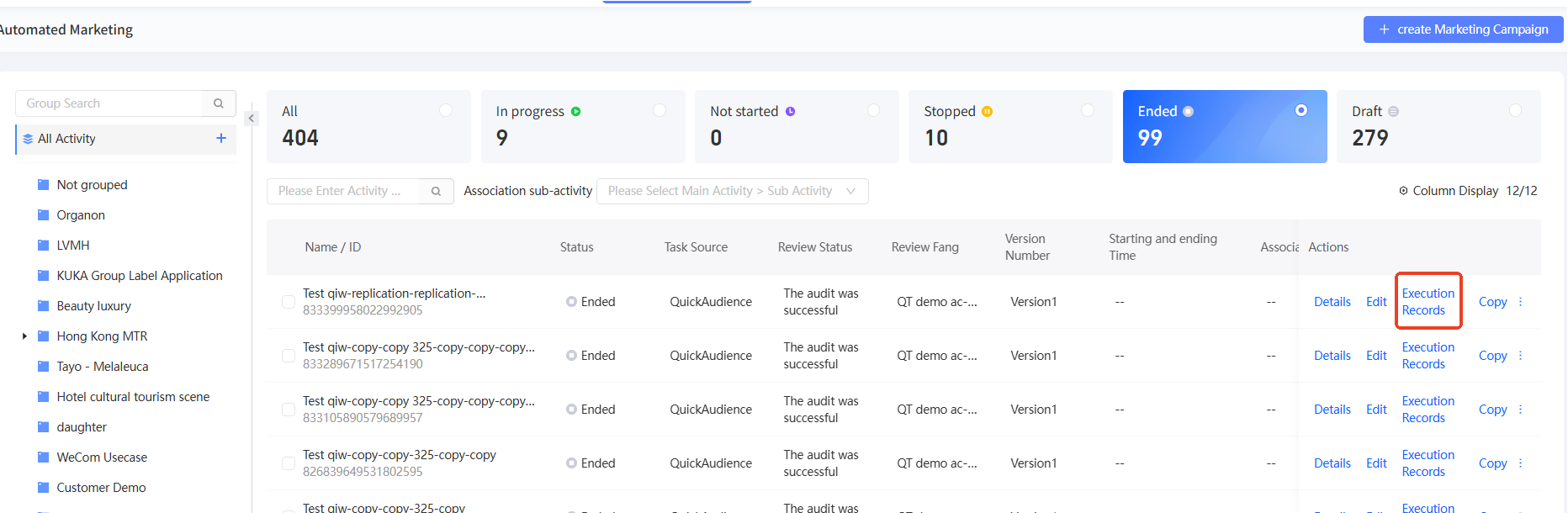
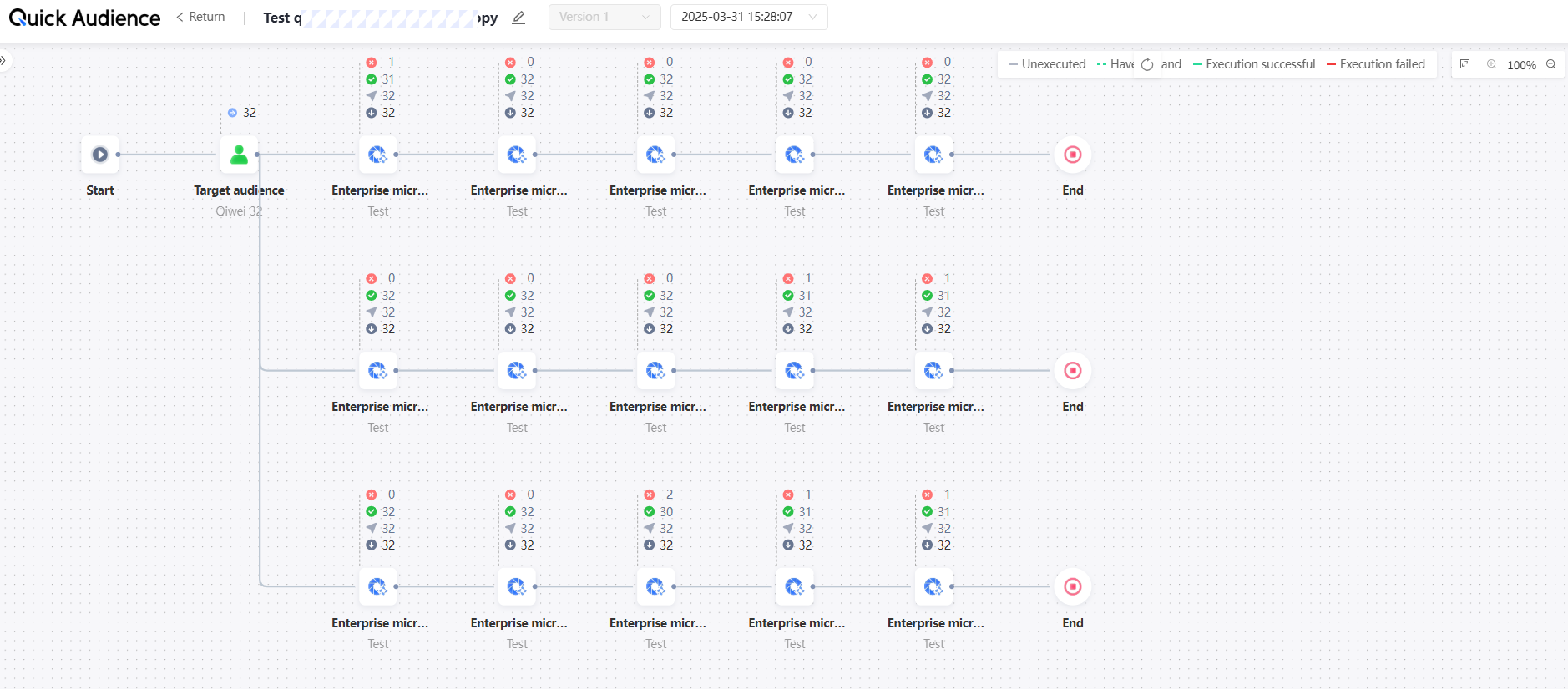
If the failure cause is "No Sendable ID is obtained based on the component configuration", we recommend that you check whether the entity relationship is established incorrectly.