Assigns specified tags, including user attributes, to users who pass through this component in a marketing workflow.
For example, you can tag a user with "Membership Level-VIP".
After a tag is added, the new tag value appears in the user profile of the user 360 in real time. After the next scheduled import of the tag source user tag table, the new tag value can be used for perspective analysis, audience filtering, and other applications.
-
To use the Tag component, you must first purchase a Tablestore instance and activate the feature. Contact your Alibaba Cloud sales manager. The Tablestore instance can be shared with the instance in Tablestore Authorization Configuration.
-
Available tags are not limited to the tag table of the user source. Any user ID matched by the user's QAID can be used regardless of which tag table the user ID belongs to.
To configure a universal filter, perform the following steps:
-
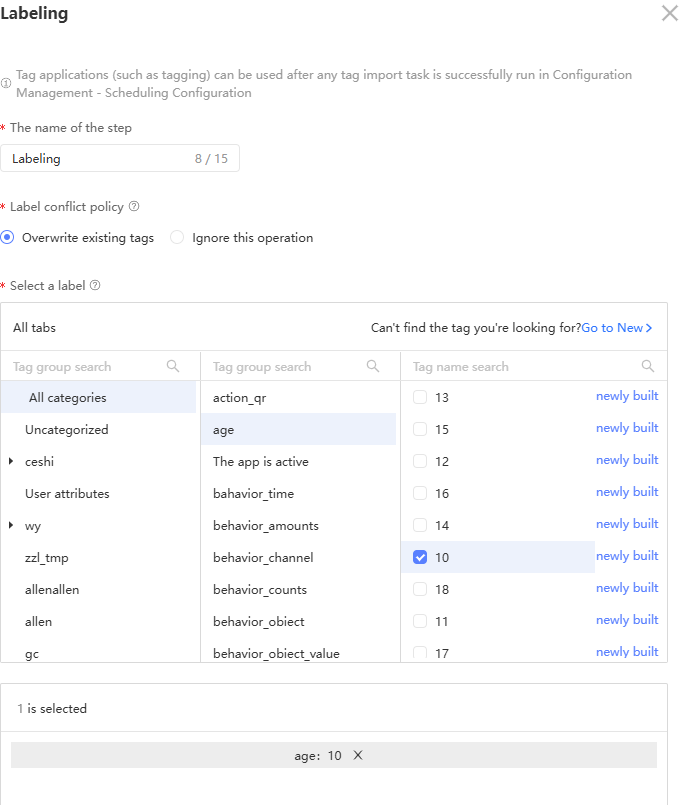
Click the Tag component and configure it in the panel that appears on the right, as shown in the following figure.
-
Enter a step name.
-
Select a tag conflict strategy:
-
Overwrite Existing Tags: If the user already has a value for the selected tag, the new tag value takes precedence.
-
Ignore this operation: If the user already has a value for the selected tag, the existing tag value is kept.
-
-
Select the tag and tag value to assign.
You can select a maximum of 20 tag values.
NoteYou can select text type (non-multi-value) or multi-value type tags.
If multiple tag values are selected for a text type (non-multi-value) tag, all tag values are applied successfully. The tag type is then changed to multi-value type after the next scheduled import of the tag source user tag table.
-
Click OK.