The Target Audience component determines who enters the flow. Place it immediately after the Start node and select the audience(s) to include.
For example, audience A enters the flow and runs once per month.
Target audiences must be created in the user insight module. You can build an audience by filtering from a data table, RFM model, or AIPL model, or by uploading an audience ID list. For more information, see Audience Management.
To configure a global filter, follow these steps:
Add the Target Audience component to the flow as the first component after the Start node. Click the component and configure it in the panel on the right.
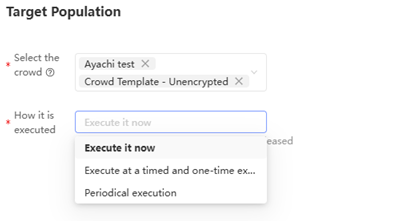
Select the target audience. You can select up to 20 audiences.
-
Select an execution mode:
Execute Now: Triggers the flow immediately as a one-time run.
-
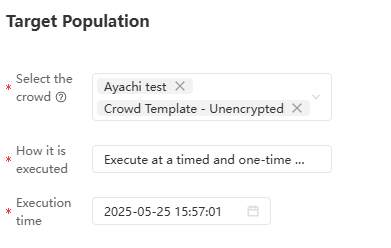
Scheduled one-time execution: Runs the flow once at a specified time.
Set the execution time as shown below.
-
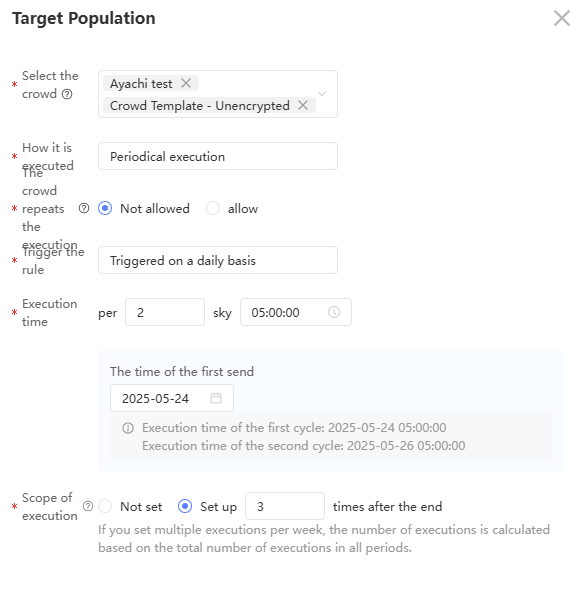
Recurring execution: Runs the flow on a repeating schedule.
NoteSetting this option makes the activity a recurring activity, which you can manage separately from non-recurring activities. For more information, see Manage automated marketing campaigns.
Re-entry control: Choose whether to run the flow when the same audience has not been updated since the last cycle.
Not allowed: Starting from the second cycle, the flow checks whether the audience has been updated since the last run. If the audience has not changed, the cycle is skipped. If multiple audiences are selected, all of them must be updated before the cycle runs. For example, if your audience refreshes weekly, select this option to skip weeks when the audience data has not changed.
Allow: Runs every cycle regardless of whether the audience has been updated.
Cycle settings: Set the cycle interval (hour, day, week, or month) and optionally limit the total number of executions.
After configuring the cycle settings, review the preview of the first two scheduled execution times to confirm the settings are correct before proceeding.
Click OK.