This topic describes the homepage and shortcut buttons in the upper-right corner.
Introduction to the homepage
If you have just switched to the new version or selected Homepage in the navigation pane, the homepage shown in the following figure appears.
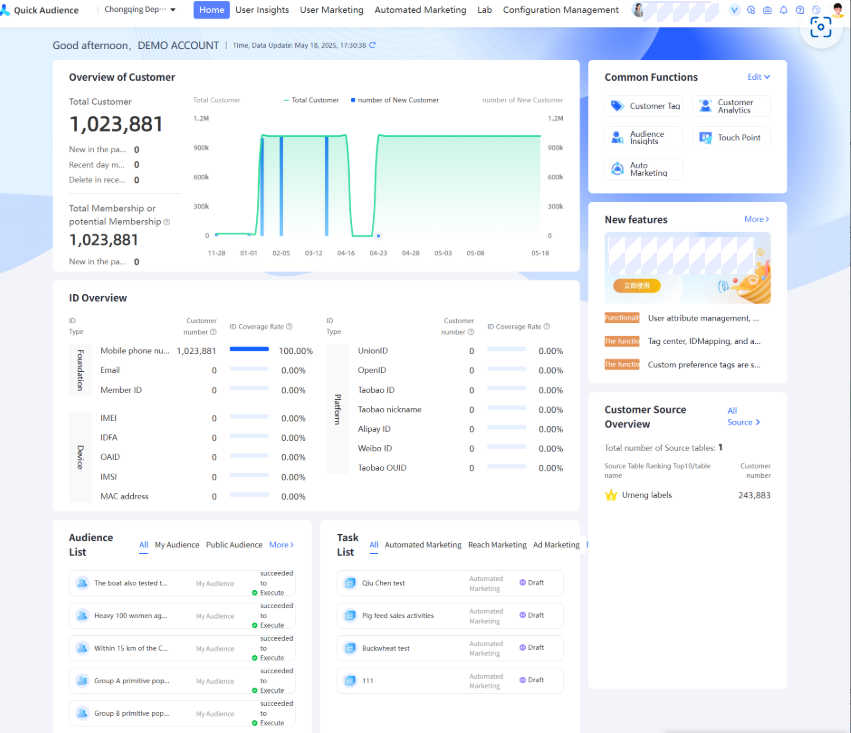
The first page contains (from left to right, top to bottom):
Top:
A drop-down list is provided on the right side of the Logo to switch the workspace corresponding to the statistics in the lower part.
In the top navigation bar, select the module that you want to access.
statement:
Customer Overview: displays the total number of customers in the workspace and their trends. Move the pointer over the chart to view the specific data of the current day.
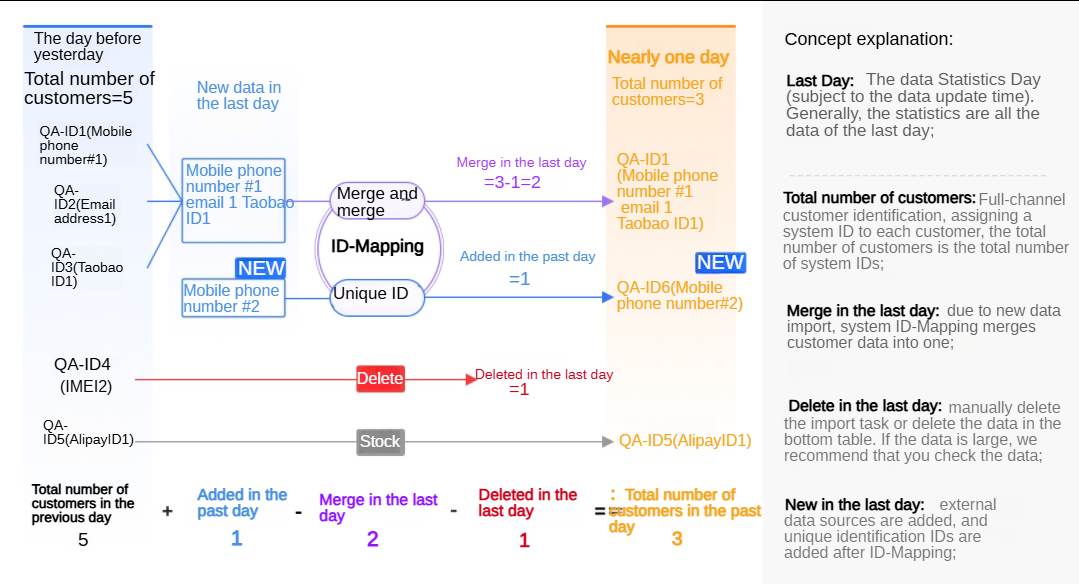
Customer refers to a user who is assigned a QAID by the system after ID Mapping. The following figure shows the principles of adding, merging, and deleting customers.
It also shows the total number of members or potential members and the number of their additions in the last day. A member or potential member is a customer with mobile phone number data.
ID Overview: displays the number of customers and the ID coverage of each ID type in the workspace. Where, ID coverage=Number of ID type customers /Total number of customers.
NoteSince different types of IDs may match the same customer, the sum of ID coverage for each ID type may exceed 100%.
Crowd List: displays the list of the most recently updated groups. Move the pointer over a group to view the analysis, push, and application of the group. Click More to go to the Audience Management page.

Task List: displays the list of the most recently updated marketing tasks. Move the pointer over a task to view the task. Click More to go to the corresponding marketing module.

Right:
Common Features: provides quick access to common features. Click Edit to select up to six common features.
New Features: provides links to the release notes of the latest major features. Click More to go to the release notes directory of all released versions.
Customer Source Overview: displays the top 10 source tables that contain the largest number of customers. Click All Sources to go to the Source Table Management page.
Shortcut button introduction
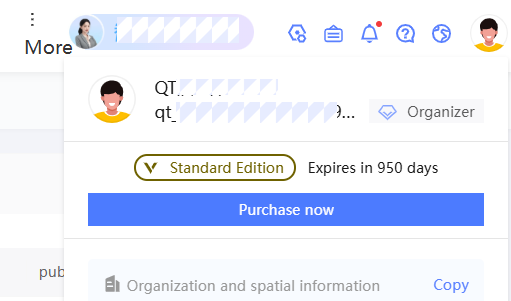
In the upper right corner of each page, there are several buttons and avatars, as shown in the following figure. 
From left to right, their functions are:
Management Center: Go to the Management Hub page.
Description: the description of the update.
Message Center: includes notifications and approvals. For more information, see Message Hub Documentation.
Help Center: contains links to help documents and release notes on the Alibaba Cloud official website.
Language: Chinese (Simplified), Chinese (Traditional), and English are available.
Avatar: After you move the pointer over the avatar, a pop-up window displays the nickname, username, and role of the user. Click Exit to exit the logon.