Build an AIPL model from your user behavior table to run AIPL User Analysis and filter audiences by brand engagement stage.
What is the AIPL model?
The AIPL model quantifies and links brand user assets. Each letter represents a stage of brand intimacy:
A (Awareness): brand awareness users — users with passive brand exposure, such as through brand ads or category keyword searches.
I (Interest): brand interest users — users who actively engage with the brand, such as by clicking ads, browsing the brand or store homepage, participating in brand interactions, viewing product detail pages, searching brand keywords, receiving trials, subscribing or following, or adding items to a wishlist.
P (Purchase): brand buyers — users who have completed at least one purchase.
L (Loyalty): brand loyal users — users who have re-purchased or left positive reviews and shares for the brand.
The stage priority order is A<I<P<L. When a user qualifies for multiple stages simultaneously, they are classified into the highest-priority stage. For example, a user who satisfies P but not L is classified as P, regardless of whether they also satisfy A or I.
As data in the user behavior table is updated, a user's AIPL stage may change, or new users may enter the model. Use AIPL Flow Analysis to measure how users move between stages over time.
Create an AIPL model
An AIPL model classifies users into four groups — A, I, P, and L — based on behavior type, the number of user behaviors, and purchase amount. The model is built on an imported user behavior table.
For sample user behavior table formats, see Quick Audience Import Data Table Requirements. For instructions on importing data, see User Behavior.
Go to Workspace > User Insight > Marketing Model > AIPL Model.

Click New in the upper-right corner.
User Behavior Data is selected as the analysis data source by default. Click Next.

-
Configure AIPL rules for each of the four groups (A, I, P, L).

For each group:
-
Select a channel source from the drop-down list.
The channel source identifies how users reached the brand — it is distinct from the behavioral channel in your behavioral dataset. When the model is pushed to the data bank, this field distinguishes which channel the users came from. The system includes preset channel sources. Click the
 icon to edit a channel source. For more information, see Edit channel source.
 -
Set rules based on your business requirements.
-
Set the behavior time interval, select the user behavior table (using its import alias), and configure the behavior channel and behavior type.
-
Multiple time-setting methods are available. For details, see Time-based.
NoteIf you set a non-specific time, the AIPL model recalculates from the update time each time it runs. If you set a specific time, results stay fixed unless the underlying behavior records change.
Select All or Select All to include all search results.
-
Click + Statistical Metrics and + Behavior Attributes to add more conditions. Up to two statistical metrics and five behavior attributes are supported per group. All conditions within a group use an intersection relationship — users must satisfy every condition simultaneously.
Click + AIPL Rules to add another rule within the same group. Adjacent rules support AND, OR, and DIFFERENCE relationships. The default is OR. Click the relationship label to switch between them.

-
-
After configuring all four groups, click OK. Enter a name for the model in the dialog box and click OK.
The AIPL model list opens and shows the newly created model. For management operations, see Manage AIPL models.
Edit channel source
On the Configure AIPL Rule page, click the icon next to Channel Source. The Edit Channel Source dialog box appears.

The system provides default channel sources. Add, edit, or delete them as needed.
To add a channel, click + on the right.
To edit or delete an existing channel, click the channel name. The
 and
and  icons appear. Click the appropriate icon.
Manage AIPL models
AIPL models support the following operations from the model list: edit, AIPL user analysis, update, push, push history, rename, delete, permission settings, and update settings.
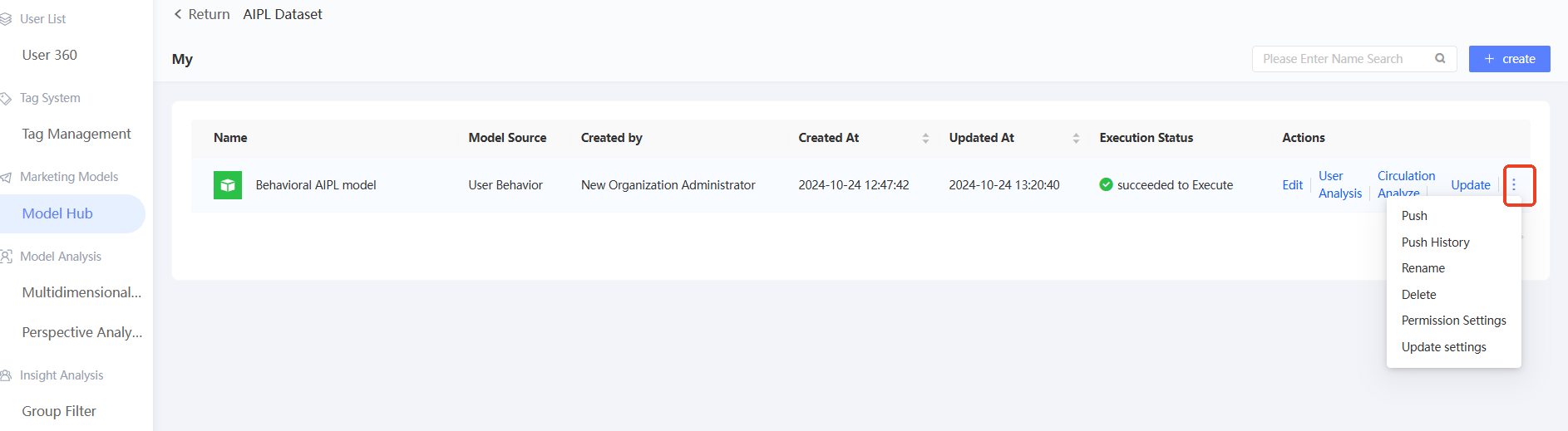
Edit: Click Edit to modify the model configuration.
User analysis and flow analysis: Run AIPL User Analysis and AIPL Flow Analysis
for the model.
Update: Click Update to immediately recalculate the model.
Rename: Choose
 /> Rename to change the model name.
-
Delete: Choose
/> Delete and confirm.NoteA model that has generated a crowd cannot be deleted.
-
Permission settings: Grant non-administrator users permission to use or manage the model. For details, see Authorize Tags.
NoteAuthorized non-administrators can see the model on the Authorized tab of the AIPL Models page.
Administrators can manage all AIPL models in the workspace by default and see them on the My tab of the AIPL Models page.
-
Update settings: Choose
/> Update Settings. In the Update Settings dialog box, turn on Auto Update and set the update schedule. Within the configured date range, the model updates automatically each time the user behavior table completes a scheduled task.  Note
NoteIf the workspace's update parallelism limit is set in the management center, automatic updates that exceed the limit are queued. For details, see Workspace System Configuration.