Connect to your PolarDB for PostgreSQL(Compatible with Oracle) cluster using pgAdmin 4, a graphical client that lets you run queries and manage your data.
Other connection methods
You can also use the command-line interface (CLI) — download it from Download clients and drivers. For driver-based connections, see:
Prerequisites
Before you begin, make sure you have:
A privileged account or standard account for the cluster — see Create database accounts
Your client's IP address added to the cluster whitelist — see Configure a whitelist for a cluster
pgAdmin 4 installed on the client machine (such as an Elastic Compute Service (ECS) instance) — download from pgadmin.org/download
Get your connection details
Before opening pgAdmin 4, collect the following information from the PolarDB console. Having these details ready avoids interruptions during the connection setup.
| Detail | Value | Where to find it |
|---|---|---|
| Endpoint | The endpoint of your PolarDB cluster | PolarDB console > cluster ID > Endpoints section |
| Port | 1521 (default) | PolarDB console > cluster ID > Endpoints section |
| Maintenance database | postgres (default) | N/A |
| Username | Your cluster account name | The account you created for the cluster |
| Password | Your cluster account password | The password for that account |
Internal vs. public endpoint: Use the internal endpoint if your client is on the same virtual private cloud (VPC) or classic network as the cluster. Use the public endpoint if you're connecting over the Internet. Using the wrong endpoint type causes connection failures.
To find the endpoint:
Log on to the PolarDB console.
In the upper-left corner, select the region where your cluster is deployed.
On the Clusters page, click the ID of your cluster.
In the Endpoints section, copy the appropriate endpoint.
Connect using pgAdmin 4
Launch pgAdmin 4.
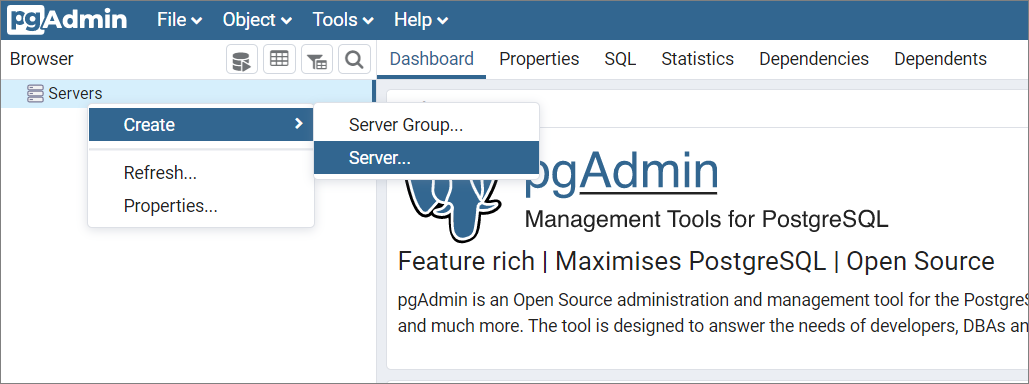
Right-click Servers and choose Create > Server.
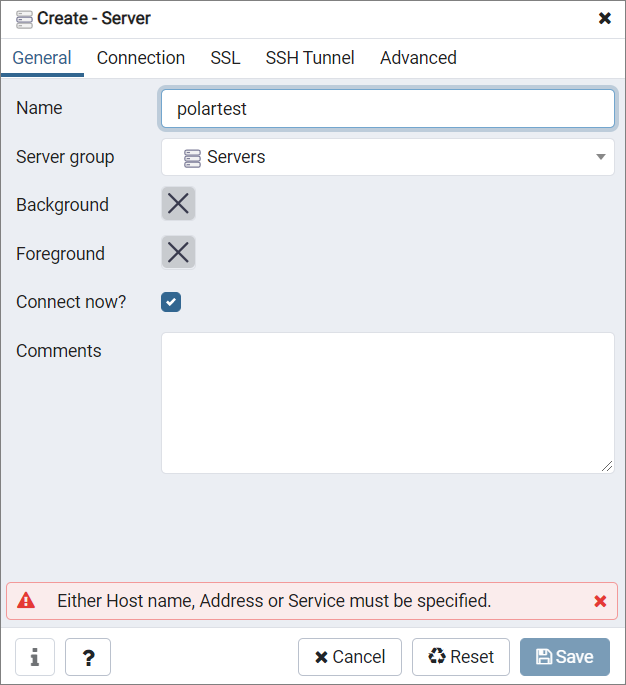
On the General tab of the Create - Server dialog, enter a name for this connection.
Click the Connection tab and fill in the cluster details using the values you collected earlier.
Parameter Value Host name/address The endpoint of your PolarDB cluster Port 1521Maintenance database postgresUsername Your PolarDB cluster account Password The password for the account 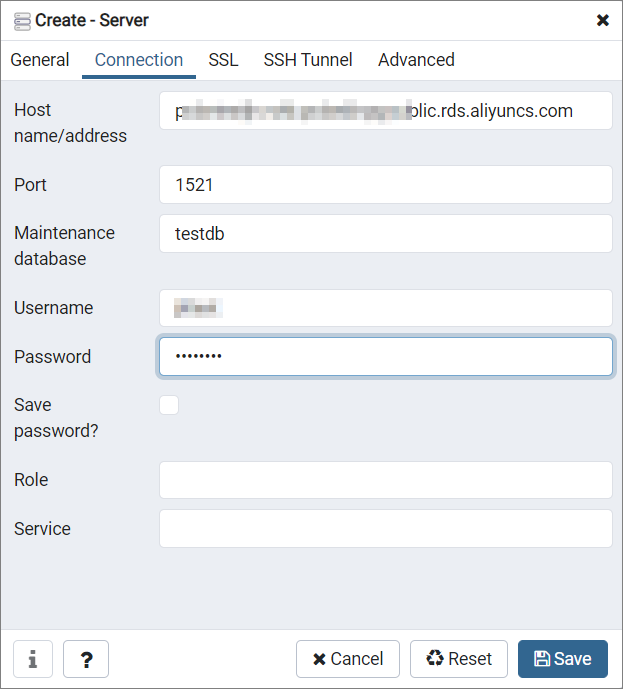
Click Save.
Click the database name. A dashboard similar to the following page confirms the connection is established.
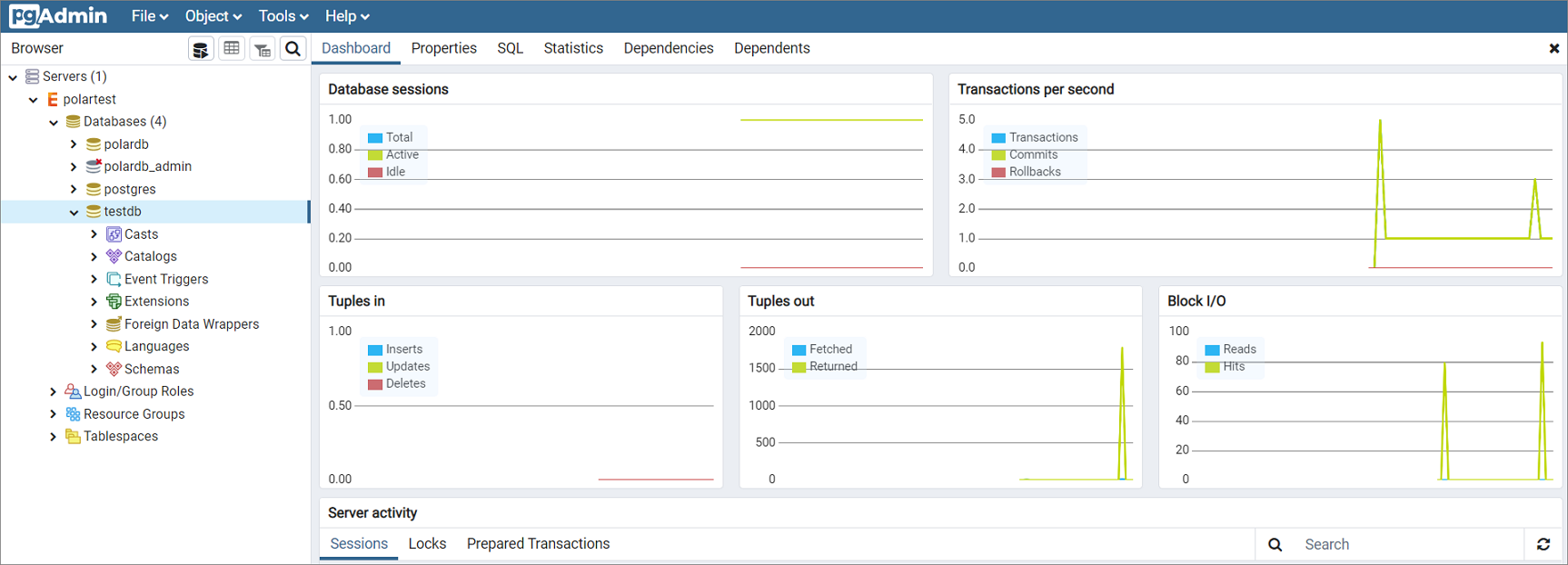
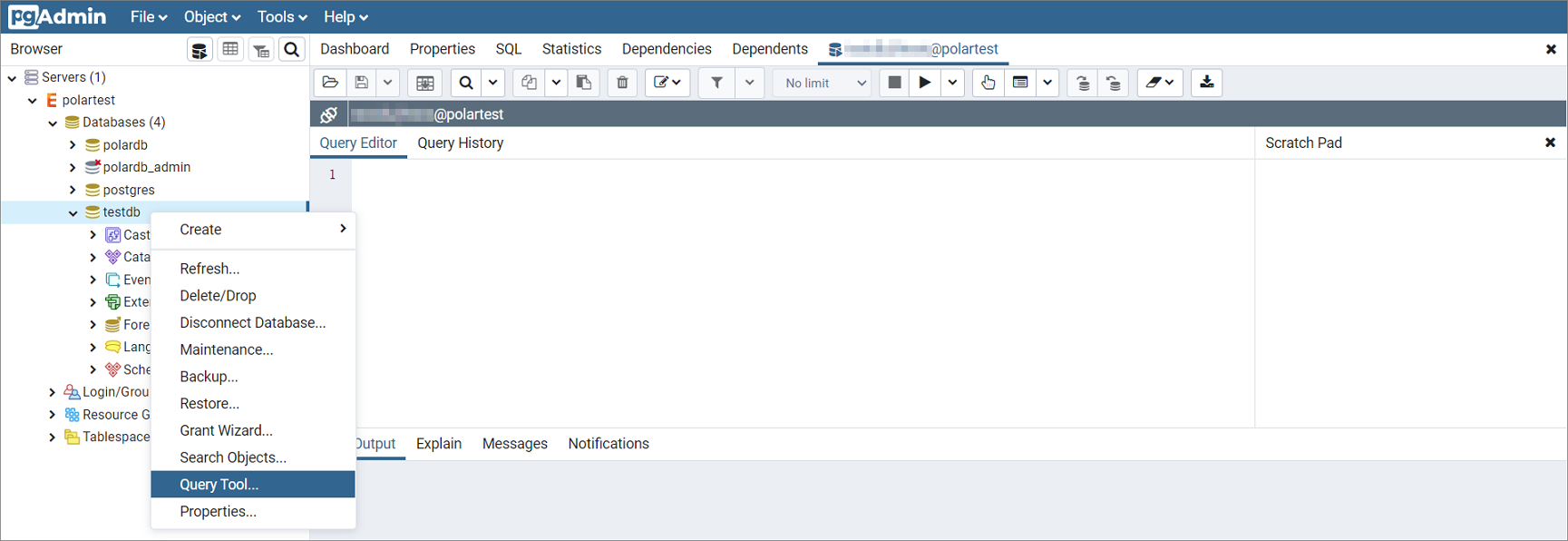
Right-click the database name and select Query Tool... to open the query editor, where you can add, delete, update, and query data.
What's next
Troubleshooting
If the connection fails immediately, check the most common causes in order:
Whitelist not configured — connection is refused immediately
Wrong endpoint type — connection times out or is refused even with a correct whitelist
DNS resolution failure — pgAdmin 4 cannot resolve the hostname
Whitelist not configured
The default whitelist contains only 127.0.0.1. In PolarDB, 127.0.0.1 indicates that no IP address is allowed to access the cluster. Add your client's IP address to the whitelist — see Configure a whitelist for a cluster.
Common whitelist mistakes:
| Mistake | Fix |
|---|---|
Entry set to 0.0.0.0 | Use 0.0.0.0/0 instead |
| Dynamic IP address listed | Re-check your current public IP address and update the whitelist |
0.0.0.0/0 allows all IP addresses to connect. Use it with caution.
Wrong endpoint type
Using an internal endpoint over the Internet, or a public endpoint over an internal network, causes connection failures. Match the endpoint type to your network:
| Network | Endpoint to use |
|---|---|
| Same VPC or classic network as the cluster | Internal endpoint |
| Internet | Public endpoint |
DNS resolution failure
Check the following in order:
Verify the endpoint. Log on to the PolarDB console and confirm the endpoint in the Endpoints section. Copy it directly to avoid typos.
Check if the public endpoint was deleted. If the endpoint no longer appears in the console, it may have been manually removed.
Check for truncation. Some applications limit endpoint string length. Verify that the full endpoint is passed to pgAdmin 4.
Update your DNS server. If the endpoint is valid but still fails to resolve, switch to an Alibaba Cloud DNS server:
Network type DNS server IP addresses Internal network (classic network) 10.143.22.116 and 10.143.22.118 Internal network (VPC) 100.100.2.136 and 100.100.2.138 Internet 223.5.5.5 and 223.6.6.6