Enterprise super administrators, drive administrators, and team administrators can view and cancel items from the sharing history. This topic describes how administrators can manage the sharing history for an enterprise.
Prerequisites
The sharing feature must be enabled. For more information, see Enable sharing and collaboration/authorization settings.
Usage notes
A super administrator or a drive administrator can view and manage all shared items in the enterprise. A team administrator can only view and manage the shared items of users in the teams they manage. A regular user does not have this management permission and can only manage their own shared items in My Share Links.
Features
Online editing of shared files
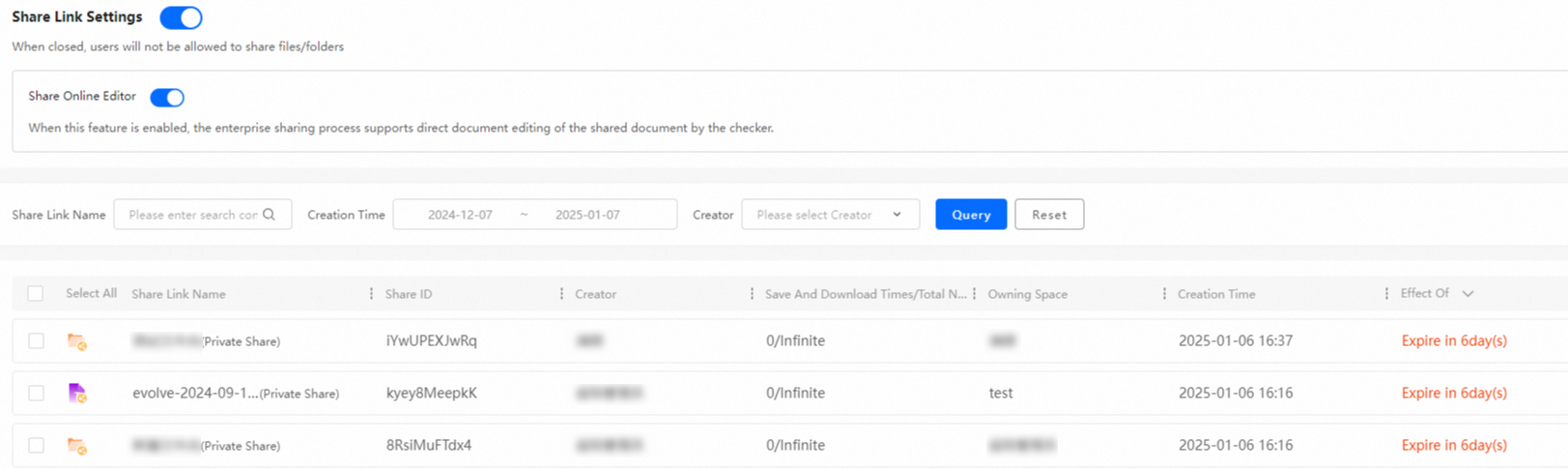
When an administrator enables the sharing feature, they can also enable the Share Online Editor permission. After this permission is enabled, users can edit drive files directly from the share links. All changes are synced to the source files in real time.
View historical shares
On the Share Links Management page, an administrator can query the sharing history of enterprise users by filtering by Share Link Name, Creation Time, and Creator.
Cancel historical shares
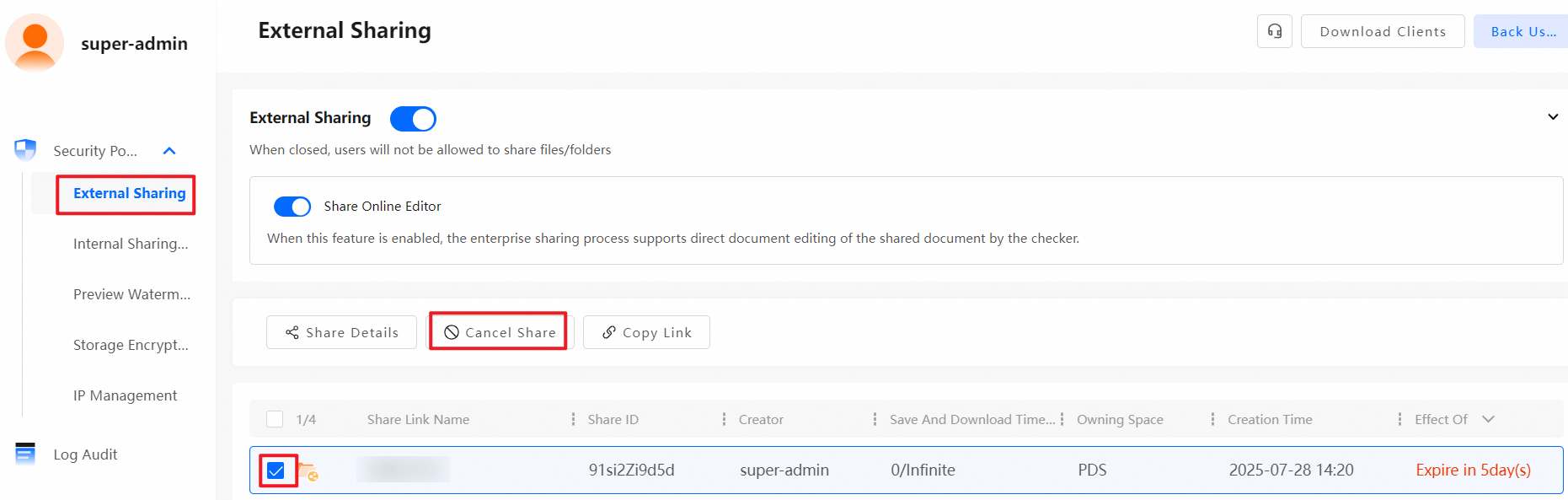
On the External Sharing page, an administrator can select an item from the sharing history and click Cancel Share to immediately invalidate the share link.
References
For more information about how to use the sharing feature or manage your own sharing history, see Sharing feature.
If the sharing feature is not enabled for your enterprise, enable it. For more information, see Enable share settings.
If you want to share files only with teams or colleagues within your enterprise, we recommend that you use the collaboration feature. For more information, see Collaborate on files.