The mounted drive maps cloud storage to a local drive, enabling you to access, edit, and back up cloud files as if they were stored locally.
Features
-
Two-way real-time synchronization between local and cloud storage.
-
Direct access to cloud files as a local disk, without pre-downloading.
-
Smart prefetching and on-demand downloads. For example, stream audio and video files without waiting for a full download.
-
Smart cache management with minimal local disk usage.
-
Support for both Windows and macOS.
Limitations
-
The mounted drive does not support co-editing. To co-edit documents, use online document editing.
-
The mounted drive does not support Windows on ARM, including some Microsoft Surface models with Qualcomm Snapdragon processors.
-
The mounted drive is a client-side plugin with no API for programmatic access.
-
The mounted drive requires a stable, high-bandwidth network for real-time cloud access. On slow or unstable networks (such as mobile hotspots or restricted networks), file transfers may fail. Use the Enterprise Drive Client to download, edit locally, and upload changes instead.
-
The mounted drive may not work on Windows 7 (end of support: January 14, 2020). Upgrade to Windows 11 or Windows 10.
Prerequisites
-
You have installed the Desktop Client.
-
You have enabled file version history.
-
You have enabled the mounted drive.
Using the mounted drive incurs data transfer and storage charges.
Enable the mounted drive
Only a super administrator or drive administrator can enable this feature.
-
Log on to BasicUI as a super administrator or drive administrator.
-
Go to the Management Console.
-
In the left-side navigation pane, choose and turn on the Mounted Drive switch.
Note: After first enabling the mounted drive, log out and log back in for it to take effect.
Install the mounted drive
Install the mounted drive for your operating system before first use.
If the mounted drive does not appear after you enable it, restart the Desktop Client.
Install on Windows
-
Log on to the Desktop Client.
-
Go to the Mounted Drive page and click Install Now. Once installed, the mounted drive is ready to use.
-
The mounted drive cannot be installed on Windows systems that use an ARM processor.
-
If the installation fails on Windows, check Windows mounted drive installation fails with an error.
Install on macOS
On a Mac with Apple silicon, configure system extensions first. Change security settings on the startup disk.
-
Download and install the macFUSE driver.
Go to the macFUSE official website and download the macFUSE installation package for your version from the Stable Releases section on the right.
-
Recommended macFUSE versions by macOS version:
macOS version
macFUSE version
Notes
Tahoe 26.x
5.1.2
Install the latest macFUSE version for the latest macOS.
Sequoia 15.x
4.10.2
Sonoma 14.x
4.6.1
Ventura 13.x
4.6.1
Monterey 12.x
4.6.1
Big Sur 11.x
4.6.1
Earlier versions
3.11.2
-
If a System Extension Blocked message appears, click Open Security Preferences.
-
Go to System Settings > Privacy & Security. In the Security section, under "Allow applications downloaded from:", select App Store and identified developers.
-
Allow the macFUSE extension from developer Benjamin Fleischer to load.
In the prompt area at the bottom, click Allow to allow the blocked system extension to load.
-
-
Install the mounted drive.
-
Log on to the Desktop Client.
-
Select Mounted Drive and click Install Now. Once installed, the mounted drive is ready to use.
The mounted drive feature requires macFUSE 4.2.0 or later (macOS) or Dokan 1.5.1.1000 or later (Windows) installed on your computer.
-
Use the local mounted drive
-
On the Mounted Drive page, click Open Local Mounted Drive. The local mounted drive is named PDSDrive by default when it is created.
NoteChanging the drive letter is only supported on Windows.
-
Once opened, manage content in the personal space, received shares, and team space.
ImportantDo not delete, rename, or add files or folders to the root directory of the mounted drive.
Uninstall the mounted drive
-
Log on to the Desktop Client.
-
Go to the Mounted Drive page and click Uninstall.
-
In the Uninstall Mounted Drive dialog box, click OK.
FAQ
How do I resolve a mounted drive installation failure on Windows?
This failure is usually caused by an issue with the Dokan driver, a required dependency. Follow these steps to troubleshoot the problem.
-
For best results, install the mounted drive on a genuine, unmodified version of Windows.
-
To prevent data loss, always save and close your files before exiting the client.
Troubleshooting
First, check if the Dokan driver is installed by going to Control Panel > Programs and Features.

If you don't see the Dokan driver in Programs and Features, you need to install it manually.
-
Navigate to the following directory:
C:\Users\[YourUsername]\.edm\plugins\mountapp\pkg -
Double-click the
Dokan_x64-noVC.msiinstaller to run it.
-
After the installation is complete, try installing the mounted drive again from the client.
On Windows 7, manual installation of the Dokan driver may fail if a required security patch is missing. You might see an error like this:
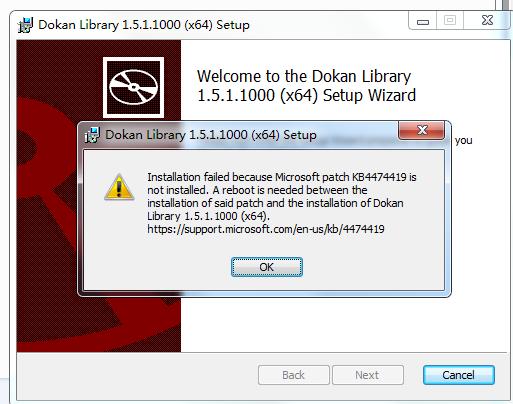
To fix this, you must install the patch before installing the driver.
-
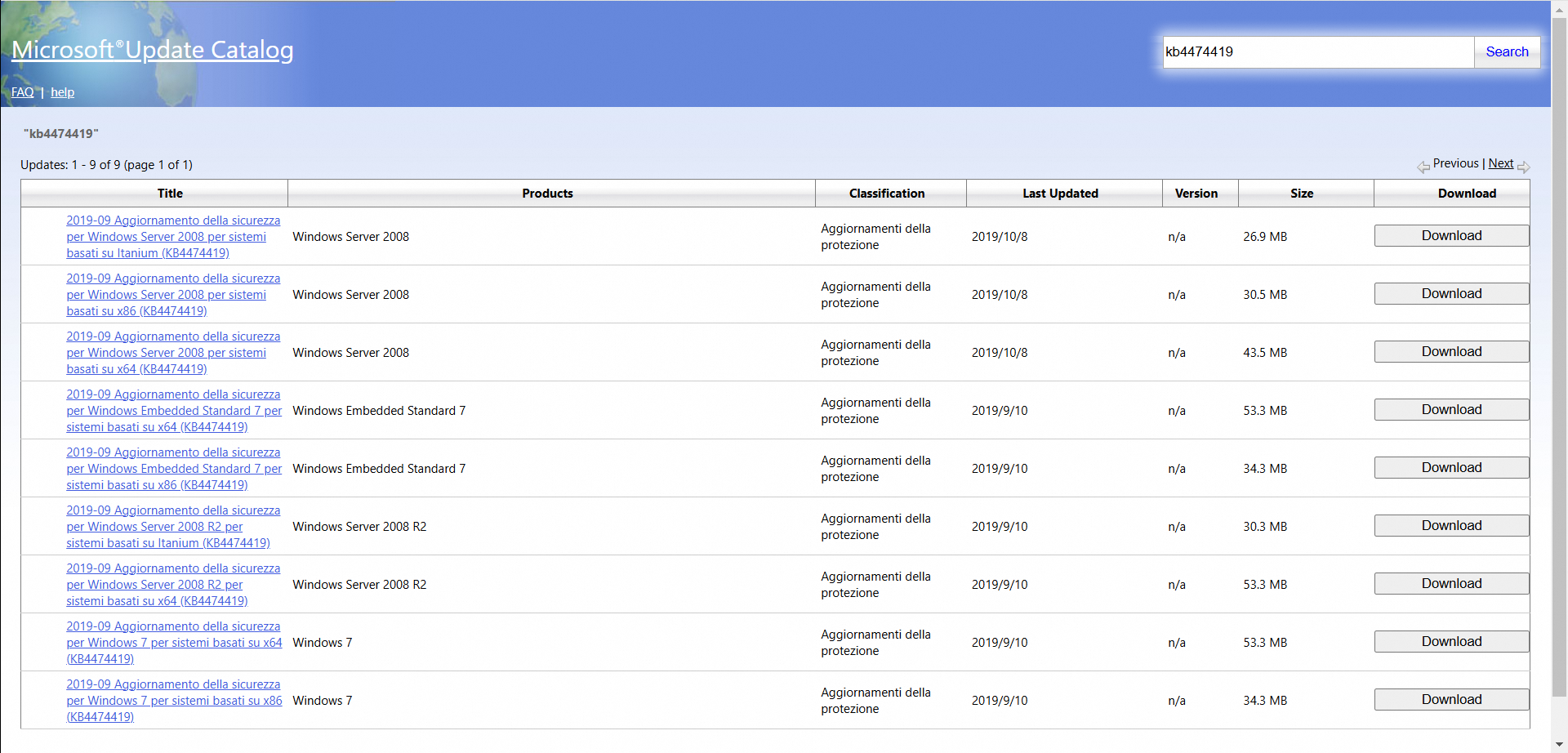
Go to the Microsoft Update Catalog for KB4474419.
-
Download and install the correct version of the patch for your system. You must restart your computer for the changes to take effect.
-
Follow the steps in Scenario 1 to manually install the Dokan driver.
-
After the Dokan driver is installed, try installing the mounted drive again.