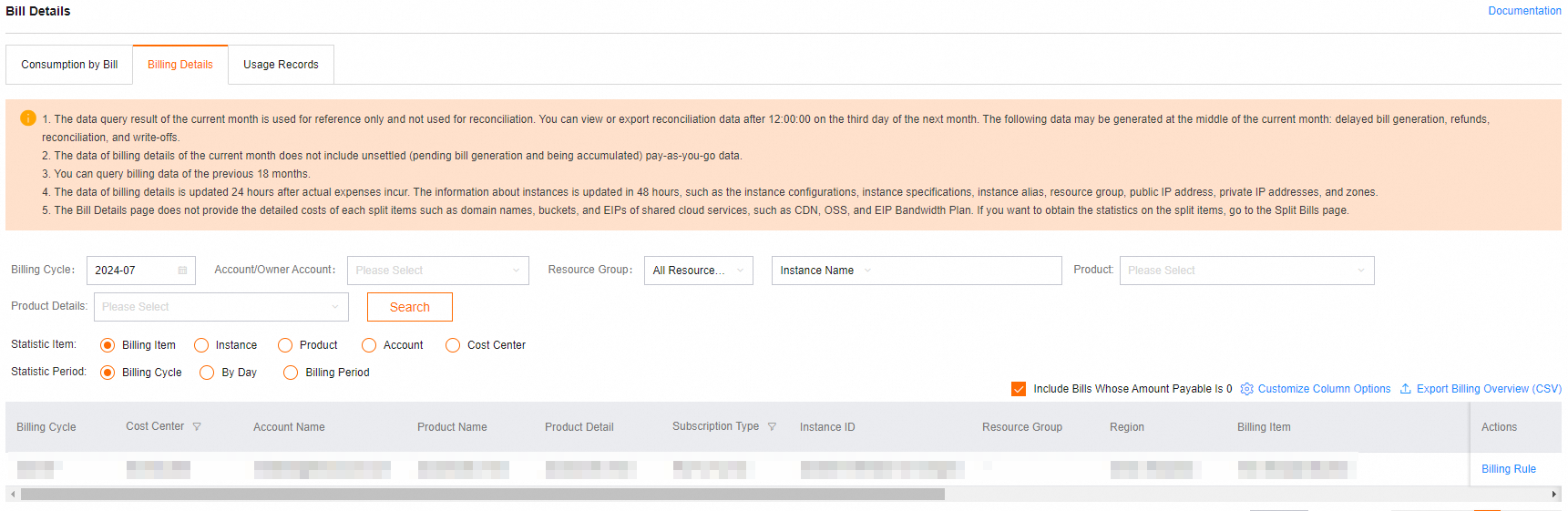
Query bills in the console
Go to the Expenses and Costs page.

If you are using a RAM user, you must first use your Alibaba Cloud account to grant the AliyunBSSFullAccess permission to it. For more information, see Grant permissions to a RAM user.
The billing details are updated the next day after they are generated.
To export usage details, on the Usage Records tab, set the product parameter to
learn. Billable items for each module:Visualized Modeling (Designer): PAI_ALGO
Data Science Workshop (DSW): PAI_DSW_PAY_FULLY_MANAGED
Elastic Algorithm Service (EAS): PAI_EAS
Scenario 1: Use tags to distinguish between PAI-DLC spot and pay-as-you-go bills
The pay-as-you-go bills generated by Deep Learning Containers (DLC) are categorized by instance tags into preemptable (spot) jobs and regular pay-as-you-go jobs.
Spot: The instance tag is
key:acs:pai:dlc:payType value:spot.Pay-as-you-go: The instance tag is
key:acs:pai:dlc:payType value:postpaid.
You can use the tags to query the bills. Take spot jobs as an example:
On the Cost allocation tags page of the Expenses and Costs console, select the
acs:pai:dlc:payTypetag and enable it. For more information about tag effectiveness and how to enable tags, see Cost allocation tags.Go to the Expenses and Costs page. On the Billing Details tab, examine the spot job bills.
View a single spot job:
Enter the job ID in the Instance ID text box and click Search.
View spot jobs in batch:
Select DLC (Pay-As-You-Go)_International Site for Product Details. Click Customize Column Options and select Instance Tag. Then, click Export Billing Overview (CSV).
In the Export Billing Overview CSV dialog box, select an Exported Content and click OK.
In the exported CSV, find spot job bills using the tag
key:acs:pai:dlc:payType value:spot.
Scenario 2: Cost allocation for AI computing resource nodes based on tags
AI computing resources support adding tags to node orders to implement cost allocation based on order tags. Perform the following steps:
Add tags to resource orders.
Log on to the PAI console, select a region at the top of the page, and choose in the left-side navigation pane. Then, on the Intelligent Computing Lingjun resources or General Computing Resources tab, click the resource group name.
Switch to the Order Information tab to add, modify, or remove tags for the target order.
Manage tags for a single order: Click the
button in the Tag column to add, modify, or remove tags.Manage tags in batch: Select multiple orders and click Batch Manage Tags to batch update or remove tags.

Go to the Cost allocation tags page of Expenses and Costs, select the target tag and enable it.
NoteTags added in PAI console will be synchronized and effective in Expenses and Costs on the next day. For more information about tag effectiveness and how to enable tags, see Cost allocation tags.
Go to the Expenses and Costs page. On the Billing Details tab, view the AI Computing Resources bills.
Select AI Computing Resource Group (International site) for Product Details. Click Customize Column Options and select Instance Tag. Then, click Export Billing Overview (CSV).
In the Export Billing Overview CSV dialog box, select an Export Content and click OK.
In the exported CSV, filter the bills by Instance Tag.