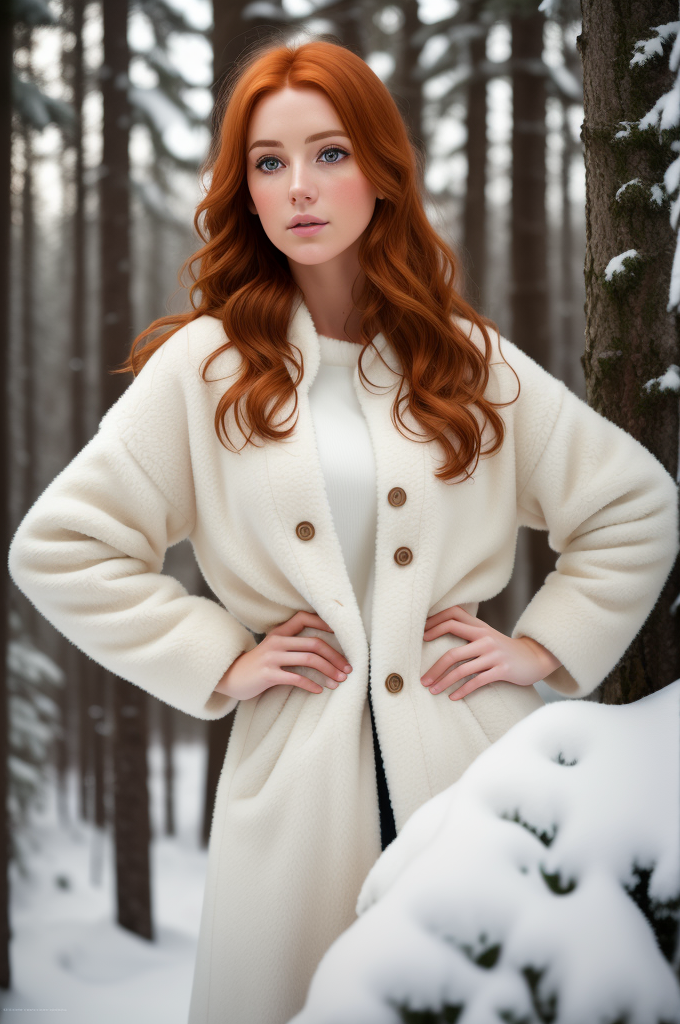
This topic describes how to use Platform for AI (PAI) ArtLab Stable Diffusion web UI to generate images.
Background Information
Stable Diffusion is a text-to-image AI model developed by Stability AI that can generate and modify images based on text prompts. The Stable Diffusion web UI, developed by AUTOMATIC1111, provides a visualized browser interface for the development of the Stable Diffusion model. Even if you have no programming knowledge, Stable Diffusion web UI allows you to easily use Stable Diffusion through intuitive interactions.
The web UI provides an intuitive operating experience and supports customization by using different plugins and models. You can use the web UI to create more controllable visual works.
Model selection
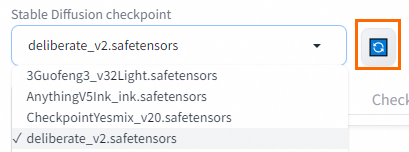
Upload your models to a directory in Object Storage Service (OSS) and refresh the web UI. Then, you can select the model that you want to use in this section. We recommend that you download models from Civitai.
If you cannot access the preceding link, configure a proxy and then try again.
txt2img
Prompt syntax
General tips
Prompts generally include the following types of keywords: prefixes (image quality, painting style, lens effects, and lighting effects), subjects (person or object, posture, clothing, and factor), and scenes (environment and details).
If you want to increase or decrease the weight of a keyword, use parentheses (
(),{},[]) to enclose the keyword, which is followed by a colon (:) and a weight value. Example: (beautiful:1.3). We recommend that you use a weight value that ranges from 0.4 to 1.6. Keywords with lower weights are more likely to be ignored, and keywords with higher weights are prone to deformation due to overfitting. You can also use multiple pairs of parentheses ((),{},[]) to superimpose the weight of a keyword. An additional pair of parentheses indicates that the weight is increased or decreased to 1.1, 1.05 or 0.952 times. Example: (((cute))).Weight calculation rules:
(PromptA:weight value): You can use this format to increase or decrease the weight of a keyword. If the weight value is greater than 1, the weight is increased. If the weight value is less than 1, the weight is decreased.
(PromptB) indicates that the weight of PromptB is increased to 1.1 times, which is equivalent to (PromptB:1.1).
{PromptC} indicates that the weight of PromptC is increased to 1.05 times, which is equivalent to (PromptC:1.05).
[PromptD] indicates that the weight of PromptD is decreased to 0.952 times, which is equivalent to (PromptD:0.952).
((PromptE)) is equivalent to (PromptE:1.1*1.1).
{{PromptF}} is equivalent to (PromptF:1.05*1.05).
[[PromptG]] is equivalent to (PromptG:0.952*0.952).
You can use angle brackets (
<>) to invoke Low-Rank Adaptation (LoRA) and Hypernetwork models. Formats: <lora:filename:multiplier> and <hypernet:filename:multiplier>.Prompt hybrid scheduling:
In [promptA:promptB:factor], factor indicates the transition percentage from promptA to promptB, ranging from 0 to 1. For example, in the prompts
a girl holding an [apple :peach:0.9]anda girl holding an [apple :peach:0.2, the same seed value is used but different factor values are specified. When you generate images based on these prompts, the system generates highly similar images with a specific element fine-tuned. In this example, the object the girl is holding is changed from an apple to a peach.
Common prompts
Positive prompts
Negative prompts
Positive prompt
Description
Negative prompt
Description
HDR, UHD, 8K, 4K
Improves the quality of the image.
mutated hands and fingers
Prevents mutated hands or fingers.
best quality
Vivifies the image.
deformed
Prevents deformation.
masterpiece
Makes the image look like a masterpiece.
bad anatomy
Prevents bad anatomy.
Highly detailed
Adds details to the image.
disfigured
Prevents disfigurement.
Studio lighting
Applies studio lighting to make the image textured.
poorly drawn face
Prevents poorly drawn faces.
ultra-fine painting
Applies ultra-fine painting.
mutated
Prevents mutation.
sharp focus
Brings the image into sharp focus.
extra limb
Prevents extra limbs.
physically-based rendering
Adopts physical rendering.
ugly
Prevents ugly elements.
extreme detail description
Focuses on the details.
poorly drawn hands
Prevents poorly drawn hands.
Vivid Colors
Makes the image vivid in colors.
missing limb
Avoids missing limbs.
(EOS R8, 50mm, F1.2, 8K, RAW photo:1.2)
Incorporates professional photographic styles.
floating limbs
Prevents floating limbs.
Boken
Blurs the background and highlights the subject.
disconnected limbs
Prevents disconnected limbs.
Sketch
Uses sketch as the drawing method.
malformed hands
Prevents deformed hands.
Painting
Uses painting as the drawing method.
variant
Prevents out-of-focus.
-
-
long neck
Prevents long necks.
-
-
long body
Prevents long bodies.
txt2img showcase
Simple prompts: Enter positive and negative prompts in the related sections. The positive prompt defines the elements that you want to appear in the generated image, whereas the negative prompt defines the elements that you want to prevent from appearing in the generated image. The more keywords you provide, the more closely the generated image will match your expectations.
Complex prompts:
Positive prompt: 8k portrait of beautiful cyborg with brown hair, intricate, elegant, highly detailed, majestic, digital photography, art by artgerm and ruan jia and greg rutkowski surreal painting gold butterfly filigree, broken glass, (masterpiece, sidelighting, finely detailed beautiful eyes: 1.2), hdr
Negative prompt: canvas frame, cartoon, 3d, ((disfigured)), ((bad art)), ((deformed)),((extra limbs)),((close up)),((b&w)), wired colors, blurry, (((duplicate))), ((morbid)), ((mutilated)), [out of frame], extra fingers, mutated hands, ((poorly drawn hands)), ((poorly drawn face)), (((mutation))), (((deformed))), ((ugly)), blurry, ((bad anatomy)), (((bad proportions))), ((extra limbs)), cloned face, (((disfigured))), out of frame, ugly, extra limbs, (bad anatomy), gross proportions, (malformed limbs), ((missing arms)), ((missing legs)), (((extra arms))), (((extra legs))), mutated hands, (fused fingers), (too many fingers), (((long neck))), Photoshop, video game, ugly, tiling, poorly drawn hands, poorly drawn feet, poorly drawn face, out of frame, mutation, mutated, extra limbs, extra legs, extra arms, disfigured, deformed, cross-eye, body out of frame, blurry, bad art, bad anatomy, 3d render
Prompt source: Civitai
NoteIf you cannot access the preceding link, configure a proxy and then try again.
The higher a keyword is ranked, the higher the weight of the keyword. You can adjust the order of keywords based on your needs. For example, you can arrange keywords in the following order: subject, medium, style, artist, website, resolution, additional details, color, and lighting. In actual use, you do not need to specify all types of the preceding keywords. Select and arrange the keywords based on your needs. Different from basic models, trained models often have hidden settings to use some fixed styles or discard some keywords in the prompts.
Parameters
①Sampling method
The sampling mode of the diffusion denoising algorithm. Different sampling methods deliver different effects. Select an appropriate sampling method based on your needs.
Euler a, DPM++ 2s a, and DPM++ 2s a Karras are similar in the overall composition of the image. Euler, DPM++ 2m and DPM++ 2m Karras are similar in the overall composition of the image. DDIM differs from other sampling methods in the overall composition of the image.

②Sampling steps
The sampling steps of the generated image. This parameter determines the AI optimization effect. With each iteration, the system compares the prompts with the current image and accordingly makes fine adjustments.
If you increase the value of sampling steps, more time and computing resources are consumed but better results cannot be guaranteed.
In actual use, an increasing value of sampling steps indicates that more details are displayed in the generated image, which is also closely related to the sampling method. For example, the sampling steps of Euler a range from 30 to 40. The image generated by using Euler a tends to be stable, and no details are added if you increase the value of sampling steps.


③Hires. fix
This parameter affects the resolution of the generated image. The system creates an image by using a low resolution, and then improves the details of the image without changing the composition of the image. If you select this option, you must configure parameters such as Hires steps and Denoising strength.
For information about the how to upscale images, see Three methods to upscale images by using PAI ArtLab.
④Width and Heigh: The size and resolution of the generated image. The higher the resolution, the more details the image has but more video memory is consumed. We recommend that you do not set an excessively high resolution. Use the default value: 512×512.
⑤Batch count
The total number of batches. The details of the images generated in different batches may vary. The larger the value, the longer it takes to calculate.
⑥Batch size
The number of images that are generated in each batch at a time. A larger value causes higher video memory consumption.
⑦CFG Scale
A larger value indicates that the AI generation is more compliant with the prompts that you provide. A smaller value indicates that the AI generation is more creative.
⑧Seed
A value of -1 indicates that each generation is random. If you set a value other than -1 (you can enter negative numbers and decimals), and do not change the seed value, model, GPU, and other parameters, the same image is generated every time.
⑨You can click this icon to read generation parameters from prompts or the previously generated image.
⑩You can click this icon to clear prompt content.
img2img
The img2img feature allows you to generate a new image from an existing image based on the prompts that you provide. For example, you can use this feature to convert a photo of a real person into an animation image. You can also color a sketch drawing. The img2img feature also allows you to modify parameters and modify or redraw specific parts.
The generated image can be used for the next image-to-image creation or partial re-editing, and can also be used in other features. The system can automatically generate keywords for the input image by using interrogation based on the CLIP and DeepBooru models. CLIP is suitable for realistic images and DeepBooru is suitable for cartoon images.
The following sections describe the procedures for using the img2img feature.
img2img
Upload an image that you want to use. The aspect ratio of the image must be consistent with the specified height and width. For example, if you want to generate an image of 512 × 512 pixels, you must upload an image whose aspect ratio is 1:1.
Use CLIP or DeepBooru interrogation to automatically generate keywords, or manually enter the positive and negative prompts, and then click Generate. A new image is generated based on the image that you upload.
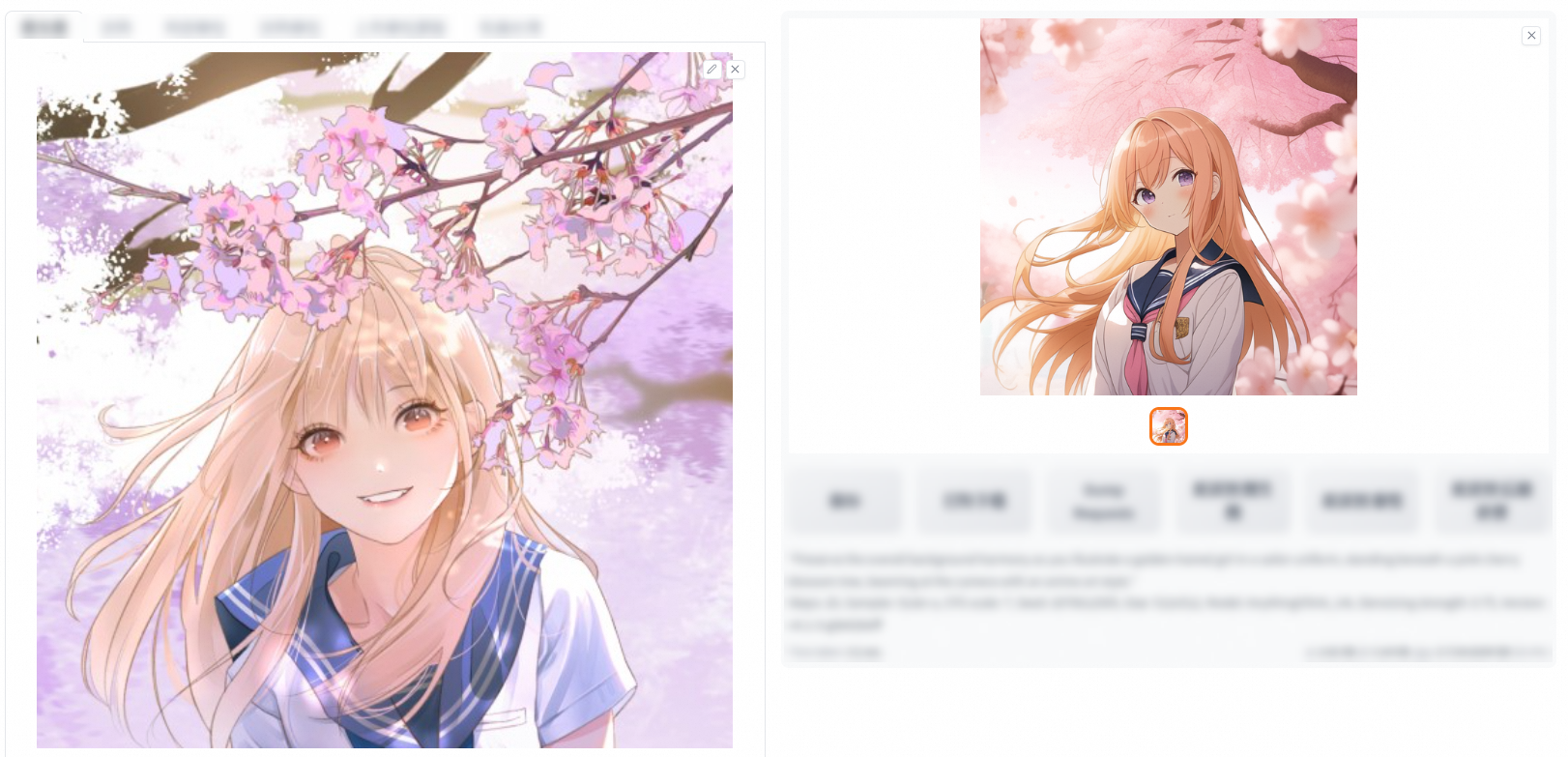
Upload an image.
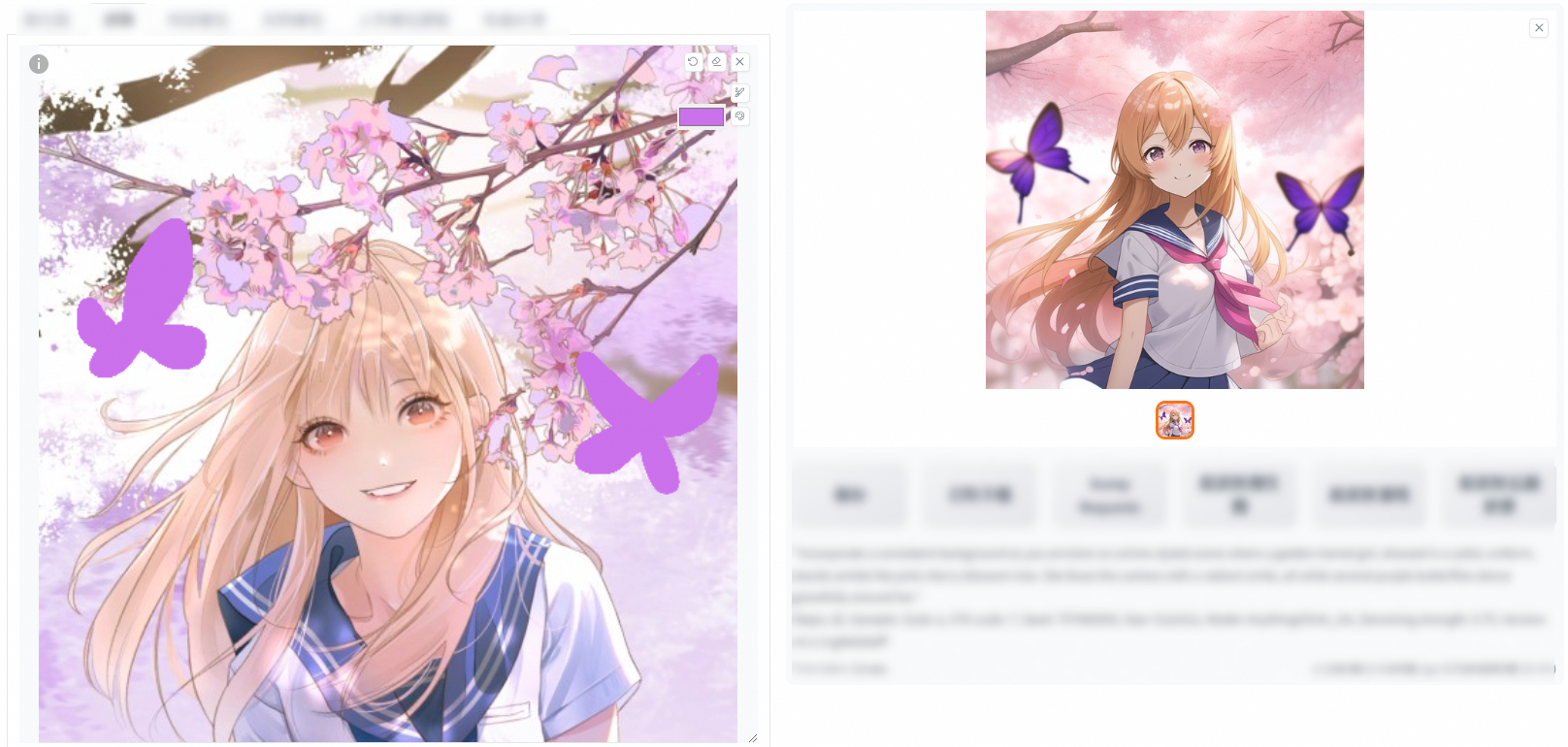
Use the brush tool to draw on the image and modify some of the prompts based on your needs. Then, click Generate. A new image is generated based on the input image and your drawing.
Upload a line draft.
Manually color the line draft that you upload and modify the prompts based on your needs to generate images in different styles.
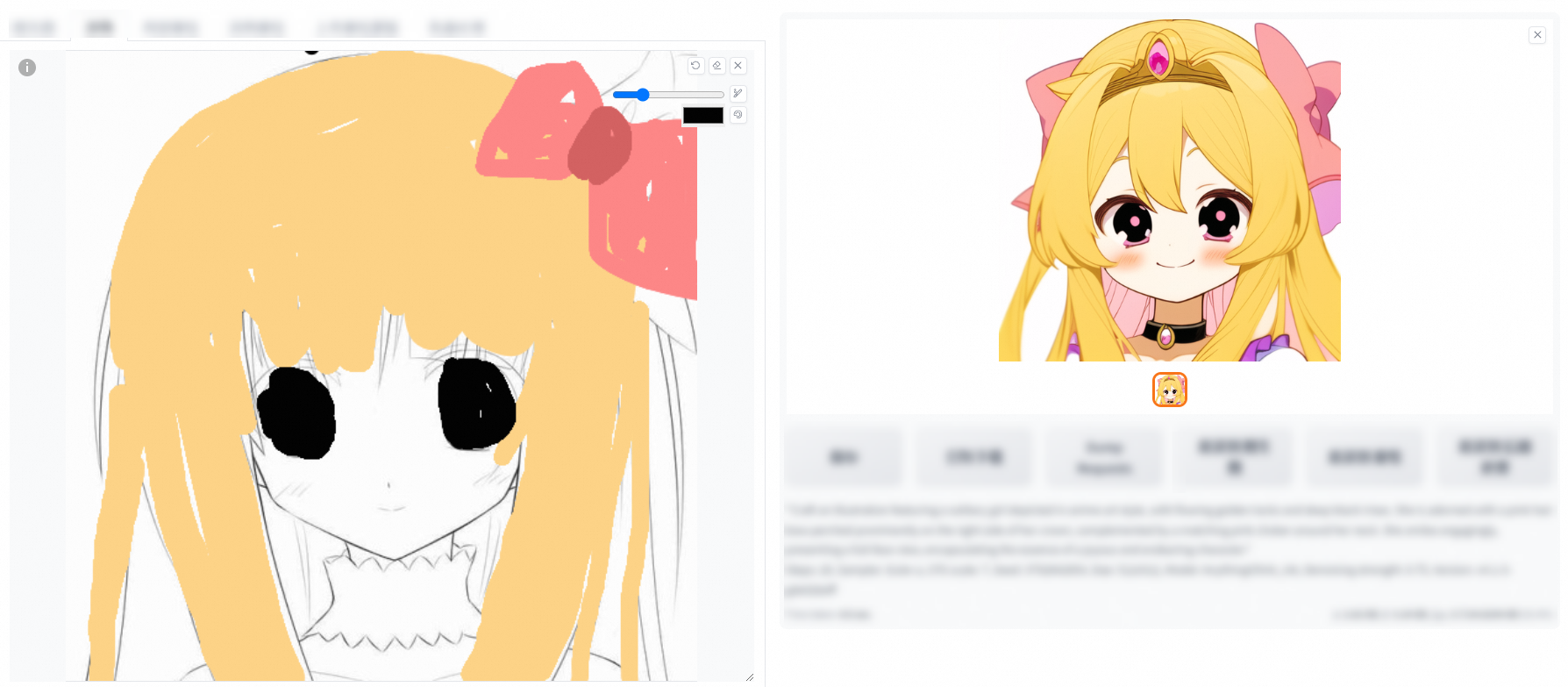
The Sketch feature helps improve the efficiency and creativity of your image creation. Even if you do not possess superb drawing skills, you can convert creative ideas into high-quality visual images as long as you have a rich imagination.
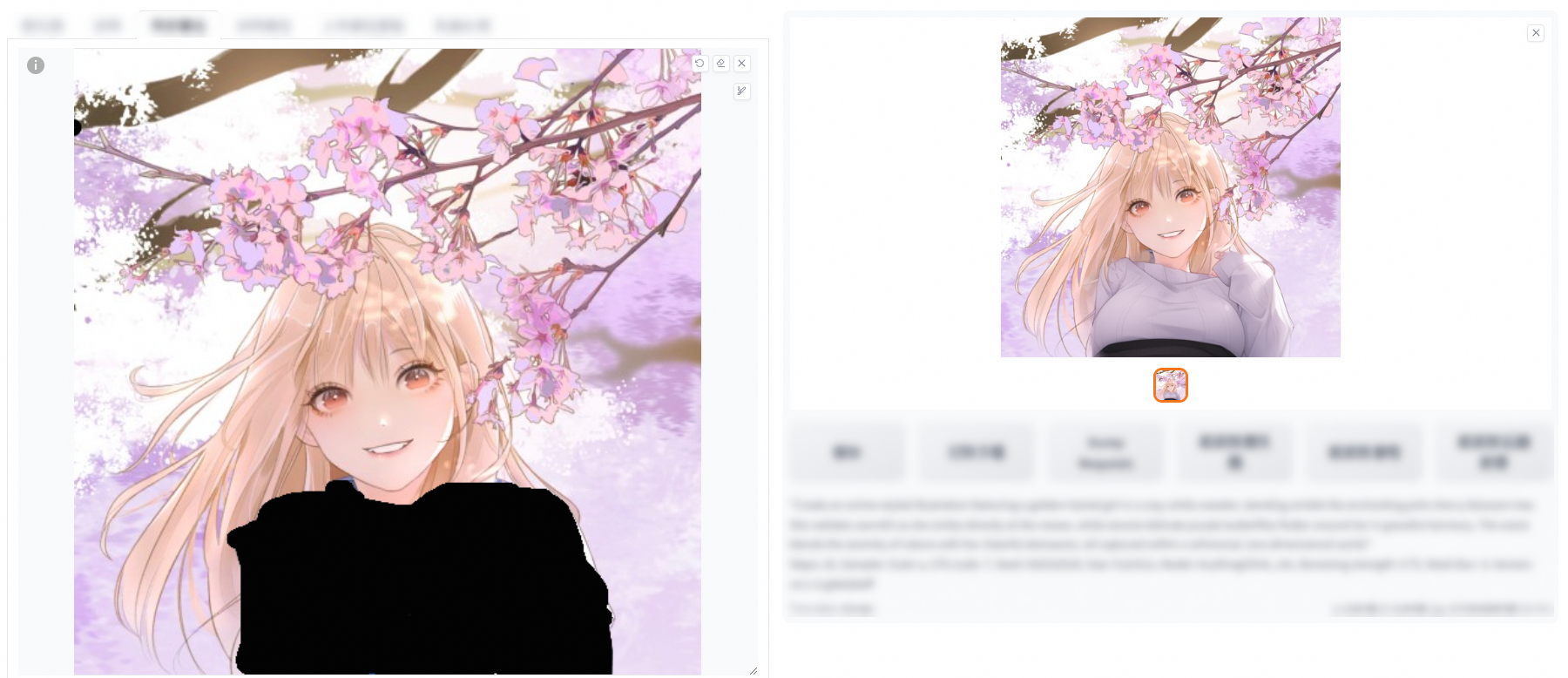
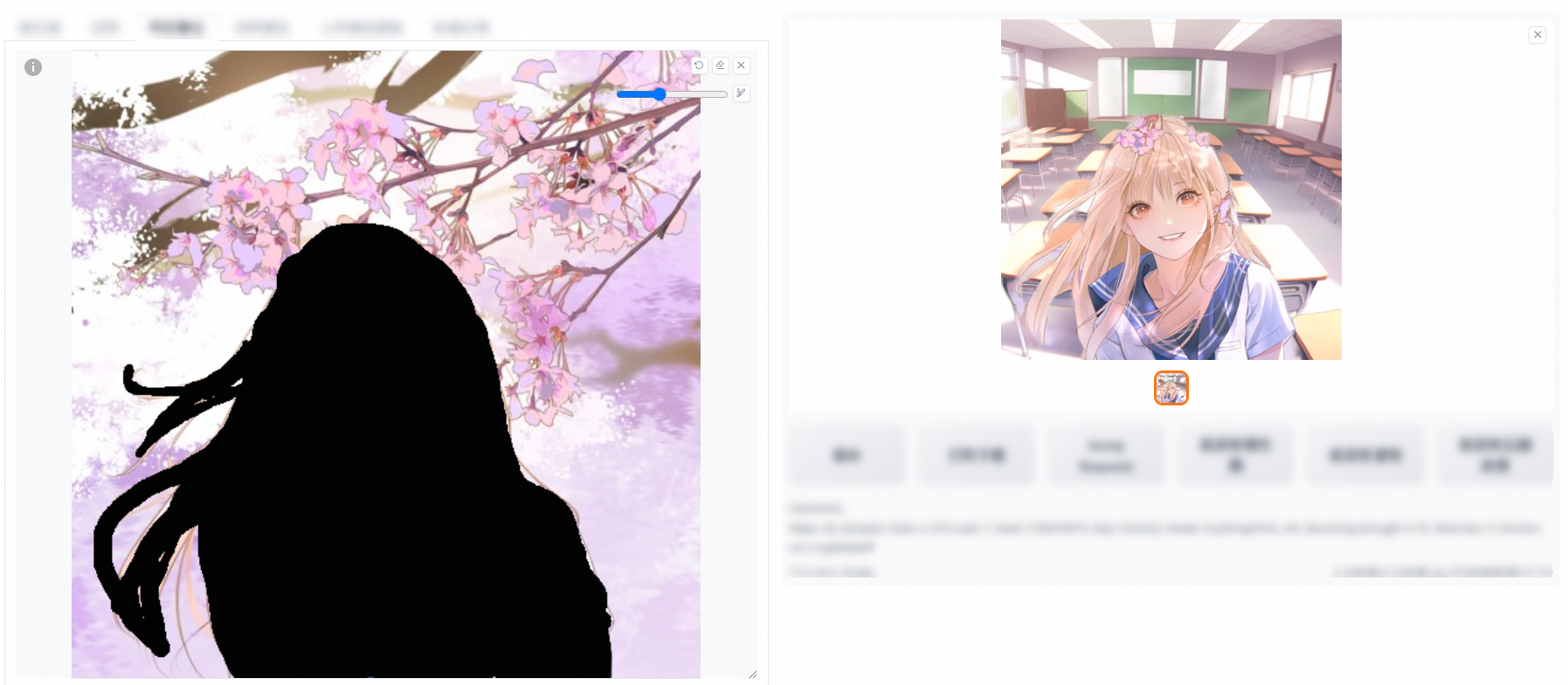
This feature allows you to add a mask to the original image, and inpaint the masked or non-masked part.
Inpaint the masked part
Add the required elements to the positive prompt and click Generate. In the following example, "wears sweater" is added to the positive prompt.
Inpaint the non-masked part
Add the required elements to the positive prompt and click Generate. In the following example, "classroom" is added to the positive prompt.
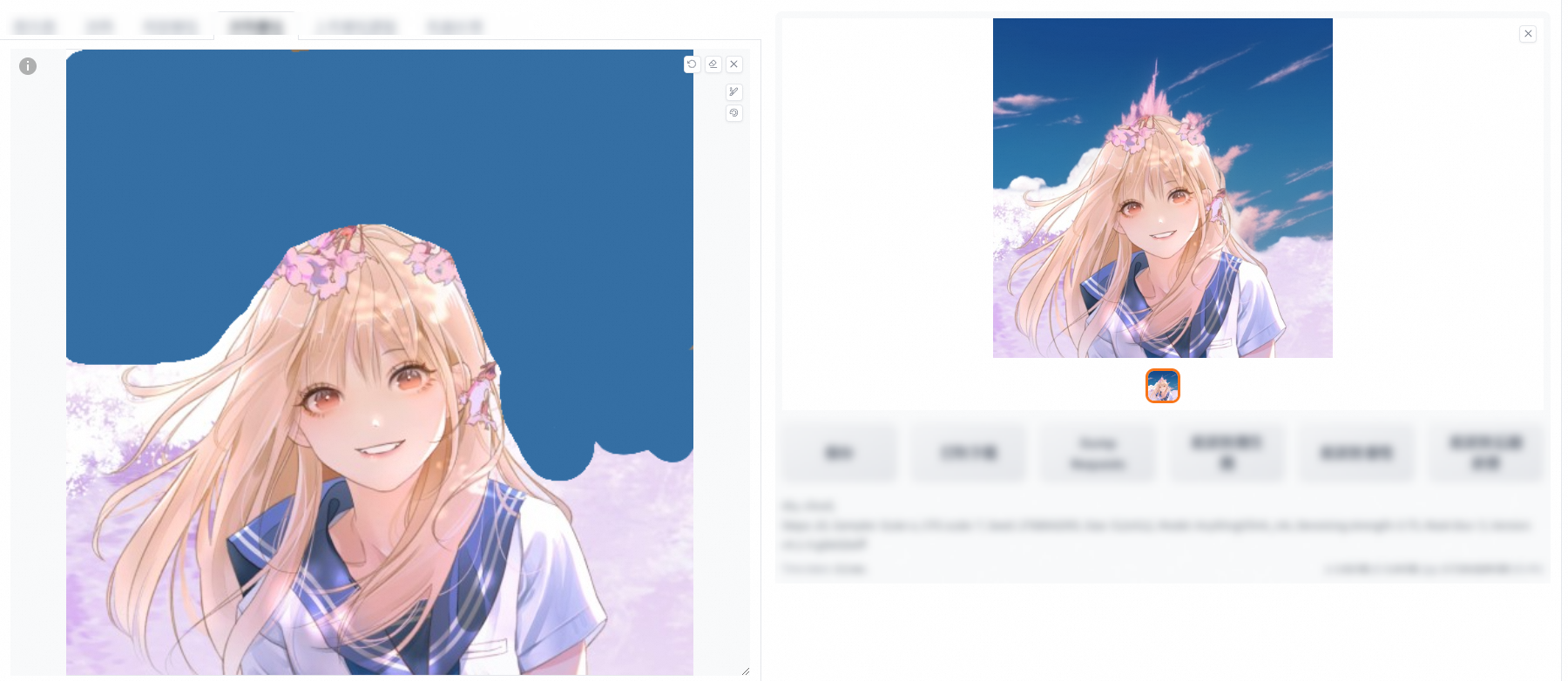
This feature adds the color palette tool to the Inpaint feature. During the AI generation, the color of the mask is used for reference.
The following sections describe the parameters that are available for different features.
Interrogate CLIP and Interrogate DeepBooru:
Generate prompts based on the image that you upload.
CLIP describes prompts in the same way that humans speak.
DeepBooru uses tags such as beautiful woman, river, and afternoon.
Compared with CLIP, DeepBooru provides a more detailed description.
Resize mode: determines the conversion effect.
Just resize: simply resizes the image. The image after conversion may be stretched or compressed. As a result, some details may be lost or distorted.
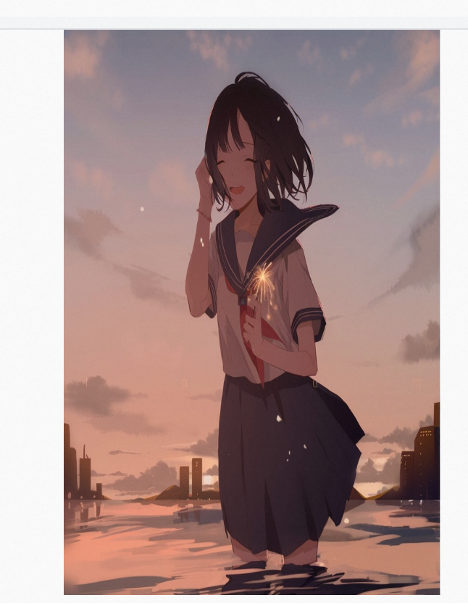
Crop and resize: crops the original image and then resizes it. This minimizes image distortion and retains more details. However, after an image is cropped and resized, some parts of the image are discarded. In this case, some details may not be displayed in the generated image.
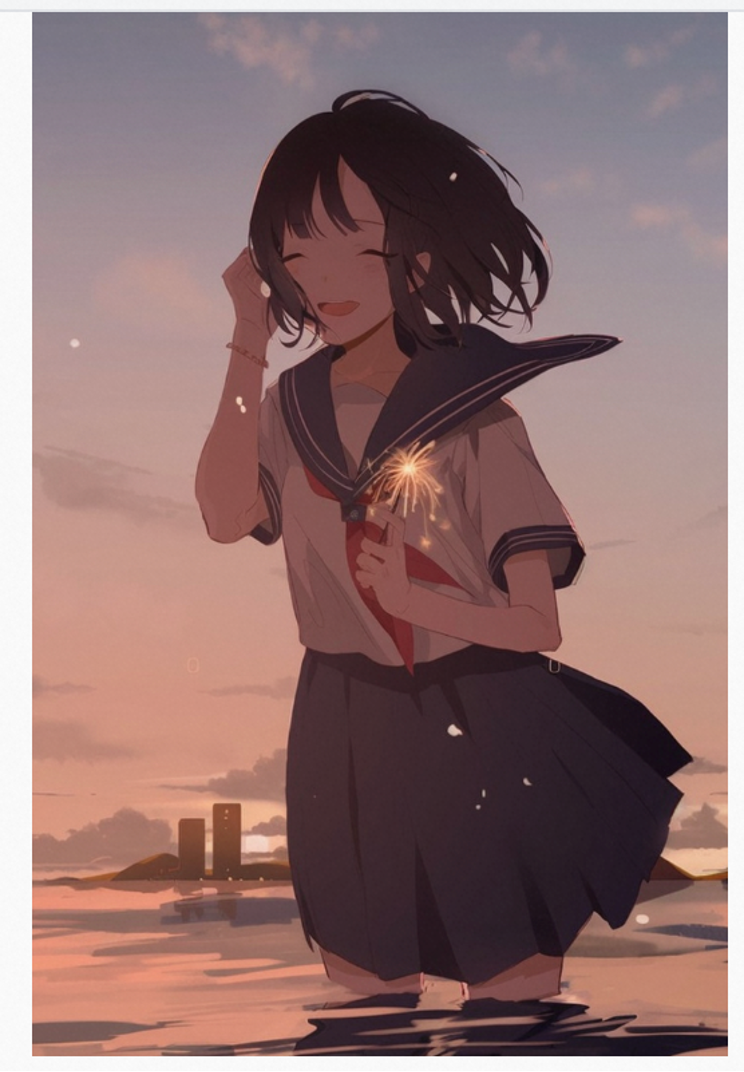
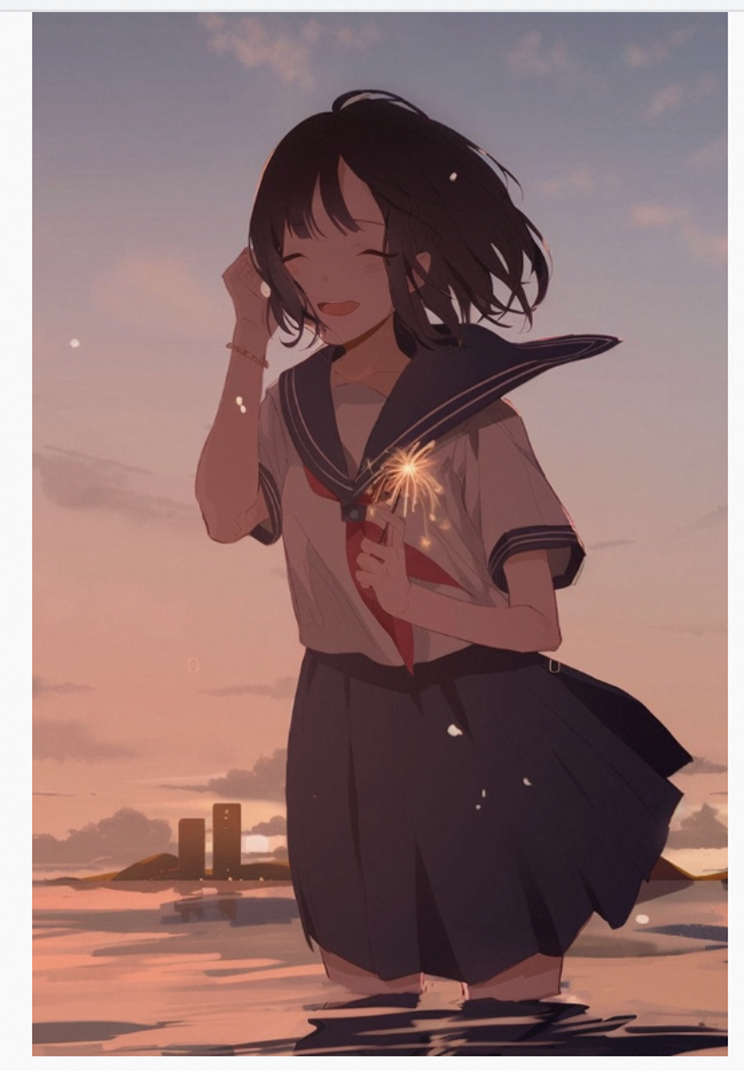
Resize and fill: resizes the original image and then fills it. You can use colors or patterns to fill the image. This resize mode preserves the overall proportion and details of the original image, but the elements used for filling may compromise the visual effect.
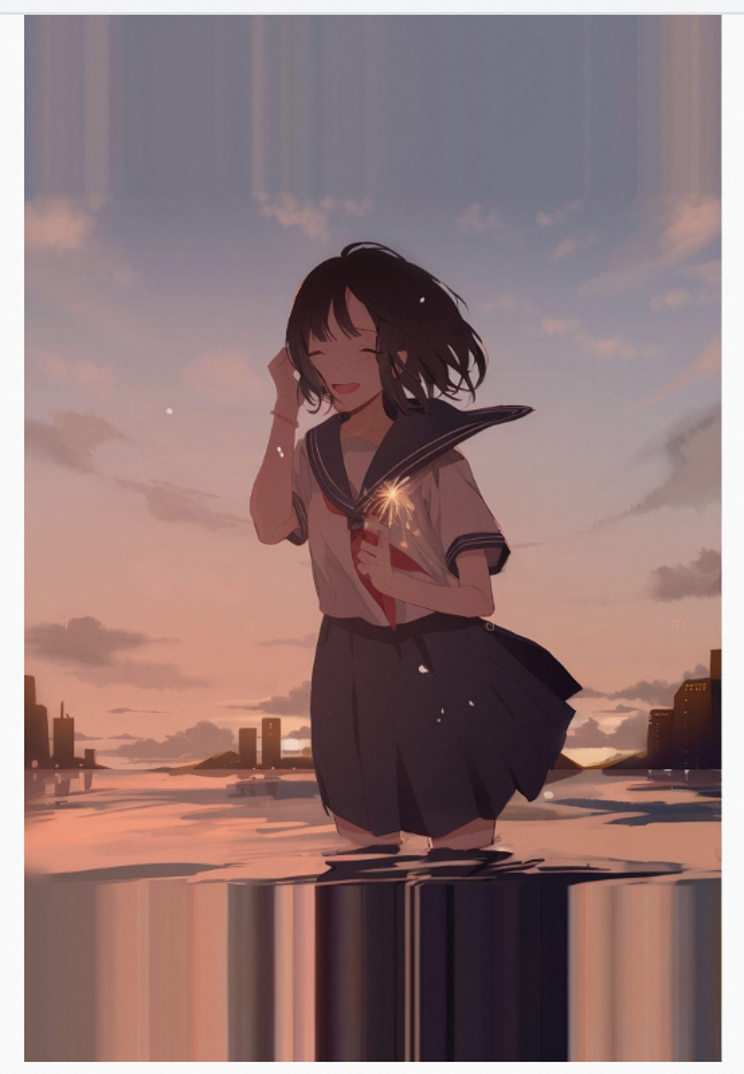
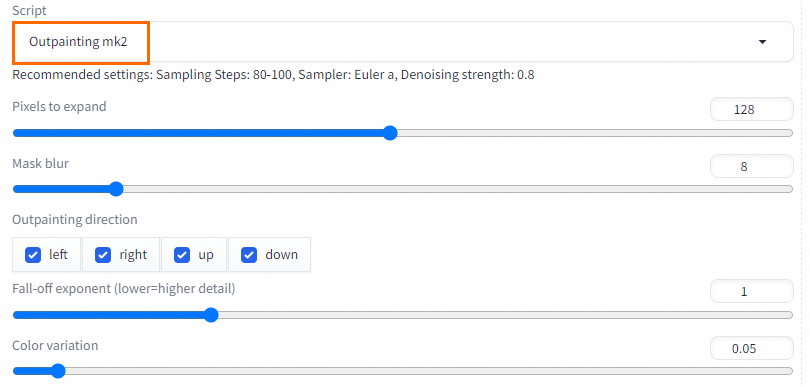
You can use the outpainting mk2 script by appropriately adjusting the denoising strength.
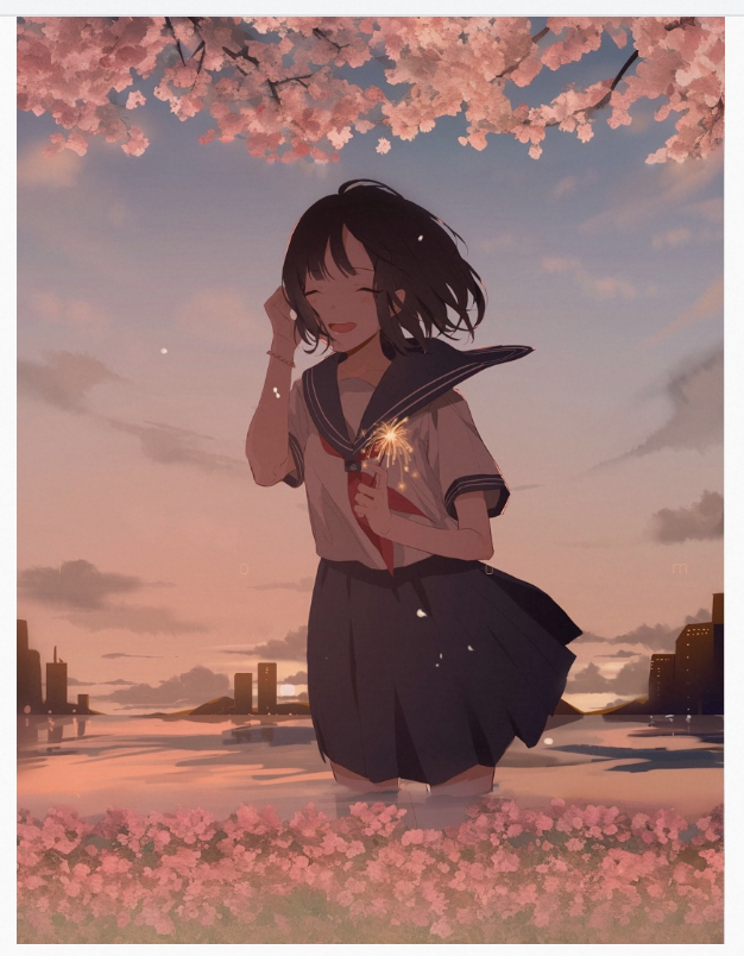
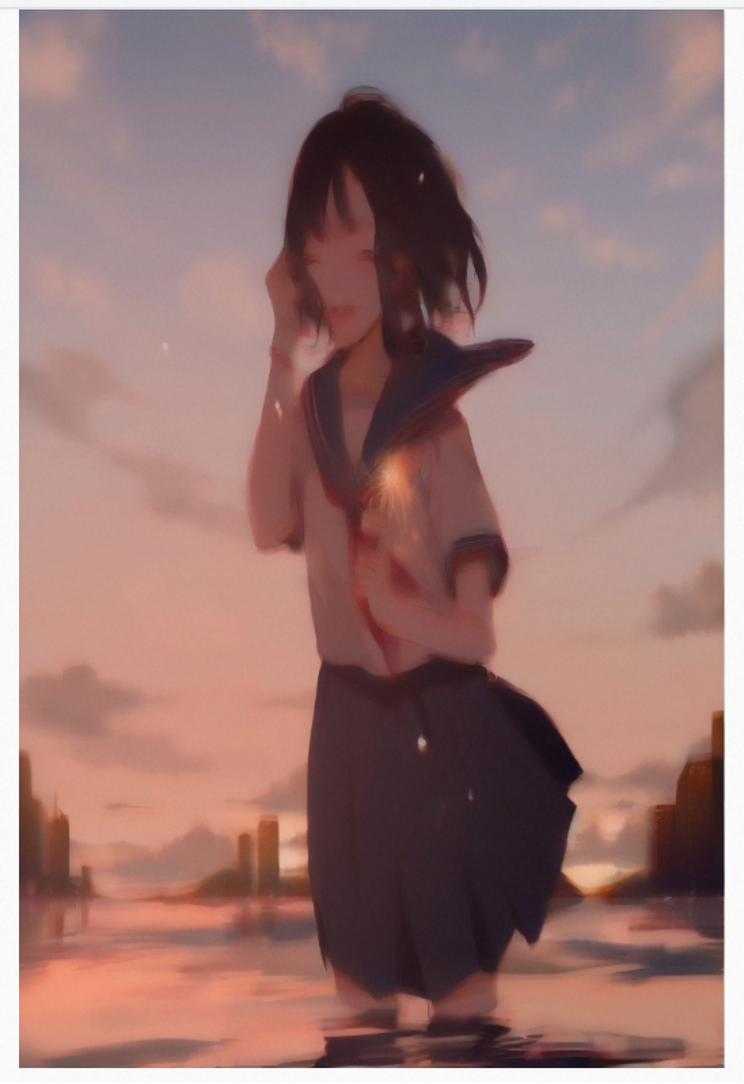
Just resize (latent upscale): resizes the image only during forward propagation. The shrink operation is faster and more stable, but may not precisely restore the details of the original image.
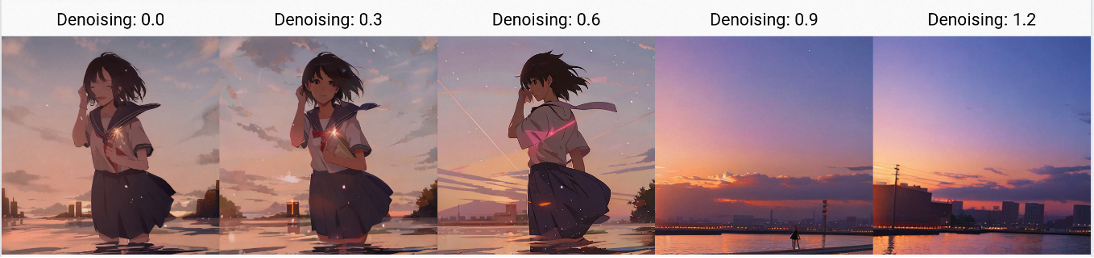
Denoising strength: the degree of image denoising. The higher the denoising strength, the smoother the generated image but the fewer the details preserved. The lower the denoising strength, the more the details preserved. You must adjust the denoising strength to achieve the optimal effect.
The following images show the results of different denoising strengths.
Mask blur
Mask blur is an image processing technology that is used to blur pixels around missing parts. This can minimize fringe effects and make the image more natural. The larger the mask blur value, the more transparent the edge.
The following images show a comparison of the mask blur values 0, 20, 40, and 60.
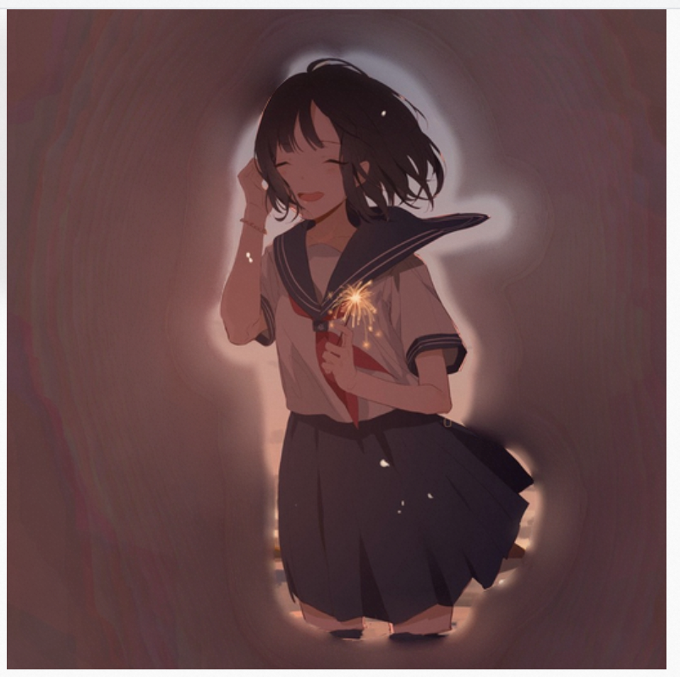
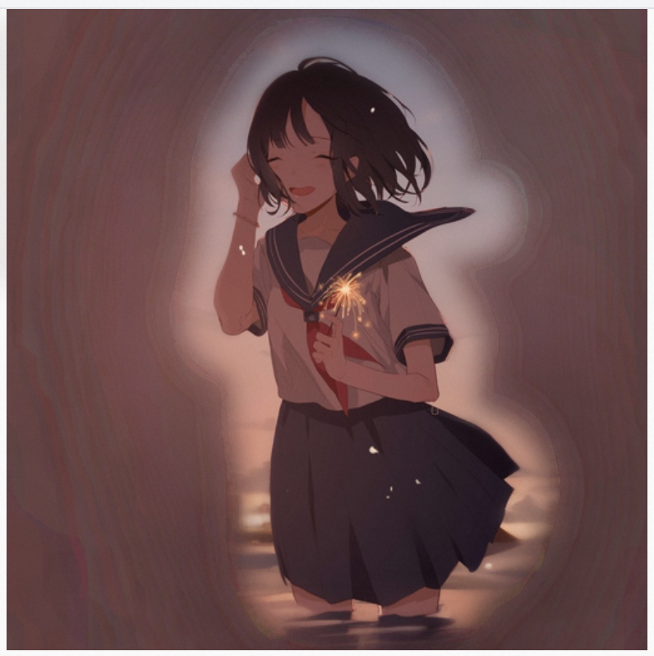
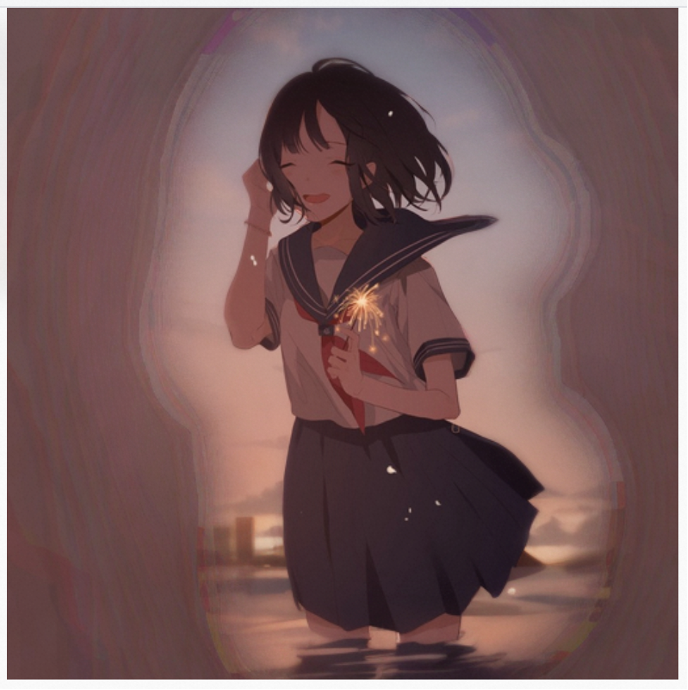
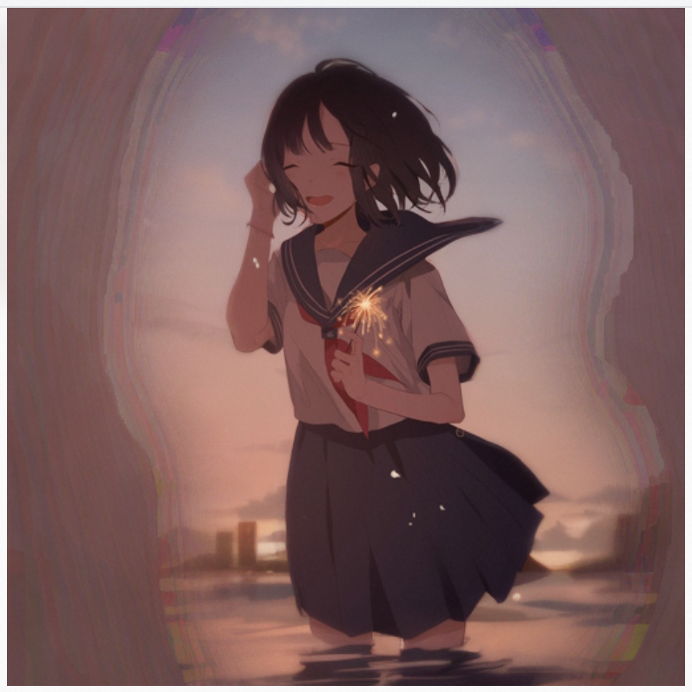
Mask mode
Masked content
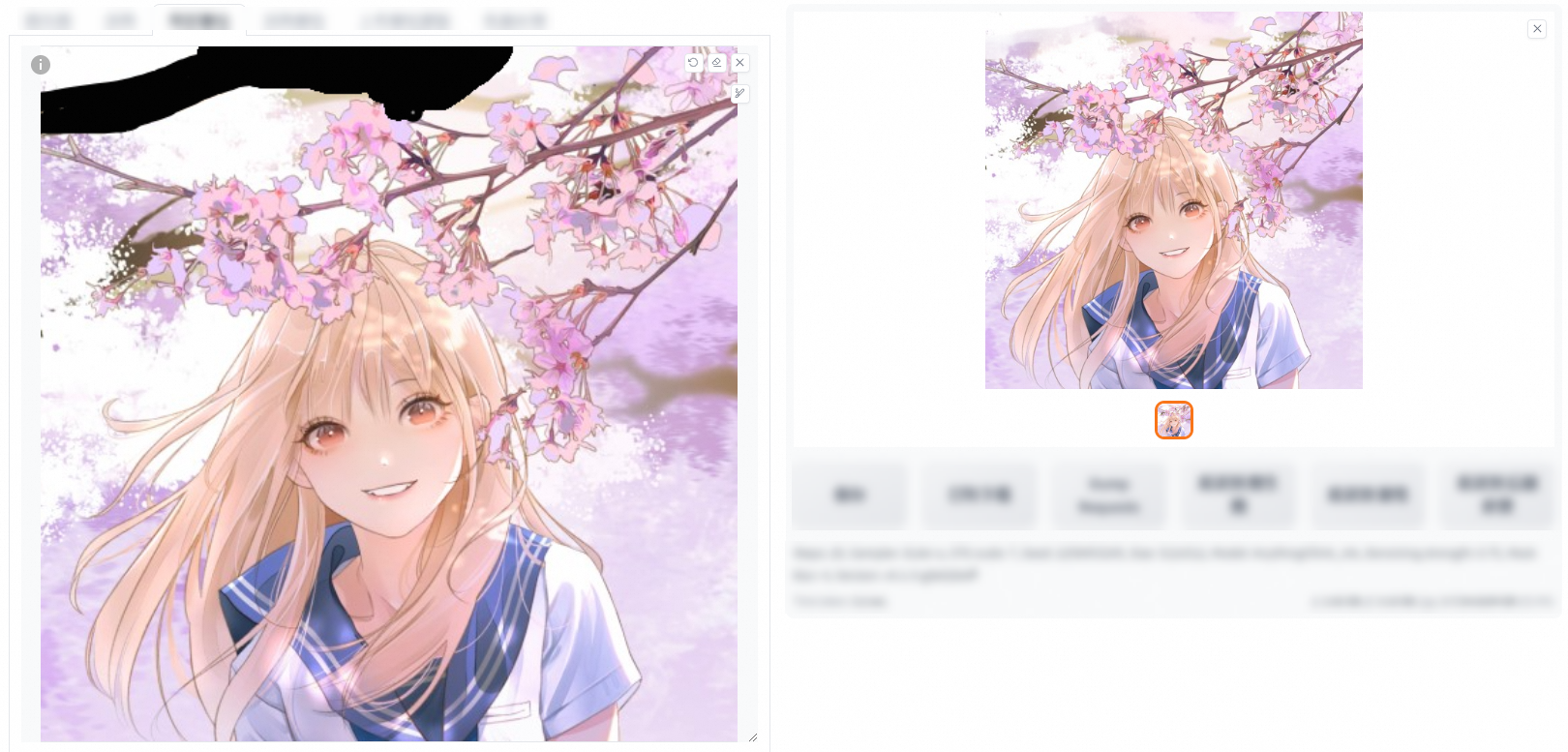
fill: fills the part to be repaired. This method is often used to remove unnecessary content in an image. In the following example, the tree trunk in the original image is removed in the output image.
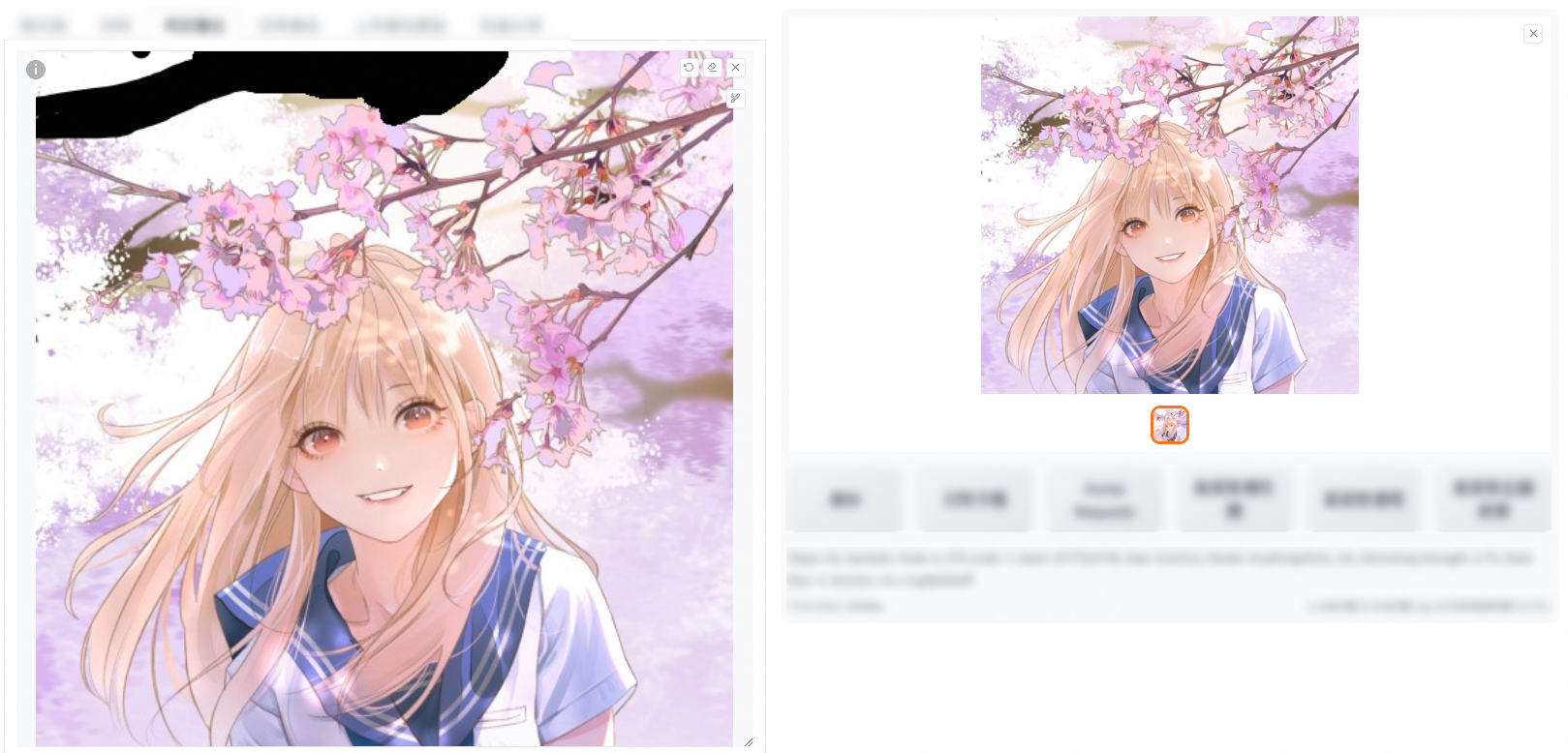
original: fills the part to be repaired by using the content of the original image. This method is often used to repair defects in the original image, such as scratches, cracks, and stains. In the following example, the tree trunk in the original image is replaced with flowers in the output image.
latent noise: adds random noise to the part that needs to be filled to deliver an artistic effect. This method is usually used for artistic processing in a specific part of an image to enhance the aesthetic effect of the image.
Low denoising strength
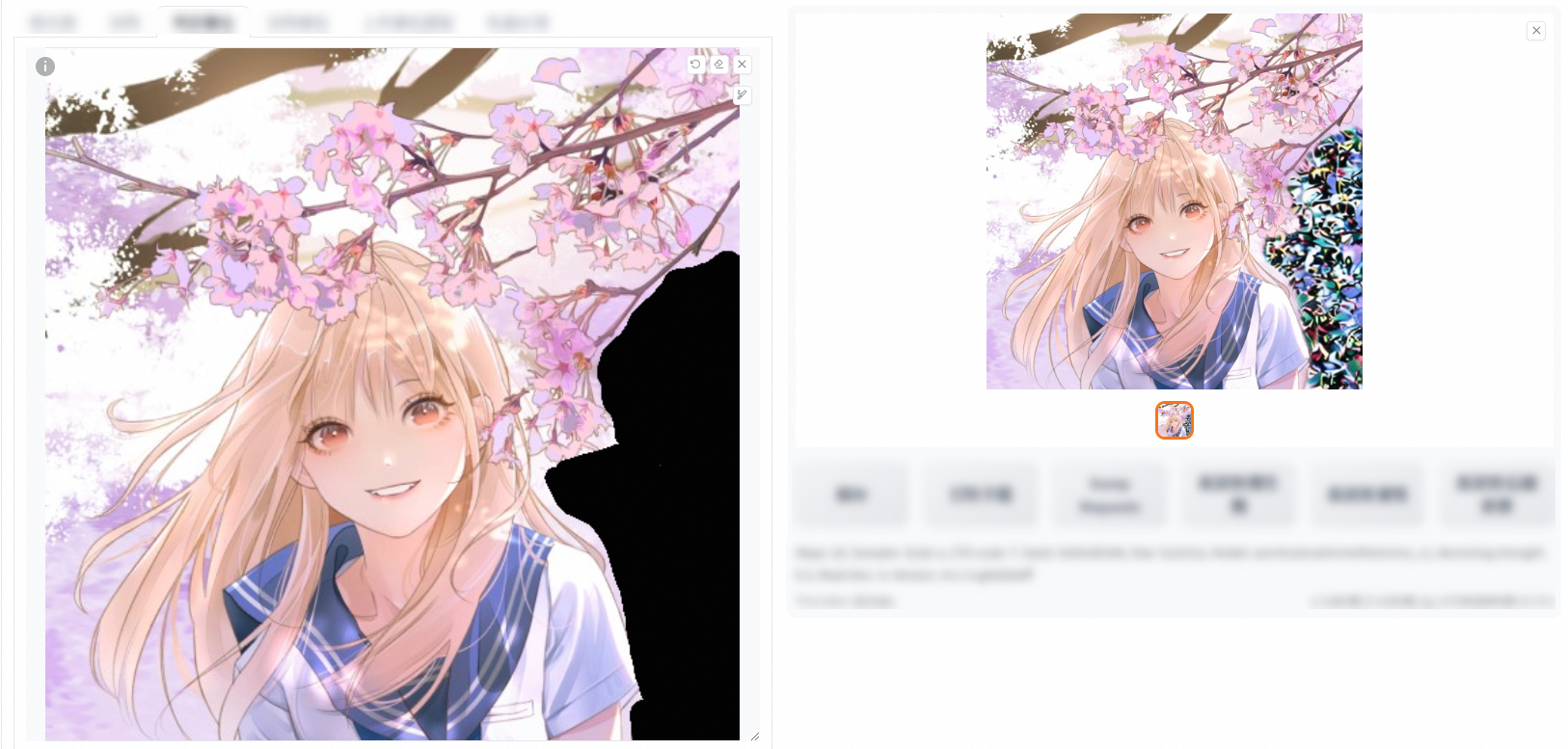
High denoising strength
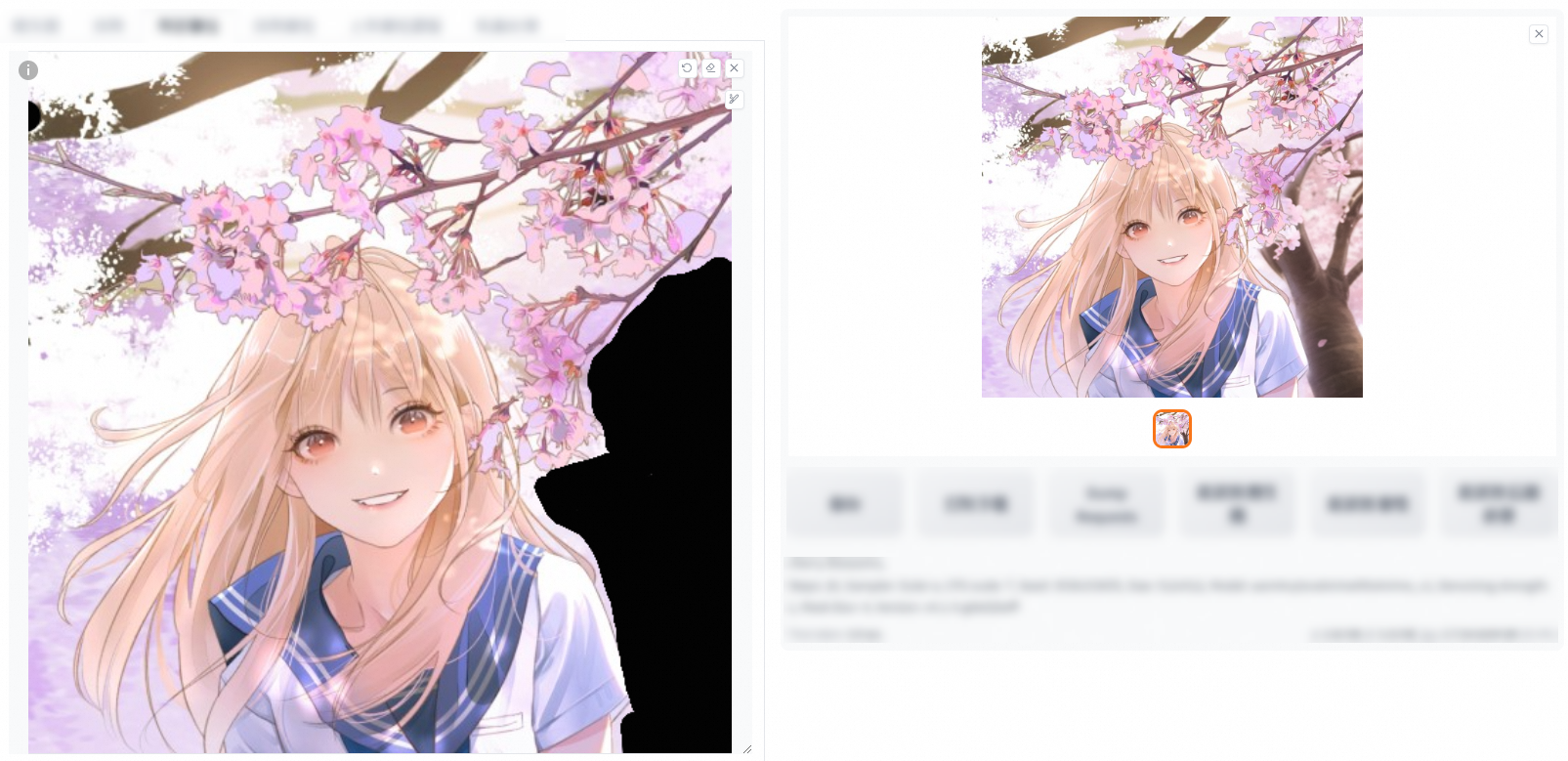
latent nothing: adds blank pixels to maintain the original appearance of the image. This method is usually used to leave white space or add borders to specific parts of an image to maintain the overall aesthetic of the image.
Low denoising strength
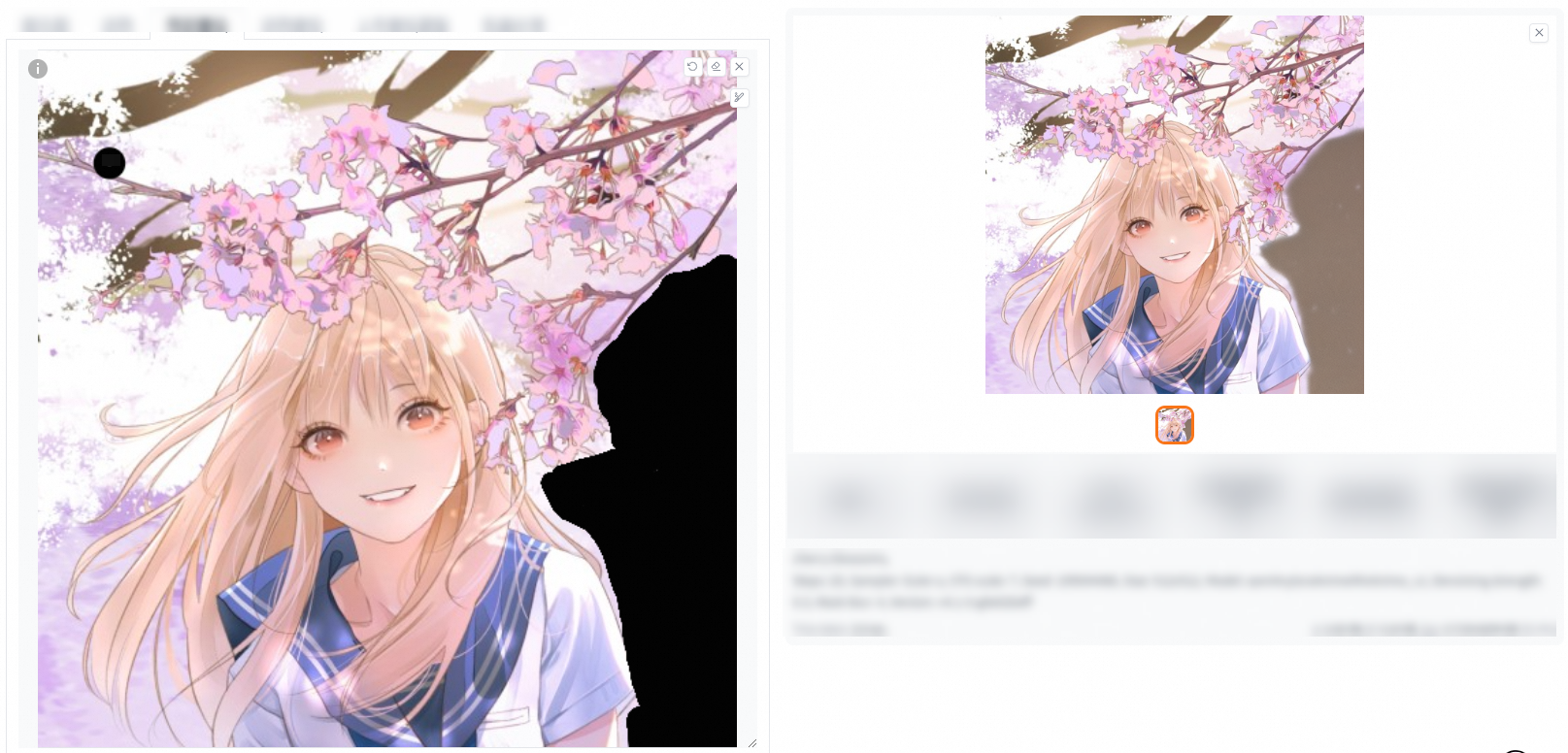
High denoising strength
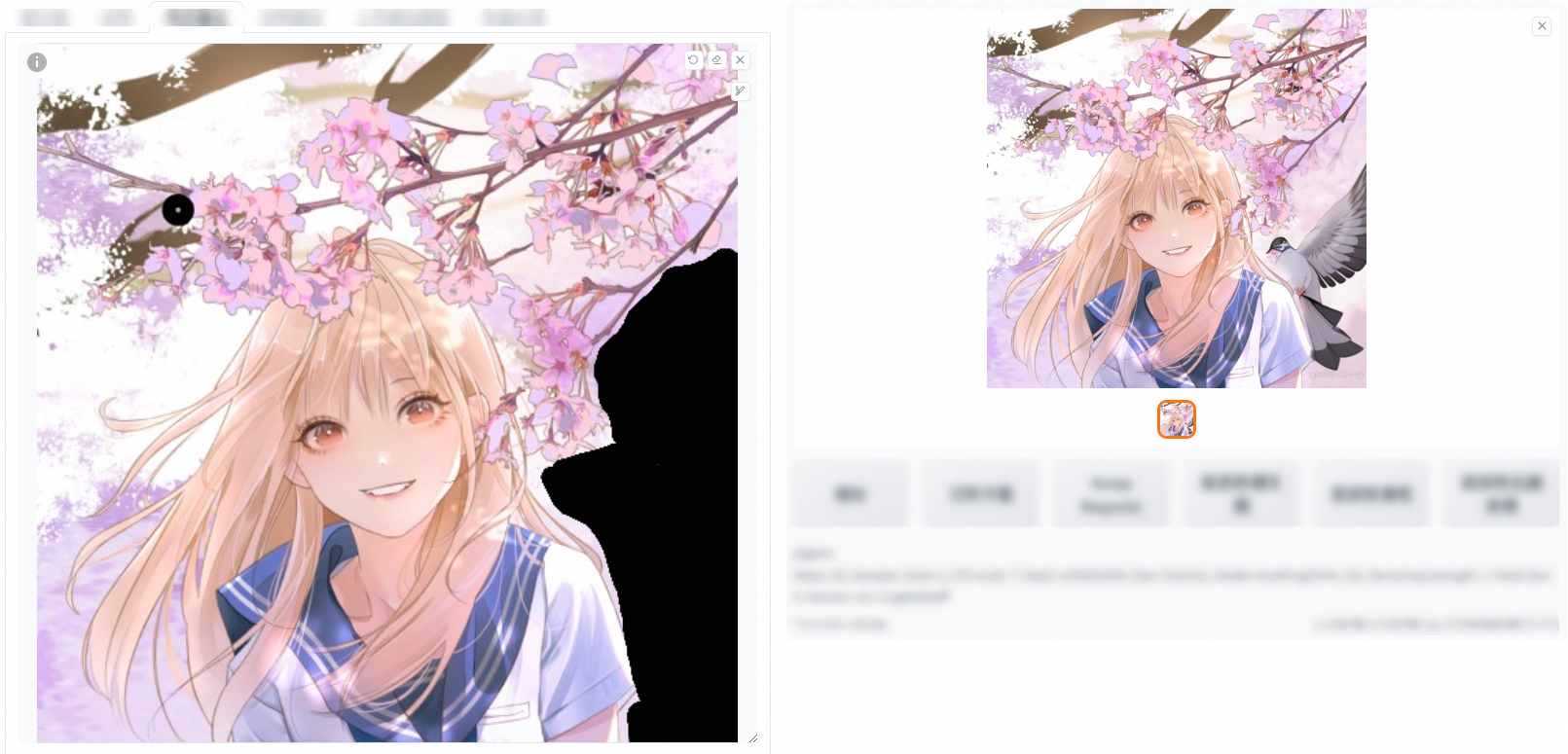
Whole picture (comparison of denoising strengths 0 and 0.6 for fill and original)
fill
Denoising strength: 0
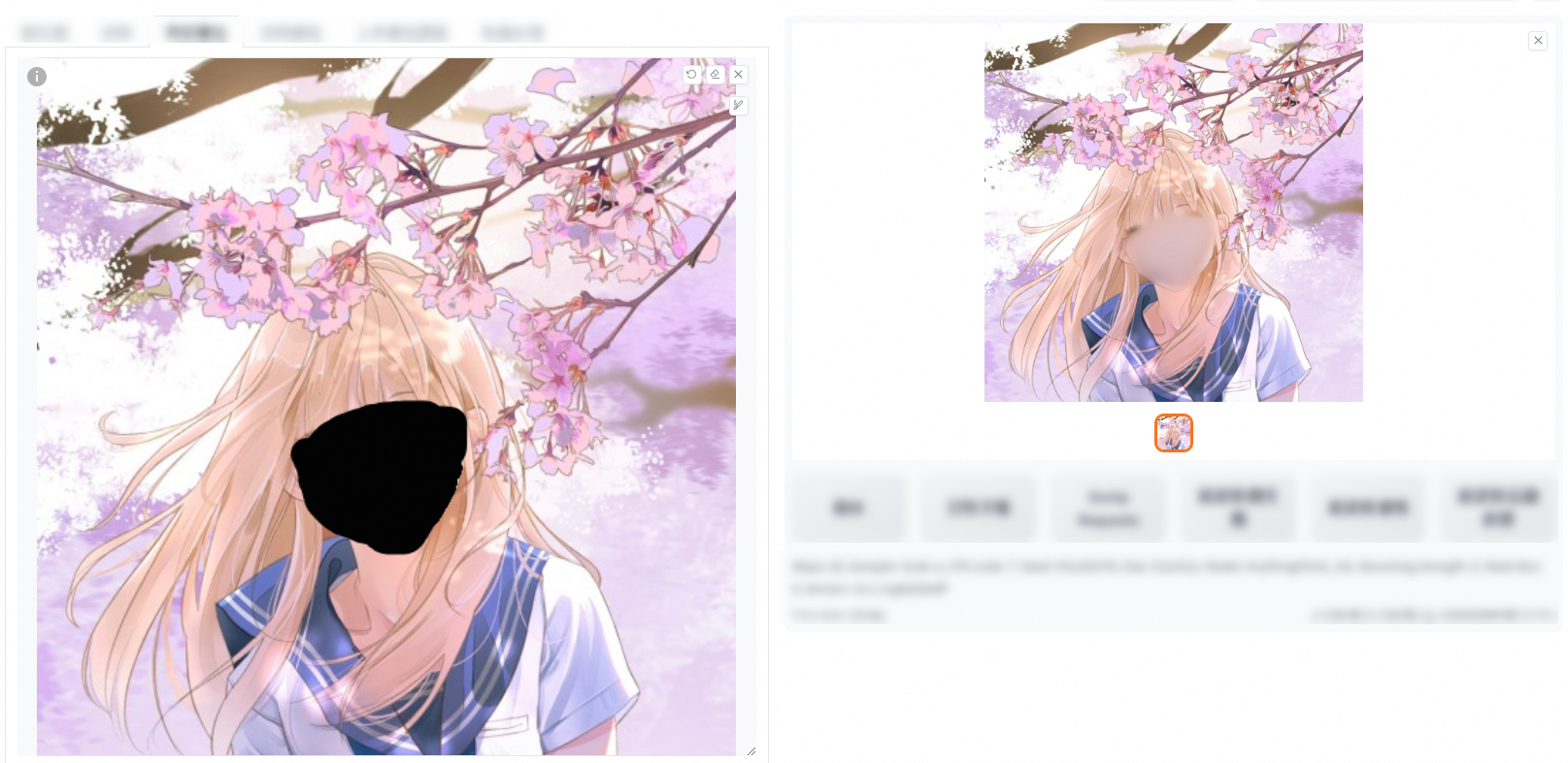
Denoising strength: 0.6
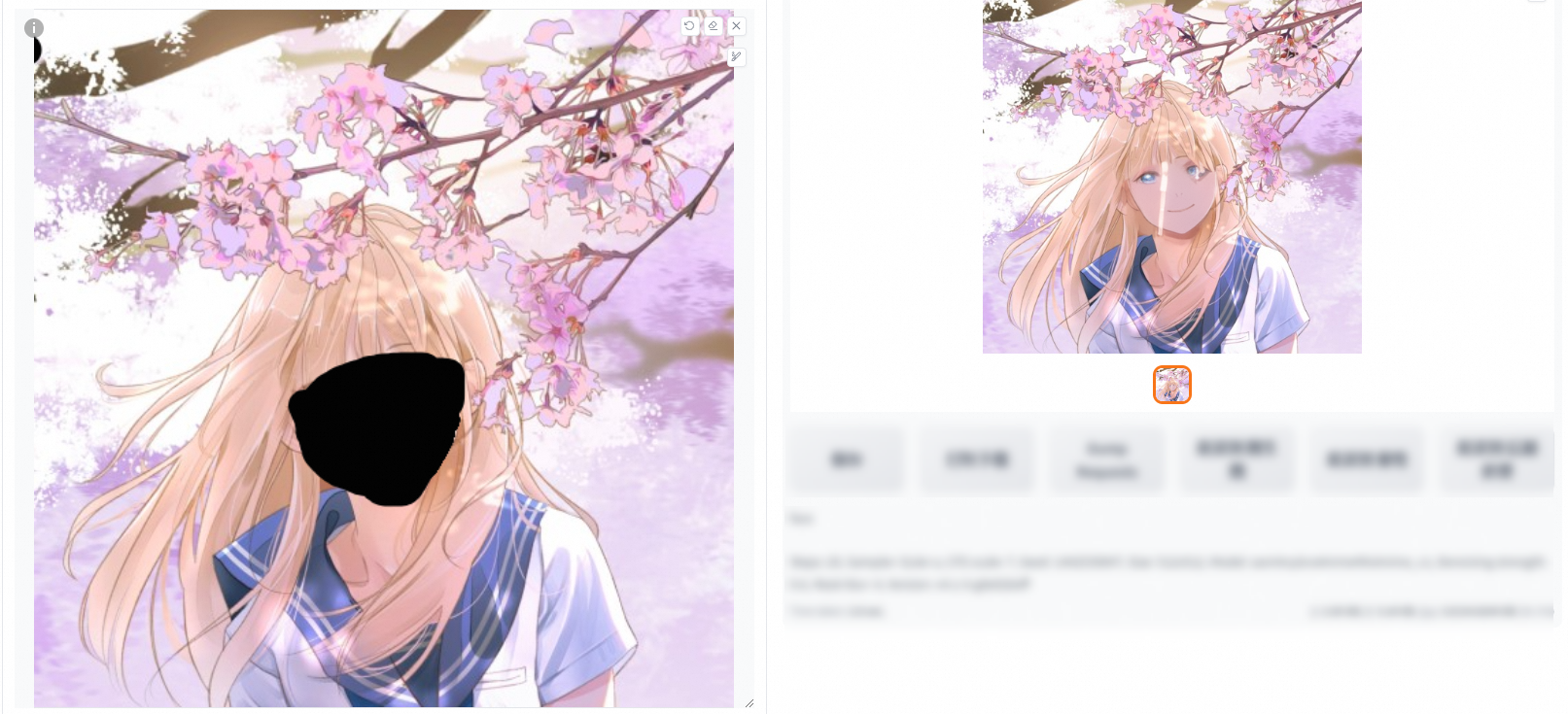
original
Denoising strength: 0
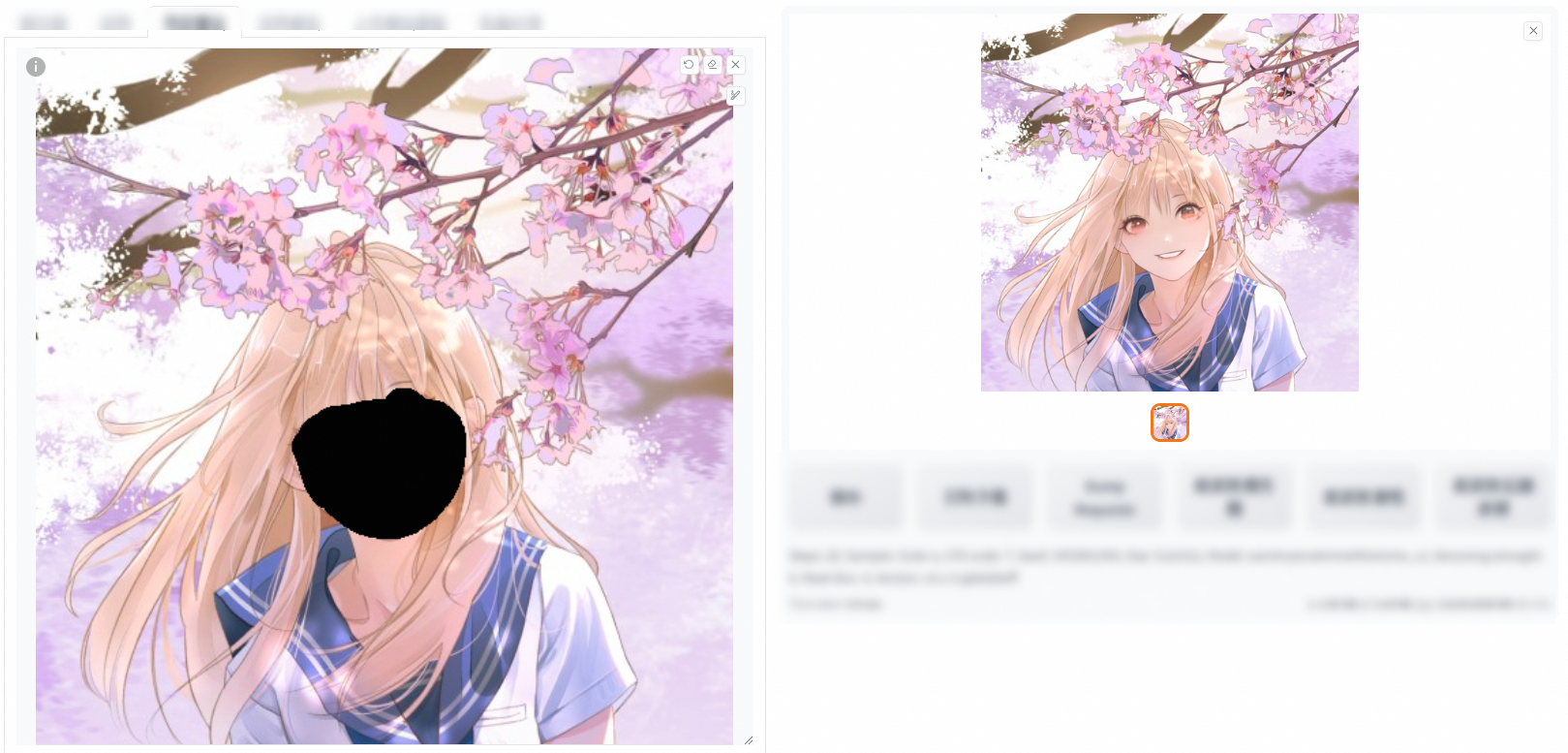
Denoising strength: 0.6
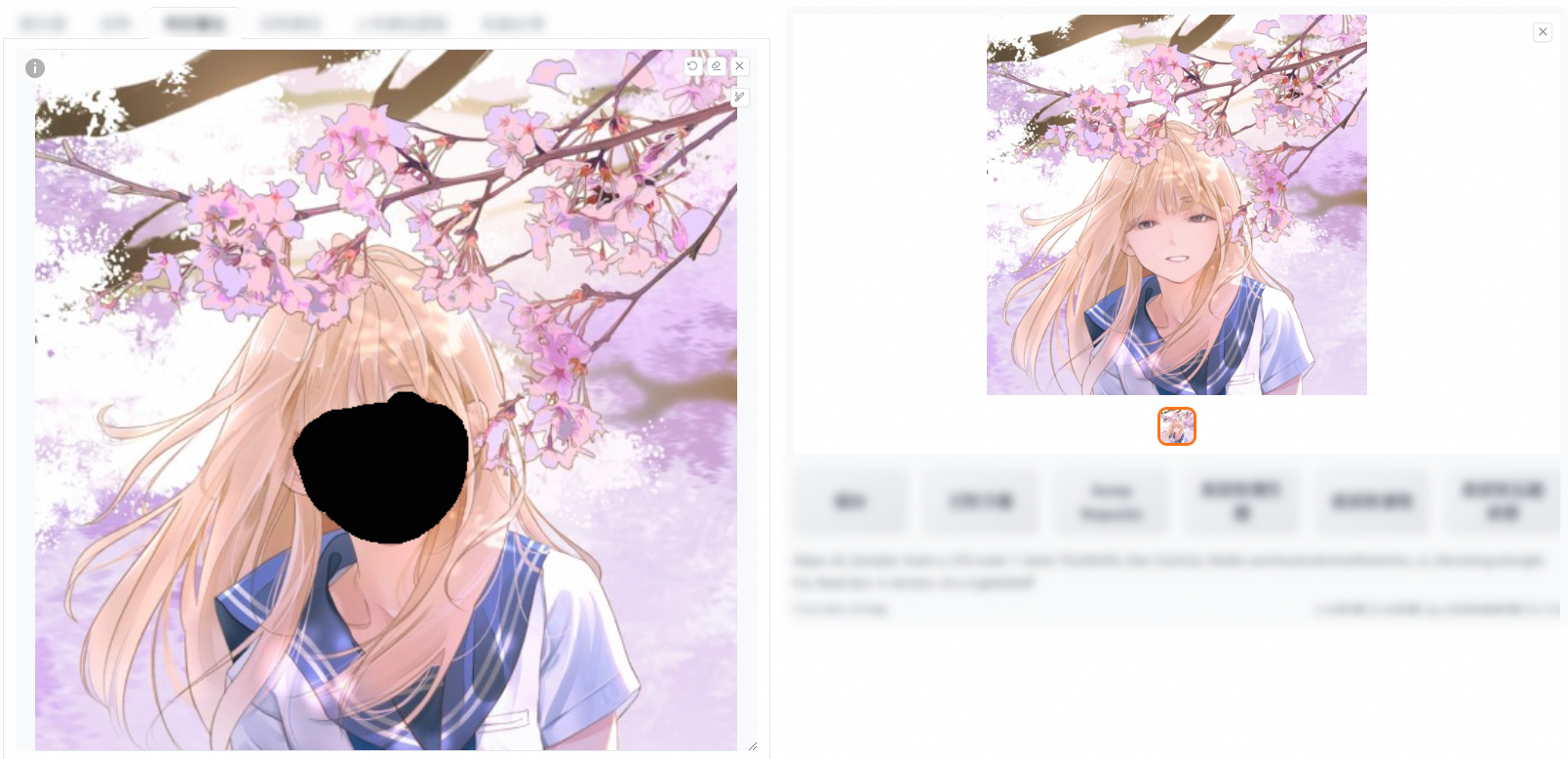
Only masked (comparison of denoising strengths 0 and 0.6 for fill and original)
fill
Denoising strength: 0
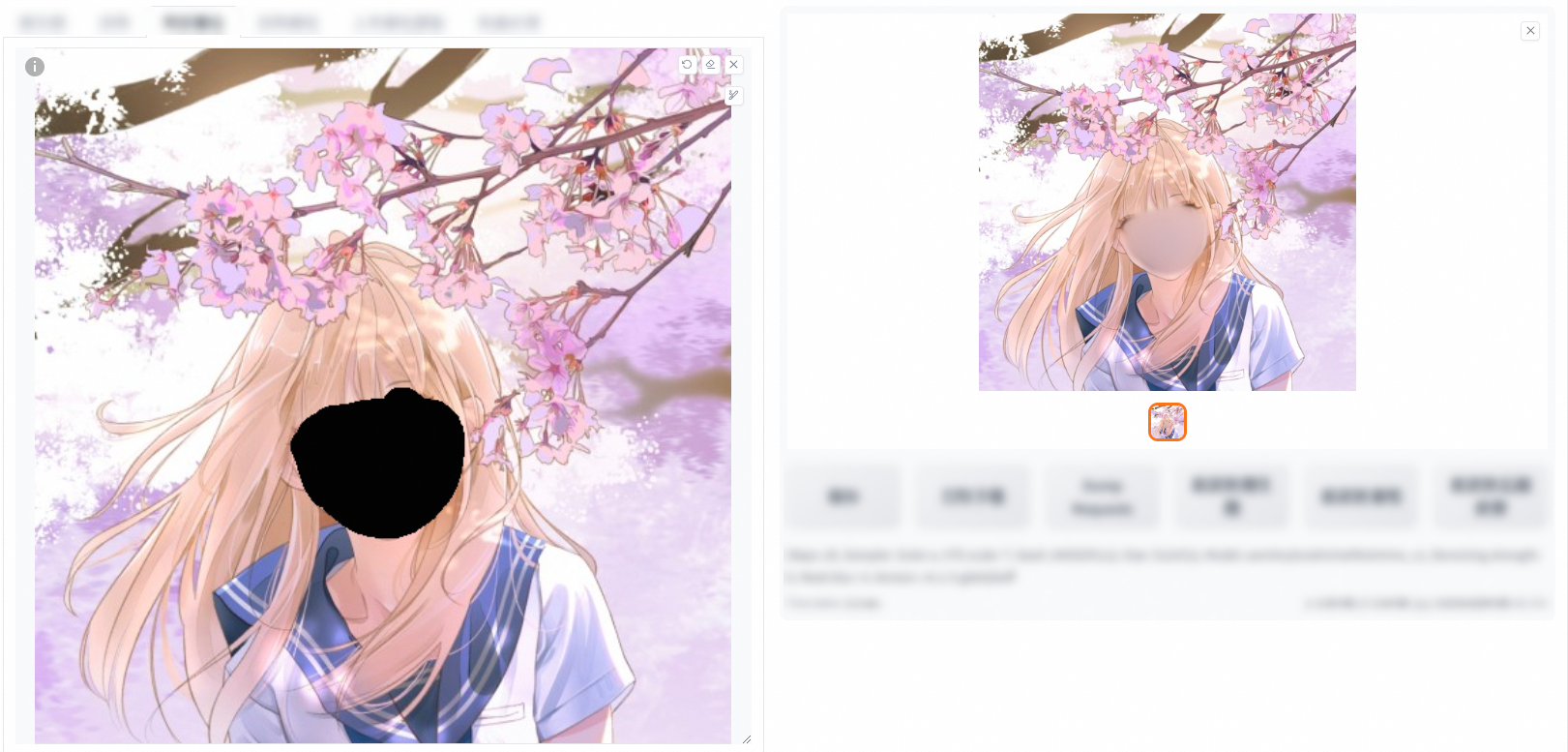
Denoising strength: 0.6
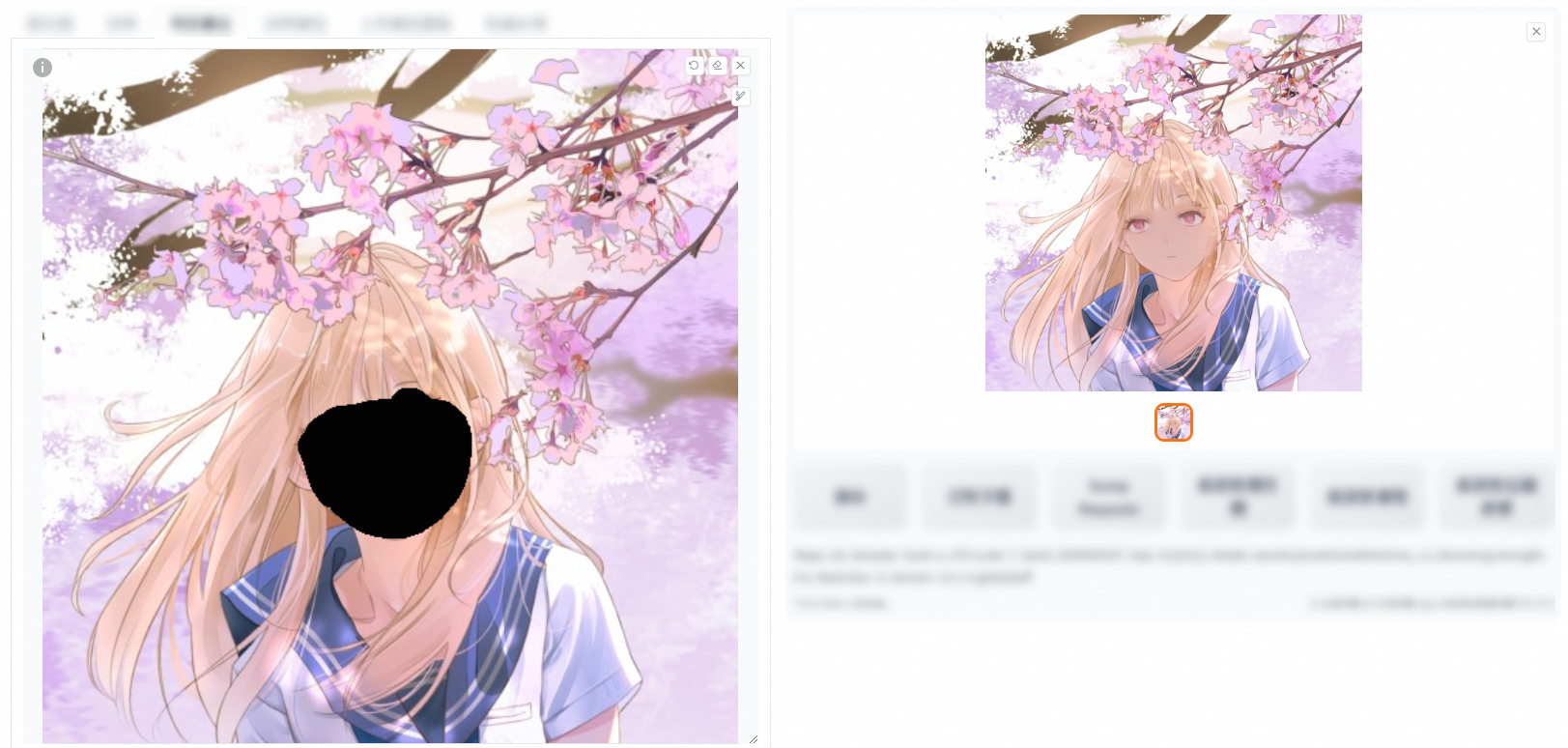
original
Denoising strength: 0
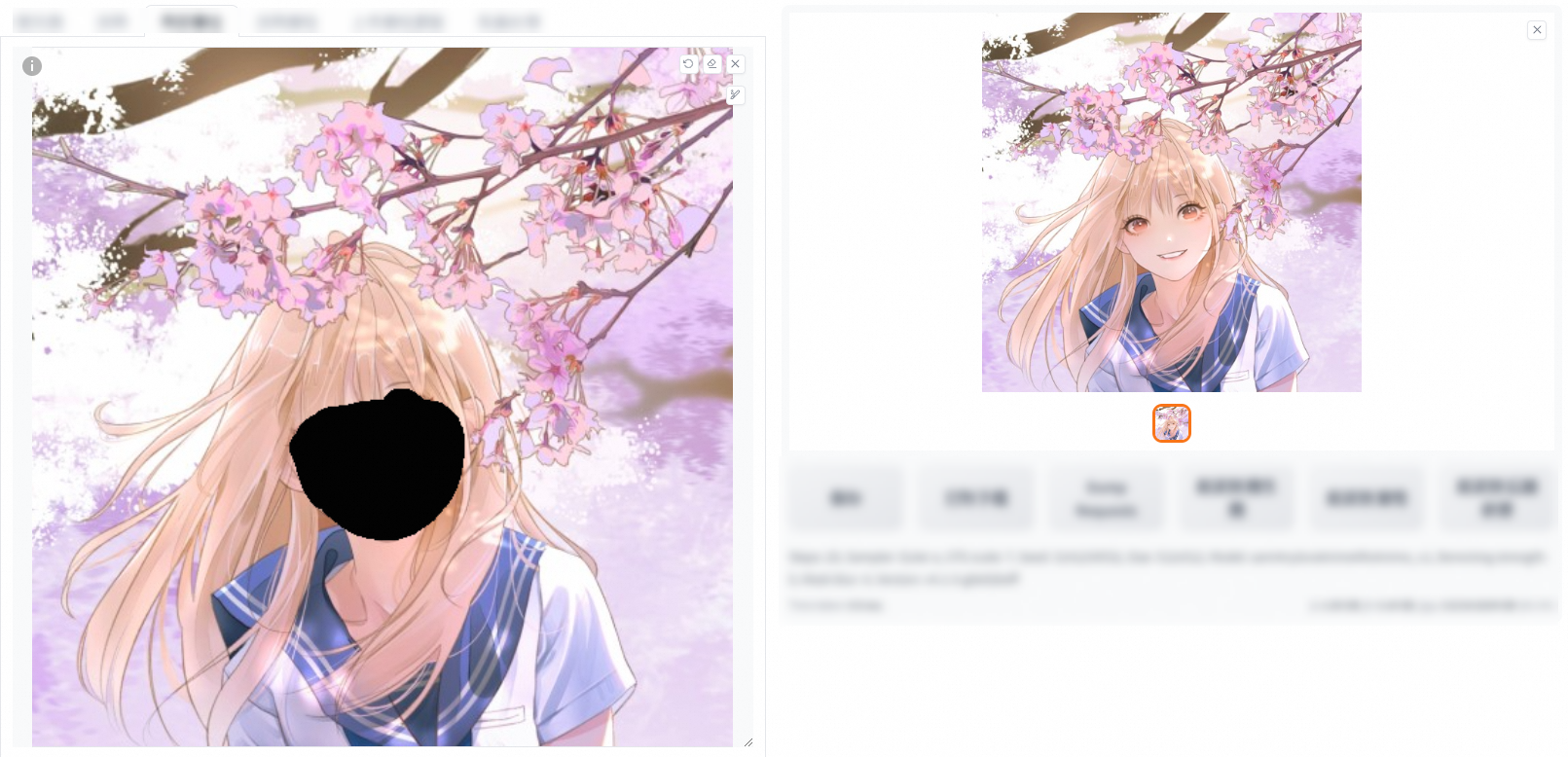
Denoising strength: 0.6
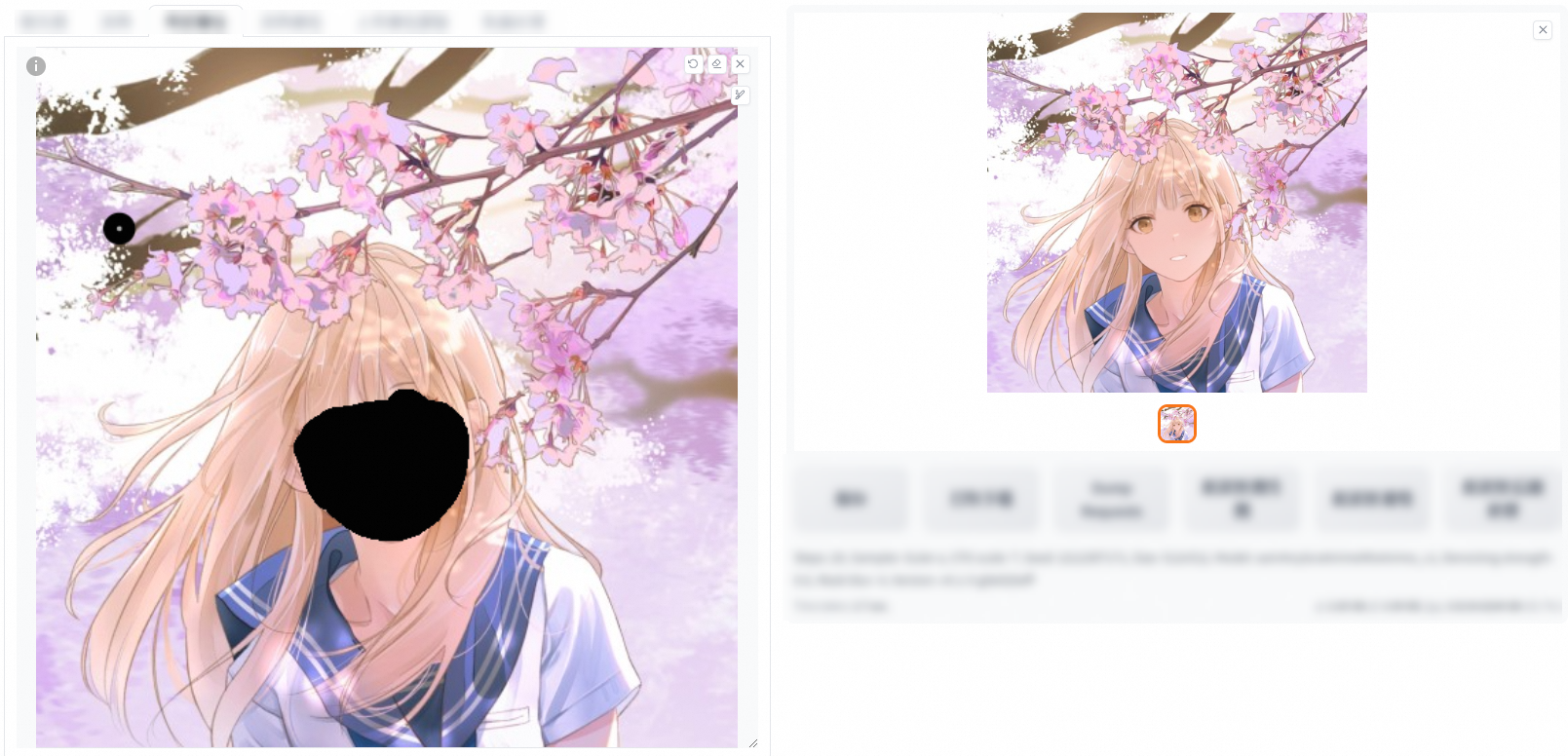
Only masked padding, pixels: You can configure this parameter only if you set the Inpaint area parameter to Only masked. This parameter does not affect the whole image. If the masked area is a human face, the whole image is less affected and latent noise can deliver a better artistic effect.
Mask transparency

The following four images show a comparison of the mask transparency values 0, 30, 60, and 90. The value of mask transparency ranges from 0 to 100. The larger the value, the more visible the mask is to the retained contour, which also affects the denoising strength.
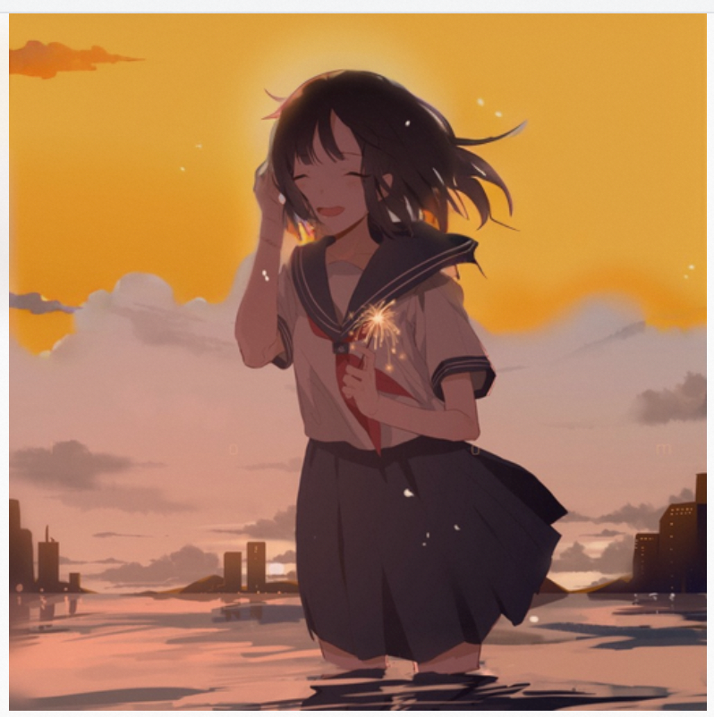
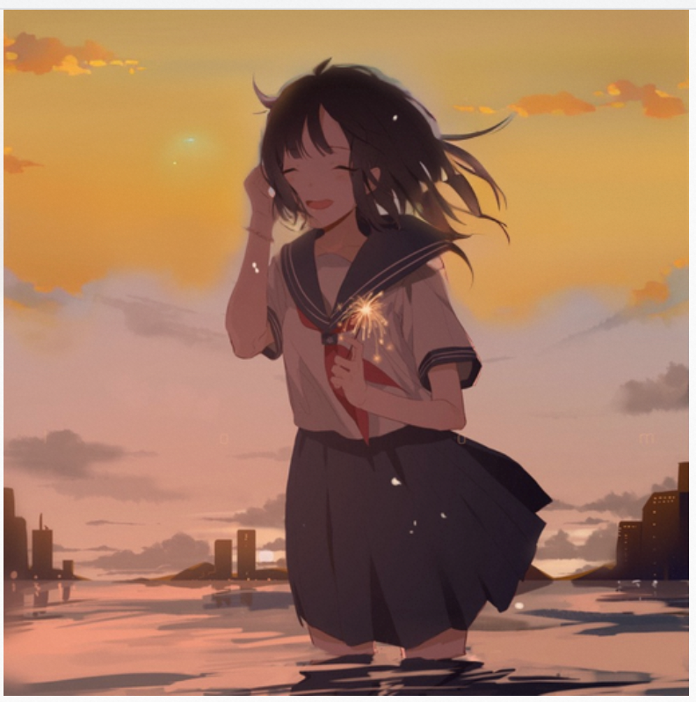
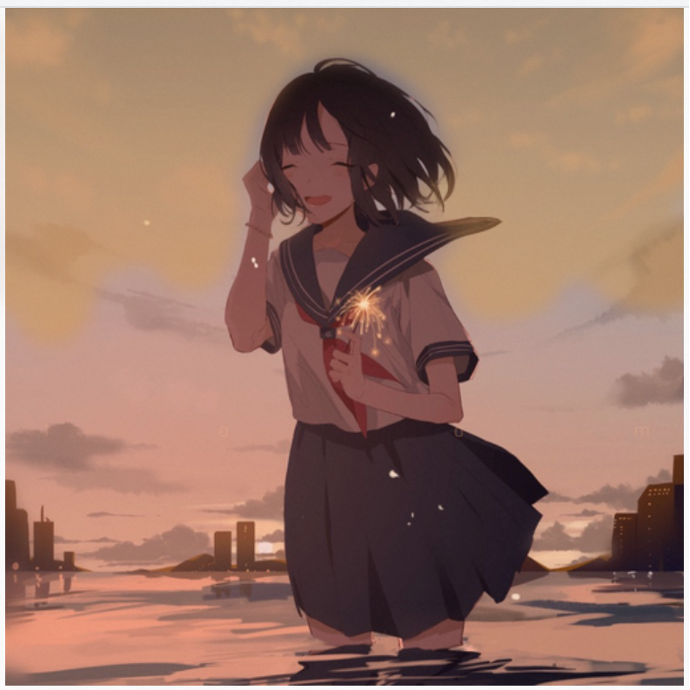
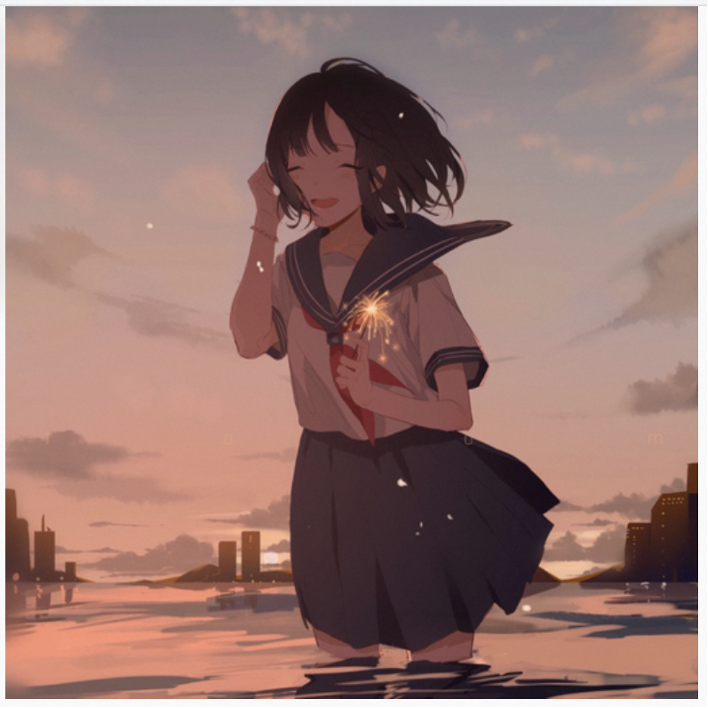
Image information
After you upload an image that is generated by Stable Diffusion, you can view the prompts and parameters of the image.
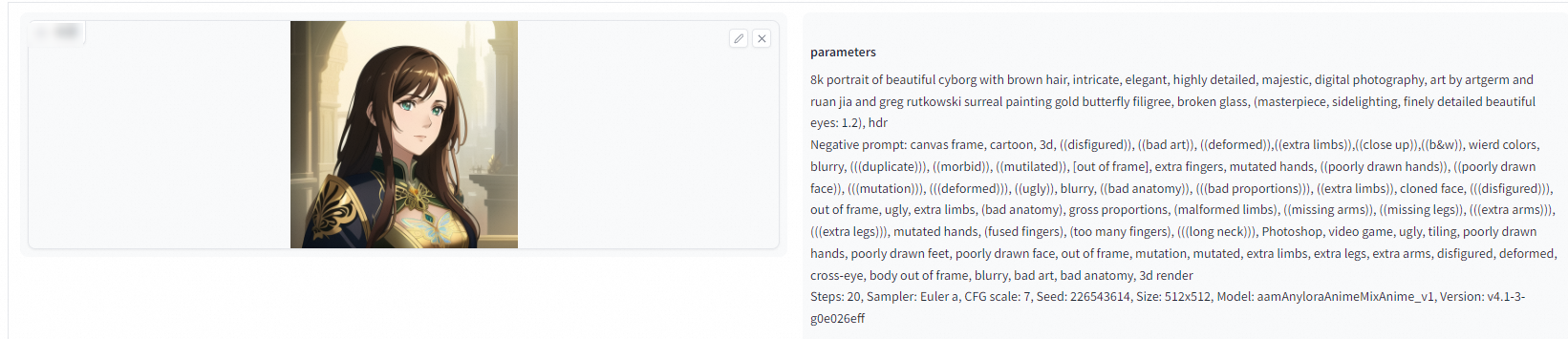
However, the screenshot of the original image or an image that is saved from another application cannot be identified in Stable Diffusion.

ControlNet plug-in
The MistoLine-SDXL-ControlNet plug-in developed by TheMisto.ai is provided for all versions of Stable Diffusion WebUI and ComfyUI in PAI ArtLab.
Parameters
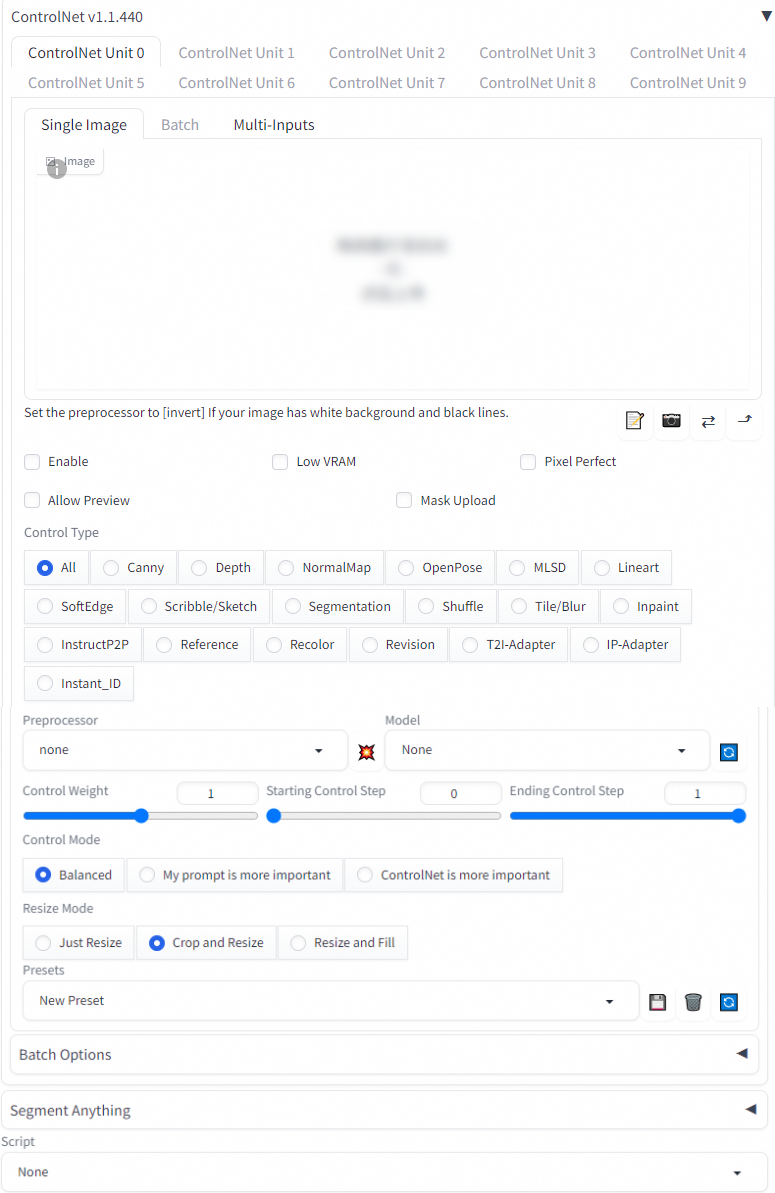
Parameter | Description |
Enable | Specifies whether to enable ControlNet. |
Low VRAM | If the video memory is smaller than 4 GB, you can select this option. |
Preprocessor | The preprocessing effect varies based on the preprocessor. Each preprocessor has a corresponding model. You can use a preprocessor together with the corresponding model. |
Model | A model can be used together with a preprocessor. You must manually download a model and upload it to the corresponding directory in OSS. |
Control Weight | The weight of ControlNet in the AI generation. In the process of img2img generation, a low denoising strength in combination with a high control weight can change the filter and style of an image without changing the details of the image, and a high denoising strength in combination with a low control weight can modify the details of an image. |
Starting Control Step | The value is a percentage value that ranges from 0 to 1. This parameter indicates where ControlNet starts control. A value of 0 indicates that ControlNet starts control from the first step, and a value of 1 indicates that ControlNet starts control from the last step. A larger value indicates that CnotrolNet has less effect on the AI generation. For example, if you set the Sampling steps parameter to 20 and the Starting Control Step parameter to 0.3, ControlNet starts control from the sixth step based on the following formula: 20 × 0.3 = 6. |
Ending Control Step | The value is a percentage value that ranges from 0 to 1. This parameter indicates where CnotrolNet ends control. |
Control Type |
|
ControlNet showcase
Recommended models: Checkpoint and LoRA
Prompt settings
Positive prompt: JinxLol,mature female,1girl, solo,looking at viewer, navel, gloves, fingerless gloves, character name, midriff, bare shoulders, looking at viewer, gun, crop top, belt,outdoors
Negative prompt: (low quality, worst quality:1.3), (lowres), blurry,text,watermark,signature,artist name,letterboxed, female pubic hair,realism
Parameter settings
Sampling method: Select DPM++2M Karras from the drop-down list. Use default values for other parameters or make an appropriate adjustment based on your needs.
ControlNet parameters
Upload a line draft with views from different visual angles. Set the Control Type parameter to Canny. Use default values for other parameters or make an appropriate adjustment based on your needs.
Result
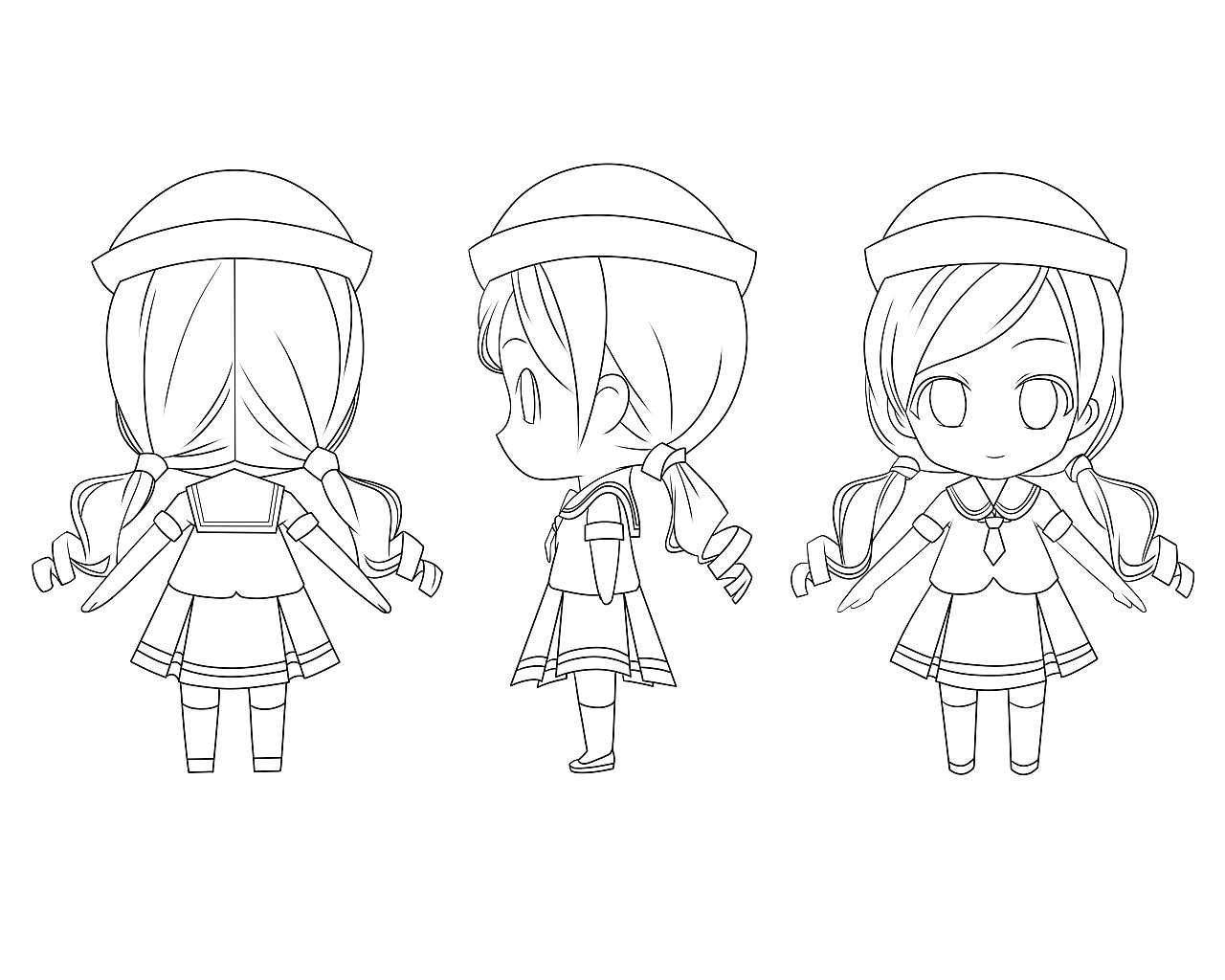
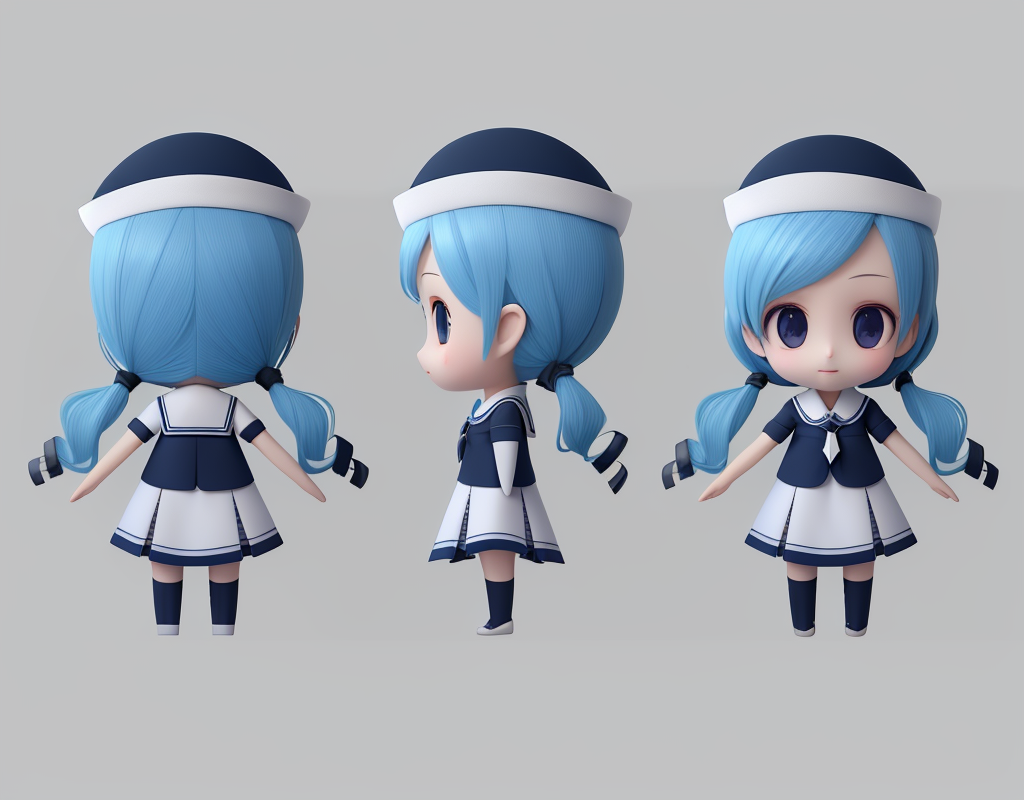
Recommended models: Checkpoint and LoRA
Prompt settings
Positive prompt: XSWB,architecture,autumn,bench, blue_sky, building,cloudy_sky, day, fence,forest, garden, grass, house, mountain, nature, no_humans, outdoors, palm_tree, path, pavement, plant, road, scenery, sky,tree, water,wooden_fence,triangular top,masterpiece,ultra-fine painting,sharp focus,HDR,UHD,8K,4K <lora:xsarchitectural3aerial_xsarchitectural3:0.9>
Negative prompt: soft line,Distorted, fuzzy
Parameter settings
Sampling method: Select Eular a from the drop-down list. Use default values for other parameters or make an appropriate adjustment based on your needs.
ControlNet parameters
Upload a line draft of a building. Set the Control Type parameter to MLSD. Use default values for other parameters or make an appropriate adjustment based on your needs.
Result
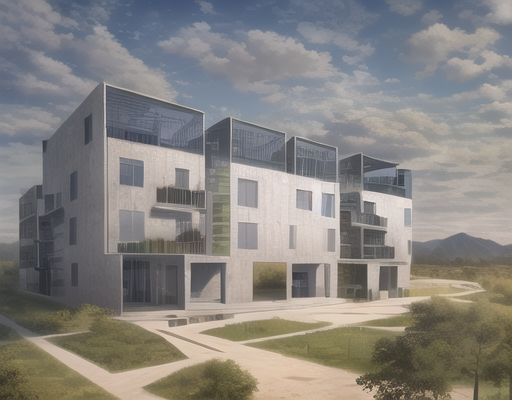
Recommended models:
v1-5-pruned-emaonly.safetensors and LoRA
Prompt settings
Positive prompt: Interior advanced Design<lora:xsarchitectural9advanced_xsarchitectural:1>
Parameter settings
Sampling method: Select Eular a from the drop-down list. Use default values for other parameters or make an appropriate adjustment based on your needs.
ControlNet parameters
Upload an image of a blank room. Set the Control Type parameter to MLSD and the Batch size parameter to 4. Use default values for other parameters or make an appropriate adjustment based on your needs.
Result
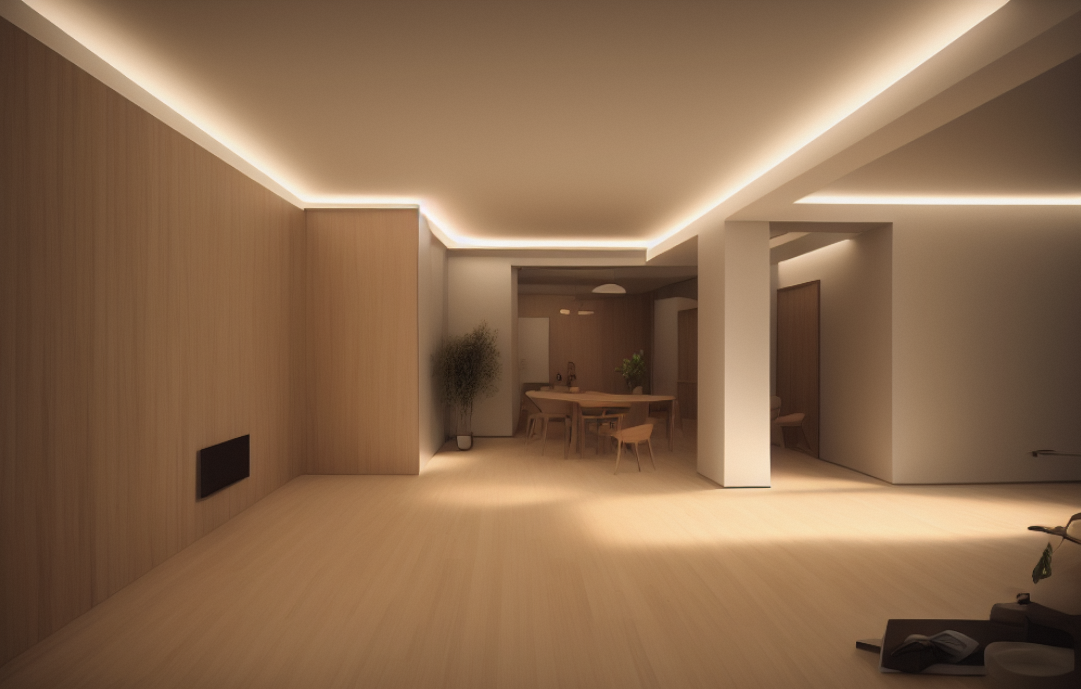
Recommended models: Checkpoint and LoRA
Prompt settings
Positive prompt: best quality, masterpiece, (realistic:1.2), 1 girl, brown hair, brown eyes,Front, detailed face, beautiful eyes <lora:hanfu_v29 Lora:1>
Negative prompt: (low quality, worst quality:1.4),nsfw
Parameter settings
Sampling method: Select Eular a from the drop-down list. Use default values for other parameters or make an appropriate adjustment based on your needs.
ControlNet parameters
Upload an image of a face. Set the Control Type parameter to Canny. Use default values for other parameters or make an appropriate adjustment based on your needs.
Result
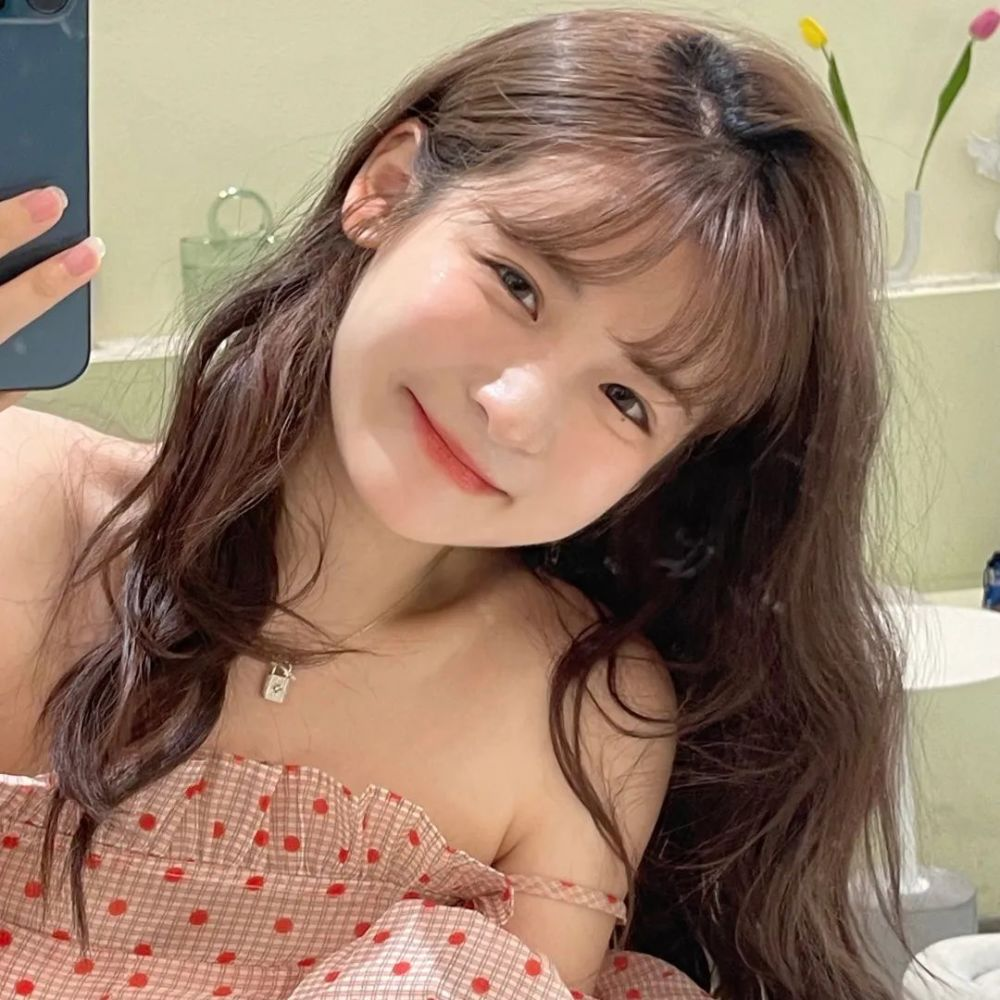
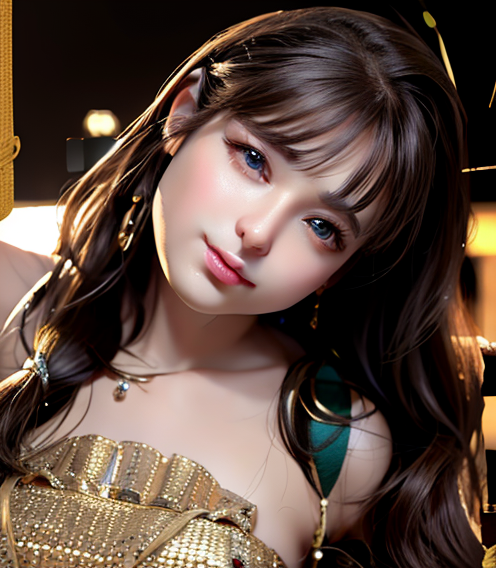
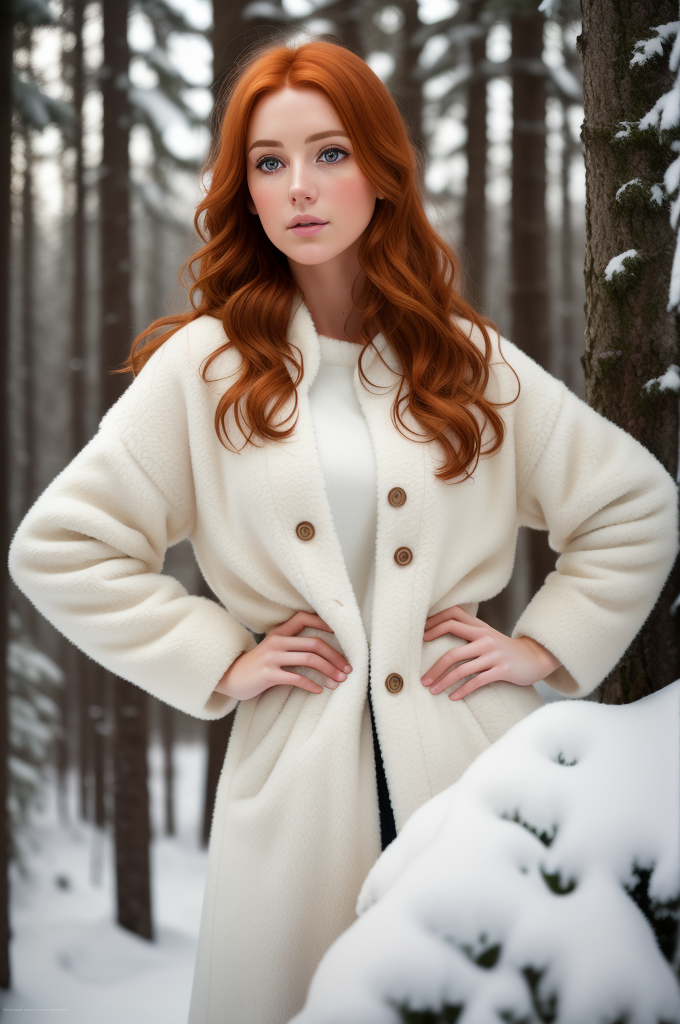
Recommended model: Civitai
Prompt settings
Positive prompt: close up of a european woman, ginger hair, winter forest, natural skin texture, 24mm, 4k textures, soft cinematic light, RAW photo, photorealism, photorealistic, intricate, elegant, highly detailed, sharp focus, ((((cinematic look)))), soothing tones, insane details, intricate details, hyperdetailed, low contrast, soft cinematic light, dim colors, exposure blend, hdr, faded
Negative prompt: (deformed, distorted, disfigured:1.3), poorly drawn, bad anatomy, wrong anatomy, extra limb, missing limb, floating limbs, (mutated hands and fingers:1.4), disconnected limbs, mutation, mutated, ugly, disgusting, blurry, amputation,nsfw
Parameter settings
Sampling method: Select Eular a from the drop-down list. Use default values for other parameters or make an appropriate adjustment based on your needs.
ControlNet parameters
Upload an image of a figure. Set the Control Type parameter to OpenPose. Use default values for other parameters or make an appropriate adjustment based on your needs.
Result
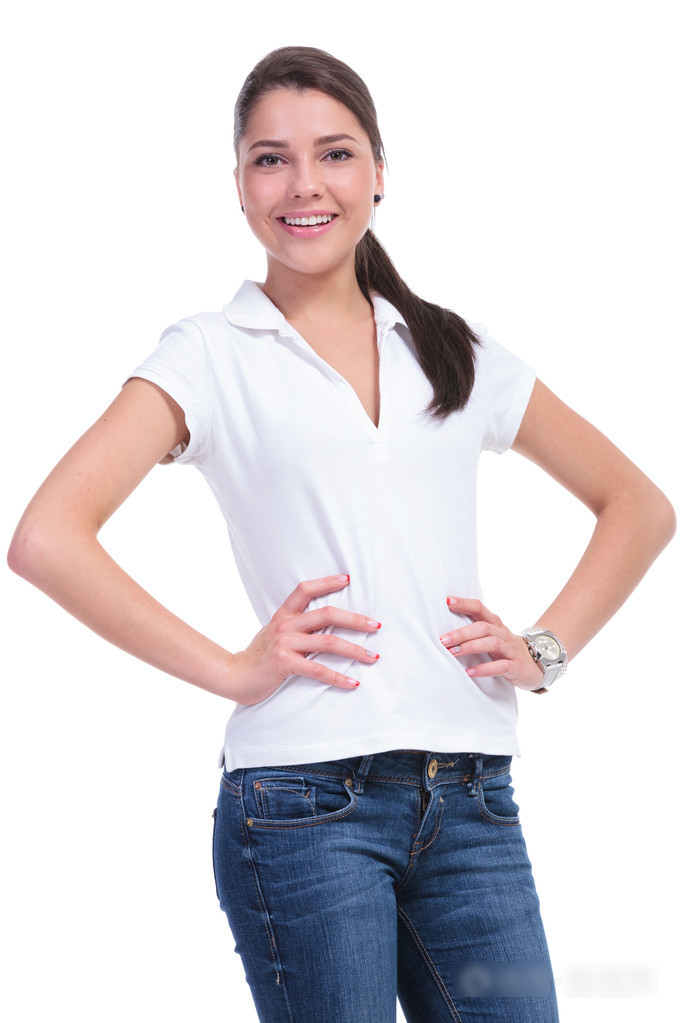
Prompt settings
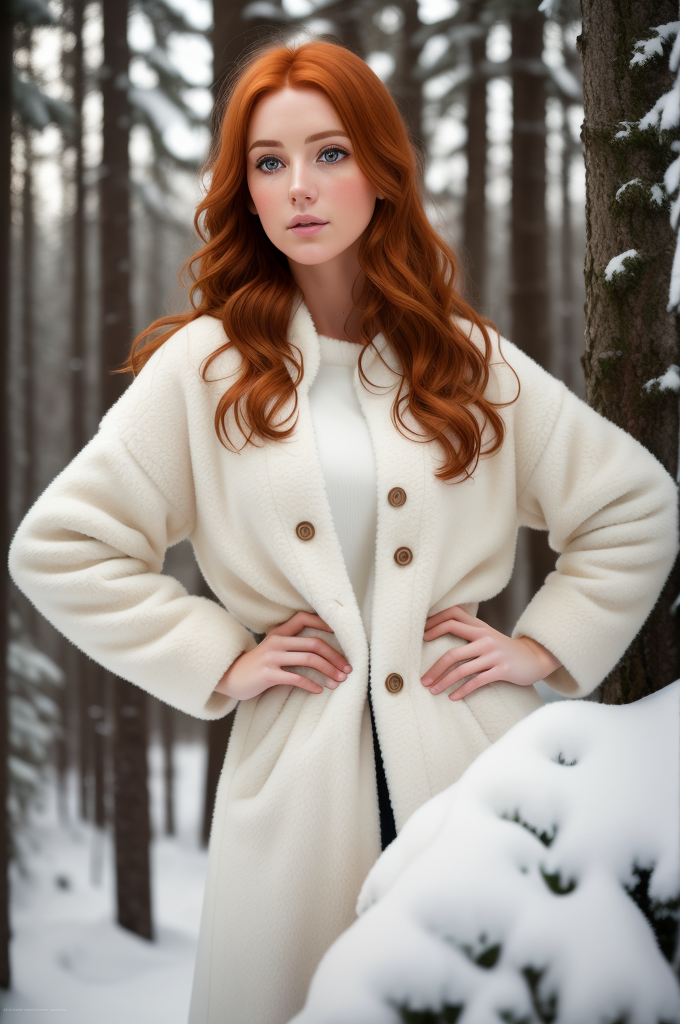
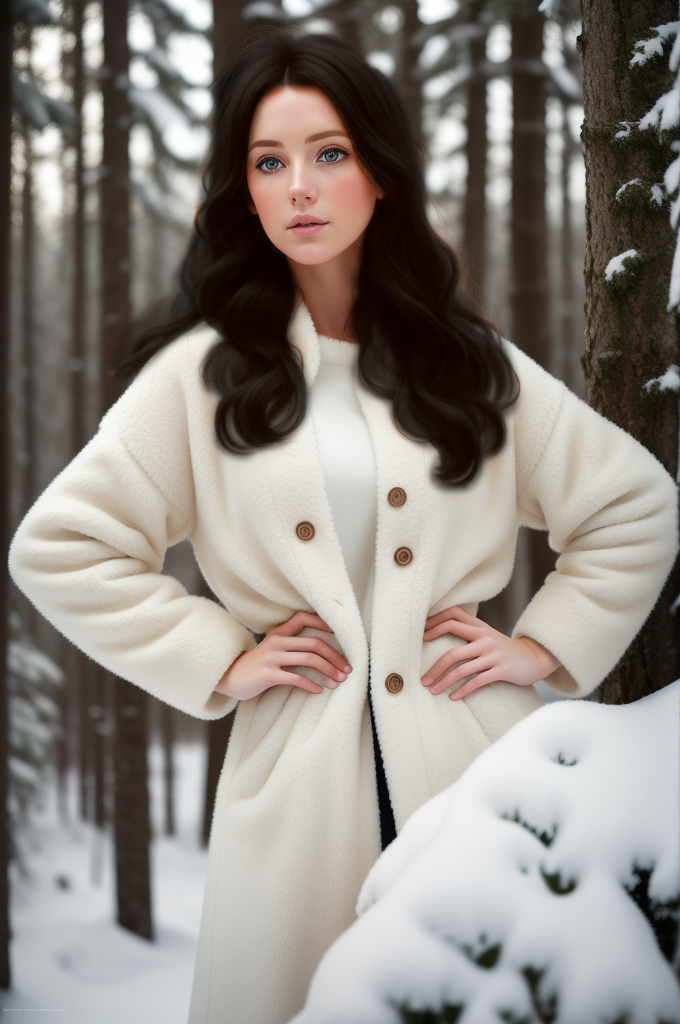
You can add the following tag: black hair.
Parameter settings
To change the hair color, you can use the Inpaint feature. Manually draw a mask, set the Denoising strength parameter to 0.6, and use default values for other parameters.
Result
Prompt settings
You can add the following tags and use parentheses to adjust the weight: green trees,((beach)),((sea)),((blue sky)),black hair.
Parameter settings
Manually draw a mask and modify parameters such as Mask mode and Denoising strength based on the scope of the masking.
Result