Train LoRA models with Kohya in PAI ArtLab to generate customized Stable Diffusion images.
Log on to the PAI ArtLab console.
Overview
Stable Diffusion (SD) is an open-source text-to-image model. SD WebUI provides a web interface for text-to-image and image-to-image generation with extensions and model support.
SD WebUI supports multiple models, each trained on specific datasets. LoRA is a lightweight fine-tuning method: fast training, small output files, and low hardware requirements.
Kohya is an open-source LoRA training tool with a standalone GUI, avoiding extension conflicts in SD WebUI.
Other fine-tuning methods: Models.
LoRA models
LoRA (Low-Rank Adaptation) trains stylized models on top of foundation models, enabling highly customized image generation.
File specifications:
-
File size: A few to several hundred MB, depending on trained parameters and foundation model complexity.
-
File format: .safetensors.
-
File application: Requires a specific Checkpoint foundation model.
-
File version: SD v1.5 and SDXL models are not interchangeable.
Why use LoRA
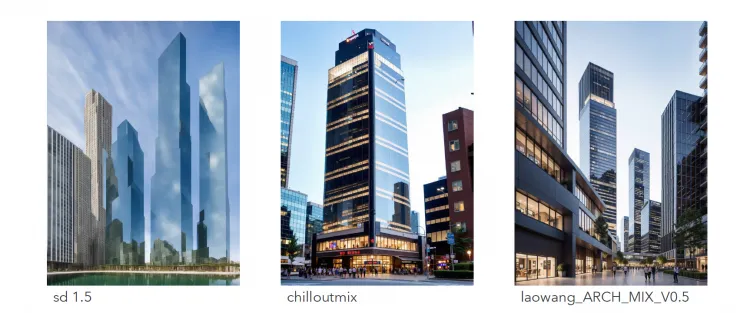
Foundation models (SD v1.5, v2.1, SDXL base 1.0) provide baseline generation. LoRA adds targeted style and creativity, enabling more personalized content.
For example, SD v1.5 has these limitations:
-
Imprecise details: Struggles with specific details and complex content, producing less realistic images.
-
Inconsistent logical structure: Object layout, proportions, and lighting may not adhere to real-world principles.
-
Inconsistent style: The random generation process makes consistent style transfer difficult.
Fine-tuned community models produce richer details and more controllable styles than raw foundation models:
LoRA model types
-
LyCORIS (predecessor to LoHa/LoCon)
LyCORIS fine-tunes 26 neural network layers (vs. LoRA's 17), offering greater expressiveness. Its core components, LoCon and LoHa, adjust SD model levels and double information capacity respectively.
Used like LoRA, with additional text encoder, U-Net, and DyLoRA weight adjustments.
-
LoCon
Conventional LoRA adjusts only cross-attention layers. LoCon extends this to the ResNet matrix. LoCon has been merged into LyCORIS, making old LoCon extensions obsolete. LoCon-LoRA for Convolution Network.
-
LoHa
LoHa (LoRA with Hadamard Product) replaces the matrix dot product with the Hadamard Product, theoretically holding more information under the same conditions. FedPara Low-Rank Hadamard Product For Communication-Efficient Federated Learning.
-
DyLoRA
Optimal LoRA rank varies by model, dataset, and task. DyLoRA explores multiple rank configurations within a specified dimension, simplifying rank selection and improving fine-tuning efficiency.
Prepare a dataset
Determine the LoRA type
Determine the LoRA model type to train, such as character or style.
For example, train a style model for Alibaba Cloud 3D product icons based on the Alibaba Cloud Evolving Design language system: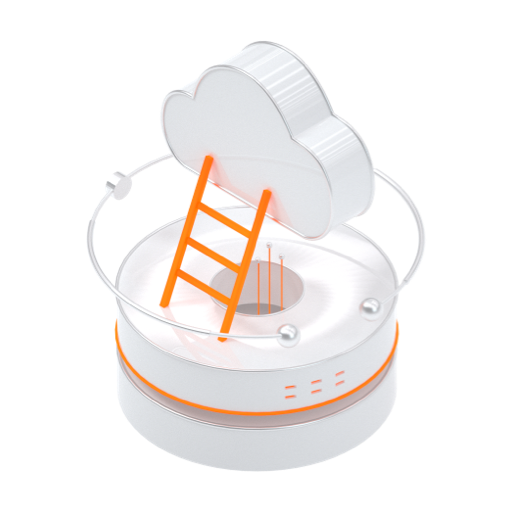
Dataset content requirements
A dataset consists of images and corresponding text annotation files.
Prepare dataset content: Images
-
Image requirements
-
Quantity: 15 or more images.
-
Quality: Moderate resolution, clear quality.
-
Style: Consistent style across all images.
-
Content: Highlight the training subject. Avoid complex backgrounds and text.
-
Size: Resolution must be a multiple of 64 (512-768). Crop to 512×512 for low GPU memory, 768×768 for high GPU memory.
-
-
Image pre-processing
-
Quality adjustment: Use moderate resolution. Upscale low-resolution images with the SD WebUI Extras feature or other tools.
-
Size adjustment: Use batch cropping tools to crop images.
-
-
Example of prepared images
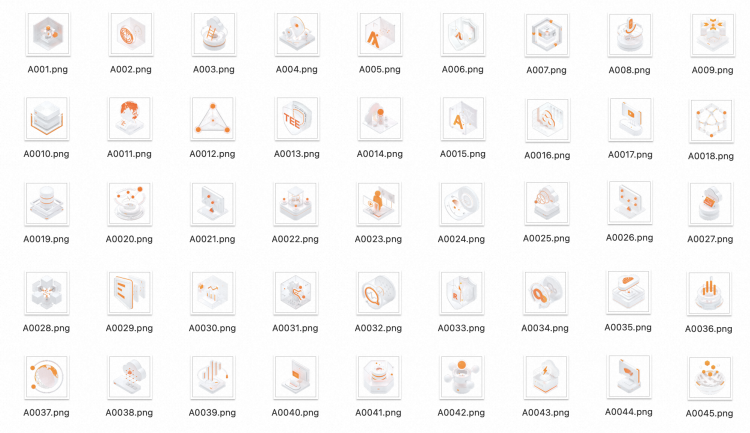
Store the images in an on-premises folder.
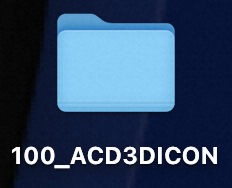
Create a dataset and upload files
Note the naming requirements before uploading. If you only use the platform to manage or annotate files, no special naming is needed.
For Kohya LoRA training, uploaded files must follow this naming convention:
-
Naming format: Number_CustomName
-
Number: User-defined.
-
For example, if a folder contains 10 images, each image is trained 1500 / 10 = 150 times. The folder name number can be 150. If a folder contains 20 images, each image is trained 1500 / 20 = 75 times. Since 75 < 100, set the folder name number to 100.
-
CustomName: A descriptive dataset name. This topic uses 100_ACD3DICON as an example.
-
Log in to PAI ArtLab and select Kohya (Exclusive Edition) to open the Kohya-SS page.
-
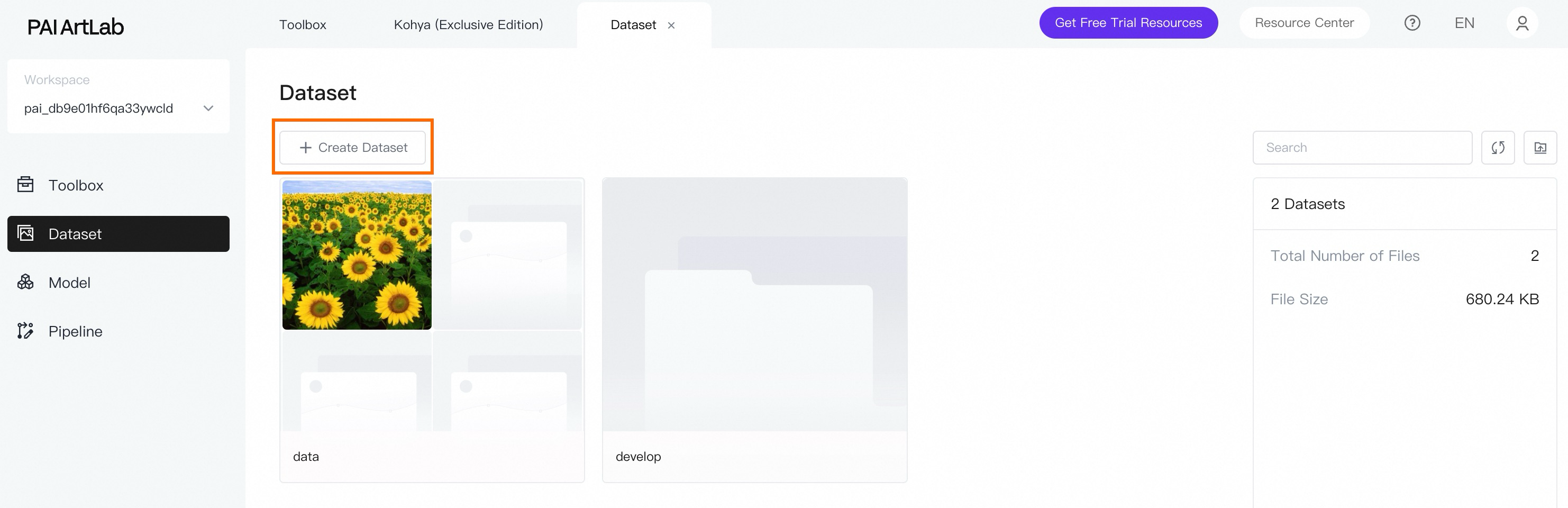
Create a dataset.
On the dataset page, click Create Dataset and enter a dataset name. This example uses acd3dicon.
-
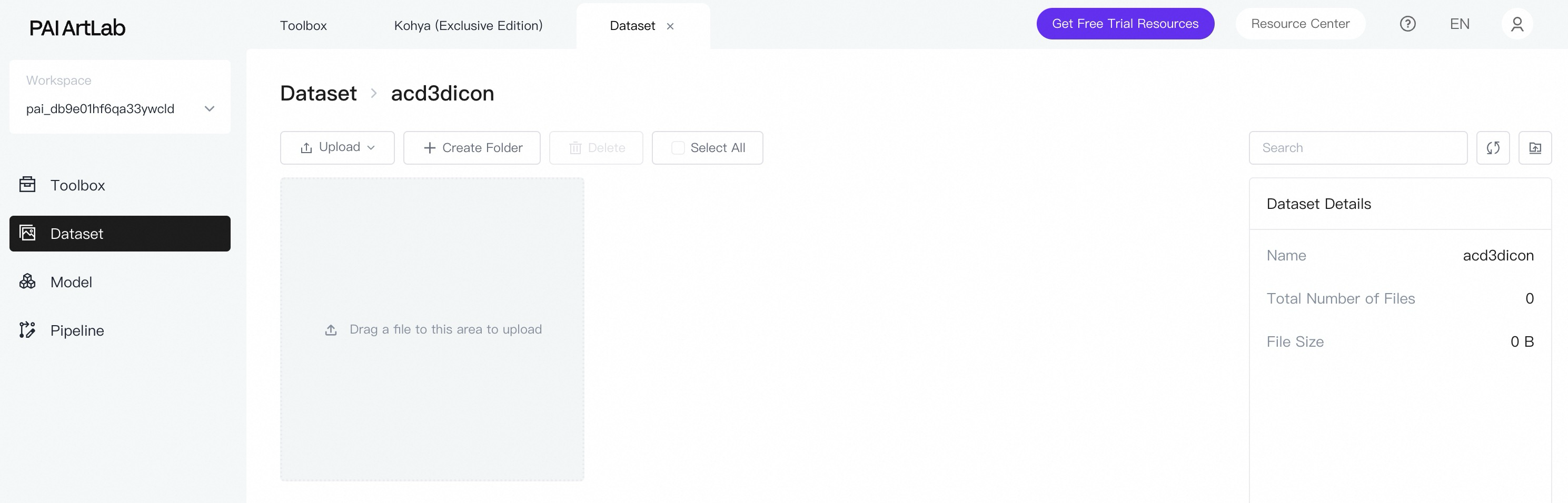
Upload dataset files.
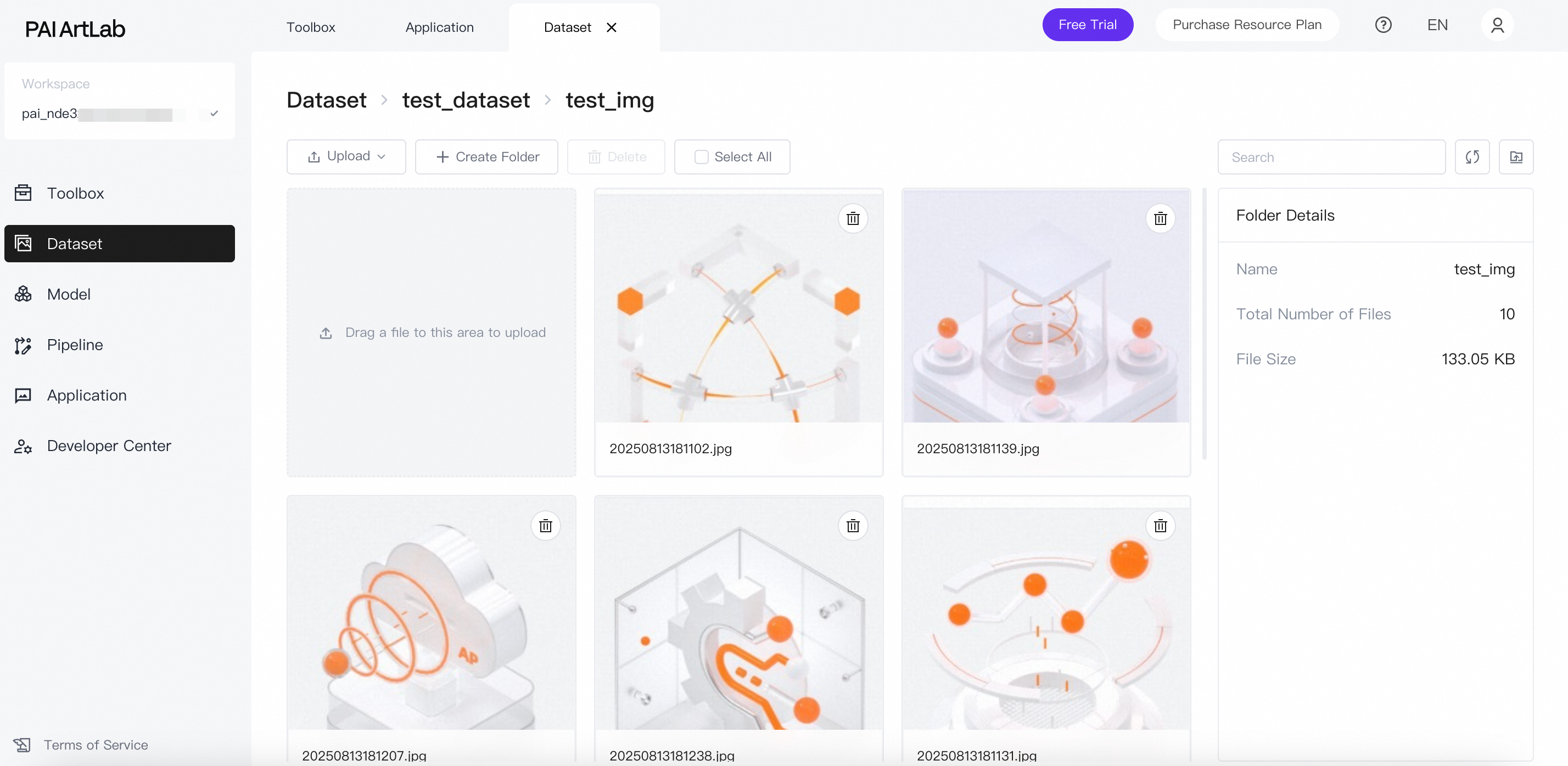
Click the dataset name, then drag the image folder from your computer to the upload area.
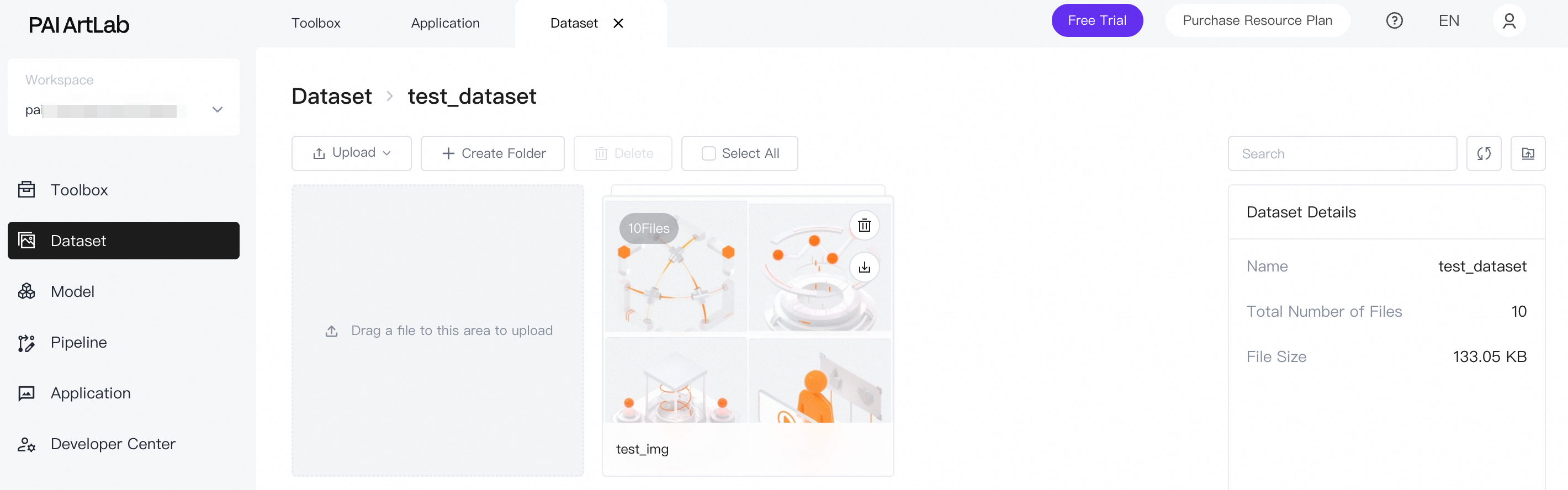
After upload, the folder appears on the page.
-
Click the folder to view the uploaded images.
Prepare dataset content: Image annotations
Each image needs a TXT annotation file with the same name.
-
Image annotation requirements
For elements with clear structure and standard perspective (e.g., product icons), use basic descriptive annotations focusing on simple geometric shapes like "sphere" or "cube".
Category
Keywords
Service
Product/Service
database, cloud security, computing platform, container, cloud-native, etc. (in English)
Cloud computing elements
Data processing, Storage, Computing, Cloud computing, Elastic computing, Distributed storage, Cloud database, Virtualization, Containerization, Cloud security, Cloud architecture, Cloud services, Server, Load balancing, Automated management, Scalability, Disaster recovery, High availability, Cloud monitoring, Cloud billing
Design (Texture)
Environment & Composition
viewfinder, isometric, hdri environment, white background, negative space
Material
glossy texture, matte texture, metallic texture, glass texture, frosted glass texture
Lighting
studio lighting, soft lighting
Color
alibaba cloud orange, white, black, gradient orange, transparent, silver
Emotion
rational, orderly, energetic, vibrant
Quality
UHD, accurate, high details, best quality, 1080P, 16k, 8k
Design (Atmosphere)
...
...
-
Add annotations to images
Manual annotation works but is slow for large datasets. Kohya's BLIP model batch-generates text descriptions that you can refine.
Annotate the dataset
-
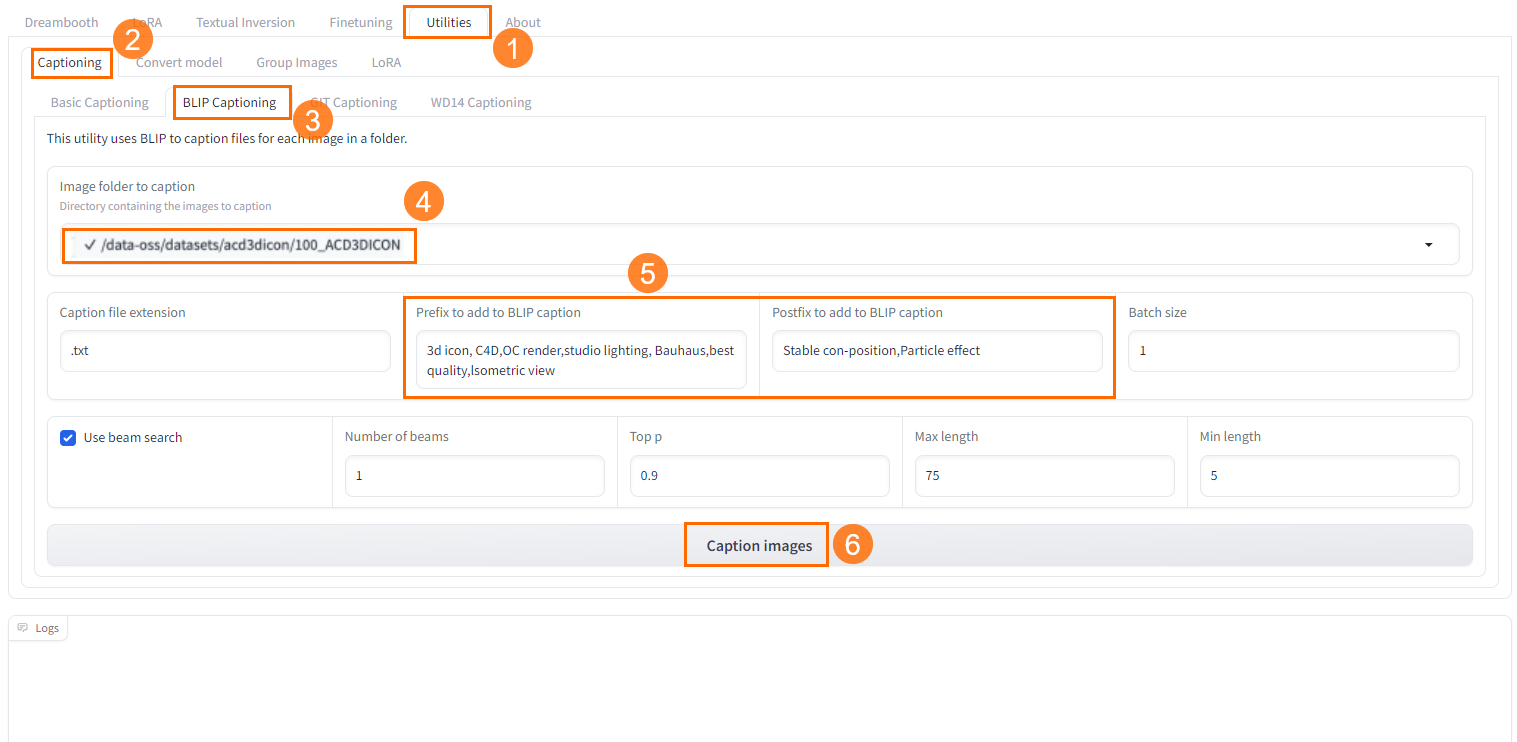
On the Kohya-SS page, choose Utilities > Captioning > BLIP Captioning.
-
Select the uploaded image folder in the created dataset.
-
In the prefix field, enter keywords to prepend to each annotation based on key features of your dataset images.
-
Click Caption Image to start annotating.
-
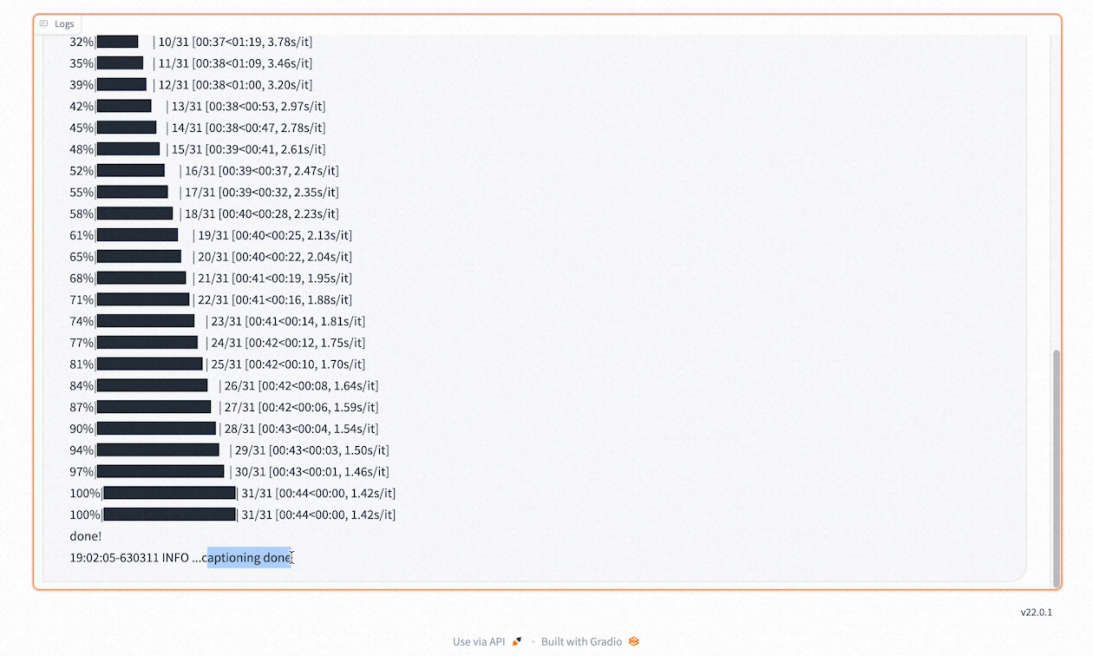
View annotation progress in the log at the bottom.
-
Return to the dataset page. Each uploaded image now has a corresponding annotation file.
-
(Optional) Manually modify any inappropriate annotations.
Train the LoRA model
-
On the Kohya-SS page, go to LoRA > Training > Source Model.
-
Configure the following parameters:
-
Model Quick Pick: runwayml/stable-diffusion-v1-5
-
Save trained model as: safetensors
NoteIf your desired model is not in the Model Quick Pick dropdown list, select custom and then select your model. Base models added from the Models to My Models and base models locally uploaded to My Models can be found in the custom path.
-
-
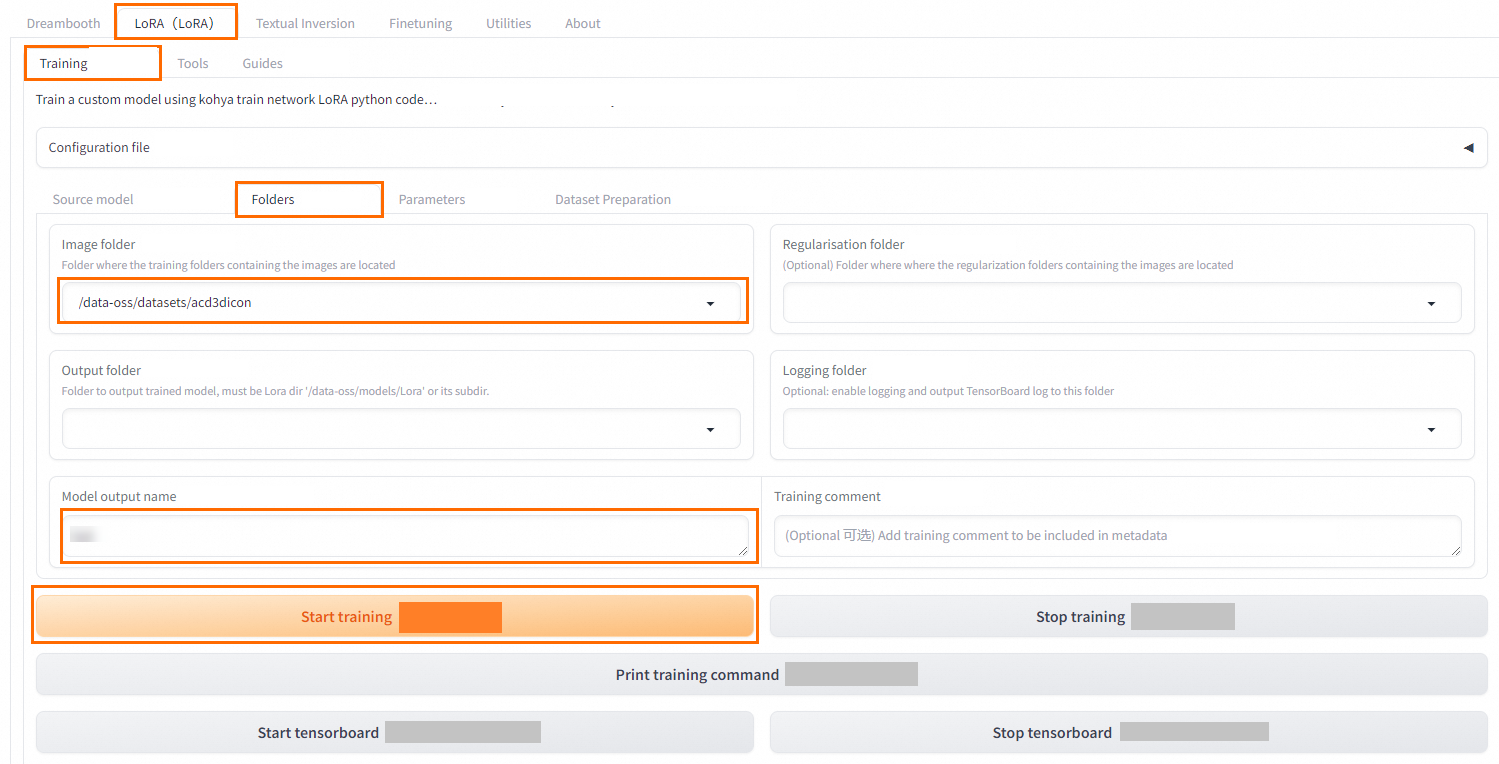
On the Kohya-SS page, go to LoRA > Training > Folders.
-
Select the dataset that contains the dataset folder and configure the training parameters.
 Note
NoteFor annotation, select the image folder within the dataset. For training, select the parent dataset containing this folder.
-
Click Start training.
-
View training progress in the log at the bottom.
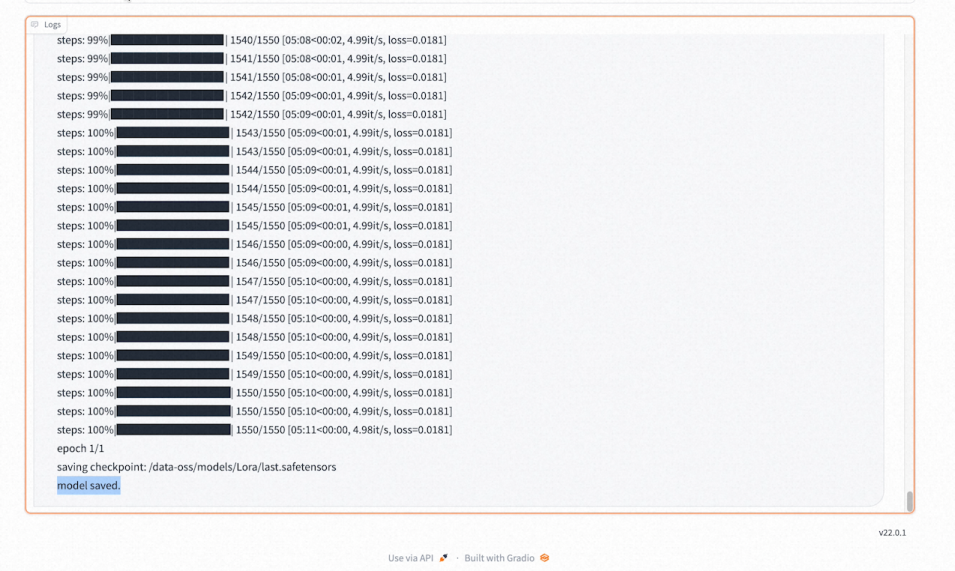
Training parameters
Common parameters
Number of images × Repeats × Epochs / Batch size = Total training steps
For example: 10 images × 20 repeats × 10 epochs / 2 (batch size) = 1000 steps.
On the Kohya-SS page, go to LoRA > Training > Parameters to configure training:
-
Basic tab
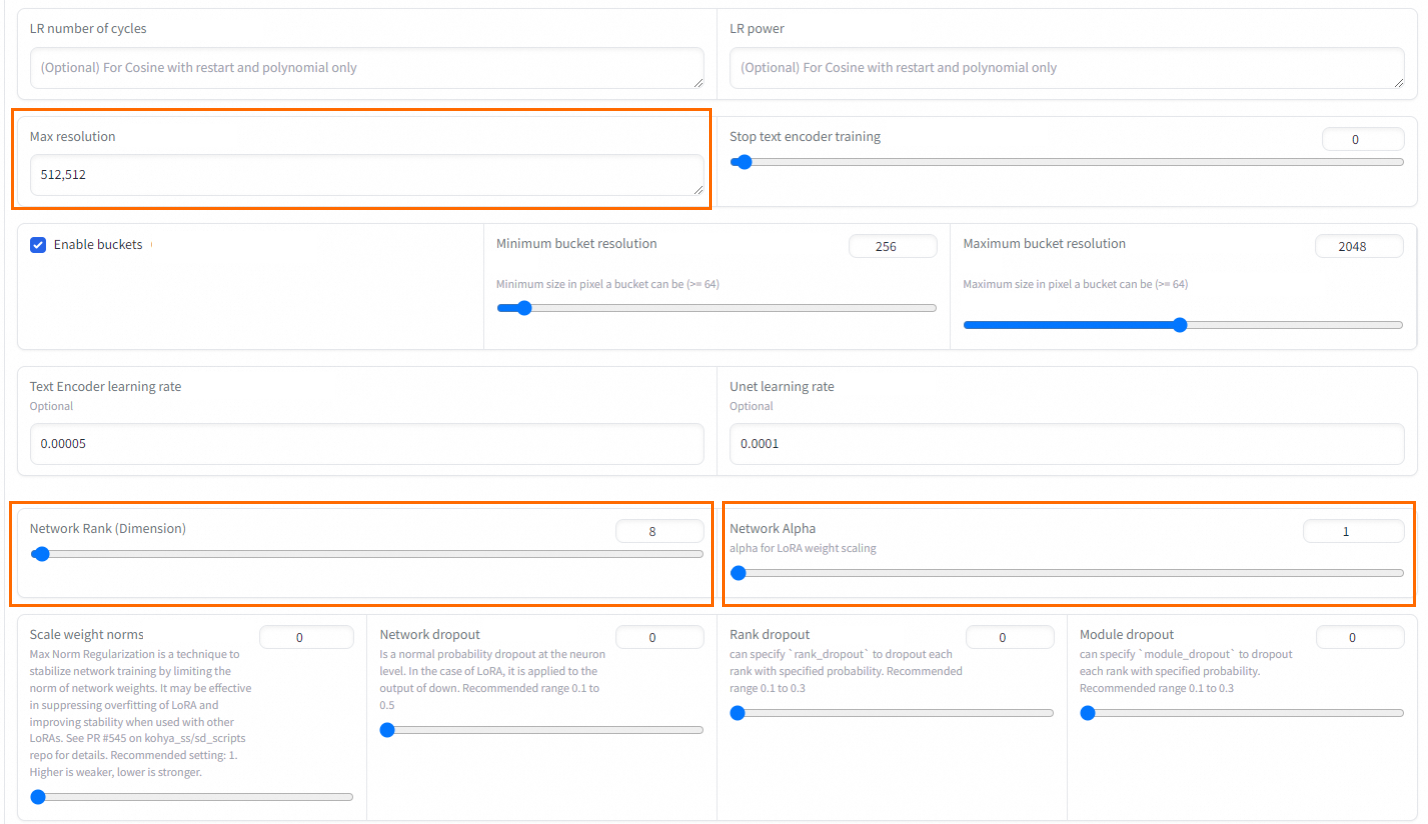
Parameter
Function
Settings
repeat
Number of times to read an image
Set in the folder name. Higher values improve learning. Recommended initial values:
-
Animation and Comics: 7–15
-
Portrait: 20 to 30
-
Real object: 30 to 100
LoRA type
LoRA type to use
Keep the default: Standard.
LoRA network weights
LoRA network weights
Optional. To continue training, select the last trained LoRA.
Train batch size
Training batch size
Based on GPU memory: max 2 for 12 GB, max 1 for 8 GB.
Epoch
Number of training rounds. One round is one full training pass over all data.
Calculate as needed. Generally:
-
Total training steps in Kohya = Number of training images × Repeats × Epochs / Training batch size
-
Total training steps in WebUI = Number of training images × Repeats
When using category images, the total training steps in Kohya or WebUI are doubled. In Kohya, the number of model saves is halved.
Save every N epochs
Save the result every N training epochs
If set to 2, the training result is saved after every 2 training epochs.
Caption Extension
Annotation file name extension
Optional. Annotation file format: .txt.
Mixed precision
Mixed precision
Determined by graphics card performance. Valid values:
-
no
-
fp16 (default)
-
bf16 (can be selected for RTX 30 series or later graphics cards)
Save precision
Save precision
Determined by graphics card performance. Valid values:
-
no
-
fp16 (default)
-
bf16 (can be selected for RTX 30 series or later graphics cards)
Number of CPU threads per core
Number of CPU threads per core
Adjust based on CPU performance. Default is sufficient for most cases.
Seed
Random number seed
Can be used for image generation verification.
Cache latents
Cache latents
Enabled by default. Caches image data as latent files after training.
LR Scheduler
Learning rate scheduler
No single best learning rate exists. Cosine is a good general-purpose choice.
Optimizer
Optimizer
Default: AdamW8bit. Keep the default for SD 1.5-based training.
Learning rate
Learning rate
For initial training, set to 0.01–0.001. Default: 0.0001.
Adjust based on the loss function: increase when loss is high, decrease when loss is low.
-
High learning rate: faster training but risks overfitting (poor generalization).
-
Low learning rate: finer learning and less overfitting, but longer training and risk of underfitting.
LR Warmup (% of steps)
Learning rate warmup (% of steps)
Default: 10.
Max Resolution
Maximum resolution
Default: 512,512. Adjust based on image size.
Network Rank (Dimension)
Model complexity
64 is sufficient for most scenarios.
Network Alpha
Network Alpha
Set a small value. Rank and Alpha affect the output LoRA file size.
Clip skip
Number of layers to skip in the text encoder
Select 2 for anime and 1 for realistic models. Anime model training initially skips one layer. If the training material is also anime images, skip another layer for a total of 2.
Sample every n epochs
Sample every n training epochs
Saves a sample every few rounds.
Sample prompts
Sample prompts
Prompts for sample generation. Use these parameters:
-
--n: Negative prompt.
-
--w: Image width.
-
--h: Image height.
-
--d: Image seed.
-
--l: Prompt relevance (CFG Scale).
-
--s: Iteration steps (steps).
-
-
Advanced tab
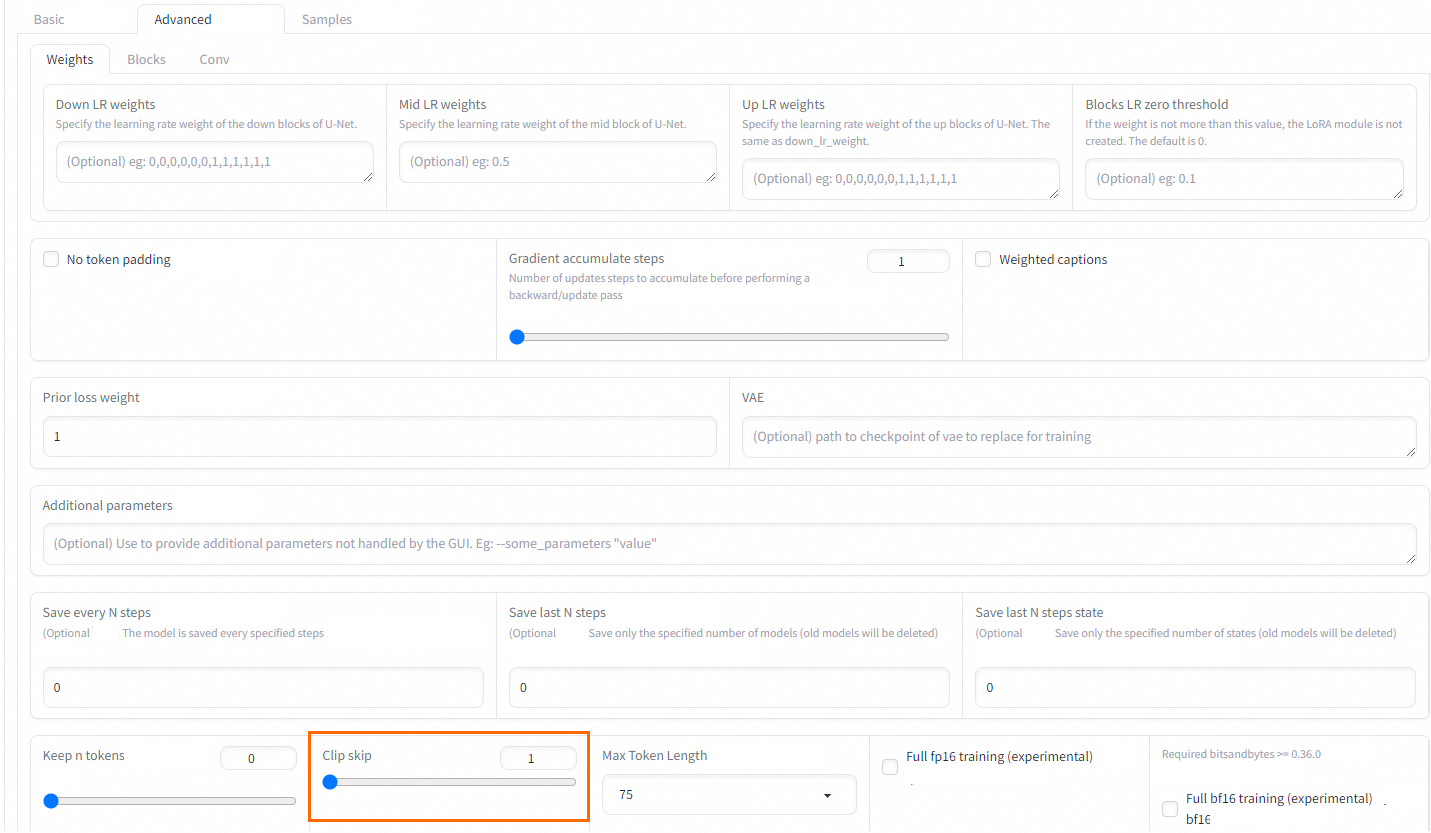
Parameter
Function
Settings
Clip skip
Number of layers to skip in the text encoder
Select 2 for anime and 1 for realistic models. Anime model training initially skips one layer. If the training material is also anime images, skip another layer for a total of 2.
-
Samples tab
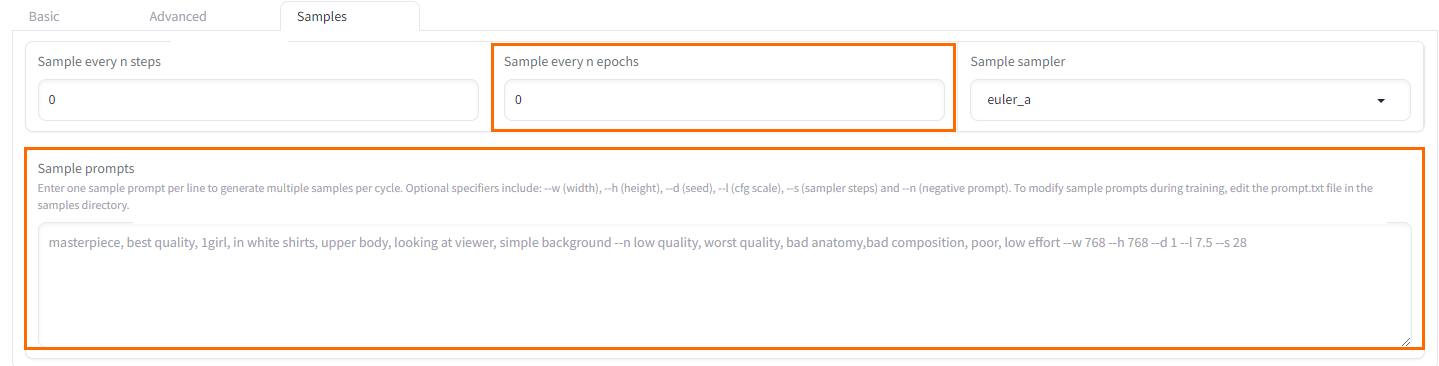
Parameter
Function
Settings
Sample every N epochs
Sample every N training epochs
Saves a sample every few rounds.
Sample prompts
Sample prompts
Prompts for sample generation. Use these parameters:
-
--n: Negative prompt.
-
--w: Image width.
-
--h: Image height.
-
--d: Image seed.
-
--l: Prompt relevance (CFG Scale).
-
--s: Iteration steps (steps).
-
Loss value
Loss measures model quality during training and should decrease gradually. A value between 0.08 and 0.1 indicates good training; around 0.08 is highly effective.
With 30 epochs, Loss typically reaches 0.07-0.09 between epochs 20 and 24. Sufficient epochs prevent Loss from dropping too fast (e.g., 0.1 to 0.06), missing the optimal range.