DSW supports multiple methods for uploading and downloading files. Choose a method based on your file size and use case.
Method overview
-
For a single file 5 GB or smaller, you can use one of the following methods:
-
Use a Notebook to upload and download files
NoteThe DSW Notebook file transfer station lets you quickly upload large local files to a DSW instance. This feature is available at no extra cost. A single upload allows you to share the file across multiple DSW instances under the same RAM user.
-
-
For a single file larger than 5 GB, we recommend uploading the file to OSS by using the OSS SDK or ossutil, and then mounting an OSS bucket to the DSW instance.
Limitations
The Notebook file transfer station has the following limitations:
-
Upload quantity: You can upload a maximum of 5 files at a time. Additional files are queued for upload.
-
Folder uploads: You cannot upload folders directly. You must first compress them into an archive file. For more information, see How to upload and download folders.
-
File validity: By default, files are stored for 7 days. You can extend the validity period before a file expires, with each extension adding another 7 days.
-
Storage capacity: The total storage capacity is 10 GB for a maximum of 1,000 files. You can manually clear files in the file transfer station.
-
Download path: Files to be downloaded must be in the
/mnt/workspace/directory. If a file is not in this directory, copy or move it there first.
Upload and download files in Notebook
New UI
Upload or download data
|
Area |
Upload/Download |
Description |
|
① |
Upload |
Click
|
|
② |
Download |
Right-click a file and select Download to download the file to your local computer. |
 or drag a file to an empty area in the file list to upload it. DSW selects the upload method based on file size: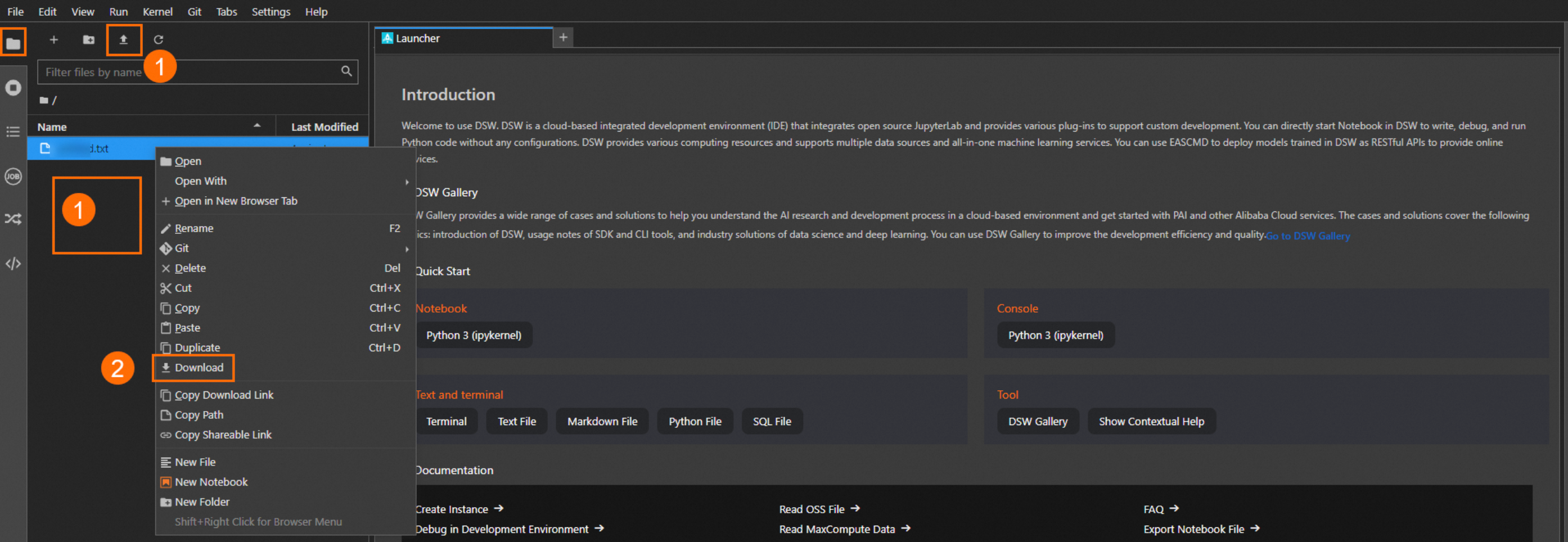
Manage files in file transfer station
In the upper-right corner of the page, click File Staging to view the transfer list or manage files.
|
Area |
Description |
|
① |
Click |
|
② |
Click
|
 to view the transfer list in the file transfer station.
 to the right of a file to perform the following actions: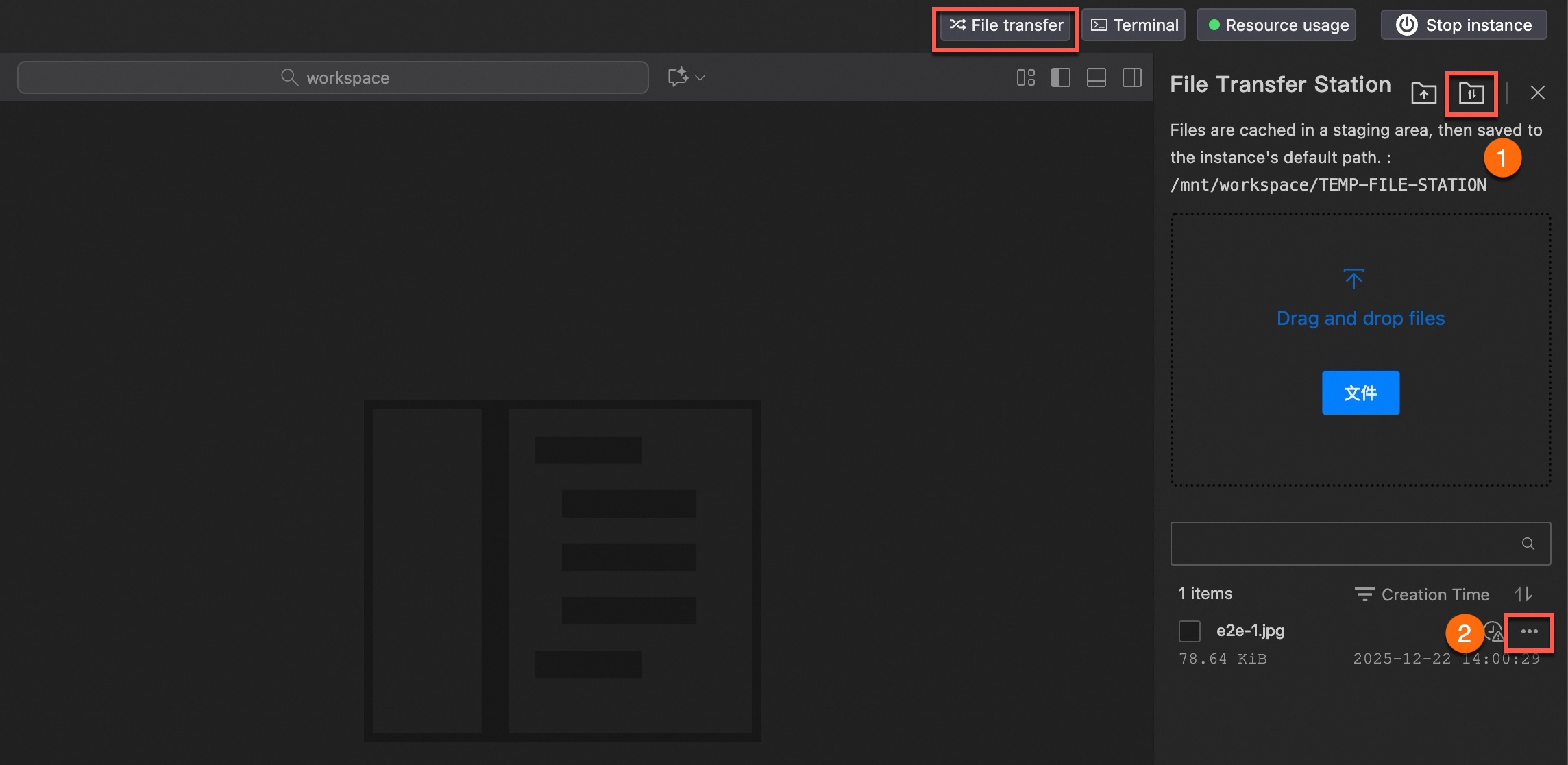
Legacy UI
Upload or download data
|
Area |
Upload/Download |
Description |
|
① |
Upload |
Click
|
|
② |
Download |
Right-click a file and select Download to download the file to your local computer. |
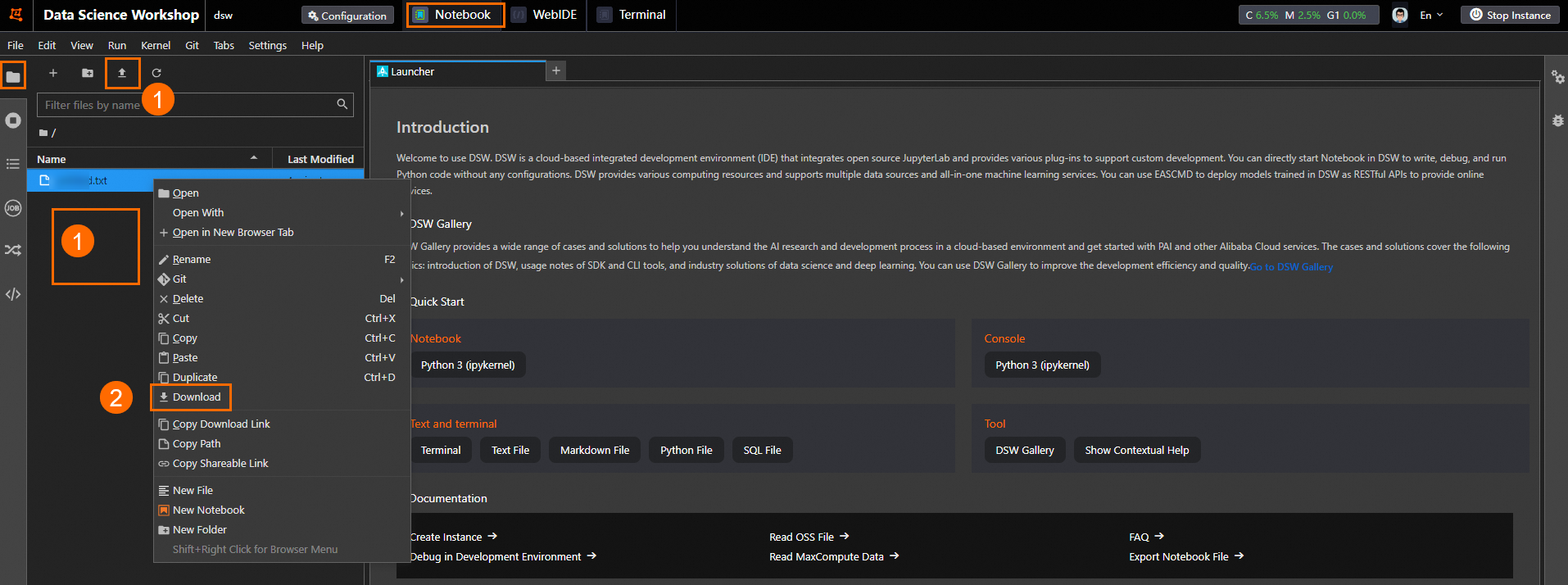
Manage files in file transfer station
Click  in the left-side toolbar to open the file transfer station, where you can view the transfer list or manage files.
|
Area |
Description |
|
① |
Click |
|
② |
Click
|
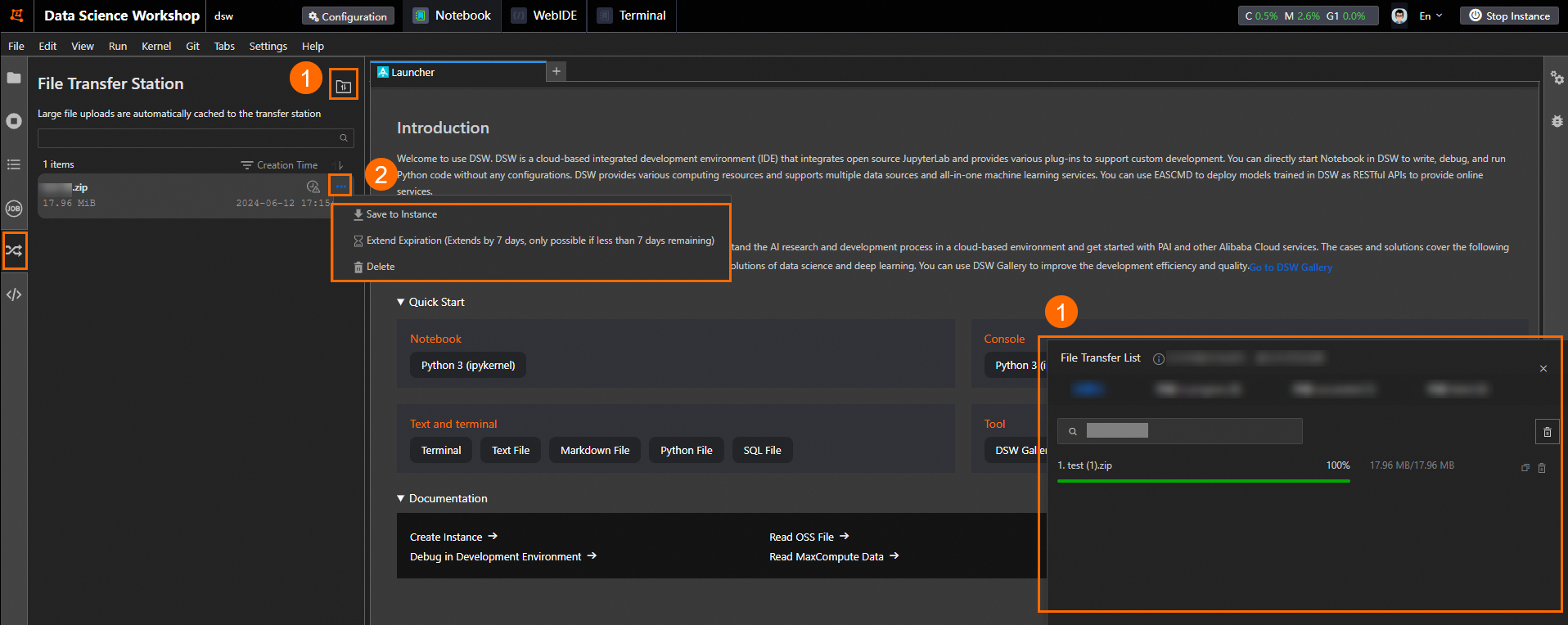
Upload and download files in WebIDE
On the WebIDE page, click  in the left toolbar. You can then upload or download files from the file list:
-
To upload a file: Right-click the destination folder, select Upload, and then follow the on-screen instructions.
-
To download a file: Right-click the file and select Download.
FAQ
Q: How do I upload and download folders?
DSW does not support uploading or downloading folders directly. Instead, compress them into a single archive file. The DSW Terminal provides a Linux environment where you can use standard command-line tools such as tar, gzip, and unzip to compress and decompress files. The following example uses tar.
-
Run
tar --versionto check if tar is installed. If it is not installed, use the following commands to install it.# Installation command for Debian-based systems (such as Ubuntu) sudo apt install tar # Installation command for Red Hat-based systems (such as CentOS and Fedora) sudo yum install tar -
Compress or decompress a folder.
# Compress a folder. /path/to/directory is the folder to be compressed.
tar -cvf archive_name.tar /path/to/directory

# Decompress a folder.
tar -xvf archive_name.tar
Q: What should I do if clicking "Download" does not respond or the download fails?
This issue is usually caused by network congestion or browser-related issues. Try the following steps:
-
Wait a few moments. Large files may take longer to begin downloading.
-
Switch to a different browser or retry the download in your browser's incognito mode.
-
For large files (such as those over 200 MB) or if your network connection is unstable, we recommend downloading the file via a mounted OSS bucket.
Q: What should I do if I get a "File Transfer Station is full" error?
The total storage capacity of the file transfer station is 10 GB. To free up space, go to the management page and clear files in the file transfer station. If the page does not update immediately, refresh your browser.
Q: Why am I always redirected to the file transfer station when uploading a file?
This is expected. To ensure stable and fast uploads, DSW automatically routes files larger than 10 MB through the file transfer station, saving them to your instance after the transfer completes.
Q: How do I use large files or datasets in DSW?
A DSW instance's system disk has limited space and is intended for temporary storage. Avoid uploading large files or datasets directly to the instance. Instead, upload the data to Alibaba Cloud OSS first, and then mount the OSS bucket to your DSW instance.