Deploying Dify on PAI-EAS lets you use its managed services and elastic scaling capabilities. Unlike an on-premises deployment, this lets your team focus on developing application logic instead of maintaining the underlying environment. As a result, you can accelerate the iteration process from prototype to production.
How it works
This solution hosts the Dify application on PAI-EAS, integrating external dependencies to build a complete service. The overall architecture consists of a PAI-EAS service instance and external cloud services, which communicate securely and efficiently through a Virtual Private Cloud (VPC) network.
The core components of the architecture include:
-
PAI-EAS service: As the core computing platform, EAS runs all of Dify's service components in a multi-container environment, including the web interface, API backend, asynchronous task workers, and a plugin sandbox. EAS manages service lifecycles, resource scheduling, and network configuration.
-
ApsaraDB RDS for PostgreSQL: Stores configuration data for users, conversations, knowledge bases, workflows, and plugins. Separating the database from the application ensures data persistence and independence.
-
ApsaraDB for Redis: Provides high-performance caching and message queue functionality. It caches hot data, manages session state, and distributes asynchronous tasks between Dify components via the Celery Broker.
-
Elasticsearch: Serves as a vector database and full-text search engine. In retrieval-augmented generation (RAG) scenarios, it stores, indexes, and efficiently retrieves documents from the knowledge base.
-
Object Storage Service (OSS): Provides persistent file storage. It stores Dify application plugins, uploaded knowledge base files, and other persistent data, ensuring data is not lost after service updates or restarts.
The workflow is as follows:
Users access the Dify interface through the web service address provided by EAS. All requests are first routed by the Nginx container to either the Dify-Web or Dify-API container. When processing business logic, the API service interacts with the backend PostgreSQL, Redis, and Elasticsearch for data exchange. Asynchronous tasks, such as document indexing, are dispatched to the worker container for execution via Redis. All files requiring persistence are read from and written to the mounted OSS path.
1. Prepare dependent resources
Before deploying Dify, you must prepare the required dependent resources. Ensure that all these resources are in the same region and VPC network as the PAI-EAS service you intend to deploy to avoid network connectivity issues.
ApsaraDB RDS for PostgreSQL and Elasticsearch instances do not support switching VPCs after they are created. You must select the same VPC as the PAI-EAS service during creation.
-
Plan a VPC. If you do not have one, create a VPC and a vSwitch.
-
Create an RDS PostgreSQL instance: After the instance is created, create a high-privilege account. Use this account to create two databases: one for Dify's core data and one for its plugin data. For more information, see Create accounts and databases.
ImportantChoose PostgreSQL 16. PostgreSQL 18 has a uuidv7 function conflict.
-
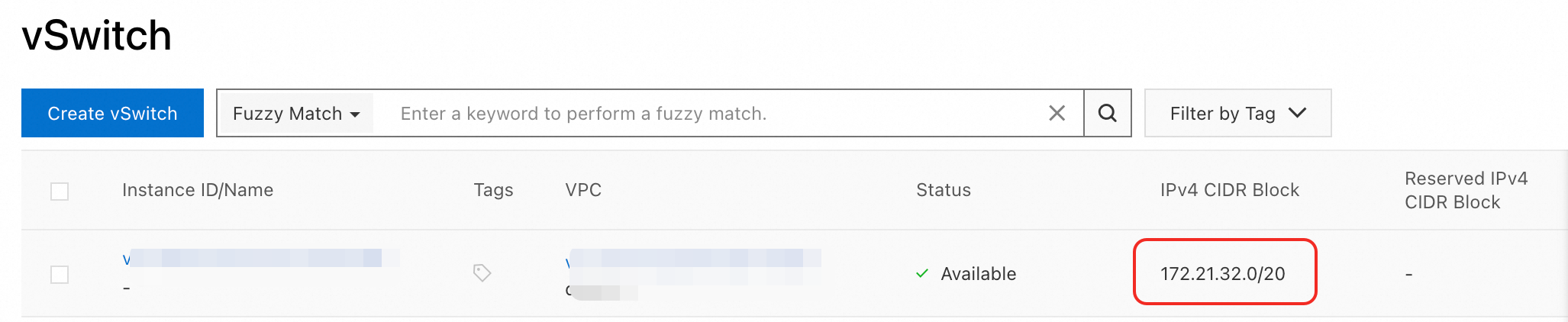
Create a Redis instance: To allow access from EAS containers, add the IP address range of the PAI-EAS service's vSwitch to the Redis instance's allowlist. You can find this information on the vSwitch details page in the VPC Console.
-
Create an Alibaba Cloud Elasticsearch instance: This instance serves as the vector storage and full-text search engine for the knowledge base. Ensure it is in the same VPC as the EAS service.
2. Deploy the Dify service
-
Log on to the PAI console. Select a region on the top of the page. Then, select the desired workspace and click Elastic Algorithm Service (EAS).
-
On the Inference Service tab, click Deploy Service. In the Scenario-based Model Deployment area, click Dify LLM Platform.
-
On the deployment page, configure the following key parameters.
-
OSS: Select an OSS Bucket and specify a path for persistent storage of Knowledge Base files, plugin data, and other files. Two subfolders,
difyanddify_plugin, will be created automatically within this path. -
PostgreSQL configuration:
-
Host Address: Enter the internal IP address of the ApsaraDB RDS for PostgreSQL instance. You can find this on the Database Connection page of the RDS PostgreSQL instance in the ApsaraDB RDS for PostgreSQL console.
-
Port: The default is 5432. Enter the actual port if it is different.
-
Database - core data: Enter the name of the database created to persistently store all data related to core functions, such as applications, users, conversations, knowledge bases, workflows, and model configurations.
-
Database plugins: Enter the name of the database created to persistently store information related to the running status, configuration, and metadata of plugins.
-
Account, Password: Enter the high-privilege account and password used when creating the databases.
-
-
Redis:
-
Host: Enter the internal IP address of the Redis instance. Go to the Redis console and obtain it from the connection information section on the instance details page.
-
Port: The default is 6379. Enter the actual port if it is different.
-
Account, Password: Enter the account and password for the Redis instance.
-
-
Elasticsearch configuration:
-
Host address: Enter the internal IP address of the Elasticsearch instance. Go to the Alibaba Cloud Elasticsearch console, navigate to the instance details page, and obtain it from the Basic Information section.
-
Port: The default is 9200. Enter the actual port if it is different.
-
Account, Password: Enter the login name (default is
elastic) and password for the Elasticsearch instance. If you forget the password, you can reset it.
-
-
Resource Information: Select the EAS instance specification for deploying the service. A specification with at least 8 CPUs and 16 GB of memory is recommended for stable operation.
-
-
After confirming that all configurations are correct, click Deploy. When the service status changes to Running, the deployment is successful.
3. Verify service status and access
After the service deploys, check its status and verify its functionality.
-
Check service logs
If the service fails to start or runs abnormally, you can find the corresponding container component in the Instance List on the service details page. Click the Logs button next to it to check the startup and runtime logs to locate the cause of the error.

-
Access the Dify web interface
On the service details page, click Web Application in the upper-right corner to open the Dify initialization page. After creating an administrator account, you can start using the application.
-
Call the API
The base URL on the Dify API page is an internal service address.
 To call the Dify API from the public internet, you must change
 http://******.console.cn-hangzhou.eas.pai-ml.comto the public endpoint found in the PAI-EAS service invocation information.
Create an API Key as shown in the following figure to interact with the application programmatically.

The following is an example of a public API call that sends a message to a chatbot application:
curl -X POST 'http://xxxx.your_aliyun_account_id.cn-hangzhou.pai-eas.aliyuncs.com/v1/chat-messages' \
--header 'Authorization: Bearer app-xxxxxxxxxxxxx' \
--header 'Content-Type: application/json' \
--data-raw '{
    "inputs": {},
    "query": "Tell me about the main features of Dify",
    "response_mode": "blocking",
    "user": "test-user-001"
}'
4. Perform advanced deployment using a JSON configuration
For automated or highly customized deployments, you can use a JSON configuration file. On the EAS service deployment page, switch to JSON Deployment and fill in the template below. This template completely defines all the containers, environment variables, storage mounts, and network configurations that Dify requires.
When deploying, you must replace the placeholders (starting with $) in the JSON template with actual values. For detailed parameter descriptions, see JSON deployment.
-
In the metadata section, you must set
"enable_webservice": trueto open the web access port. -
In the storage section, replace
$oss_pathwith the actual OSS path, for example,oss://your-bucket-name/dify-data/. This path is used by the Dify API and plugins, and two subfolders,difyanddify_plugin, will be created automatically within this path. -
In the containers section, the environment variables that need to be replaced are explained below. For more information, see Dify environment variables.
PostgreSQL database configuration
-
db_host: The address of the PostgreSQL database instance.
-
db_port: The default is 5432.
-
api_db: The Dify core functions database. It persistently stores all data related to core functions such as applications, users, conversations, knowledge bases, workflows, and model configurations.
-
plugin_daemon_db: The Dify plugin database. It persistently stores information related to plugin running status, configuration, and metadata.
-
db_username, db_password: Both databases share one username and password.
Redis configuration
Redis enables real-time message passing and communication between different service components, which is critical for live user-AI conversations.
-
redis_host: The connection address of the Redis instance.
-
redis_port: The default is 6379.
-
redis_password: The password set when creating the Redis instance.
Elasticsearch configuration
Used to store the vector database and full-text search engine.
-
elasticsearch_host: The connection address of the Elasticsearch instance.
-
elasticsearch_port: The default is 9200.
-
elasticsearch_username: The default is elastic.
-
elasticsearch_password: The password configured when creating the Elasticsearch instance. If you forget the password, you can reset the instance access password.
Security keys
Dify requires keys to ensure secure internal communication and data. You can use the
openssl rand -base64 42command to generate these keys.-
secret_key: A key used to securely sign session cookies and encrypt sensitive information in the database.
-
api_key: A key required for internal API access to prevent unauthorized external calls.
-
plugin_daemon_key: A key required for internal access to the
plugin_daemonto prevent unauthorized external calls.
-
FAQ
How can I resolve a 'connection timed out' error between PAI-EAS and RDS for PostgreSQL?
[2025-09-13 00:46:28] [/bin/sh]: 2025/09/12 16:46:28 /app/internal/db/pg/pg.go:34
[2025-09-13 00:46:28] [/bin/sh]: [error] failed to initialize database, got error failed to connect to `host=pgm-xxxxxxxxxx.pg.rds.aliyuncs.com user=dify database=postgres`: dial error (timeout: dial tcp 10.0.0.230:5432: connect: connection timed out)
[2025-09-13 00:46:28] [/bin/sh]: 2025/09/12 16:46:28 init.go:95: [PANIC]failed to init dify plugin db: failed to connect to `host=pgm-xxxxxxxxxx.pg.rds.aliyuncs.com user=dify database=postgres`: dial error (timeout: dial tcp 10.0.0.230:5432: connect: connection timed out)
[2025-09-13 00:46:28] [/bin/sh]: panic: [PANIC]failed to init dify plugin db: failed to connect to `host=pgm-xxxxxxxxxx.pg.rds.aliyuncs.com user=dify database=postgres`: dial error (timeout: dial tcp 10.0.0.230:5432: connect: connection timed out)-
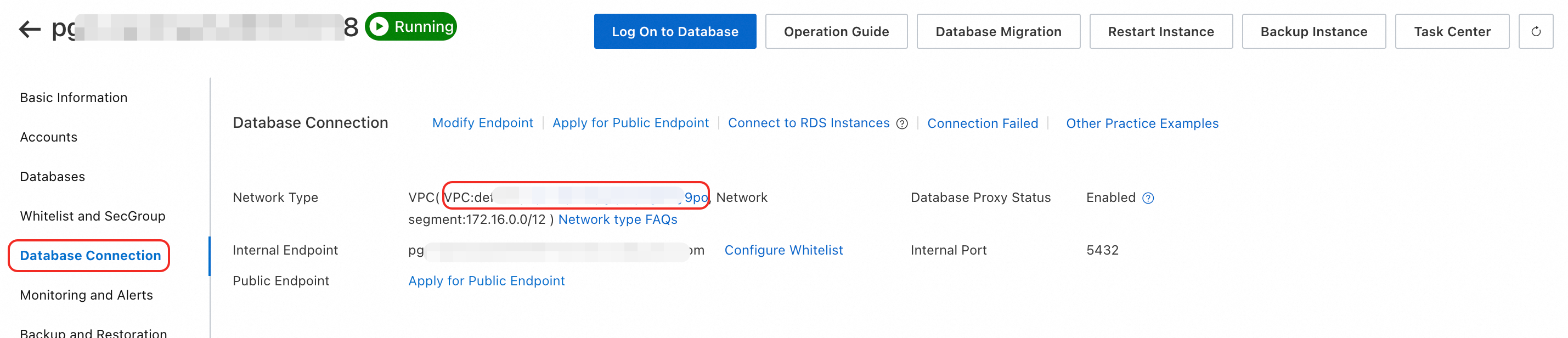
Verify VPC Consistency: Ensure that your RDS for PostgreSQL instance and your PAI-EAS service are deployed in the same Virtual Private Cloud (VPC).
-
Recreate if Necessary: ApsaraDB RDS for PostgreSQL instances do not support switching VPCs after they are created. If they are in different VPCs, you must create a new RDS instance in the correct VPC and update your Dify service configuration.
How do I fix a 'redis.exceptions.TimeoutError' for my Dify deployment on PAI-EAS?
If your dify-api container log shows a redis.exceptions.TimeoutError, it means the application cannot connect to the Redis server.
[2025-09-13 00:28:21] [/bin/sh]:   File "/app/api/.venv/lib/python3.12/site-packages/redis/utils.py", line 188, in wrapper
[2025-09-13 00:28:21] [/bin/sh]:     return func(*args, **kwargs)
[2025-09-13 00:28:21] [/bin/sh]:            ^^^^^^^^^^^^^^^^^^^^^
[2025-09-13 00:28:21] [/bin/sh]:   File "/app/api/.venv/lib/python3.12/site-packages/redis/connection.py", line 1530, in get_connection
[2025-09-13 00:28:21] [/bin/sh]:     connection.connect()
[2025-09-13 00:28:21] [/bin/sh]:   File "/app/api/.venv/lib/python3.12/site-packages/redis/connection.py", line 379, in connect
[2025-09-13 00:28:21] [/bin/sh]:     self.connect_check_health(check_health=True)
[2025-09-13 00:28:21] [/bin/sh]:   File "/app/api/.venv/lib/python3.12/site-packages/redis/connection.py", line 389, in connect_check_health
[2025-09-13 00:28:21] [/bin/sh]:     raise TimeoutError("Timeout connecting to server")
[2025-09-13 00:28:21] [/bin/sh]: redis.exceptions.TimeoutError: Timeout connecting to server
[2025-09-13 00:28:22] time="2025-09-12T16:28:22Z" level=info msg="program stopped with status:exit status 1" program=/bin/sh
This timeout error is typically caused by one of two network configuration issues.
Here is the correct way to configure network access:
-
Ensure VPC Consistency: Confirm that your ApsaraDB for Redis instance is in the same VPC as your PAI-EAS service.

-
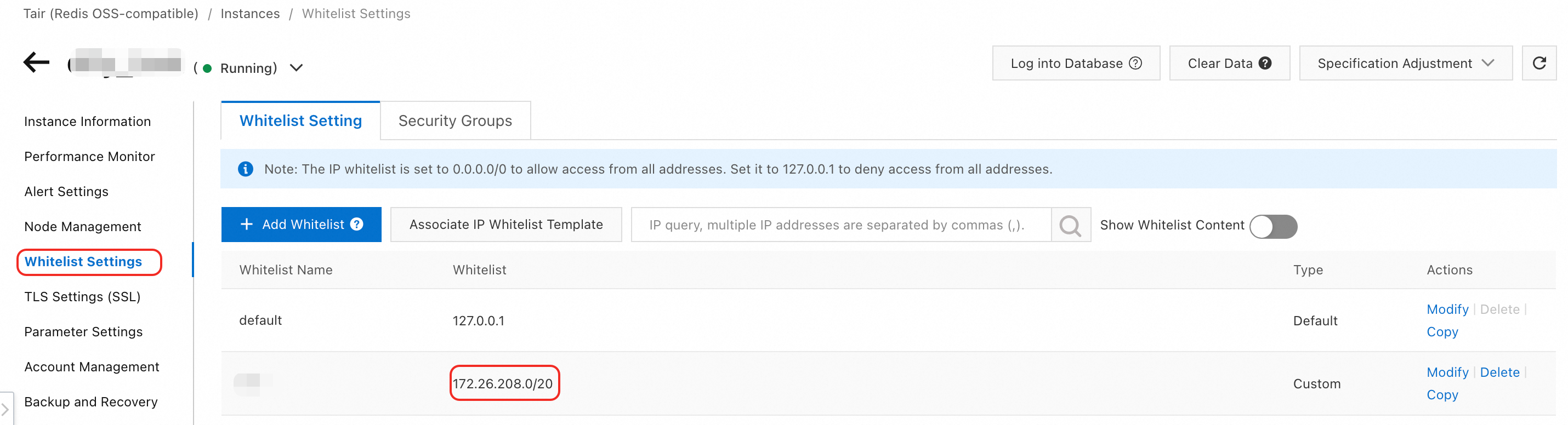
Whitelist configuration issue: Confirm that a whitelist is configured for the Redis instance. You must add the IP address group of the vSwitch where the EAS service is located. You can obtain the IP address range from the vSwitch page.
Why can't my Dify service on PAI-EAS connect to Alibaba Cloud Elasticsearch?
A failure to connect to Elasticsearch from your Dify service is almost always caused by a VPC mismatch.
To resolve this, confirm that your Alibaba Cloud Elasticsearch instance is in the same VPC as the PAI-EAS service.

Similar to other database services, Elasticsearch instances cannot be moved to a different VPC after they are created. You must deploy it in the correct VPC from the start.
How do I fix a 'FATAL: database "dify_core" does not exist' error on Dify startup?
This error occurs during Dify's startup process when the dify-api service cannot find its required database.
[2025-09-13 01:33:20] [/bin/sh]:   File "/app/api/.venv/lib/python3.12/site-packages/sqlalchemy/engine/default.py", line 625, in connect
[2025-09-13 01:33:20] [/bin/sh]:     return self.loaded_dbapi.connect(*cargs, **cparams)  # type: ignore[no-any-return]  # NOQA: E501
[2025-09-13 01:33:20] [/bin/sh]:            ^^^^^^^^^^^^^^^^^^^^^^^^^^^^^^^^^^^^^^^^^^^^
[2025-09-13 01:33:20] [/bin/sh]:   File "/app/api/.venv/lib/python3.12/site-packages/psycopg2/__init__.py", line 122, in connect
[2025-09-13 01:33:20] [/bin/sh]:     conn = _connect(dsn, connection_factory=connection_factory, **kwasync)
[2025-09-13 01:33:20] [/bin/sh]:            ^^^^^^^^^^^^^^^^^^^^^^^^^^^^^^^^^^^^^^^^^^^^^^^^^^^^^^^^^^^^^^^
[2025-09-13 01:33:20] [/bin/sh]:   File "/app/api/.venv/lib/python3.12/site-packages/psycogreen/gevent.py", line 32, in gevent_wait_callback
[2025-09-13 01:33:20] [/bin/sh]:     state = conn.poll()
[2025-09-13 01:33:20] [/bin/sh]:             ^^^^^^^^^^^
[2025-09-13 01:33:20] [/bin/sh]: sqlalchemy.exc.OperationalError: (psycopg2.OperationalError) FATAL:  database "dify_core" does not exist
[2025-09-13 01:33:20] [/bin/sh]:
The Dify deployment requires two databases: one for core data (dify-api) and one for plugin data. The version of Dify Community Edition (1.7.1) used in this deployment guide automatically creates the plugin database but does not automatically create the core data database.
To fix this, you must manually create the core database in your PostgreSQL instance before deploying the Dify service.
Why does my Dify container on PAI-EAS get a 'timed out' error when connecting to marketplace.dify.ai?
If you see timeout errors in your logs when the service tries to download plugins from marketplace.dify.ai, it's because the container cannot access the public internet.
[2025-09-13 00:00:00] [/bin/sh]: 2025-09-12 16:00:00,847.847 WARNING [Dummy-1] [ssrf_proxy.py:81] - Request to URL https://marketplace.dify.ai/api/v1/plugins/download?unique_identifier=langgenius/tongyi:0.0.46@8e73008929dbc3934936493d442fab4c34ef016ae817b144b45da278ba76580e failed on attempt 1: timed out
[2025-09-13 00:00:02] [/bin/sh]: 2025-09-12 16:00:02,046.046 WARNING [Dummy-2] [ssrf_proxy.py:81] - Request to URL https://marketplace.dify.ai/api/v1/plugins/download?unique_identifier=langgenius/tongyi:0.0.46@8e73008929dbc3934936493d442fab4c34ef016ae817b144b45da278ba76580e failed on attempt 1: timed out
[2025-09-13 00:00:06] [/bin/sh]: 2025-09-12 16:00:06,416.416 WARNING [Dummy-1] [ssrf_proxy.py:81] - Request to URL https://marketplace.dify.ai/api/v1/plugins/download?unique_identifier=langgenius/tongyi:0.0.46@8e73008929dbc3934936493d442fab4c34ef016ae817b144b45da278ba76580e failed on attempt 2: timed out
[2025-09-13 00:00:07] [/bin/sh]: 2025-09-12 16:00:07,614.614 WARNING [Dummy-2] [ssrf_proxy.py:81] - Request to URL https://marketplace.dify.ai/api/v1/plugins/download?unique_identifier=langgenius/tongyi:0.0.
This occurs because PAI-EAS service containers do not have public internet access by default.
To enable outbound internet access, you must configure your VPC with a NAT Gateway or a similar solution. For detailed instructions, please refer to the VPC configuration guide.