Deploy NVIDIA Triton Inference Server on PAI-EAS to serve models from TensorRT, TensorFlow, PyTorch, and ONNX.
Prerequisites
-
OSS bucket in same region as PAI workspace
-
Trained model files (
.pt,.onnx,.plan, or.savedmodel)
Quick start: Deploy a single-model service
Step 1: Prepare model repository
Triton requires a specific directory structure in your OSS bucket. Create directories in this format. For more information, see Manage directories and Upload files.
oss://your-bucket/models/triton/
└── your_model_name/
    ├── 1/                    # Version directory (must be a number)
    │   └── model.pt          # Model file
    └── config.pbtxt          # Model configuration file
Requirements
-
Model version directory must be a number (
1,2,3, etc.). -
Higher numbers indicate newer versions.
-
Each model requires a
config.pbtxtfile.
Step 2: Create model configuration
Create a config.pbtxt file to define model specifications. Example:
name: "your_model_name"
platform: "pytorch_libtorch"
max_batch_size: 128

input [
  {
    name: "INPUT__0"
    data_type: TYPE_FP32
    dims: [ 3, -1, -1 ]
  }
]

output [
  {
    name: "OUTPUT__0"
    data_type: TYPE_FP32
    dims: [ 1000 ]
  }
]


# Use a GPU for inference
# instance_group [
#   {
#     kind: KIND_GPU
#   }
# ]

# Model version policy
# Load only the latest version (default behavior)
# version_policy: { latest: { num_versions: 1 }}

# Load all versions
# version_policy: { all { }}

# Load the two latest versions
# version_policy: { latest: { num_versions: 2 }}

# Load specific versions
# version_policy: { specific: { versions: [1, 3] }}
Parameters
|
Parameter |
Required |
Description |
|
|
No |
Model name. Must match model directory name if specified. |
|
|
Yes |
Model framework. Valid values: Use for standard model files (.pt, .onnx, .savedmodel). |
|
|
Yes |
Alternative to Use for custom Python code in pre/post-processing or core inference. Note
Triton architecture supports developing custom backends in C++, but this is uncommon and not covered in this guide. |
|
|
Yes |
Maximum batch size. Set to |
|
|
Yes |
Input tensor configuration: |
|
|
Yes |
Output tensor configuration: |
|
|
No |
Inference device: |
|
|
No |
Controls which model versions load. See |
Specify either platform or backend.
Step 3: Deploy service
-
Log on to PAI console. Select a region and workspace, then click Elastic Algorithm Service (EAS).
-
On Inference Service tab, click Deploy Service, and in Scenario-based Model Deployment section, click Triton Deployment.
-
Configure the deployment parameters:
-
Service Name: Enter a service name.
-
Model Settings: For Type, select OSS. Enter path to your model repository (e.g.,
oss://your-bucket/models/triton/). -
Number of Replicas and Resource Group Type: Select values based on requirements. To estimate GPU memory, see Estimate the VRAM required for a large model.
-
-
Click Deploy and wait for the service to start.
Step 4: Enable gRPC (optional)
Triton provides HTTP service on port 8000 by default. To use gRPC:
-
In the upper-right corner of the service configuration page, click Convert to Custom Deployment.
-
In Environment Information section, change Port Number to
8001. -
Under Features > Advanced Networking, click Enable gRPC.
-
Click Deploy.
After service deploys successfully, call the service.
Deploy multi-model service
To deploy multiple models in one Triton instance, place all models in the same repository:
oss://your-bucket/models/triton/
├── resnet50_pytorch/
│   ├── 1/
│   │   └── model.pt
│   └── config.pbtxt
├── densenet_onnx/
│   ├── 1/
│   │   └── model.onnx
│   └── config.pbtxt
└── classifier_tensorflow/
    ├── 1/
    │   └── model.savedmodel/
    │       ├── saved_model.pb
    │       └── variables/
    └── config.pbtxt
Deployment steps are identical to single-model deployment. Triton automatically loads all models in the repository.
Customize inference logic with Python backend
Use Triton Python backend to customize pre-processing, post-processing, or core inference logic.
Directory structure
your_model_name/
├── 1/
│   ├── model.pt          # Model file
│   └── model.py          # Custom inference logic
└── config.pbtxt
Implement Python backend
Create a model.py file and define the TritonPythonModel class:
import json
import os
import torch
from torch.utils.dlpack import from_dlpack, to_dlpack

import triton_python_backend_utils as pb_utils


class TritonPythonModel:
    """The class name must be 'TritonPythonModel'."""

    def initialize(self, args):
        """
        Called once when model loads. Use this function to initialize
        model properties and configurations.
        Parameters
        ----------
        args : Dictionary where both keys and values are strings. Includes:
          * model_config: Model configuration in JSON format.
          * model_instance_kind: Device type.
          * model_instance_device_id: Device ID.
          * model_repository: Path to model repository.
          * model_version: Model version.
          * model_name: Model name.
        """

        # Parse model configuration from JSON.
        self.model_config = model_config = json.loads(args["model_config"])

        # Get properties from model configuration file.
        output_config = pb_utils.get_output_config_by_name(model_config, "OUTPUT__0")

        # Convert Triton types to NumPy types.
        self.output_dtype = pb_utils.triton_string_to_numpy(output_config["data_type"])

        # Get path to model repository.
        self.model_directory = os.path.dirname(os.path.realpath(__file__))

        # Get device for model inference (GPU in this example).
        self.device = torch.device("cuda" if torch.cuda.is_available() else "cpu")
        print("device: ", self.device)

        model_path = os.path.join(self.model_directory, "model.pt")
        if not os.path.exists(model_path):
            raise pb_utils.TritonModelException("Cannot find the pytorch model")
        # Load PyTorch model to GPU using .to(self.device).
        self.model = torch.jit.load(model_path).to(self.device)

        print("Initialized...")

    def execute(self, requests):
        """
        Called for every inference request. If batching is enabled,
        implement batch processing logic yourself.
        Parameters
        ----------
        requests : List of pb_utils.InferenceRequest objects.

        Returns
        -------
        List of pb_utils.InferenceResponse objects. Must contain one
        response for each request.
        """

        output_dtype = self.output_dtype

        responses = []

        # Iterate through request list and create corresponding response for each.
        for request in requests:
            # Get input tensor.
            input_tensor = pb_utils.get_input_tensor_by_name(request, "INPUT__0")
            # Convert Triton tensor to Torch tensor.
            pytorch_tensor = from_dlpack(input_tensor.to_dlpack())

            if pytorch_tensor.shape[2] > 1000 or pytorch_tensor.shape[3] > 1000:
                responses.append(
                    pb_utils.InferenceResponse(
                        output_tensors=[],
                        error=pb_utils.TritonError(
                            "Image shape should not be larger than 1000"
                        ),
                    )
                )
                continue

            # Run inference on target device.
            prediction = self.model(pytorch_tensor.to(self.device))

            # Convert Torch output tensor to Triton tensor.
            out_tensor = pb_utils.Tensor.from_dlpack("OUTPUT__0", to_dlpack(prediction))

            inference_response = pb_utils.InferenceResponse(output_tensors=[out_tensor])
            responses.append(inference_response)

        return responses

    def finalize(self):
        """
        Called when model is unloaded. Use for cleanup tasks, such as
        releasing resources.
        """
print("Cleaning up...")When using Python Backend, some Triton behaviors change:
-
max_batch_sizehas no effect:max_batch_sizeparameter inconfig.pbtxtdoes not enable dynamic batching in Python Backend. Iterate throughrequestslist inexecutemethod and manually build batch for inference. -
instance_grouphas no effect:instance_groupinconfig.pbtxtdoes not control whether Python Backend uses CPU or GPU. Explicitly move model and data to target device ininitializeandexecutemethods using code such aspytorch_tensor.to(torch.device("cuda")).
Update configuration
name: "resnet50_pt"
backend: "python"
max_batch_size: 128
input [
  {
    name: "INPUT__0"
    data_type: TYPE_FP32
    dims: [ 3, -1, -1 ]
  }
]
output [
  {
    name: "OUTPUT__0"
    data_type: TYPE_FP32
    dims: [ 1000 ]
  }
]

parameters: {
    key: "FORCE_CPU_ONLY_INPUT_TENSORS"
    value: {string_value: "no"}
}
Key parameter descriptions:
-
backend: Must be set to
python. -
parameters: When using GPU for inference, optionally set
FORCE_CPU_ONLY_INPUT_TENSORSparameter tonoto avoid overhead of copying input tensors between CPU and GPU.
Deploy service
Python backend requires shared memory. In , enter the following JSON configuration and click Deploy.
{
  "metadata": {
    "name": "triton_server_test",
    "instance": 1
  },
  "cloud": {
        "computing": {
            "instance_type": "ml.gu7i.c8m30.1-gu30",
            "instances": null
        }
    },
  "containers": [
    {
      "command": "tritonserver --model-repository=/models",
      "image": "eas-registry-vpc.<region>.cr.aliyuncs.com/pai-eas/tritonserver:25.03-py3",
      "port": 8000,
      "prepare": {
        "pythonRequirements": [
          "torch==2.0.1"
        ]
      }
    }
  ],
  "storage": [
    {
      "mount_path": "/models",
      "oss": {
        "path": "oss://oss-test/models/triton_backend/"
      }
    },
    {
      "empty_dir": {
        "medium": "memory",
        // Configure 1 GB of shared memory.
        "size_limit": 1
      },
      "mount_path": "/dev/shm"
    }
  ]
}
Key JSON configuration:
-
containers[0].image: Triton official image. Replace<region>with region where your service is located. -
containers[0].prepare.pythonRequirements: List Python dependencies here. EAS automatically installs them before service starts. -
storage: Contains two mount points.-
First mounts your OSS model repository path to
/modelsdirectory in container. -
Second
storageentry configures shared memory (required). Triton server and Python backend use/dev/shmpath to pass tensor data with zero-copy, maximizing performance.size_limitis in GB. Estimate required size based on your model and expected concurrency.
-
Call service
Get service endpoint and token
-
On Elastic Algorithm Service (EAS) page, click service name.
-
On Service Details tab, click View Endpoint Information. Copy Internet Endpoint and Token.
Send HTTP request
When port is set to 8000, service supports HTTP requests.
import numpy as np
# To install the tritonclient package, run: pip install tritonclient
import tritonclient.http as httpclient

# Service endpoint URL. Do not include the `http://` scheme.
url = '1859257******.cn-hangzhou.pai-eas.aliyuncs.com/api/predict/triton_server_test'

triton_client = httpclient.InferenceServerClient(url=url)

image = np.ones((1,3,224,224))
image = image.astype(np.float32)

inputs = []
inputs.append(httpclient.InferInput('INPUT__0', image.shape, "FP32"))
inputs[0].set_data_from_numpy(image, binary_data=False)
outputs = []
outputs.append(httpclient.InferRequestedOutput('OUTPUT__0', binary_data=False))  # Get a 1000-dimension vector

# Specify model name, request token, inputs, and outputs.
results = triton_client.infer(
    model_name="<your-model-name>",
    model_version="<version-num>",
    inputs=inputs,
    outputs=outputs,
    headers={"Authorization": "<your-service-token>"},
)
output_data0 = results.as_numpy('OUTPUT__0')
print(output_data0.shape)
print(output_data0)
Send gRPC request
When port is set to 8001 and gRPC settings are configured, service supports gRPC requests.
gRPC endpoint differs from HTTP endpoint. Obtain correct gRPC endpoint from service details page.
#!/usr/bin/env python
import grpc
# To install the tritonclient package, run: pip install tritonclient
from tritonclient.grpc import service_pb2, service_pb2_grpc
import numpy as np

if __name__ == "__main__":
    # Access URL (service endpoint) generated after service deployment.
    # Do not include the `http://` scheme. Append the port `:80`.
    # Although Triton listens on port 8001 internally, PAI-EAS exposes gRPC via port 80 externally. Use :80 in your client.
    host = (
        "service_name.115770327099****.cn-beijing.pai-eas.aliyuncs.com:80"
    )
    # Service token. Use your actual token in a real application.
    token = "<your-service-token>"
    # Model name and version.
    model_name = "<your-model-name>"
    model_version = "<version-num>"

    # Create gRPC metadata for token authentication.
    metadata = (("authorization", token),)

    # Create a gRPC channel and stub to communicate with server.
    channel = grpc.insecure_channel(host)
    grpc_stub = service_pb2_grpc.GRPCInferenceServiceStub(channel)

    # Build inference request.
    request = service_pb2.ModelInferRequest()
    request.model_name = model_name
    request.model_version = model_version

    # Build input tensor. Must match input in model configuration.
    input_tensor = service_pb2.ModelInferRequest().InferInputTensor()
    input_tensor.name = "INPUT__0"
    input_tensor.datatype = "FP32"
    input_tensor.shape.extend([1, 3, 224, 224])
    # Build output tensor. Must match output in model configuration.
    output_tensor = service_pb2.ModelInferRequest().InferRequestedOutputTensor()
    output_tensor.name = "OUTPUT__0"

    # Add input and output tensors to request.
    request.inputs.extend([input_tensor])
    request.outputs.extend([output_tensor])

    # Create a random array and serialize into a byte sequence as input data.
    request.raw_input_contents.append(np.random.rand(1, 3, 224, 224).astype(np.float32).tobytes())

    # Send inference request and receive response.
    response, _ = grpc_stub.ModelInfer.with_call(request, metadata=metadata)

    # Extract output tensor from response.
    output_contents = response.raw_output_contents[0]  # Assume there is only one output tensor.
    output_shape = [1, 1000]  # Assume the output tensor shape is [1, 1000].

    # Convert output bytes to NumPy array.
    output_array = np.frombuffer(output_contents, dtype=np.float32)
    output_array = output_array.reshape(output_shape)

    # Print model output.
    print("Model output:\n", output_array)
Debug service
Enable verbose logging
Set verbose=True to print JSON data for requests and responses:
client = httpclient.InferenceServerClient(url=url, verbose=True)
Example output:
POST /api/predict/triton_test/v2/models/resnet50_pt/versions/1/infer, headers {'Authorization': '************1ZDY3OTEzNA=='}
b'{"inputs":[{"name":"INPUT__0","shape":[1,3,32,32],"datatype":"FP32","data":[1.0,1.0,1.0,.....,1.0]}],"outputs":[{"name":"OUTPUT__0","parameters":{"binary_data":false}}]}'
Online debugging
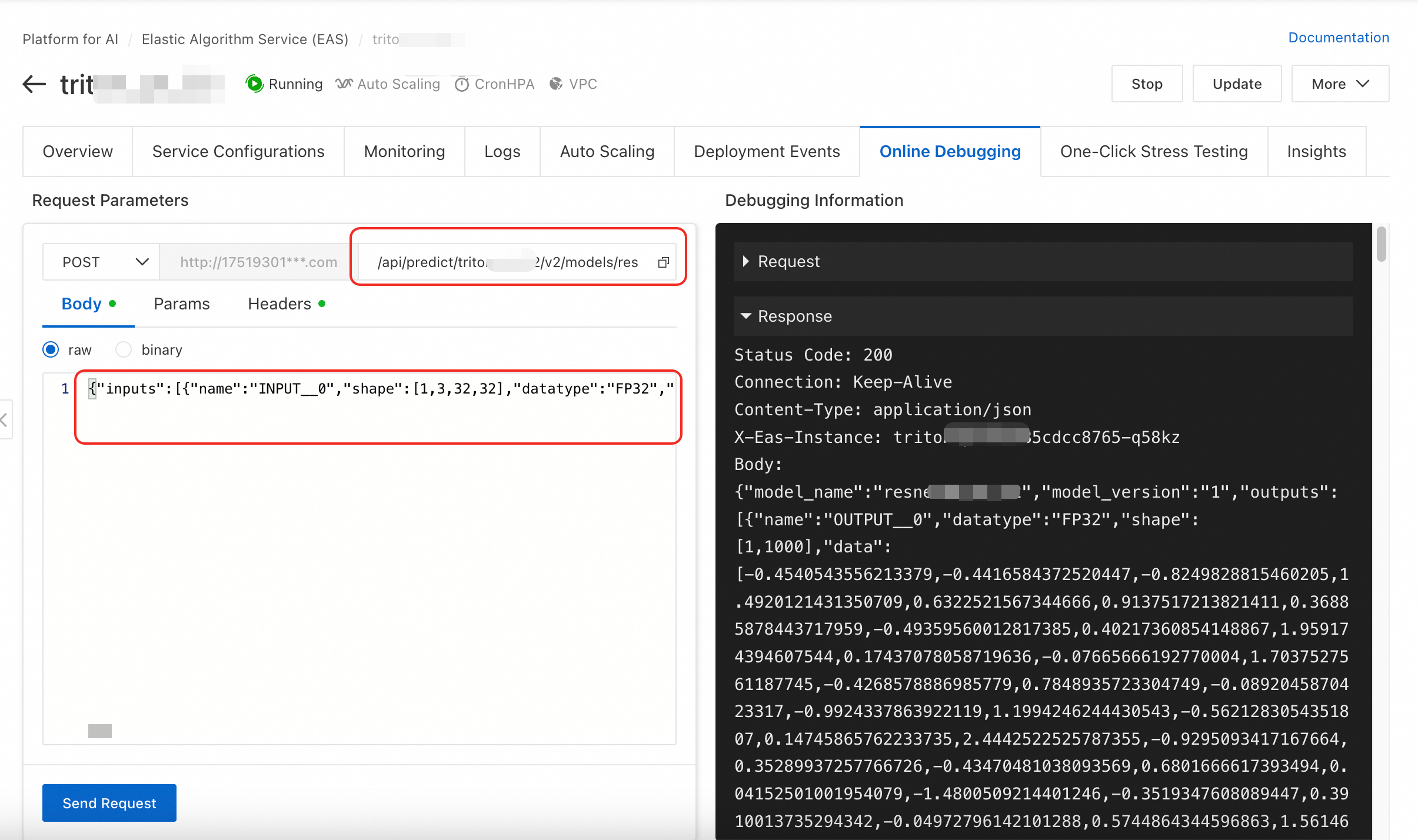
Test directly using online debugging in console. Complete request URL to /api/predict/triton_test/v2/models/resnet50_pt/versions/1/infer and use JSON request data from verbose logs as Body.
Stress test service
The following steps describe how to perform stress test using a single data item as example. For more information about stress testing, see Stress testing for services in common scenarios.
-
On One-Clink Stress Testing tab, click Create Stress Testing Task, select your deployed Triton service, and enter stress test URL.
-
Set Data Source to Single Data Entry. Use the following code to Base64-encode your JSON request body:
import base64

# Existing JSON request body string
json_str = '{"inputs":[{"name":"INPUT__0","shape":[1,3,32,32],"datatype":"FP32","data":[1.0,1.0,.....,1.0]}]}'
# Direct encoding
base64_str = base64.b64encode(json_str.encode('utf-8')).decode('ascii')
print(base64_str)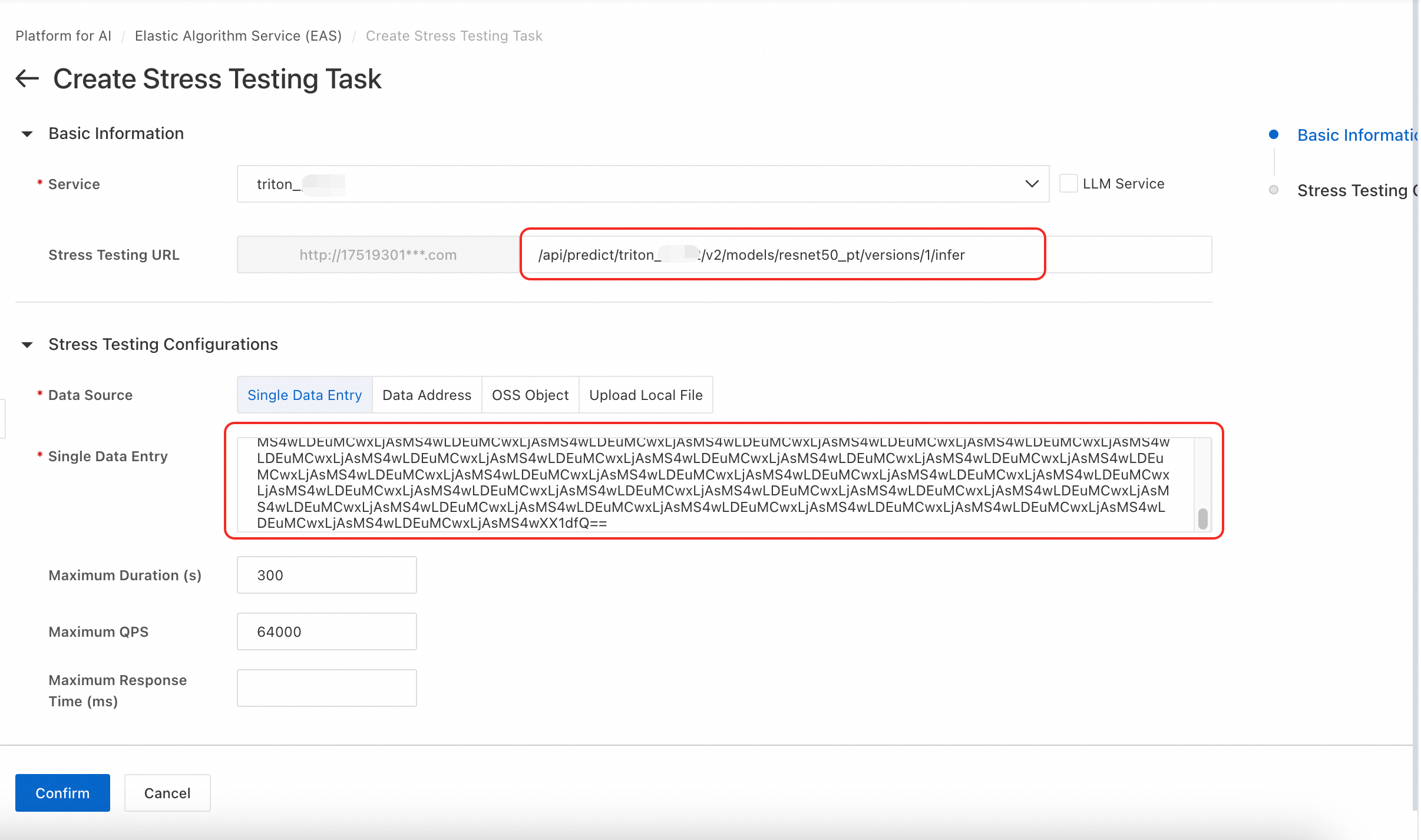
FAQ
Q: Why do I get "CUDA error: no kernel image is available for execution on device"?
This error indicates compatibility mismatch between CUDA version in Triton image and architecture of selected GPU instance.
To resolve, switch to compatible GPU instance type. For example, try using an A10 or T4 instance.
Q: How to fix "InferenceServerException: url should not include the scheme" for HTTP requests?
This error occurs because tritonclient.http.InferenceServerClient requires URL without protocol scheme (e.g., http:// or https://).
Remove scheme from your URL string.
Q: How to resolve "DNS resolution failed" error when making gRPC calls?
This error occurs because service host is incorrect. Format of service endpoint is http://we*****.1751930*****.cn-hangzhou.pai-eas.aliyuncs.com/ (note that this differs from HTTP endpoint). Remove http:// prefix and trailing /. Then append :80 to the end. Final format is we*****.1751930*****.cn-hangzhou.pai-eas.aliyuncs.com:80.
References
-
To learn how to deploy an EAS service using the TensorFlow Serving inference engine, see TensorFlow Serving image deployment.
-
You can also develop custom image and use it to deploy an EAS service. For more information, see Deploy services with custom images.
-
For more information about NVIDIA Triton, see the official Triton documentation.