LangStudio offers an intuitive and efficient Integrated Development Environment (IDE) for constructing, debugging, and optimizing Application Flows that leverage Large Language Models (LLMs), Python Nodes, and complementary development tools.
Getting Started
For more information, see Create a workflow application.
Application Creation Methods
-
Create from Template: Rapidly develop AI applications using purpose-built templates tailored for diverse business scenarios.
-
Create by Type:
-
Standard: Designed for general-purpose application development. Construct custom application flows utilizing Large Language Models, custom Python code, and supplementary development tools.
-
Conversational: Specifically designed for developing conversational applications. Building upon the Standard type, this variant incorporates enhanced features for managing conversation history, input/output handling, and includes an integrated chat-based testing interface.
-
-
Import from OSS: Select the Application Flow ZIP package or OSS path for import. This path must directly contain the
flow.dag.yamlfile and associated code files for the Application Flow.-
You can export an Application Flow from the Operations column in the LangStudio Application Flows list and distribute it for import by other users.
-
After converting a Dify DSL file to the LangStudio Application Flow format, you can import it using this method.
-
Environment Variable Configuration
Within LangStudio, you can define environment variables required by the Application Flow during runtime execution. The system automatically initializes these variables prior to Application Flow execution, making them accessible to Python nodes, tool invocations, and custom logic implementations.
Primary Use Cases
-
Secure Credential Management: Store API keys, authentication tokens, and other sensitive credentials instead of embedding them directly in your source code.
-
Dynamic Configuration Parameterization: Define runtime parameters including model endpoints, timeout values, and other configurable settings.
Configuration and Implementation
-
Within the Application Flow editor, navigate to Settings in the upper-right corner to configure environment variables.
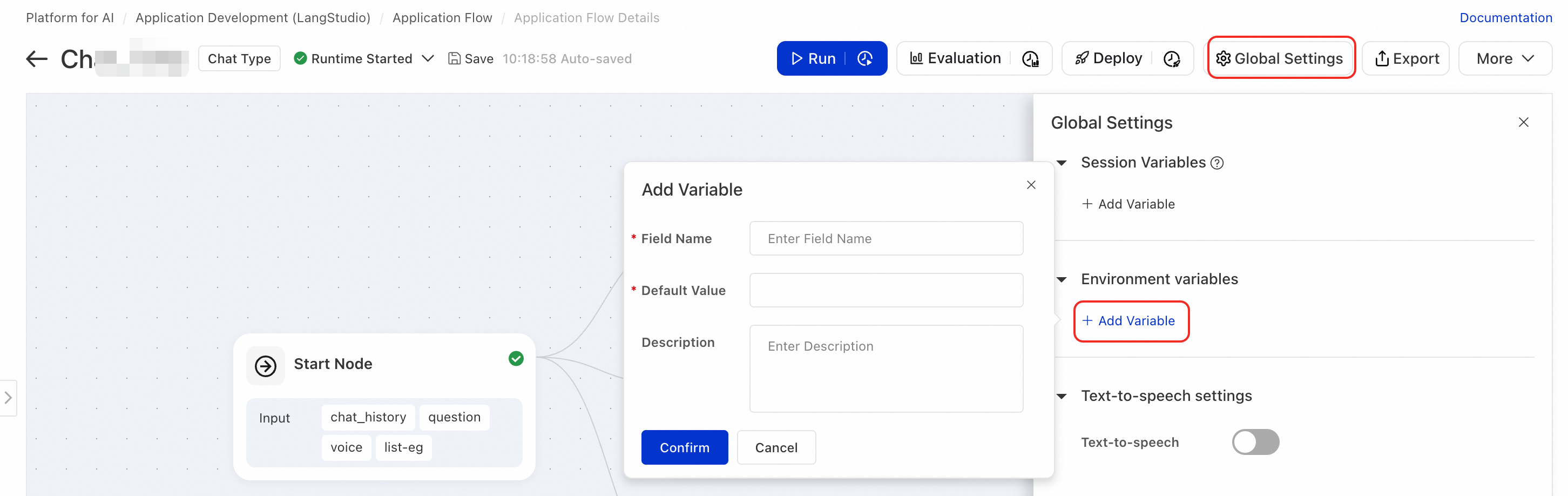
-
Within a Python node, access the configured Environment Variables using standard Python
os.environ:import os # Example: Get an API key api_key = os.environ["OPENAI_API_KEY"]
Speech Interaction Configuration
To configure speech interaction capabilities, navigate to Settings in the editor's upper-right corner and access the Global Settings tab.
Speech-to-Text
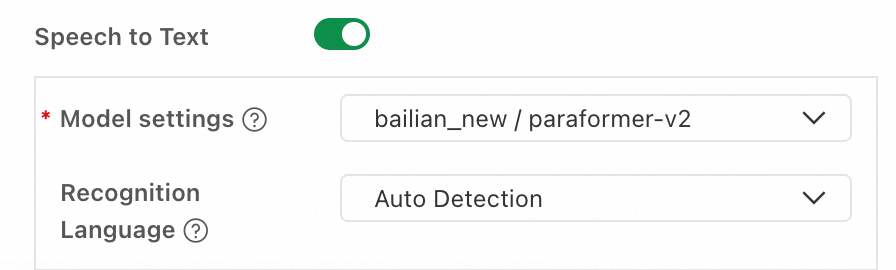
Speech-to-Text (STT) functionality transforms user voice input into textual format. The converted text subsequently populates the field designated as Chat Input within the Start Node.
|
Configuration parameter |
Description |
|
Model settings |
Select a configured LLM Connection and an STT model. Currently, only models from the paraformer series are supported. |
|
Recognition language |
Define the language for speech recognition processing. Currently, only the paraformer-v2 model supports specifying a recognition language. |
Text-to-Speech
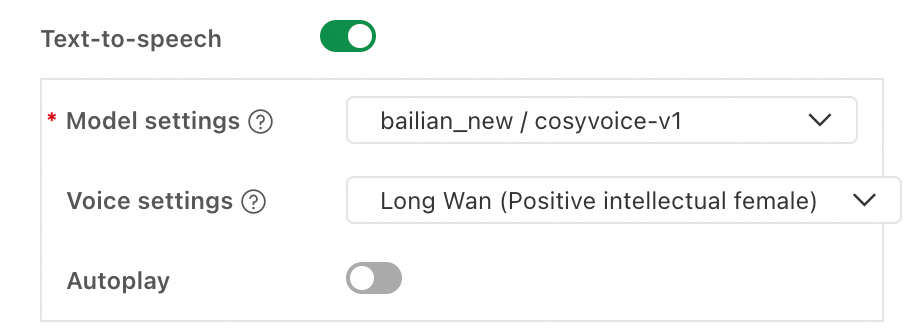
The text-to-speech (TTS) functionality automatically synthesizes the workflow's conversational output into audible speech.
|
Configuration parameter |
Description |
|
Model settings |
Select a configured LLM Connection and a TTS model. Currently, only models from the CosyVoice series are supported. |
|
Voice settings |
Select the voice characteristics for the synthesized speech output. Multiple preset voice options are available. |
|
Autoplay |
When enabled, the synthesized speech output plays automatically without manual intervention. |
Deployment and API Integration
Following deployment to PAI-EAS, utilize API calls to implement Speech Interaction capabilities. For comprehensive information regarding API implementation, refer to Deploy an application flow. This section emphasizes the specific distinctions pertaining to Speech Interaction functionality.
Voice input
Within the request body, incorporate the system.audio_input field and specify the audio file URL. For comprehensive details regarding the file data structure, consult File type input and output. The system automatically performs audio-to-text conversion and populates the chat input field.
{
  "question": "",
  "system": {
    "audio_input": {
      "source_uri": "oss://your-bucket.oss-cn-hangzhou.aliyuncs.com/audio/input.wav"
    }
  }
}
Voice Output Processing
To retrieve TTS audio data, invoke the endpoint using full mode (<Endpoint>/run). Simple mode does not provide audio data output.
|
Field |
Description |
|
audio_data |
A Base64-encoded audio data segment. For streaming responses, clients must decode and concatenate these segments for audio playback. |
|
tts_metadata |
Audio metadata specifications, including format (pcm), sampling rate (22050 Hz), channel configuration (mono), and bit depth (16-bit). |
Streaming response
TTS audio is returned through TTSOutput events in the Server-Sent Events (SSE) stream:
{
  "event": "TTSOutput",
  "audio_data": "<Base64-encoded audio data>",
  "tts_metadata": {
    "format": "pcm",
    "sample_rate": 22050,
    "channels": 1,
    "bit_depth": 16
  }
}
Non-streaming response
TTS audio is included in the JSON response as the output.tts_audio field:
{
  "output": {
    "answer": "xxx",
    "tts_audio": {
      "audio_data": "<Base64-encoded full audio data>",
      "tts_metadata": {
        "format": "pcm",
        "sample_rate": 22050,
        "channels": 1,
        "bit_depth": 16
      }
    }
  }
}
Pre-built Component Library
For more information, see Workflow node reference.
Next Steps and Deployment
Following development and debugging of an Application Flow, proceed to evaluate the application flow. Upon meeting business requirements, deploy the application flow to PAI-EAS for production deployment.