Run batch predictions on your test data using a trained text summarization model and evaluate the results.
Prerequisites
Before you begin, ensure that you have:
Activated OSS. For details, see Activate OSS
Authorized Machine Learning Studio to access OSS. For details, see Grant permissions
Limitations
Only DLC compute resources are supported.
Configure the component
In Designer, add the Text Summarization Predict component to your workflow and configure the following parameters.
Input ports
The component has two input ports (left to right):
| Port | Data type | Recommended upstream component | Required |
|---|---|---|---|
| Prediction data | OSS | Read OSS Data | Yes |
| Prediction model | Component output | Text Summarization Train | No |
Field settings
| Parameter | Default | Description |
|---|---|---|
| Input data format | target:str:1,source:str:1 | Column schema of the input file. |
| Source text column | source | Column in the input table that contains the source text to summarize. |
| Appended output columns | source | Input columns to append to the output. Separate multiple column names with a comma (,). |
| Output columns | predictions,beams | Columns written to the output file. predictions contains the top summary; beams contains all beam search candidates. |
| Prediction data output | — | OSS bucket path where the output file is saved. |
| Use custom model | No | Whether to use the default PAI model for direct prediction. Set to Yes to use a custom model stored in OSS. |
| Is Megatron model | No | Set to Yes only when using a pre-trained model with the mg prefix listed in the Text Summarization Train component. |
| Model path | — | OSS path of the custom model. Required when Use custom model is set to Yes. |
Parameter settings
| Parameter | Type | Default | Description |
|---|---|---|---|
| Batch size | INT | 8 | Number of samples processed per step. For multi-GPU servers, this is the per-GPU batch size. |
| Maximum text length | INT | 512 | Maximum sequence length of the input. Valid range: 1–512. |
| Language | — | — | Language for text processing: zh for Chinese, en for English. |
| Copy text from source | — | false | Whether to use the copy mechanism, which allows the model to copy tokens directly from the source text. |
| Minimum decoder length | INT | 12 | Minimum output length. The model generates summaries longer than this value. |
| Maximum decoder length | INT | 32 | Maximum output length. The model generates summaries shorter than this value. |
| Minimal Unique Field | INT | 2 | Minimum n-gram size for the no-repeat constraint. Prevents repeated n-grams in the output. |
| Beam search size | INT | 5 | Number of beams for beam search. Must match Number of returned candidates. |
| Number of returned candidates | INT | 5 | Number of candidate summaries to include in the output. Must match Beam search size. |
Beam search size and Number of returned candidates must be set to the same value.
Execution Tuning
| Parameter | Default | Description |
|---|---|---|
| GPU type | gn5-c8g1.2xlarge | GPU instance type for the compute resource. |
Choose a model source
The component supports three model sources. Choose based on your situation:
| Model source | When to use | How to configure |
|---|---|---|
| Fine-tuned model from Text Summarization Train | Your model was trained in the same workflow using the Text Summarization Train component. This is the fastest way to start — no additional paths or flags required. | Leave Use custom model set to No. Connect the model output port of the Text Summarization Train component to the model input port of this component. |
| Custom model (non-Megatron) | You have a model stored in OSS that was trained or converted outside the current workflow. Use this when you need full control over the model checkpoint. | Set Use custom model to Yes, leave Is Megatron model as No, and set Model path to the OSS path of the model. |
| Custom Megatron model | Your model uses the NVIDIA Megatron-LM framework and has the mg prefix. | Set Use custom model to Yes and Is Megatron model to Yes. Set Model path to the OSS path of the model. |
Run a prediction
This section shows how to build a complete prediction workflow using a fine-tuned model (Method 1) or a custom model (Method 2).
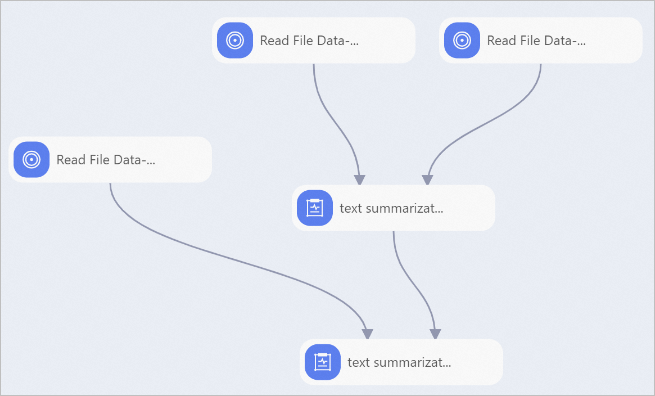
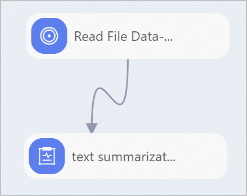
Build the upstream workflow. For details, see the Example section in the Text Summarization Train topic.
Prepare your test dataset (predict_data.txt) and upload it to an OSS bucket. The example uses a tab-delimited TXT file. CSV files are also supported. To upload the dataset to MaxCompute instead, use the Tunnel command of the MaxCompute client. For setup instructions, see Connect to MaxCompute using the client (odpscmd). For Tunnel command syntax, see Tunnel commands.
Add a Read OSS Data component to read the test dataset: Set OSS Data Path to the OSS path where the test dataset is stored.
Method 1: Use the Read OSS Data-3 component.
Method 2: Use the Read OSS Data-1 component.
Connect the model and test dataset to the Text Summarization Predict component, then configure its parameters:
Method 1 (fine-tuned model): Connect the model output port of the Text Summarization Train component to the model input port of the Text Summarization Predict component.
Method 2 (custom model): On the Field Settings tab, set Use custom model to Yes and set Model path to the OSS path of your model.
Click
 to run the workflow. After the job completes, the output file is saved to the OSS path specified in Prediction data output. The output file contains two columns:
Column Content predictionsThe top-ranked summary for each input row. beamsAll beam search candidates for each input row.
What's next
To configure the upstream training component, see Text Summarization Train.