Raw user, item, and behavior data is difficult to use directly in recommendation models. Without a consistent feature processing pipeline, training and serving use different transformations, leading to training-serving skew that degrades model accuracy. Feature engineering in Platform for AI (PAI) Machine Learning Designer solves this by providing a preset six-node workflow on MaxCompute that standardizes how raw tables are transformed into feature tables for retrieval and ranking.
This tutorial walks you through building and running that workflow.
Prerequisites
Before you begin, ensure that you have:
PAI Machine Learning Designer activated and a default workspace created. See Activate PAI and create a default workspace.
A MaxCompute resource attached to the workspace. See Manage compute resources for a workspace.
A MaxCompute data source created and set as the engine for the workspace. See Create a MaxCompute data source.
Datasets
This tutorial uses a script-generated dataset that simulates user, item, and behavior tables. The tables are samples and do not contain real data.
User table: pai_online_project.rec_sln_demo_user_table
| Field | Type | Description |
|---|---|---|
| user_id | bigint | Unique ID of the user |
| gender | string | Gender |
| age | bigint | Age |
| city | string | City |
| item_cnt | bigint | Number of created content items |
| follow_cnt | bigint | Number of users followed |
| follower_cnt | bigint | Number of followers |
| register_time | bigint | Registration time |
| tags | string | User tags |
| ds | string | Partition key column |
Item table: pai_online_project.rec_sln_demo_item_table
| Field | Type | Description |
|---|---|---|
| item_id | bigint | Item ID |
| duration | double | Video duration |
| title | string | Title |
| category | string | Level-1 category |
| author | bigint | Author |
| click_count | bigint | Total number of clicks |
| praise_count | bigint | Total number of likes |
| pub_time | bigint | Publication time |
| ds | string | Partition key column |
Behavior table: pai_online_project.rec_sln_demo_behavior_table
| Field | Type | Description |
|---|---|---|
| request_id | bigint | Instrumentation ID or request ID |
| user_id | bigint | Unique ID of the user |
| exp_id | string | Experiment ID |
| page | string | Page |
| net_type | string | Network type |
| event_time | bigint | Time when the behavior event occurred |
| item_id | bigint | Item ID |
| event | string | Event type |
| playtime | double | Playback or reading duration |
| ds | string | Partition key column |
Build a feature engineering workflow
Step 1: Open the Designer page
Log on to the PAI console.
In the left navigation pane, click Workspace Management, then click the name of your workspace.
In the left navigation pane of the workspace, choose Model Development and Training > Machine Learning Designer.
Step 2: Build a workflow
On the Designer page, click the Preset Templates tab.
In the Recommendation Solution - Feature Engineering section, click Create.
In the Create Workflow dialog box, keep the default values. Set Workflow Data Storage to an OSS bucket path. This path stores temporary data and models generated during the workflow run.
Click OK and wait about 10 seconds for the workflow to be created.
In the workflow list, double-click Recommendation Solution - Feature Engineering to open it.
The system automatically builds a six-node workflow from the preset template.
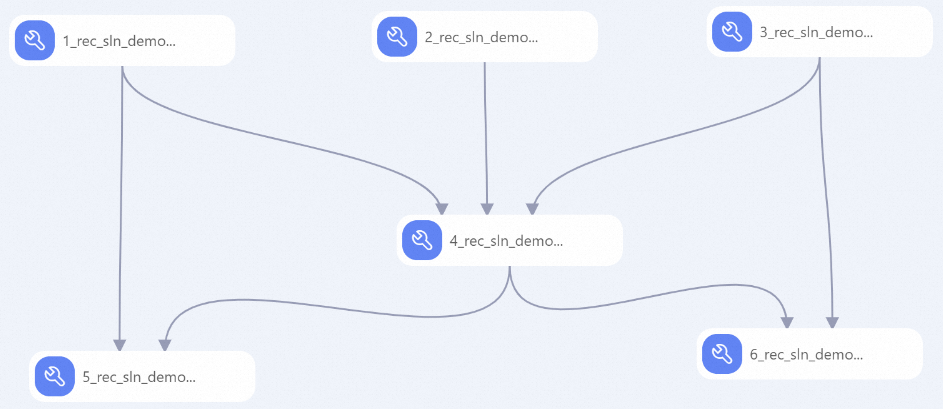
| Node | What it does |
|---|---|
| 1 | Pre-processes the item table: replaces the tag feature separator with chr(29) for downstream feature generation (FG); flags newly listed items. |
| 2 | Pre-processes the behavior table: generates derived time-based features, including day_h and week_day. |
| 3 | Pre-processes the user table: flags newly registered users; replaces the tag feature separator with chr(29) for downstream FG steps. |
| 4 | Joins the behavior, user, and item tables into a wide behavior log table with statistical properties. |
| 5 | Generates an item feature table with statistical features over a rolling period. Feature naming conventions: item__{event}_cnt_{N}d (event count within N days, indicating popularity), item__{event}_{itemid}_dcnt_{N}d (unique user count per event within N days), item__{min|max|avg|sum}_{field}_{N}d (statistical distribution of user numeric properties for positive events), item__kv_{cate}_{event}_{N}d (categorical property statistics per event). |
| 6 | Generates a user feature table with statistical features over a rolling period. |
Step 3: Add a user-defined function
In DataWorks, create a business flow. See Create a business flow.
Right-click MaxCompute under the new business flow and choose New Resource > Python. Create a Python resource named
count_cates_kvs.py. See Create and use MaxCompute resources.Right-click MaxCompute under the same business flow and choose New Function. Configure the function with the following settings: See Create and use a user-defined function.
Field Value Function name COUNT_CATES_KVSClass name count_cates_kvs.CountCatesKVSResource list count_cates_kvs.py
Step 4: Run the workflow and view the output
By default, the workflow processes 45 days of data, which can take a long time. Follow the optional steps below to reduce run time before starting.
Optional: Reduce run time
On each of the following nodes, open the Parameter Settings tab and change Execution Time Window from
(-45,0]to(-9,0]:1_rec_sln_demo_item_table_preprocess_v22_rec_sln_demo_behavior_table_preprocess_ v23_rec_sln_demo_user_table_preprocess_v24_rec_sln_demo_behavior_table_preprocess_wide_v2
On each of the following nodes, open the Parameter Settings tab and change Execution Time Window from
(-31,0]to(-8,0]:5_rec_sln_demo_item_table_preprocess_all_feature_v26_rec_sln_demo_user_table_preprocess_all_feature_v2
On node
2_rec_sln_demo_behavior_table_preprocess_ v2, open the Parameter Settings tab and update line 32 of the SQL Script parameter:-- Before WHERE ds = '${pai.system.cycledate}' -- After WHERE ds = '${pai.system.cycledate}' and user_id %10=1On node
3_rec_sln_demo_user_table_preprocess_v2, open the Parameter Settings tab and apply the same change to line 38 of the SQL Script parameter.
Run the workflow
Click the Run button
 on the Designer canvas toolbar.
After the run completes, verify that the following MaxCompute tables contain 30 days of data:
Table Name Item feature table rec_sln_demo_item_table_preprocess_all_feature_v2Wide behavior log table rec_sln_demo_behavior_table_preprocess_v2User feature table rec_sln_demo_user_table_preprocess_all_feature_v2Query data in these tables on the SQL query page. See Connect using DataWorks.
Partitioned tables prohibit full table scans by default. Include a partition condition in your query. If a full table scan is necessary, prepend set odps.sql.allow.fullscan=true; to your SQL statement and run both together. Full table scans read more data and can result in higher costs.