Deploy, fine-tune, and evaluate Qwen3 models in PAI Model Gallery. Qwen3 includes two MoE and six dense models across eight sizes.
Deploy and invoke a model
Deploy a model
This example deploys the Qwen3-235B-A22B model with SGLang.
Go to the Model Gallery page.
Log in to the PAI console and select a region. Switch regions if needed to find available computing resources.
In the left-side navigation pane, choose Workspaces and click your target workspace.
In the left-side navigation pane, choose QuickStart > Model Gallery.
On the Model Gallery page, click the Qwen3-235B-A22B model card.
In the upper-right corner, click Deploy. Configure the following parameters. Use the defaults for others.
Deployment Method: Set Inference Engine to SGLang and Deployment Template to Single-Node.
Resource Information: For Resource Type, select public resource. The system recommends a suitable instance type. For minimum configurations, see Appendix: Computing resources and token limits.
ImportantIf no specifications are available, the region's public resource pool is insufficient. Try:
Switch regions. China (Ulanqab) has more Lingjun preemptible instances (ml.gu7ef.8xlarge-gu100, ml.gu7xf.8xlarge-gu108, ml.gu8xf.8xlarge-gu108, ml.gu8tf.8.40xlarge). Preemptible resources can be reclaimed — set your bid carefully.
Use an EAS resource group. Purchase dedicated EAS resources on the EAS Dedicated Resources Subscription page.
Debug online
On the Service details page, click online debugging. Example:

Invoke the API
Obtain the service endpoint and token:
In the left-side navigation pane, choose Model Gallery > Job Management > Deployment Jobs and click the service name to open the service details page.
Click View Call Information to find the internet endpoint and token.

Example: call the
/v1/chat/completionsAPI for an SGLang-deployed service.curl -X POST \ -H "Content-Type: application/json" \ -H "Authorization: <EAS_TOKEN>" \ -d '{ "model": "<model_name, obtained from the /v1/models API>", "messages": [ { "role": "system", "content": "You are a helpful assistant." }, { "role": "user", "content": "hello!" } ] }' \ <EAS_ENDPOINT>/v1/chat/completionsfrom openai import OpenAI ##### API configuration ##### # Replace <EAS_ENDPOINT> with the service endpoint and <EAS_TOKEN> with the service token. openai_api_key = "<EAS_TOKEN>" openai_api_base = "<EAS_ENDPOINT>/v1" client = OpenAI( api_key=openai_api_key, base_url=openai_api_base, ) models = client.models.list() model = models.data[0].id print(model) stream = True chat_completion = client.chat.completions.create( messages=[ {"role": "user", "content": "Hello, could you please introduce yourself"} ], model=model, max_completion_tokens=2048, stream=stream, ) if stream: for chunk in chat_completion: print(chunk.choices[0].delta.content, end="") else: result = chat_completion.choices[0].message.content print(result)Replace <EAS_ENDPOINT> with the service endpoint and <EAS_TOKEN> with the service token.
Other invocation methods are covered in Invoke an API for a deployed LLM service.
Third-party integration
To connect to Chatbox, Dify, or Cherry Studio, see Integrate with third-party clients.
Advanced configuration
Edit the JSON configuration to enable advanced features, such as adjusting the token limit and enabling tool calling.
Procedure: On the deployment page, edit the JSON in the Service Configuration section. If the service is already deployed, update it to access the deployment page.

Modify token limit
Qwen3 models natively support 32,768 tokens. RoPE scaling extends this to 131,072, though performance may degrade slightly. Modify the containers.script field in the service configuration JSON:
vLLM:
vllm serve ... --rope-scaling '{"rope_type":"yarn","factor":4.0,"original_max_position_embeddings":32768}' --max-model-len 131072SGLang:
python -m sglang.launch_server ... --json-model-override-args '{"rope_scaling":{"rope_type":"yarn","factor":4.0,"original_max_position_embeddings":32768}}'
Parse tool calls
vLLM and SGLang can parse tool calls into structured messages. Modify the containers.script field in the service configuration JSON:
vLLM:
vllm serve ... --enable-auto-tool-choice --tool-call-parser hermesSGLang:
python -m sglang.launch_server ... --tool-call-parser qwen25
Control thinking mode
Qwen3 uses thinking mode by default. A hard switch disables thinking entirely; a soft switch lets the model decide based on user instructions.
Use a soft switch with /no_think
Example request body:
{
  "model": "<MODEL_NAME>",
  "messages": [
    {
      "role": "user",
      "content": "/no_think Hello!"
    }
  ],
  "max_tokens": 1024
}
Hard switch
Control by using API parameters (vLLM and SGLang): Add the
chat_template_kwargsparameter to the API call. Example:curl -X POST \ -H "Content-Type: application/json" \ -H "Authorization: <EAS_TOKEN>" \ -d '{ "model": "<MODEL_NAME>", "messages": [ { "role": "user", "content": "Give me a short introduction to large language models." } ], "temperature": 0.7, "top_p": 0.8, "max_tokens": 8192, "presence_penalty": 1.5, "chat_template_kwargs": {"enable_thinking": false} }' \ <EAS_ENDPOINT>/v1/chat/completionsfrom openai import OpenAI # # Replace <EAS_ENDPOINT> with the service endpoint and <EAS_TOKEN> with the service token. openai_api_key = "<<EAS_TOKEN>" openai_api_base = "<EAS_ENDPOINT>/v1" client = OpenAI( api_key=openai_api_key, base_url=openai_api_base, ) chat_response = client.chat.completions.create( model="<MODEL_NAME>", messages=[ {"role": "user", "content": "Give me a short introduction to large language models."}, ], temperature=0.7, top_p=0.8, presence_penalty=1.5, extra_body={"chat_template_kwargs": {"enable_thinking": False}}, ) print("Chat response:", chat_response)Replace <EAS_ENDPOINT> with the service endpoint, <EAS_TOKEN> with the token, and <MODEL_NAME> with the model name from the
/v1/modelsAPI.Disable by modifying the service configuration (BladeLLM): Use a chat template that prevents the model from generating thinking content at startup.
On the model's page in Model Gallery, check for a method to disable thinking for BladeLLM. For example, with Qwen3-8B, modify the
containers.scriptfield:blade_llm_server ... --chat_template /model_dir/no_thinking.jinjaWrite your own chat template, such as
no_thinking.jinja, mount it from OSS, and update thecontainers.scriptfield.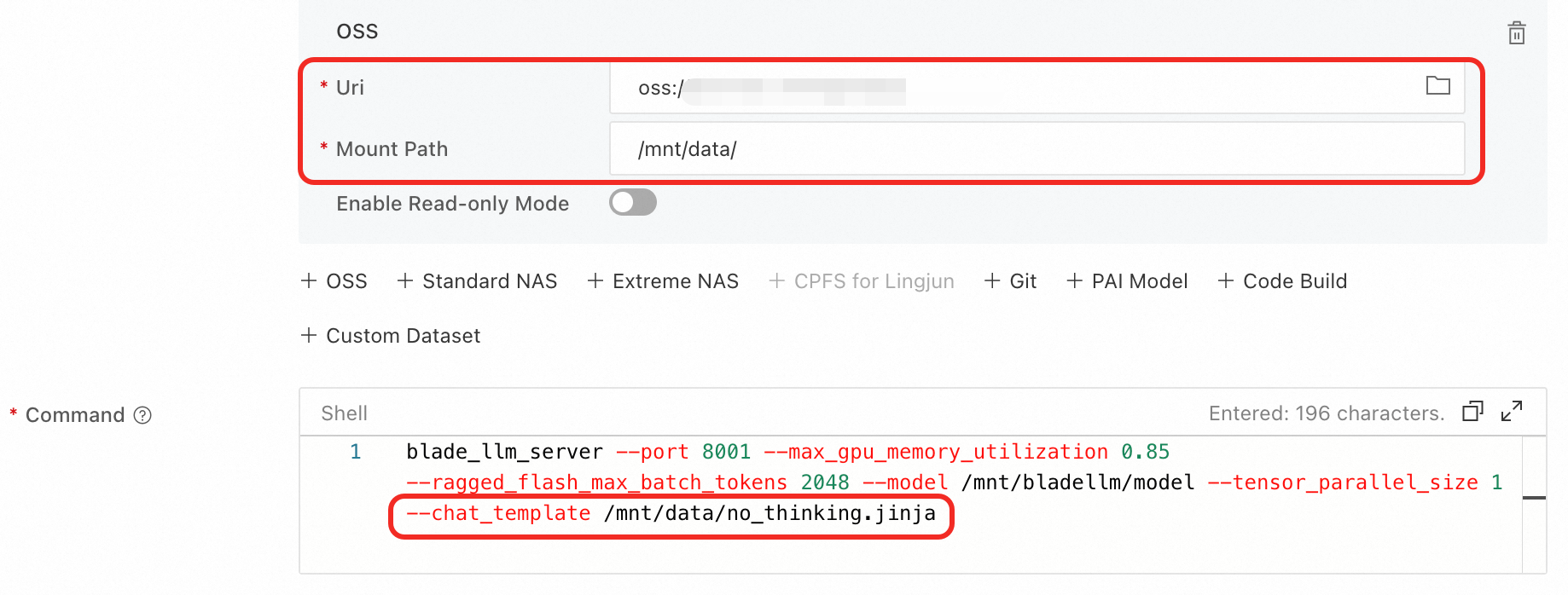
Parse thinking content
To output thinking content separately, modify the containers.script field:
vLLM:
vllm serve ... --enable-reasoning --reasoning-parser qwen3SGLang:
python -m sglang.launch_server ... --reasoning-parser deepseek-r1
Fine-tune a model
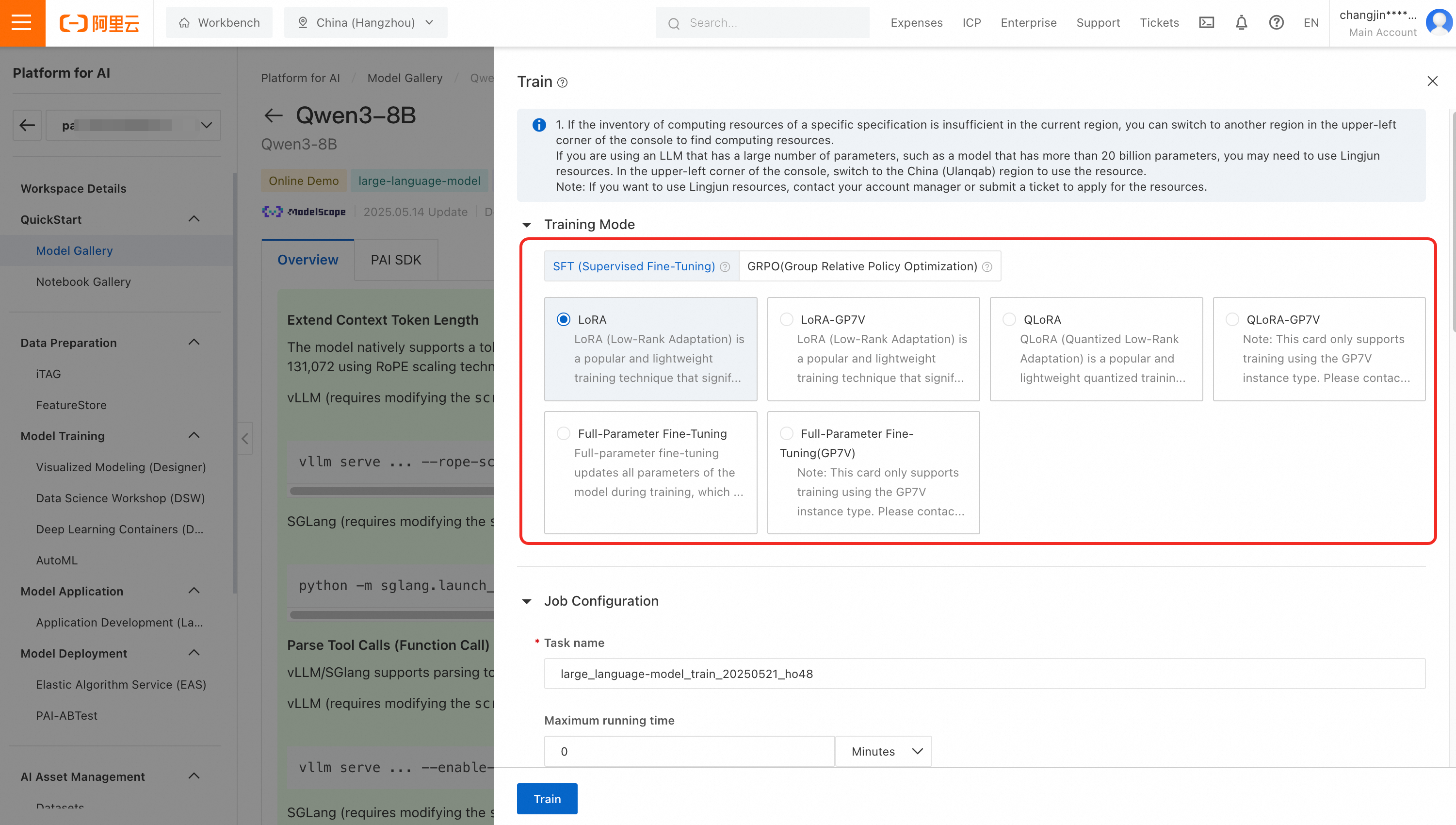
Qwen3-32B, 14B, 8B, 4B, 1.7B, and 0.6B support SFT (full-parameter, LoRA, and QLoRA fine-tuning) and GRPO training.
Submit training jobs with a single click to train custom models for your business scenarios.

Evaluate a model
Follow Model evaluation and Best practices for LLM evaluation.
Appendix: Computing resources and token limits
The following table lists minimum configurations and maximum token counts for Qwen3 models across inference frameworks.
Only Qwen3-235B-A22B-FP8 requires fewer resources than its non-FP8 counterpart. Other FP8 models share the same requirements as their non-FP8 versions — for example, Qwen3-30B-A3B-FP8 uses the same resources as Qwen3-30B-A3B.
Model | Max tokens (input + output) | Minimum configuration | |
SGLang | vLLM | ||
Qwen3-235B-A22B | 32,768 (with RoPE scaling: 131,072) | 32,768 (with RoPE scaling: 131,072) | 8 × GPU H / GU120 (8 × 96 GB GPU memory) |
Qwen3-235B-A22B-FP8 | 32,768 (with RoPE scaling: 131,072) | 32,768 (with RoPE scaling: 131,072) | 4 × GPU H / GU120 (4 × 96 GB GPU memory) |
Qwen3-30B-A3B Qwen3-30B-A3B-Base Qwen3-32B | 32,768 (with RoPE scaling: 131,072) | 32,768 (with RoPE scaling: 131,072) | 1 × GPU H / GU120 (96 GB GPU memory) |
Qwen3-14B Qwen3-14B-Base | 32,768 (with RoPE scaling: 131,072) | 32,768 (with RoPE scaling: 131,072) | 1 × GPU L / GU60 (48 GB GPU memory) |
Qwen3-8B Qwen3-4B Qwen3-1.7B Qwen3-0.6B Qwen3-8B-Base Qwen3-4B-Base Qwen3-1.7B-Base Qwen3-0.6B-Base | 32,768 (with RoPE scaling: 131,072) | 32,768 (with RoPE scaling: 131,072) | 1 × A10 / GU30 (24 GB GPU memory) Important An 8B model with RoPE scaling requires 48 GB of GPU memory. |
FAQ
Q: Do PAI-deployed services support session context?
No. PAI model service APIs are stateless — each call is independent with no server-side context retained.
To implement multi-turn conversations, the client must include conversation history in each request. How do I implement a multi-turn conversation?