The Single-source Shortest Path component finds the shortest paths from one source vertex to all reachable vertices in a graph, using Dijkstra's algorithm. Use this component for network routing, traffic planning, and geographic information systems (GIS) where all edge weights are non-negative.
Constraints:
-
Edge weights must be non-negative.
-
Vertices unreachable from the source vertex are not included in the output.
Configure the component
Method 1: Configure on the pipeline page
In Machine Learning Designer, add the Single-source Shortest Path component to your pipeline and configure the parameters on the following tabs.
| Tab | Parameter | Description |
|---|---|---|
| Fields Setting | Source Vertex Column | The column in the edge table that represents the start vertex of each edge. |
| Target Vertex Column | The column in the edge table that represents the end vertex of each edge. | |
| Edge Weight Column | The column in the edge table that contains the edge weight. | |
| Parameters Setting | Initial Node ID | The source vertex from which shortest paths are calculated. |
| Tuning | Number of Workers | The number of workers for parallel execution. Higher values increase parallelism but also increase framework communication overhead. |
| Worker Memory (MB) | The maximum memory each worker can use, in MB. Default: 4096. If a worker exceeds this limit, an OutOfMemory error is reported. |
Method 2: Configure using PAI commands
Use the SQL Script component to run PAI commands directly. For setup instructions, see Scenario 4: Execute PAI commands within the SQL script component.
PAI -name SSSP
    -project algo_public
    -DinputEdgeTableName=SSSP_func_test_edge
    -DfromVertexCol=flow_out_id
    -DtoVertexCol=flow_in_id
    -DoutputTableName=SSSP_func_test_result
    -DhasEdgeWeight=true
    -DedgeWeightCol=edge_weight
-DstartVertex=a;| Parameter | Required | Default | Description |
|---|---|---|---|
inputEdgeTableName |
Yes | — | The name of the input edge table. |
inputEdgeTablePartitions |
No | Full table | The partitions to read from the input edge table. If not set, all partitions are read. |
fromVertexCol |
Yes | — | The column for the start vertex of each edge. |
toVertexCol |
Yes | — | The column for the end vertex of each edge. |
outputTableName |
Yes | — | The name of the output table. |
outputTablePartitions |
No | — | The partitions to write to in the output table. |
lifecycle |
No | — | The lifecycle of the output table. |
workerNum |
No | — | The number of workers for parallel execution. Higher values increase parallelism but also increase framework communication overhead. |
workerMem |
No | 4096 | The maximum memory each worker can use, in MB. If exceeded, an OutOfMemory error is reported. |
splitSize |
No | 64 | The data split size, in MB. |
startVertex |
Yes | — | The ID of the source vertex. |
hasEdgeWeight |
No | false | Whether the edges have weights. Set to true to enable weighted Dijkstra's algorithm, which computes shortest paths based on edge weight values. If false, all edges are treated as having equal weight. |
edgeWeightCol |
No | — | The column that contains edge weights. |
Example
This example builds a directed graph with 7 vertices (a, b, c, d, e, f, g) and 8 edges. Vertices f and g form an isolated component with no path from the source vertex a, so they do not appear in the output.
-
Add a SQL Script component to the pipeline. On the Parameters Setting tab, clear Use Script Mode and Whether the system adds a create table statement, then enter the following SQL in the SQL Script editor to create the input edge table:
Data structure 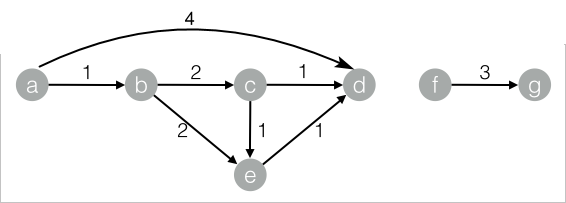
drop table if exists SSSP_func_test_edge; create table SSSP_func_test_edge as select flow_out_id, flow_in_id, edge_weight from ( select "a" as flow_out_id, "b" as flow_in_id, 1.0 as edge_weight union all select "b" as flow_out_id, "c" as flow_in_id, 2.0 as edge_weight union all select "c" as flow_out_id, "d" as flow_in_id, 1.0 as edge_weight union all select "b" as flow_out_id, "e" as flow_in_id, 2.0 as edge_weight union all select "e" as flow_out_id, "d" as flow_in_id, 1.0 as edge_weight union all select "c" as flow_out_id, "e" as flow_in_id, 1.0 as edge_weight union all select "f" as flow_out_id, "g" as flow_in_id, 3.0 as edge_weight union all select "a" as flow_out_id, "d" as flow_in_id, 4.0 as edge_weight ) tmp; -
Add a second SQL Script component, connect it to the component from step 1, and enter the following PAI command in the SQL Script editor:
drop table if exists ${o1}; PAI -name SSSP -project algo_public -DinputEdgeTableName=SSSP_func_test_edge -DfromVertexCol=flow_out_id -DtoVertexCol=flow_in_id -DoutputTableName=${o1} -DhasEdgeWeight=true -DedgeWeightCol=edge_weight -DstartVertex=a; -
Click
 in the upper-left corner of the canvas to run the pipeline.
 -
After the run completes, click the SQL Script component from step 2 and choose View Data > SQL Script Output to view the results.
start_nodedest_nodedistancedistance_cnta a 0.0 0 a b 1.0 1 a c 3.0 1 a d 4.0 3 a e 3.0 1