ossfs is a tool that mounts a bucket from Object Storage Service (OSS) to a local Linux system. Your applications can access objects in OSS using standard file system operations, such as open and read. ossfs automatically converts these operations into OSS API calls.
ossfs is available in two versions: 1.0 and 2.0. Version 2.0 is re-architected for modern, compute-intensive applications. It offers significant performance upgrades but has some limitations on POSIX semantics and is the primary version for future development. If you are working on AI training, inference, autonomous driving simulation, or other modern workloads, and you cannot conveniently use the OSS SDK or the OSS Connector for AI/ML to accelerate model training, we strongly recommend ossfs 2.0. In contrast, ossfs 1.0 provides more comprehensive support for POSIX semantics and is suitable for daily use in scenarios without high performance requirements.
Prerequisites
-
You have registered an Alibaba Cloud account.
-
You have activated OSS and created a bucket.
Operating environment
ossfs 2.0 is based on Filesystem in Userspace (FUSE).
|
System architecture |
Operating system |
Version |
|
x86_64 |
CentOS |
CentOS 7 and CentOS 8 |
|
Rocky Linux |
Rocky Linux 9.0 and later |
|
|
Alibaba Cloud Linux |
Alibaba Cloud Linux 2 and later |
|
|
Ubuntu |
Ubuntu 20.04 LTS and later LTS versions |
|
|
Debian |
Debian 11 and later |
|
|
aarch64 |
Alibaba Cloud Linux |
Alibaba Cloud Linux 3 |
Install ossfs 2.0
Alibaba Cloud Linux
-
Download the package for your system architecture.
-
x86_64 architecture:
sudo wget https://gosspublic.alicdn.com/ossfs/ossfs2_2.0.8_linux_x86_64.rpm -
aarch64 architecture:
sudo wget https://gosspublic.alicdn.com/ossfs/ossfs2_2.0.8_linux_aarch64.rpm
-
-
Install ossfs 2.0 for your system architecture.
-
x86_64 architecture:
sudo yum install ossfs2_2.0.8_linux_x86_64.rpm -y -
aarch64 architecture:
sudo yum install ossfs2_2.0.8_linux_aarch64.rpm -y
-
-
Verify the installation.
ossfs2 --versionNoteossfs2 is installed at
/usr/local/bin/ossfs2. If yourPATHis customized, use the absolute path/usr/local/bin/ossfs2to run ossfs2.
CentOS/Rocky Linux
-
Download the package.
sudo wget https://gosspublic.alicdn.com/ossfs/ossfs2_2.0.8_linux_x86_64.rpm -
Install ossfs 2.0.
sudo yum install ossfs2_2.0.8_linux_x86_64.rpm -y -
Verify the installation.
ossfs2 --versionNoteossfs2 is installed at
/usr/local/bin/ossfs2. If yourPATHis customized, use the absolute path/usr/local/bin/ossfs2to run ossfs2.
Ubuntu
-
Download the package.
sudo wget https://gosspublic.alicdn.com/ossfs/ossfs2_2.0.8_linux_x86_64.deb -
Install ossfs 2.0.
sudo dpkg -i ossfs2_2.0.8_linux_x86_64.deb -
Verify the installation.
ossfs2 --versionNoteossfs2 is installed at
/usr/local/bin/ossfs2. If yourPATHis customized, use the absolute path/usr/local/bin/ossfs2to run ossfs2.
Configure ossfs 2.0
To support different mounting scenarios, you must configure the ossfs 2.0 configuration file. You can then reference this configuration file when you mount a bucket.
-
Create an AccessKey pair for a RAM user that has OSS management permissions.
-
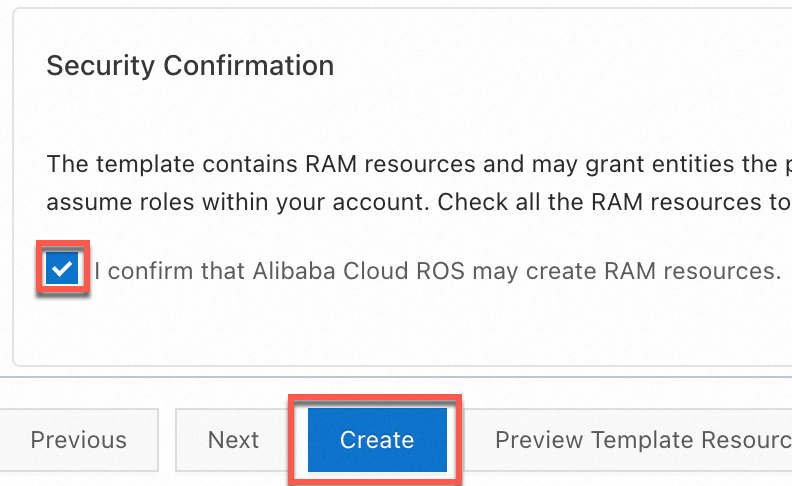
In the ROS console, go to Create Stack. Under Security Confirmation, select the check box, and then click Create.
-
After the stack is created, copy the new AccessKey pair on the Output tab.

-
-
Set the environment variables for your OSS credentials.
export OSS_ACCESS_KEY_ID=LTAI****************** export OSS_ACCESS_KEY_SECRET=8CE4********************** -
You can use any name and path for the ossfs 2.0 configuration file. For example, create a file named
/etc/ossfs2.conf.sudo touch /etc/ossfs2.conf -
Enter the mount information. The following example shows how to mount an entire bucket in read-only mode.
NoteTo view the endpoint of a bucket, go to the Buckets page, select the target bucket, and then click Overview in the left-side navigation pane. The endpoint is displayed in the Port section. The following examples use a bucket in the China (Hangzhou) region.
The endpoints for a bucket in the China (Hangzhou) region are as follows: The public endpoint is
oss-cn-hangzhou.aliyuncs.com. The internal endpoint for access from an Elastic Compute Service (ECS) instance in the classic network or a Virtual Private Cloud (VPC) isoss-cn-hangzhou-internal.aliyuncs.com. The transfer acceleration endpoint for global uploads and downloads isoss-accelerate.aliyuncs.com. The OSS accelerator endpoint iscn-hangzhou-internal.oss-data-acc.aliyuncs.com. All endpoints support HTTPS.Open the ossfs 2.0 configuration file that you created. Configure the file by using the following example, which uses an internal endpoint for the China (Hangzhou) region, and then save the file. For faster and more stable data transfer, use an internal endpoint or an OSS accelerator endpoint to mount from an instance within a VPC in the same region. Avoid using a public endpoint to access ossfs. High latency and unstable internet connections often lead to performance issues.
# The endpoint of the region where the bucket is located
--oss_endpoint=https://oss-cn-hangzhou-internal.aliyuncs.com

# The bucket name
--oss_bucket=bucketName

# Mount in read-only mode
--ro=true
Mount and access
-
Create a mount point.
You can specify a custom name and path for the mount point. For example, create the
/tmp/ossfs2-bucketdirectory to serve as the mount point.sudo mkdir /tmp/ossfs2-bucket -
Mount the bucket.
Run the following command to mount the bucket configured in the
ossfs2.conffile to the local/tmp/ossfs2-bucket/directory in read-only mode. If you need to mount with read and write permissions, remove the--ro=trueoption from theossfs2.confconfiguration file.sudo ossfs2 mount /tmp/ossfs2-bucket/ -c /etc/ossfs2.conf -
Access the mounted bucket.
Once mounted, you can access the objects in the bucket as if they were local files. For example, run the
sudo ls -lh /tmp/ossfs2-bucket/command to list the files in the mounted bucket.
-
Unmount the bucket.
To unmount the bucket, run the following command.
sudo umount /tmp/ossfs2-bucket/