When monitoring alerts fire, your team needs to see them immediately in the tools they already use. Managed Service for OpenTelemetry integrates with DingTalk chatbots to deliver alert notifications directly to DingTalk groups, so team members can view details and respond without switching contexts.
With this integration, you can:
Receive real-time alert notifications in DingTalk groups as soon as conditions are met
View and clear alerts directly from the group chat
Get automated daily alert summary reports at scheduled times
Prerequisites
Before you begin, make sure that you have:
A DingTalk group where you want to receive alerts
The DingTalk client installed on your PC
Step 1: Get the webhook URL of a DingTalk chatbot
Create a custom chatbot in your DingTalk group and copy its webhook URL. You need this URL when configuring the integration in the Managed Service for OpenTelemetry console.
Open the DingTalk client on your PC, go to the target DingTalk group, and click the Group Settings icon in the upper-right corner.
In the Group Settings panel, click Bot. In the Robot Management panel, click Add Robot.
In the Robot dialog box, click Add Robot, and then click Custom.
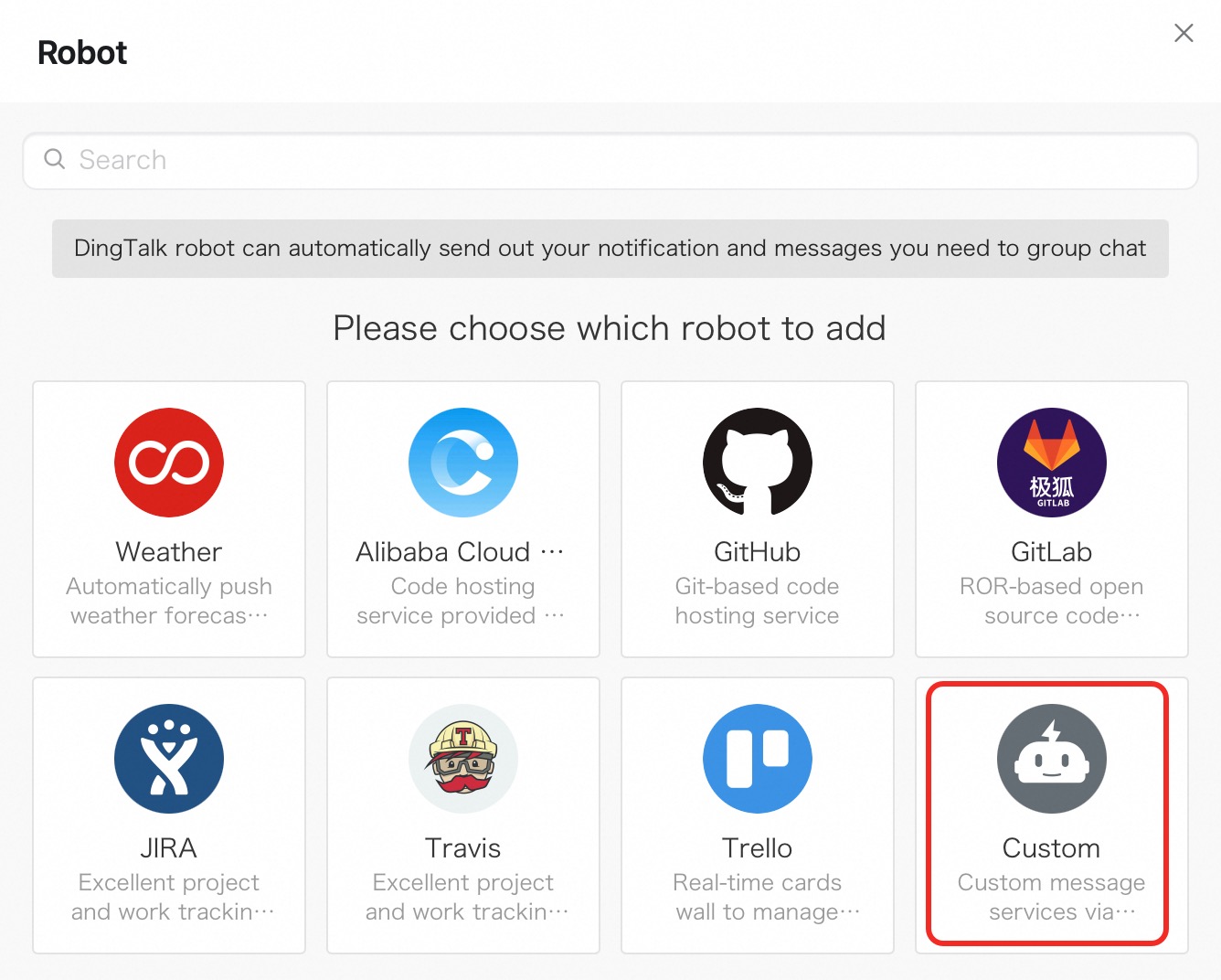
In the Robot details dialog box, click Add.
In the Add Robot dialog box, configure the chatbot:
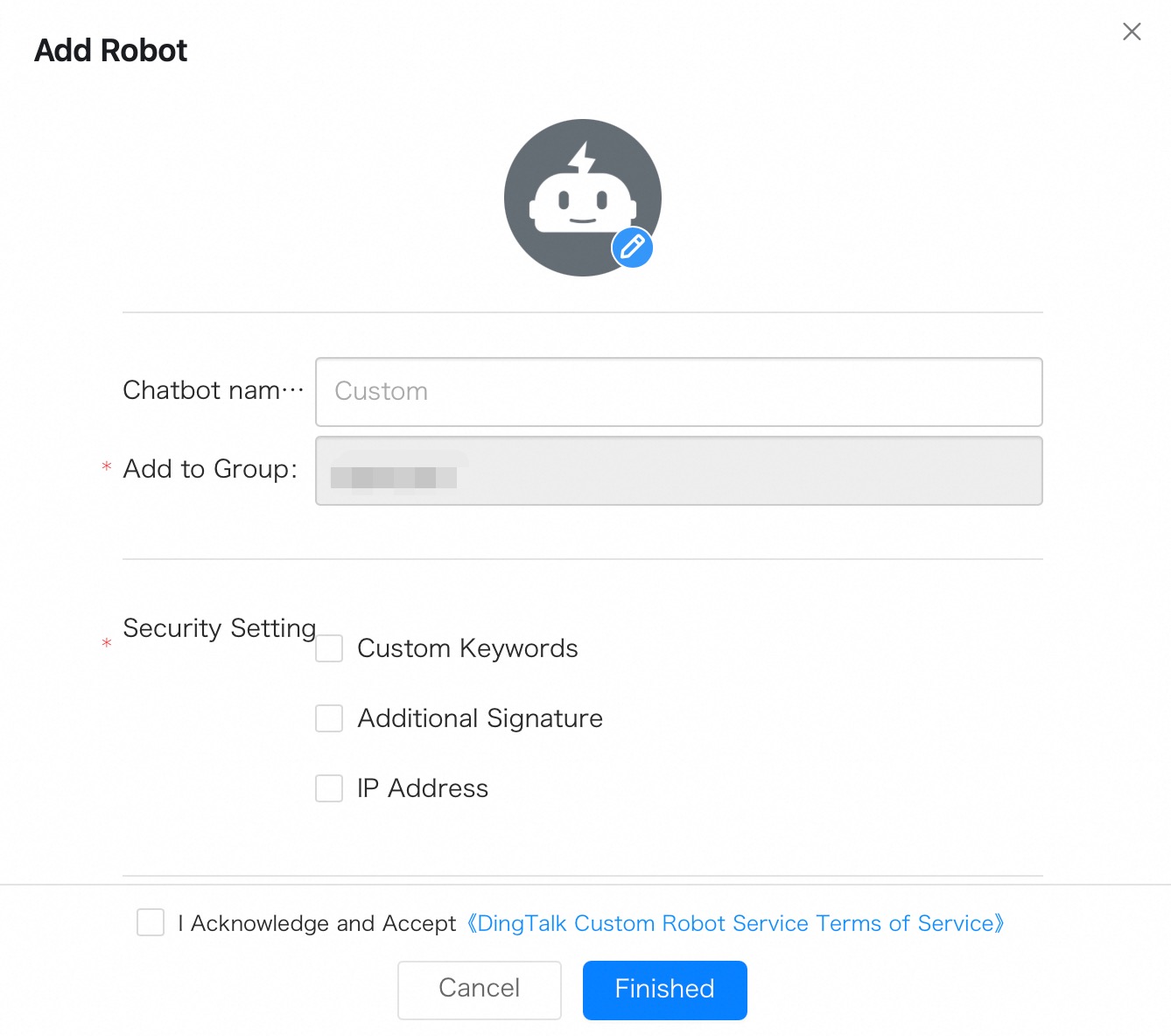
Specify a profile picture and a name for the chatbot.
For the Security Setting parameter, select Custom Keywords and enter alert as a keyword.
The keyword
alertis used by Managed Service for OpenTelemetry to deliver notifications to this chatbot. If no signature key is specified, the keyword whitelist is used for verification by default.Read the terms of service, then select I Acknowledge and Accept the DingTalk Custom Robot Service Terms of Service.
Click Finished.
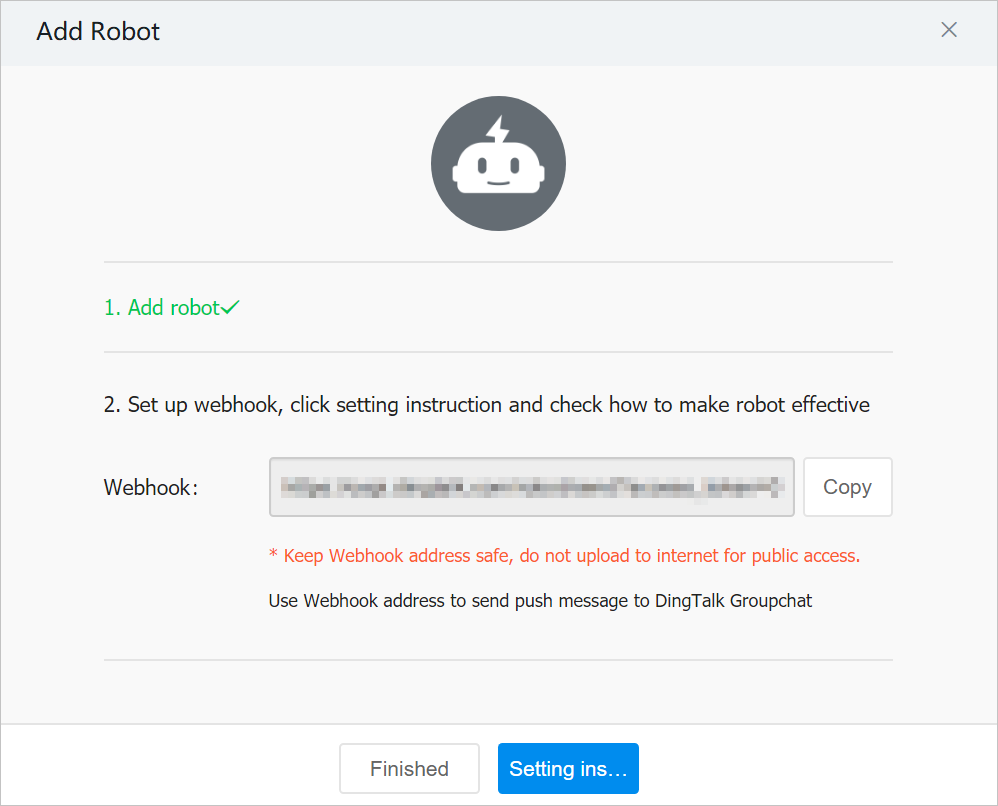
Copy the webhook URL and click OK.
Step 2: Register the chatbot in the console
Register the webhook URL in Managed Service for OpenTelemetry and configure how alert notifications are delivered.
Log on to the Managed Service for OpenTelemetry console.
In the left-side navigation pane, choose . Click the DingTalk/Lark/WeCom tab and select DingTalk.
In the Create DingTalk Chatbot panel, configure the following parameters and click OK.
Parameter
Description
Name
A display name for this chatbot integration. Use a descriptive name that identifies the target group, such as
prod-alerts-sre-team.Signature Key
Optional. A signature-based verification key for the DingTalk chatbot. If left blank, the keyword whitelist (
alert) is used for verification by default.Chatbot Webhook URL
The webhook URL copied from the DingTalk chatbot in Step 1.
Whether the Chatbot Sends Daily Statistics
Optional. Enable this to receive automated daily alert summary reports. Enter one or more time points in
HH:mmformat, separated by commas (for example,09:00,18:00). At each scheduled time, ARMS generates a report that contains the triggered alert count, resolved alert count, and pending alert backlog.Card Content Configuration
Optional. Customize the style and content of the alert notification card sent to the DingTalk group.
Manage alerts in the DingTalk group
After an alert notification arrives in the DingTalk group, you can view alert details, respond, and clear alerts directly in the chat. For more information, see Handle alerts in the specified group chat.
Manage chatbot integrations
On the DingTalk/Lark/WeCom tab, manage existing DingTalk chatbot integrations:
Search: Enter a keyword in the search box and click the
 icon to filter by name.
Edit: Click Edit in the Actions column, modify the settings, and click OK.
Delete: Click Delete in the Actions column and click OK to confirm.