Use the Query Test page in the OpenSearch Vector Search Edition console to retrieve records by their primary key IDs. This is useful for verifying that specific records were indexed correctly after reindexing completes.
The Query Test page also supports vector-based query and hybrid query by vector and text.
Prerequisites
Before you begin, ensure that you have:
Completed reindexing
At least one table in the In Use state
Run a primary key-based query
On the details page of your OpenSearch instance, click Query Test in the left-side navigation pane.
Click the Primary Key-based Query tab.
Select a table from the Table Name drop-down list.
In the upper-right corner, select Form Mode or Developer Mode.
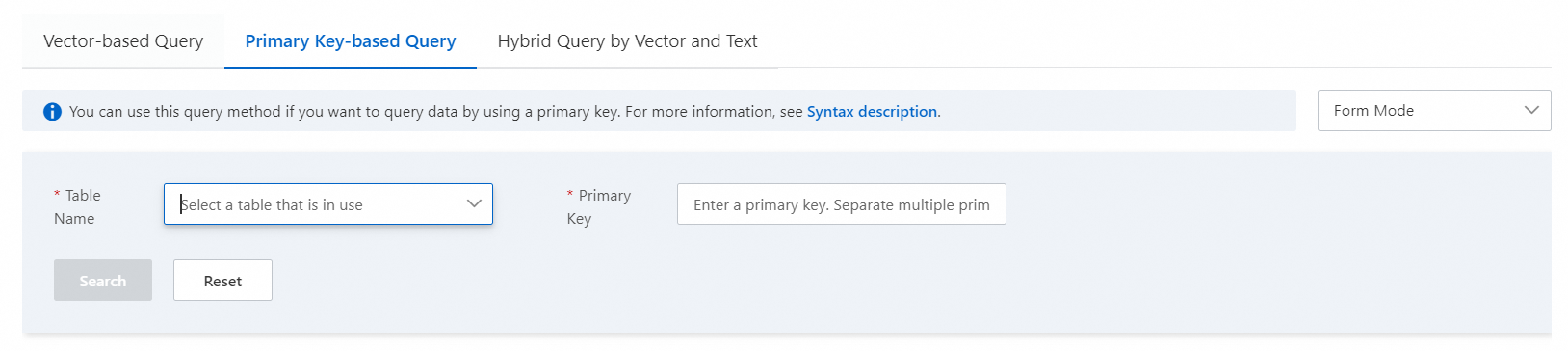
Enter your query parameters and click Search.
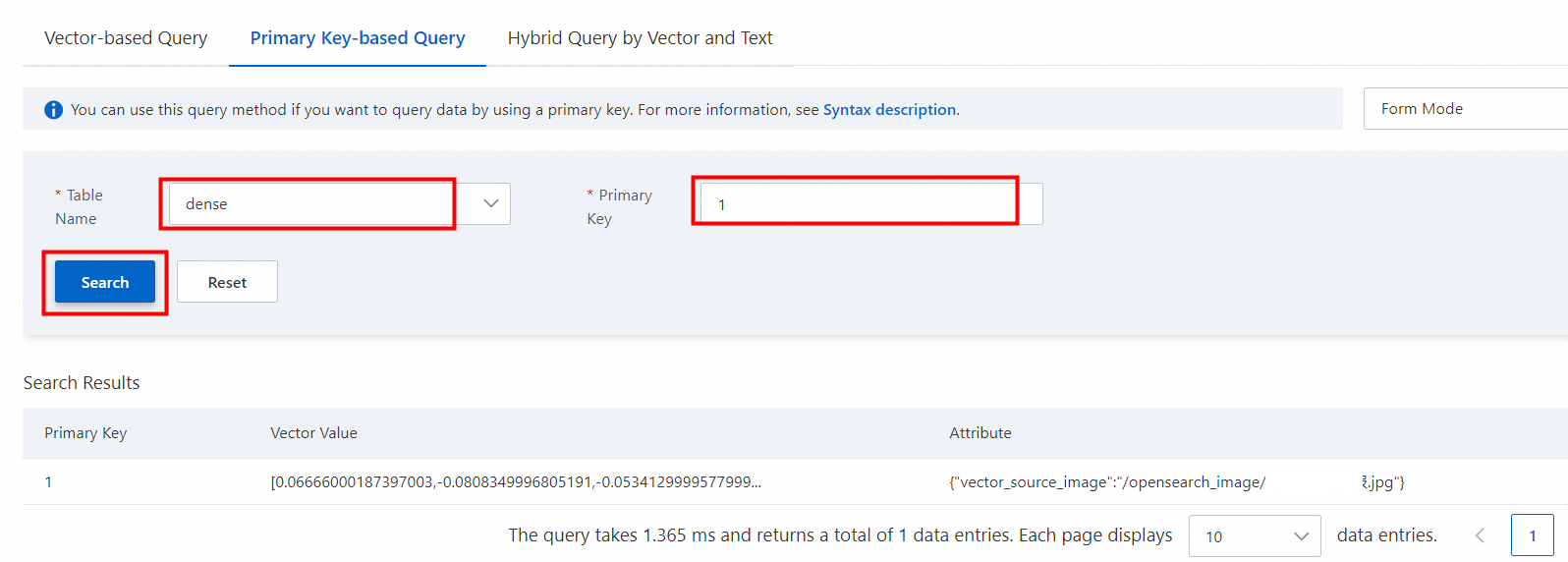
Form mode
Form Mode displays query parameters as a form and results below it. Some query features are disabled in this mode.

| Parameter | Required | Description |
|---|---|---|
| Table Name | Yes | The table to query. Select a table in the In Use state. |
| Primary Key | Yes | One or more primary key values to look up. Separate multiple values with commas. Example: 1,2,3 |
After you enter the primary key values and click Search, the results appear below the form.
Developer mode
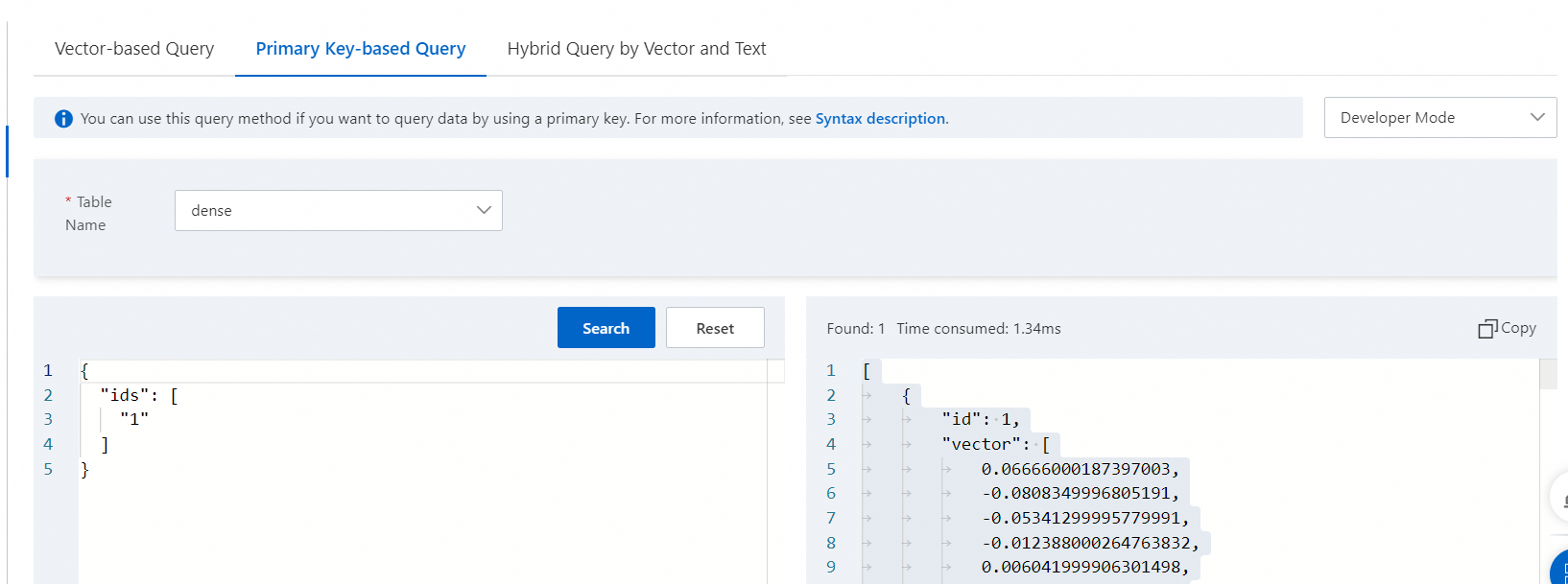
Developer Mode displays both query parameters and results as raw statements, and supports all query features.
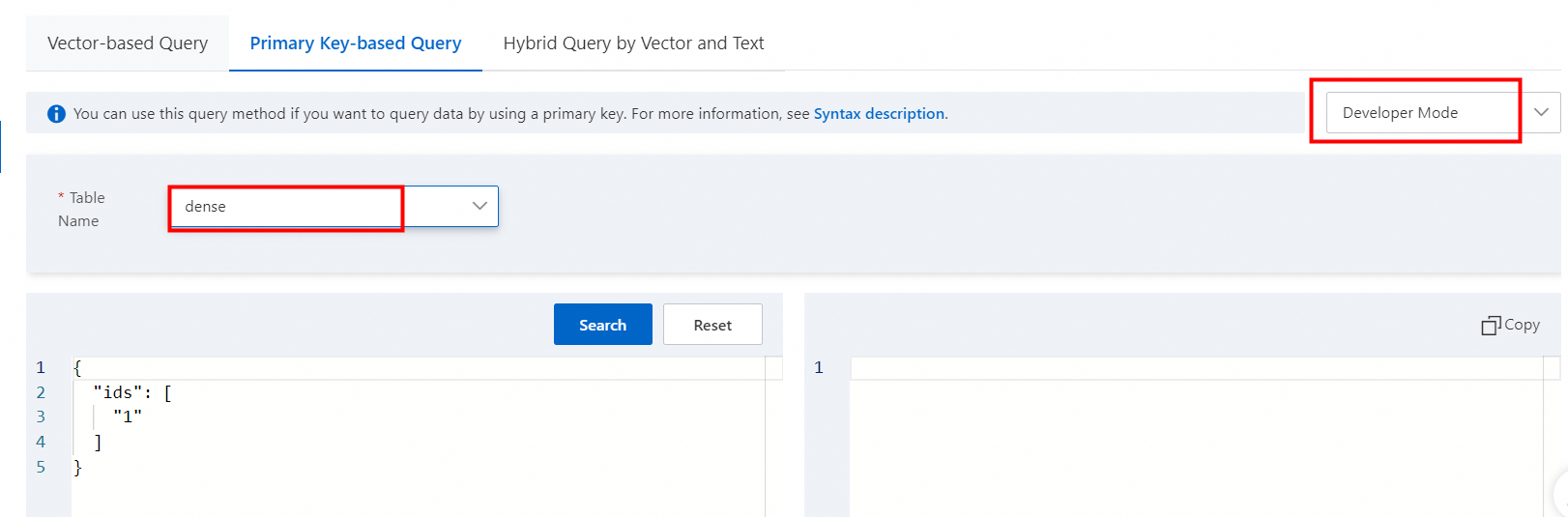
Enter the query in the left panel and click Search. Results appear in the right panel.
The request body uses the following format:
{
  "ids": ["1","2"]
}| Parameter | Required | Description |
|---|---|---|
ids | Yes | One or more primary key values in the list[] format. Separate multiple values with commas. |
Limitations
Primary key-based queries filter only by table name and primary key values. No additional filter criteria are supported.