Prompt templates control how the large language model (LLM) interprets retrieved documents and generates answers. OpenSearch LLM-Based Conversational Search Edition ships with a default prompt template. Create custom templates to tailor LLM behavior to your specific use case — for example, to allow answers from general knowledge when retrieved context is insufficient, or to expose a configurable fallback message.
Workflow overview
Create a prompt template with a structured message list (system, user, and assistant roles).
Use built-in variables (
{docs},{question}) to inject retrieved context and user input into the prompt at runtime.Optionally add custom variables to make parts of the prompt configurable without editing the template.
Test the template on the Q&A Test page and modify it as needed.
Integrate the template into your application by calling the relevant API operation and passing any custom variable values.
Prerequisites
Before you begin, make sure you have:
An OpenSearch LLM-Based Conversational Search Edition instance
Access to Configuration Center > Prompt Management in the console
Create a prompt template
On the instance details page, choose Configuration Center > Prompt Management.
Click Create Template.
In the Create Prompt Template panel, configure the parameters described below, then click OK.
Parameters
Prompt Template Name (required)
A unique identifier for the template. The name must be 1–30 characters, start with a letter, and contain only letters, digits, and underscores (_).
Template Overview (optional)
A short description. Must be 1–30 characters, start with a letter or digit, and contain only letters, digits, underscores (_), and hyphens (-).
message
The list of role-content pairs sent to the LLM. Click + to add more pairs. Each content field:
Is required
Cannot contain
<#or[#Is limited to 1,024 characters
The table below describes the supported roles and their behavior.
| Role | Required | Behavior |
|---|---|---|
system | No | Highest-priority instructions. Sets the LLM's persona, constraints, or output format. If included, must be the first message in the list. |
user | Yes | The prompt sent to the LLM, typically including the retrieved context and the user's question. The message list must end with a user message. |
assistant | No | Simulates a prior model response. Alternate user and assistant messages to represent a multi-turn conversation. |
Variables reference
Built-in variables
These variables are populated automatically at runtime. Do not use their names for custom variables.
| Variable | Replaced by | Restriction |
|---|---|---|
{question} | The original question entered by the user | Reserved; cannot be used as a custom variable name |
{docs} | The content generated by merging retrieved documents | Reserved; cannot be used as a custom variable name |
Custom variables
Define custom variables in the ${parameters.VariableName} format directly in the message content. Variable names must be 1–64 characters and contain only letters, digits, and underscores (_).
To set a default value, use one of the following formats:
| Format | Behavior |
|---|---|
${(parameters.name)!} | No default value |
${(parameters.name)!"LLM"} | Default value is LLM |
To pass a value at runtime, call the relevant API operation and supply the variable value. Custom variables and their current values appear on the Prompt Parameters tab of the Q&A Test page, where you can override them for testing.
Sample templates
After creating a template, click Q&A Test in the Actions column to test it. The default knowledge base contains content about OpenSearch LLM-Based Conversational Search Edition.
Template 1: Default — answer from context only
| Role | Content |
|---|---|
system | You are a helpful assistant. |
user | The context contains multiple independent documents, each of which is placed between the <article> and </article> tags. Context: "${docs}" Answer the question in a detailed and organized manner based on the preceding context. Make sure that the question is adequately answered based on the context. If the information provided by the context is insufficient to answer the question, return the following message: I cannot answer this question based on the known information. Do not use content that is not included in the context to generate answers. Make sure that each statement in the answer is supported by the corresponding content in the context. Answer the question in English. Question: "${question}" |
Behavior: The LLM answers only from the retrieved context. If no relevant documents are found, it returns a fixed refusal message rather than drawing on general knowledge.
Template 2: Custom — allow answers from general knowledge
| Role | Content |
|---|---|
system | You are a helpful assistant. |
user | The context contains multiple independent documents, each of which is placed between the <article> and </article> tags. Context: "${docs}" You have a large amount of knowledge, including knowledge related to mathematical calculation. Answer the following question accurately. Question: "${question}" |
Behavior: When the retrieved context is insufficient, the LLM falls back to its general knowledge to answer the question.
Template 3: Custom — configurable fallback message with a custom variable
| Role | Content |
|---|---|
system | You are a helpful assistant. |
user | The context contains multiple independent documents, each of which is placed between the <article> and </article> tags. Context: "${docs}" Answer the question in a detailed and organized manner based on the preceding context. Make sure that the question is adequately answered based on the context. If the information provided by the context is insufficient to answer the question, return the following message: ${(parameters.no_answer)!"I cannot answer this question based on the known information"}. Do not use content that is not included in the context to generate answers. Make sure that each statement in the answer is supported by the corresponding content in the context. Answer the question in English. Question: "${question}" |
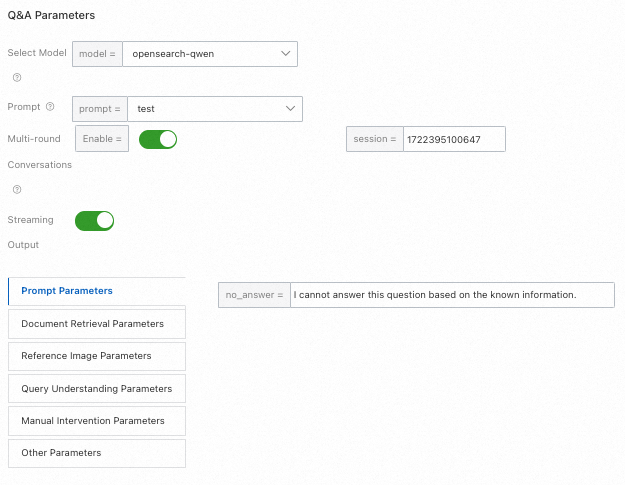
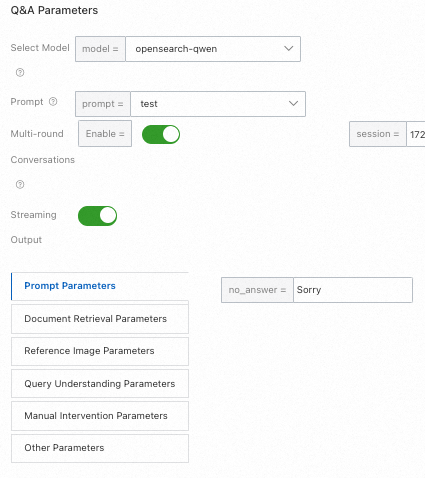
Behavior: The custom variable no_answer controls the fallback message. Its default value is I cannot answer this question based on the known information. Override the value on the Prompt Parameters tab of the Q&A Test page — for example, change it to Sorry — to see how the LLM responds with a different message.
The following example uses the opensearch-qwen model. On the Q&A Test page, you can view the custom variables on the Prompt Parameters tab.
Manage prompt templates
All prompt templates are listed on the Prompt Management page. From there, you can view, modify, and delete templates.
Modify a template
Click Edit in the Actions column of the template. All fields except Prompt Template Name can be changed.
The default prompt template cannot be modified.
Delete a template
Click Delete in the Actions column of the template and confirm the deletion.
Test a template
Click Q&A Test in the Actions column to open the Q&A Test page. Enter a question to see how the template responds using the default knowledge base. If the template contains custom variables, set test values on the Prompt Parameters tab.