OpenSearch - LLM-based Intelligent Q&A Edition provides a turnkey retrieval-augmented generation (RAG) solution. It supports importing data in various formats to build a multimodal conversational search service with text, links, and images. You can build an intelligent Q&A chatbot in three steps.
Workflow

Create an instance: Before you can use OpenSearch - LLM-based Intelligent Q&A Edition, you must first purchase and create an instance.
Import knowledge base data: After you import your enterprise knowledge base data, you can view the imported documents in the console.
Run a Q&A test: You can enter questions related to your enterprise in the chat box to quickly test the Q&A performance of the knowledge base. The model matches relevant information in the knowledge base and generates answers based on that content. To integrate this feature into your business, simply connect to the corresponding OpenSearch APIs.
Step 1: Create an instance
Log in to the OpenSearch - LLM-based Intelligent Q&A Edition console.
In the product version drop-down list in the upper-left corner of the page, select OpenSearch - LLM-based Intelligent Q&A Edition.
On the instance management page, click create instance.
On the purchase page, for edition, select LLM-based Intelligent Q&A Edition. Configure the other parameters as needed and follow the on-screen instructions to complete the purchase.
Other configuration parameters on the purchase page include billing method (pay-as-you-go, subscription, and compute resource plan), region and zone, instance name, LLM edition (Standard and Professional), and storage capacity.
NoteFor billing details, see Billing.
After the purchase is complete, return to the console. On the instance list page, find the target instance, click Manage in the Actions column, and choose . The data structure update progress is displayed at the top of the page. The instance is ready to use after the update completes.
Step 2: Import knowledge base data
On the instance list page, find the target instance and click Manage in the Actions column.
On the instance details page, in the left-side navigation pane, choose . The LLM-based Intelligent Q&A Edition supports uploading local knowledge base files and importing content from websites and web pages. This example demonstrates how to import data using the import from URL feature.
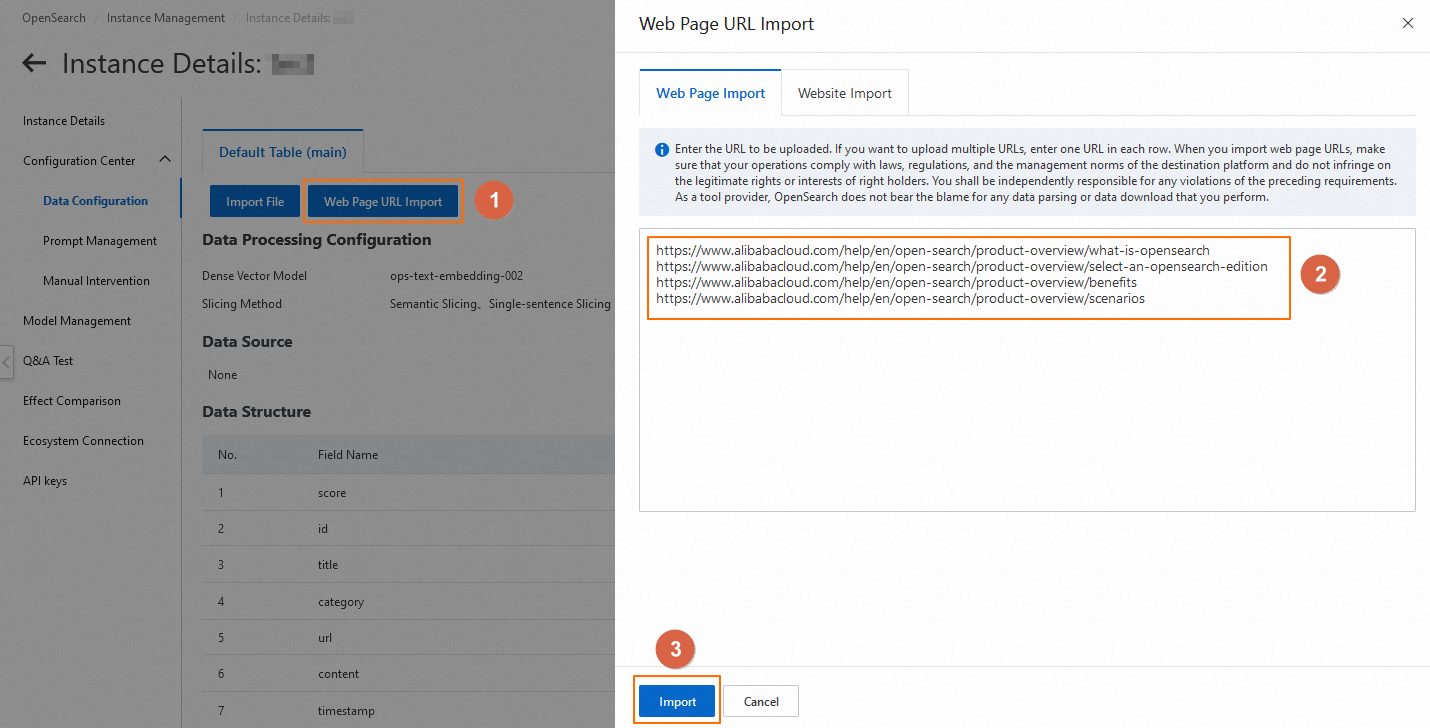
Click Import from URL. In the panel that appears, select the Import from Web Page tab, enter the URL to import, then click Import.
 Note
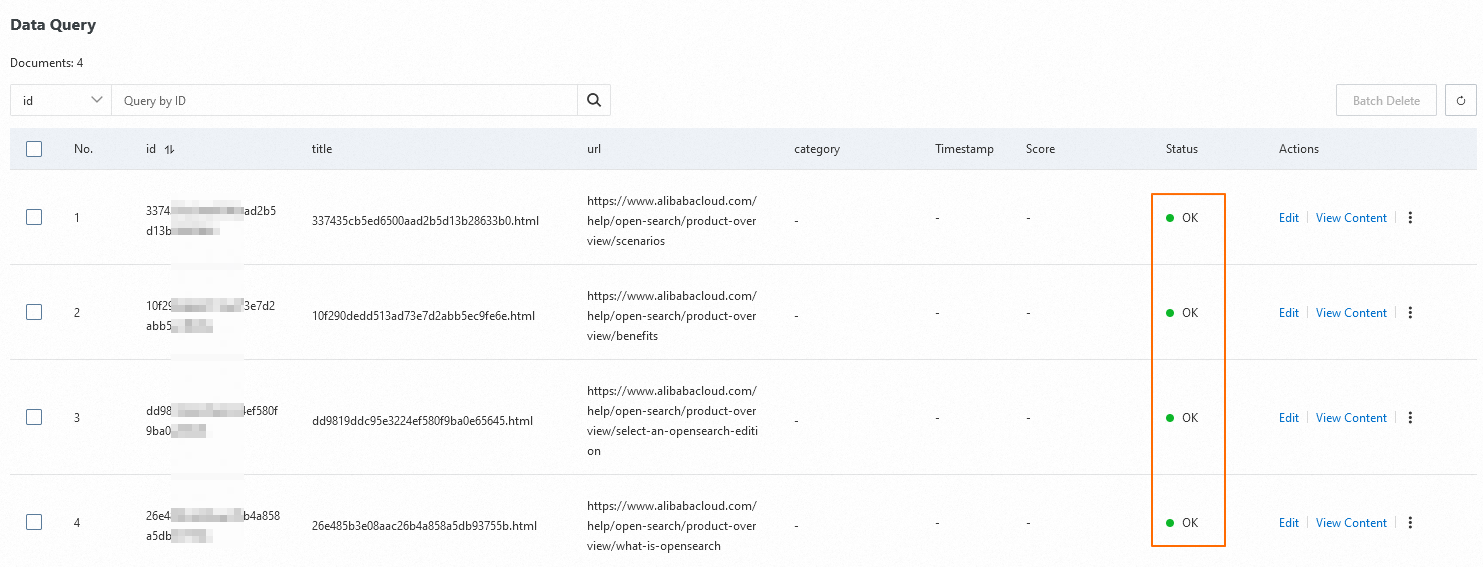
Notehttps://www.alibabacloud.com/help/open-search/product-overview/what-is-opensearchhttps://www.alibabacloud.com/help/open-search/product-overview/select-an-opensearch-editionhttps://www.alibabacloud.com/help/open-search/product-overview/benefitshttps://www.alibabacloud.com/help/open-search/product-overview/scenariosAfter the data is imported, you can check its status in the data query section at the bottom of the page. The import is complete when the value in the Status column changes to Completed.
Step 3: Q&A test
In the left-side navigation pane, click Q&A test to evaluate the Q&A performance of the knowledge base. On the right side of the page, adjust the Q&A parameters as needed or use the default settings. Enter a question related to your enterprise in the chat box. The model retrieves relevant information from the knowledge base to generate an answer. For more information about parameter configurations, see Q&A test.
After the model generates an answer, the reference links and reference images sections appear below the response, allowing you to verify the sources of the answer.
Next steps
To use this feature in your business, integrate the corresponding OpenSearch APIs.