CloudOps Orchestration Service (OOS) allows you to download files to multiple Elastic Compute Service (ECS) instances in a single operation. You can download files over HTTPS or from Object Storage Service (OSS).
Scenario 1: Download files over HTTPS
Prerequisites
An ECS instance with public network access is available. Create an instance, Enable the public network.
Procedure
-
Go to the CloudOps Orchestration Service - Common O&M Tasks - Batch Instance Operations page.
-
Click Create to go to the Create Batch Instance Operation Task page.
-
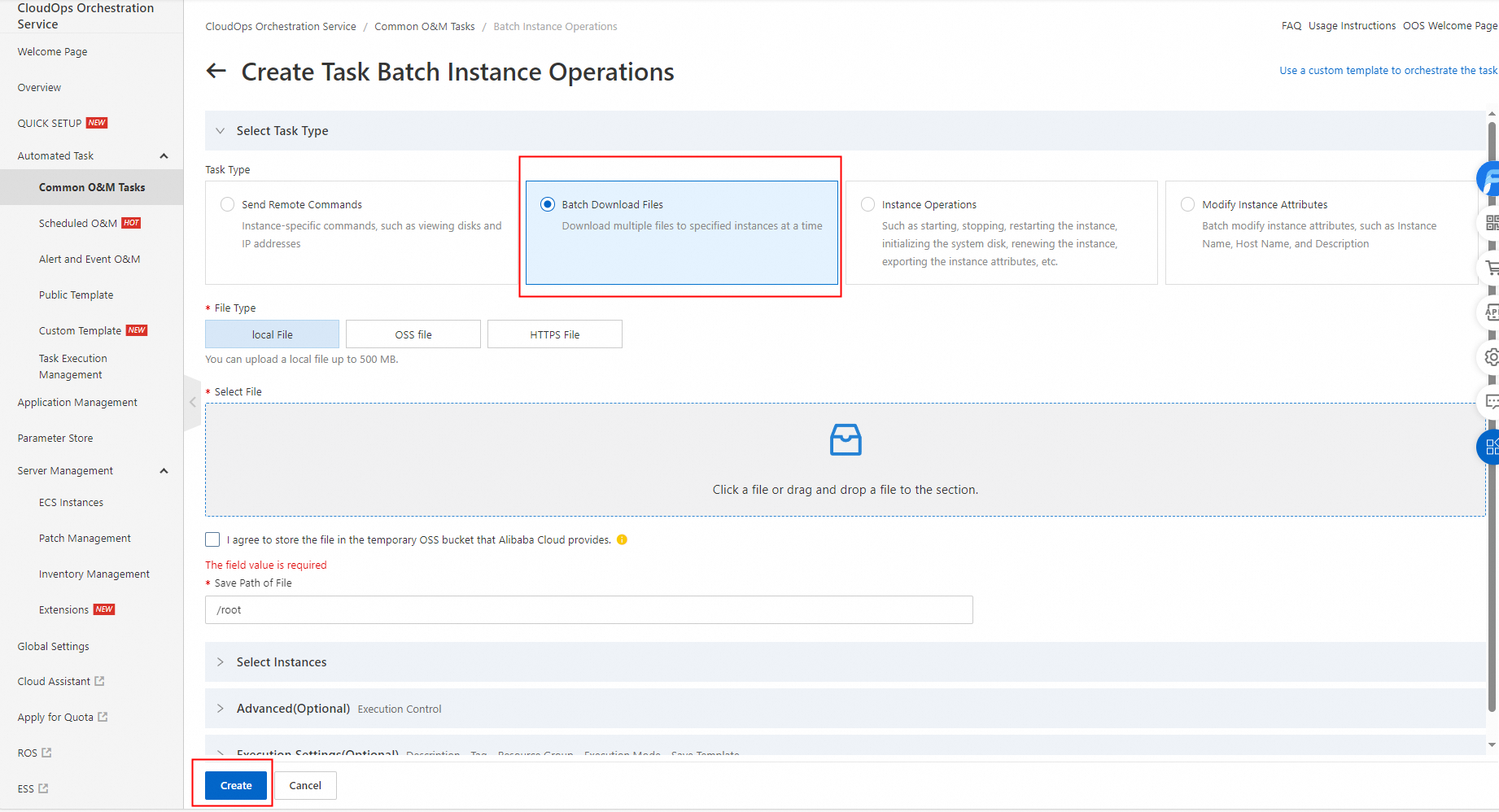
For Task Type, select Batch Download Files. Configure the required parameters, such as file type and instance selection. Then, click Create.
-
After the task is complete, click Details to view the execution results.

Scenario 2: Download files from OSS
Prerequisites
Each target instance must have an instance RAM role with read permissions on OSS.
Procedure
-
Create a RAM role and grant permissions to it.
-
Go to the Resource Access Management (RAM) - Create Role page.
-
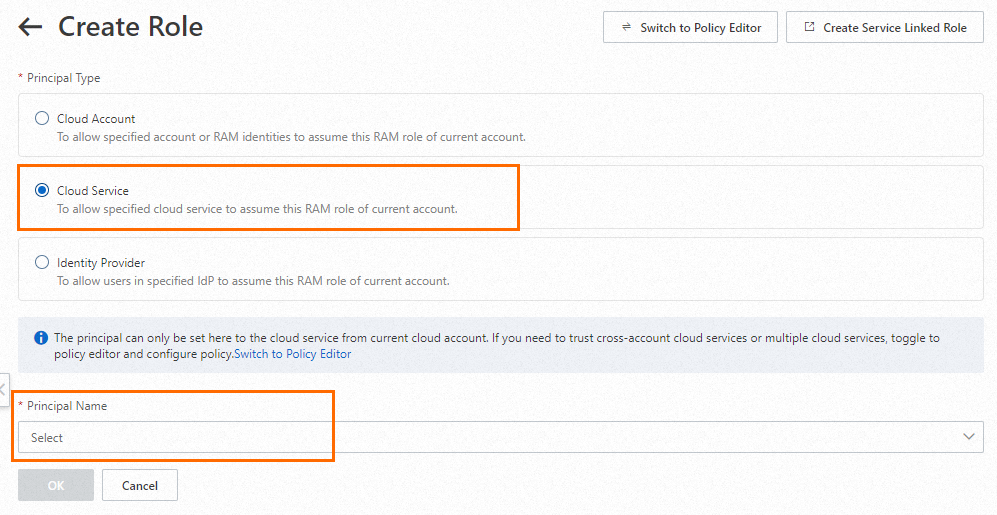
On the Create Role page, select Alibaba Cloud Service for Principal Type, select a specific Alibaba Cloud service, and then click OK.
 Note
NoteThe Alibaba Cloud services that you can select for Principal Name are determined by the options displayed in the console. In this example, ECS is selected.
-
In the Create Role dialog box, enter a Role Name, such as
InstanceRole, and then click OK. -
Add OSS read permissions to the
InstanceRoleRAM role, and then click Grant Permissions.By default, a new RAM role has no permissions. You must manage permissions for a RAM role. Add the
AliyunOSSReadOnlyAccesspolicy, which grants read-only access to OSS, to theInstanceRolerole.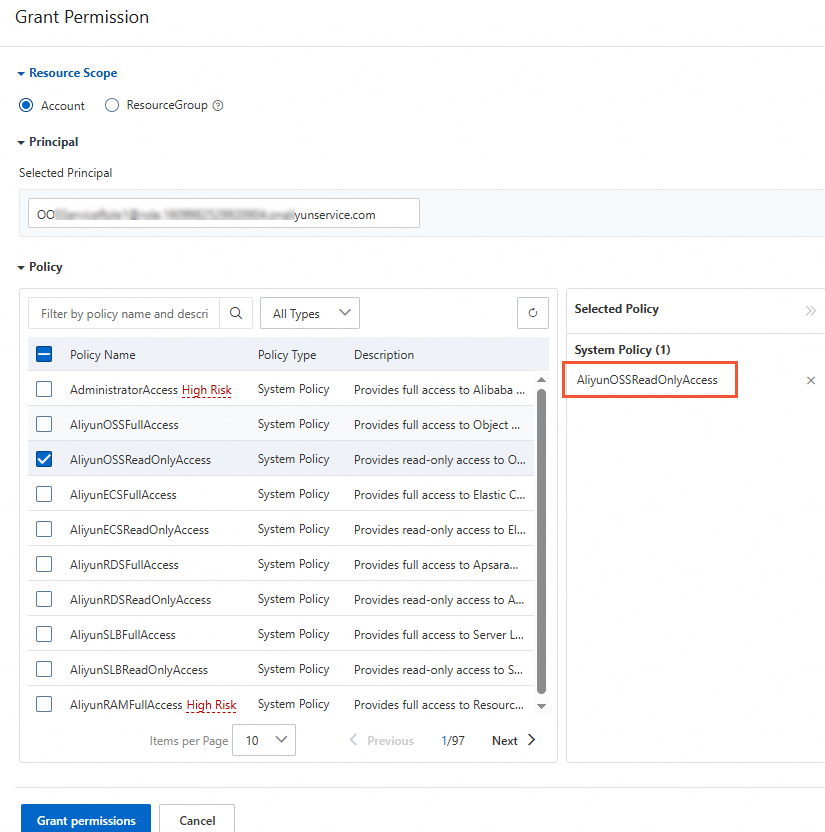
-
Confirm that the permissions are granted, and then click Completed.
-
-
Download files to ECS instances from the OOS console.
-
Go to the CloudOps Orchestration Service - Common O&M Tasks - Batch Instance Operations page.
-
Click Create to go to the Create Batch Instance Operation Task page.
-
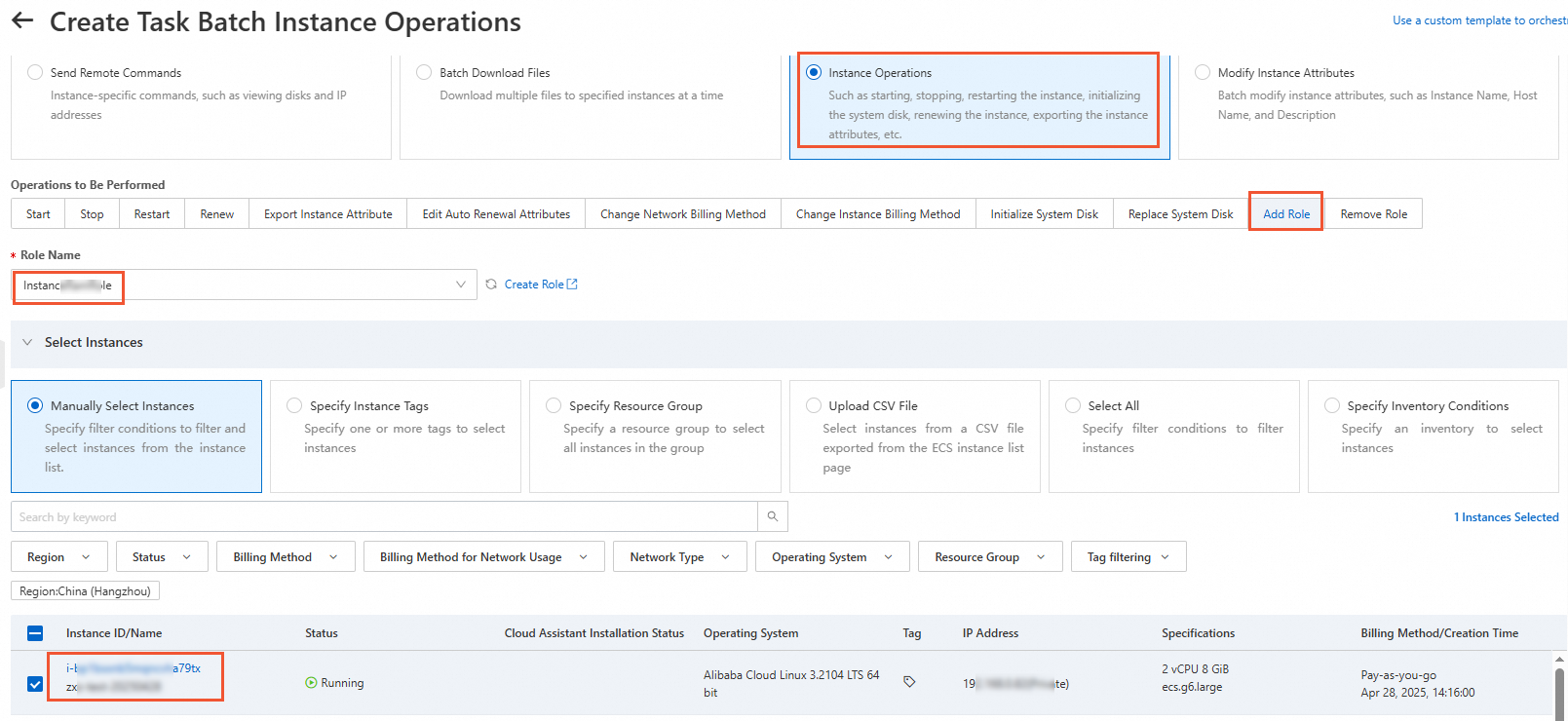
For Task Type, select Instance Operations. For Operation to be Performed, select Add Role. Configure the Role Name, select the target instances, and then click Create.
-
On the Confirm Parameters page, click OK.
-
On the Create Batch Instance Operation Task page, select Batch Download Files for Task Type. Configure the relevant parameters, select the target instances, and then click Create.

-
After the task is complete, click Details to view the execution results.

-