Common issues and solutions for ossbrowser, including login errors, startup failures, transfer speed, and debugging.
"AccessDenied:You are forbidden to list buckets" error
Cause: The account does not have the oss:ListBuckets permission.
Solution:
-
Grant the account the
oss:ListBucketspermission and log in again. Manage permissions for a RAM user. -
If the account can access only specific buckets or objects, specify the path in the Preset OSS Path field and select the Region of the bucket. Install ossbrowser 1.0.
Slow upload or download speed
Cause: ossbrowser defaults to three concurrent tasks and queues the rest, which slows down bulk transfers.
Solution: Click Settings and modify the concurrent upload and download task count. Optimal values depend on your hardware. Experiment to find the best setting.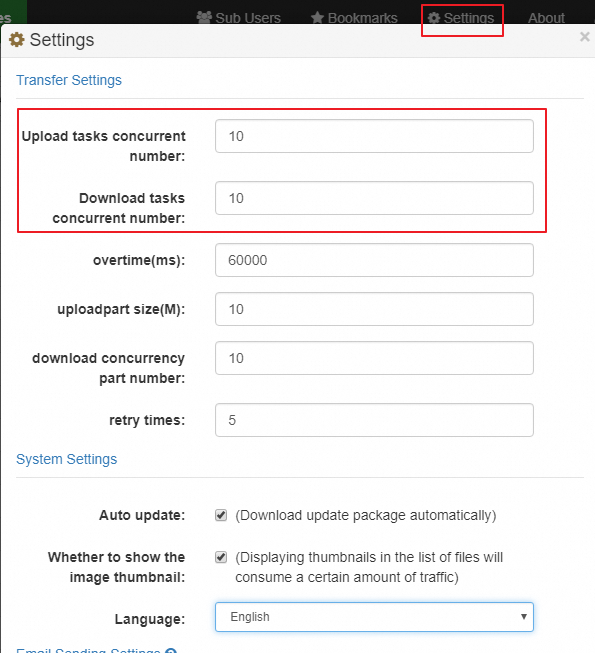
ossbrowser fails to open on macOS
If ossbrowser fails to open on macOS, perform the following steps:
-
Extract the downloaded installation package.
-
Copy oss-browser.app to the Applications directory.
-
Right-click oss-browser in Applications and select Open.
Unverified developer error on macOS
-
Go to System Preferences > Security & Privacy.
-
In the Allow apps downloaded from area, select App Store and identified developers.
-
Next to the "oss-browser" was blocked from use because it is from an unidentified developer message, click Open Anyway.
-
In the dialog box that appears, click Open.
ossbrowser fails to open on Windows
Cause: A NODE_OPTIONS=--max-http-header-size=value environment variable set by another application prevents ossbrowser from starting.
Solution: Delete the NODE_OPTIONS=--max-http-header-size=value variable. The following example uses 64-bit Windows 10:
-
Go to the System page: Control Panel > System and Security > System.
-
Click Advanced system settings.
-
In the System Properties dialog box, click Environment Variables.
-
In the User variables list, select NODE_OPTIONS=--max-http-header-size=value and click Delete.
-
Click OK.
ossbrowser should now open normally.
Enable debugging mode
Use either of the following methods:
-
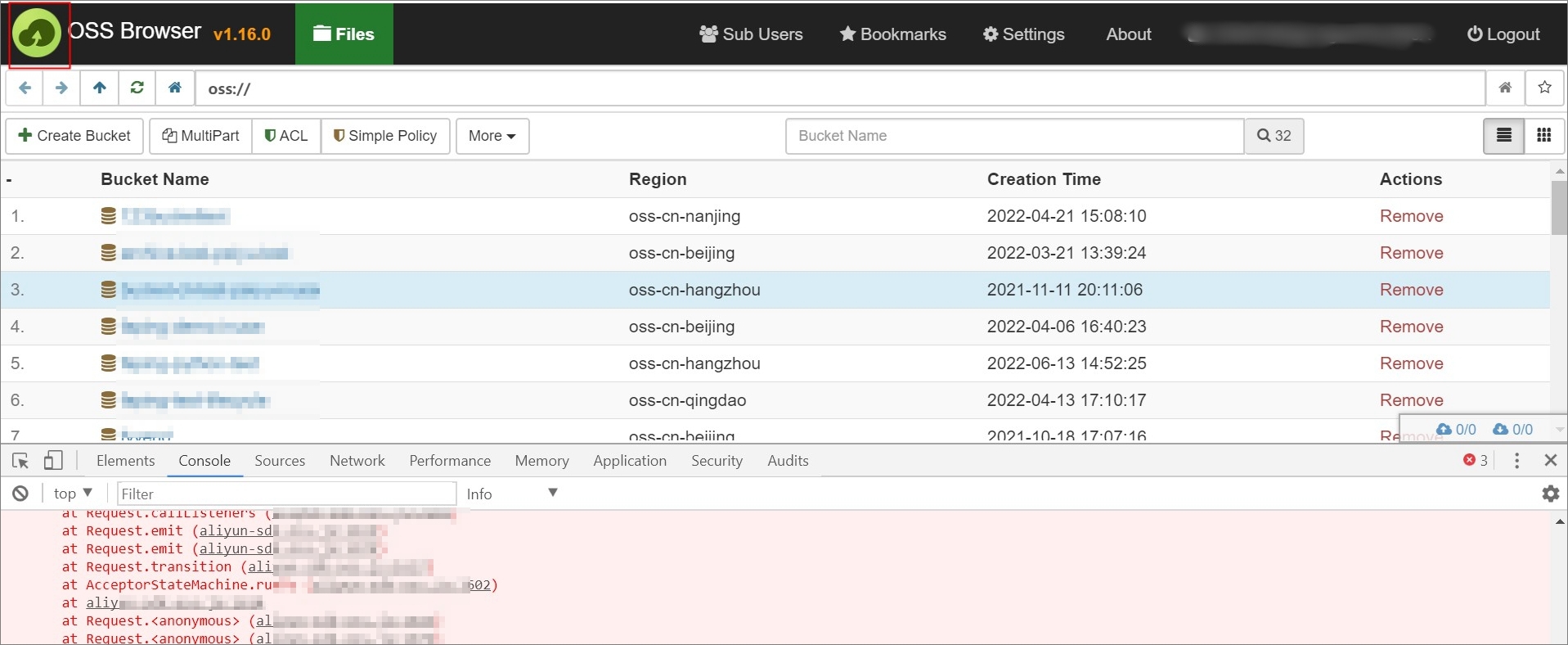
Method 1: Click the application logo in the upper-left corner 10 times consecutively to open the debugging panel.
-
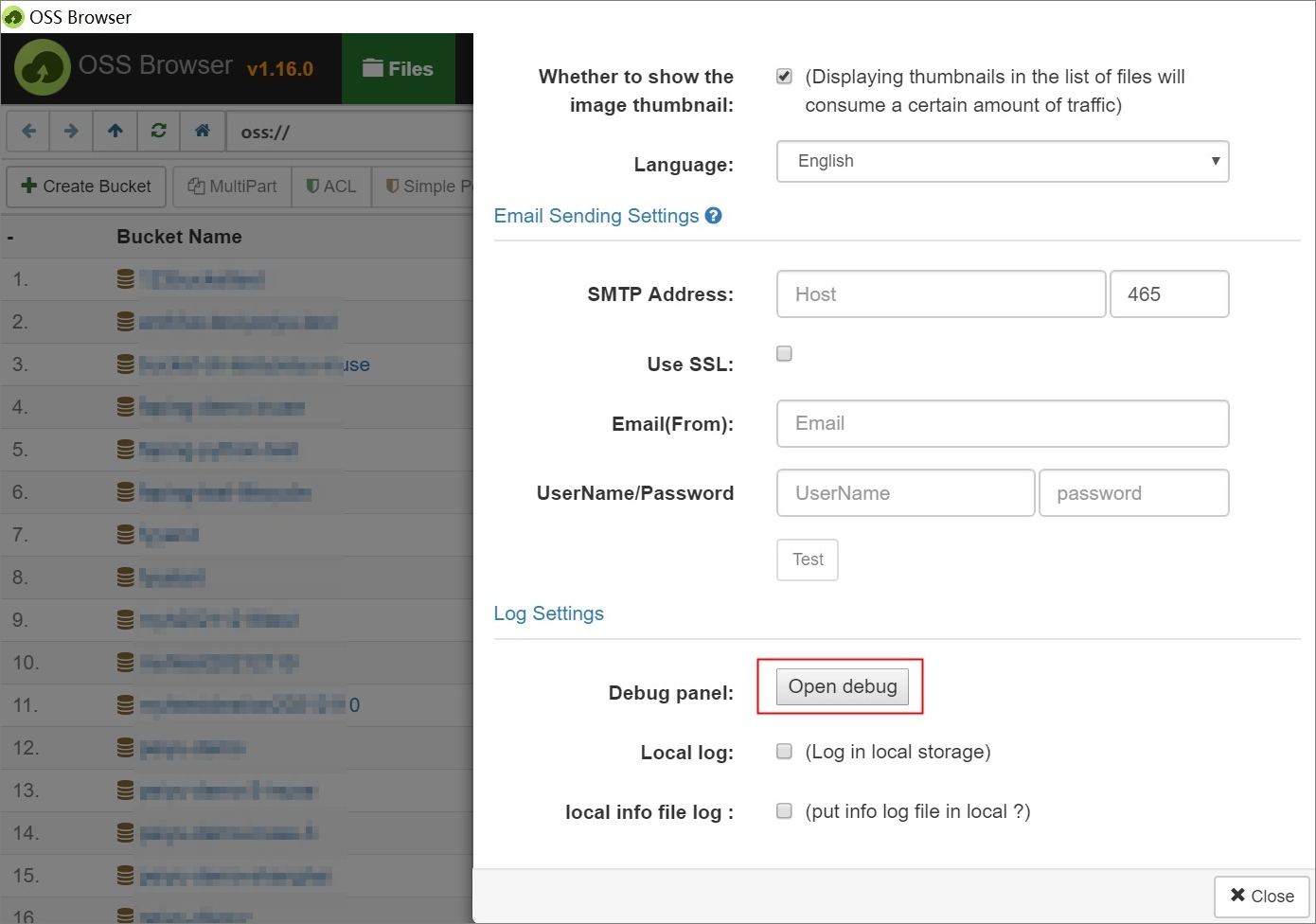
Method 2: On the Settings page, click Enable Debugging to open the debugging panel.
Cannot access ossbrowser due to network issues
This issue is typically caused by an invalid proxy configuration or a proxy without internet access. Check your proxy settings:
|
Operating system |
Proxy configuration path |
|
Windows |
View the proxy configuration in Internet Options. |
|
macOS |
View the proxy configuration in Network Preferences. |
|
Linux |
View the proxy configuration in . |
.asar file upload stuck
Cause: ossbrowser does not support uploading .asar files.
Does ossbrowser support MD5 verification?
No. ossbrowser uses CRC-64 by default.
Default log storage locations
Enable the Local Logs option on the Settings page to collect operation logs. By default, only errors are logged.
-
Linux:
~/.config/oss-browser/log.log -
macOS:
~/Library/Logs/oss-browser/log.log -
Windows:
%USERPROFILE%\AppData\Roaming\oss-browser\log.log
You can also enable the Local Info Log File option to collect informational logs.
Fees for downloading with ossbrowser
Downloading objects from OSS with ossbrowser incurs outbound traffic fees. Traffic fees.