Qwen-Image Edit supports multi-image input and output. Edit text within images, add, remove, or move objects, change subject poses, transfer styles, and enhance details — all through natural language prompts.
Model overview
Input image 1 | Input image 2 | Input image 3 | Output images (multiple) | |
|---|---|---|---|---|
|
|
|
|
|
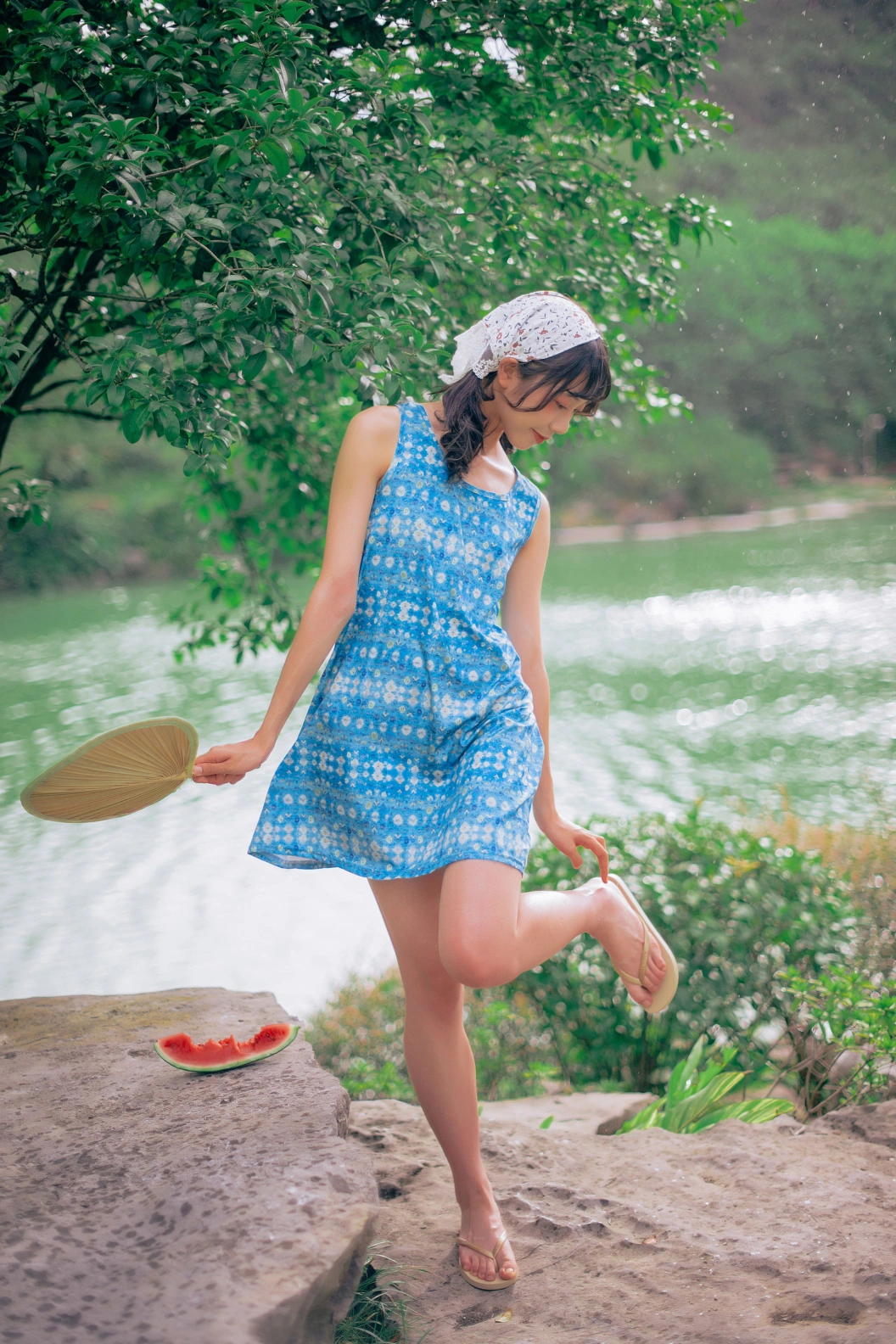
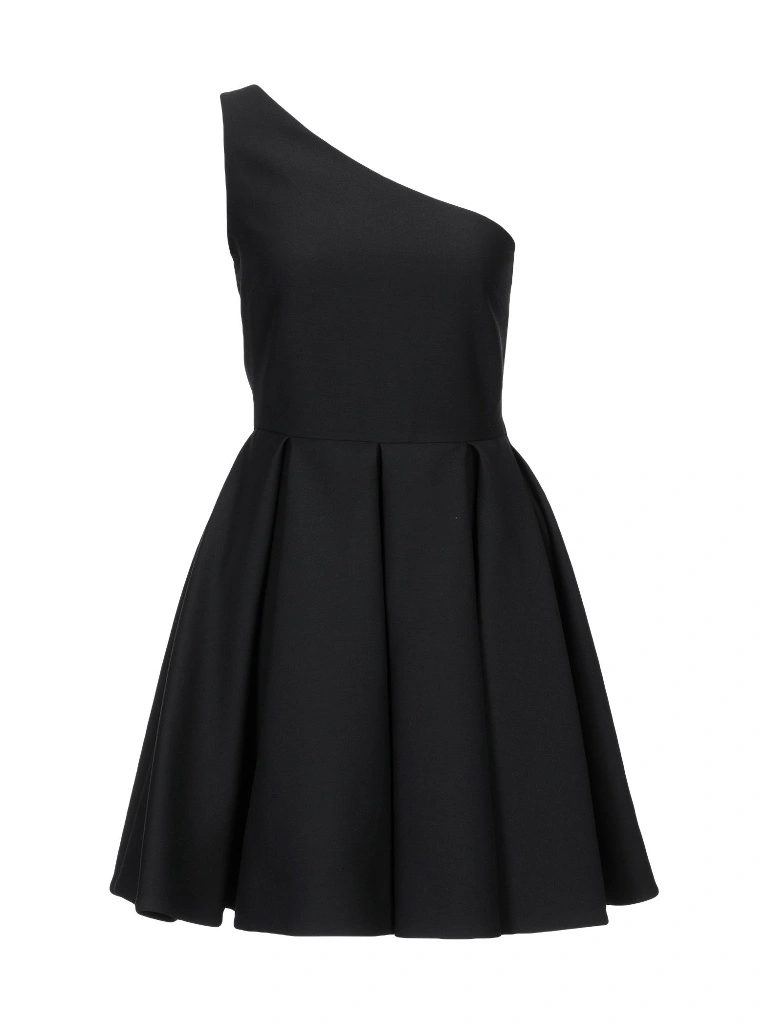
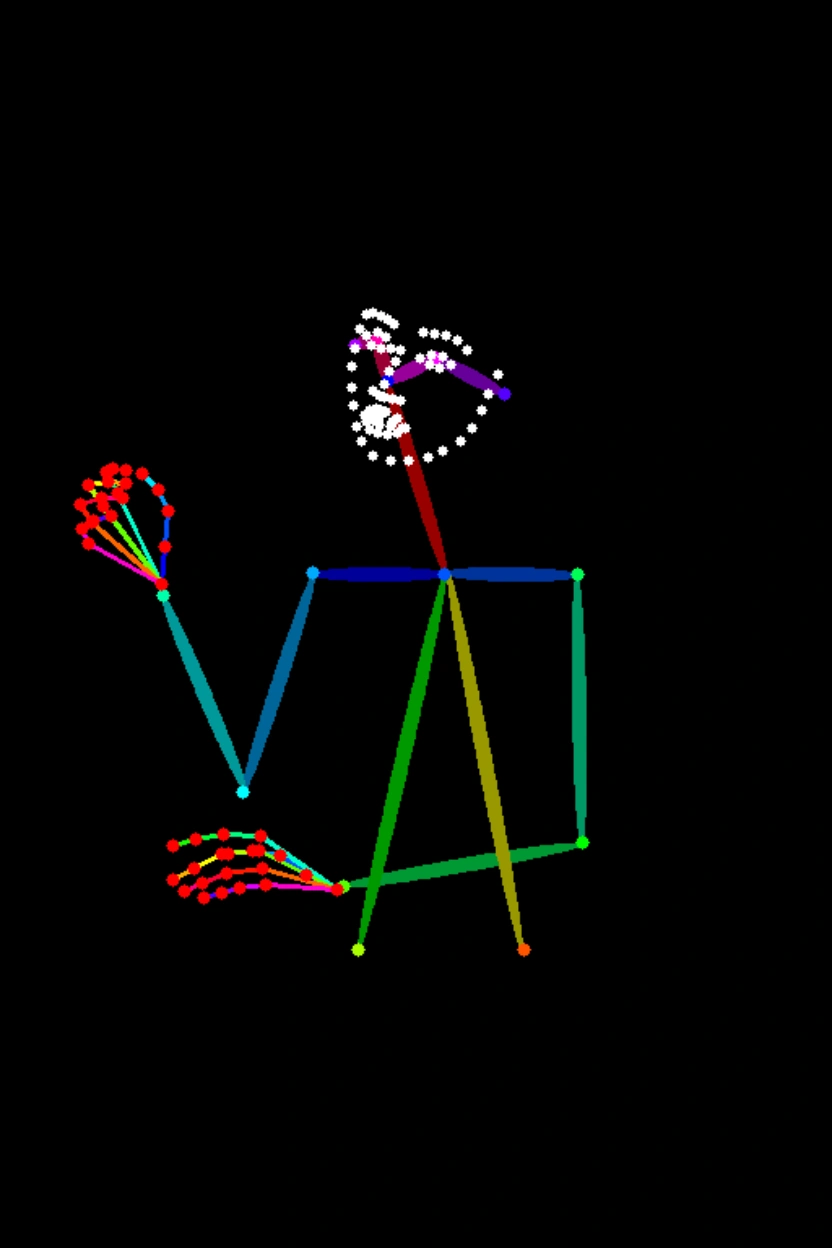


Prompt: The girl from Image 1 is wearing the black dress from Image 2 and sitting in the pose from Image 3.
Model name | Model description | Output image specifications |
|---|---|---|
qwen-image-2.0-pro It currently has the same capabilities as qwen-image-2.0-pro-2026-04-22 | The Pro series of Qwen image generation and editing models offers enhanced capabilities in text rendering, realistic textures, and semantic adherence. For image generation, see Qwen-Text to Image. | Image resolution:
Image format: png Number of images: 1–6 |
qwen-image-2.0-pro-2026-06-22 | ||
qwen-image-2.0-pro-2026-04-22 | ||
qwen-image-2.0-pro-2026-03-03 | ||
qwen-image-2.0 It currently has the same capabilities as qwen-image-2.0-2026-03-03 | This is the accelerated version of the Qwen image generation and editing model, balancing performance and response speed. For image generation, see Qwen-Text to Image. | |
qwen-image-2.0-2026-03-03 | ||
qwen-image-edit-max It currently has the same capabilities as qwen-image-edit-max-2026-01-16 | The Max series of Qwen image editing models provides stronger capabilities in industrial design, geometric reasoning, and character consistency. | Image resolution:
Image format: png Number of images: 1–6 |
qwen-image-edit-max-2026-01-16 | ||
qwen-image-edit-plus It currently has the same capabilities as qwen-image-edit-plus-2025-10-30 | The Plus series of Qwen image editing models supports multiple image outputs and custom resolutions. | |
qwen-image-edit-plus-2025-12-15 | ||
qwen-image-edit-plus-2025-10-30 | ||
qwen-image-edit | This model supports single-image editing and multi-image fusion. | Image resolution: Not customizable. The generation rule is the same as the Default rule described above. Image format: png Number of images: Fixed at 1 |
NoteBefore calling the API, check the Model List to see which models are supported in each region.
Prerequisites
Before making a call, get an API key and export the API key as an environment variable.
To call the API using the SDK, install the DashScope SDK. The SDK is available for Python and Java.
ImportantThe China (Beijing) and Singapore regions have separate API keys and request endpoints. They cannot be used interchangeably. Cross-region calls lead to authentication failures or service errors.
HTTP call
Singapore region:POST https://{WorkspaceId}.ap-southeast-1.maas.aliyuncs.com/api/v1/services/aigc/multimodal-generation/generation
Beijing region:POST https://{WorkspaceId}.cn-beijing.maas.aliyuncs.com/api/v1/services/aigc/multimodal-generation/generation
When calling, replace {WorkspaceId} with your actual workspace ID.
Request parameters | Single-image editingThis example uses the Multi-image fusionThis example uses the |
Request headers | |
Content-Type The content type of the request. Must be | |
Authorization Authenticates the request with a Model Studio API key. Example: Bearer sk-xxxx. | |
Request body | |
model The model name. Example: qwen-image-2.0-pro. | |
input The input object, containing the following field: | |
parameters Additional parameters to control image generation. |
Response parameters | Task successfulTask data (task status and image URLs) is retained for only 24 hours and then automatically purged. Save generated images promptly. Task errorIf the task fails for any reason, relevant information is returned. You can identify the cause of the error using the code and message fields. For more information, see Error codes. |
output The model's generation results. | |
usage Resource usage for this call. Returned only on success. | |
request_id Unique request identifier for tracing and troubleshooting. | |
code Error code. Returned only for failed requests. See Error codes. | |
message Detailed error message. Returned only for failed requests. See Error codes. |
DashScope SDK call
SDK parameter names are mostly consistent with the HTTP API. The parameter structure is encapsulated based on the language features. For a complete list of parameters, see Qwen API reference.
Python SDK call
Note
- We recommend installing the latest version of the DashScope Python SDK to avoid potential runtime errors. For more information, see Install or upgrade the SDK.
- Asynchronous interfaces are not supported.
Request examples
import json
import os
import dashscope
from dashscope import MultiModalConversation

# The following is the URL for the Singapore region. Replace {WorkspaceId} with your Bailian workspace ID. URLs vary by region.
dashscope.base_http_api_url = 'https://{WorkspaceId}.ap-southeast-1.maas.aliyuncs.com/api/v1'

# The model supports one to three input images.
messages = [
    {
        "role": "user",
        "content": [
            {"image": "https://help-static-aliyun-doc.aliyuncs.com/file-manage-files/zh-CN/20250925/thtclx/input1.png"},
            {"image": "https://help-static-aliyun-doc.aliyuncs.com/file-manage-files/zh-CN/20250925/iclsnx/input2.png"},
            {"image": "https://help-static-aliyun-doc.aliyuncs.com/file-manage-files/zh-CN/20250925/gborgw/input3.png"},
            {"text": "The girl from Image 1 is wearing the black dress from Image 2 and sitting in the pose from Image 3."}
        ]
    }
]

# The API keys for the Singapore and Beijing regions are different. To get an API key, see https://www.alibabacloud.com/help/model-studio/get-api-key.
# If you have not configured the environment variable, replace the next line with: api_key="sk-xxx"
api_key = os.getenv("DASHSCOPE_API_KEY")

# The qwen-image-2.0, qwen-image-edit-max, and qwen-image-edit-plus series support one to six output images. This example generates two.
response = MultiModalConversation.call(
    api_key=api_key,
    model="qwen-image-2.0-pro",
    messages=messages,
    stream=False,
    n=2,
    watermark=False,
    negative_prompt=" ",
    prompt_extend=True,
    size="1024*1536",
)

if response.status_code == 200:
    # To view the full response, uncomment the next line.
    # print(json.dumps(response, ensure_ascii=False))
    for i, content in enumerate(response.output.choices[0].message.content):
        print(f"URL of output image {i+1}: {content['image']}")
else:
    print(f"HTTP status code: {response.status_code}")
    print(f"Error code: {response.code}")
    print(f"Error message: {response.message}")
    print("For more information, see https://www.alibabacloud.com/help/model-studio/error-code")
import json
import os
import dashscope
from dashscope import MultiModalConversation
import base64
import mimetypes

# The following is the URL for the Singapore region. Replace {WorkspaceId} with your Bailian workspace ID. URLs vary by region.
dashscope.base_http_api_url = 'https://{WorkspaceId}.ap-southeast-1.maas.aliyuncs.com/api/v1'

# --- For Base64 encoding ---
# Format: data:{mime_type};base64,{base64_data}
def encode_file(file_path):
    mime_type, _ = mimetypes.guess_type(file_path)
    if not mime_type or not mime_type.startswith("image/"):
        raise ValueError("Unsupported or unrecognized image format")

    try:
        with open(file_path, "rb") as image_file:
            encoded_string = base64.b64encode(
                image_file.read()).decode('utf-8')
        return f"data:{mime_type};base64,{encoded_string}"
    except IOError as e:
        raise IOError(f"Error reading file: {file_path}, Error: {str(e)}")

# Get the Base64 encoding of the image.
# Call the encoding function. Replace "/path/to/your/image.png" with the path to your local image file. Otherwise, the code will not run.
image = encode_file("/path/to/your/image.png")

messages = [
    {
        "role": "user",
        "content": [
            {"image": image},
            {"text": "Generate an image that matches the depth map, following this description: A red, dilapidated bicycle is parked on a muddy path, with a dense primeval forest in the background."}
        ]
    }
]

# The API keys for the Singapore and Beijing regions are different. To get an API key, see https://www.alibabacloud.com/help/model-studio/get-api-key.
# If you have not configured the environment variable, replace the next line with: api_key="sk-xxx"
api_key = os.getenv("DASHSCOPE_API_KEY")

# The qwen-image-2.0, qwen-image-edit-max, and qwen-image-edit-plus series support one to six output images. This example generates two.
response = MultiModalConversation.call(
    api_key=api_key,
    model="qwen-image-2.0-pro",
    messages=messages,
    stream=False,
    n=2,
    watermark=False,
    negative_prompt=" ",
    prompt_extend=True,
    size="1536*1024",
)

if response.status_code == 200:
    # To view the full response, uncomment the next line.
    # print(json.dumps(response, ensure_ascii=False))
    for i, content in enumerate(response.output.choices[0].message.content):
        print(f"URL of output image {i+1}: {content['image']}")
else:
    print(f"HTTP status code: {response.status_code}")
    print(f"Error code: {response.code}")
    print(f"Error message: {response.message}")
    print("For more information, see https://www.alibabacloud.com/help/model-studio/error-code")
# You need to install requests to download the image: pip install requests
import requests

def download_image(image_url, save_path='output.png'):
    try:
        response = requests.get(image_url, stream=True, timeout=300)  # Set a timeout.
        response.raise_for_status()  # Raise an exception if the HTTP status code is not 200.
        with open(save_path, 'wb') as f:
            for chunk in response.iter_content(chunk_size=8192):
                f.write(chunk)
        print(f"Image successfully downloaded to: {save_path}")

    except requests.exceptions.RequestException as e:
        print(f"Image download failed: {e}")

image_url = "https://dashscope-result-sz.oss-cn-shenzhen.aliyuncs.com/xxx.png?Expires=xxx"
download_image(image_url, save_path='output.png')
Response example
The image URL is valid for 24 hours. Download the image promptly.
input_tokens,output_tokens, andcharactersfields are compatible. Their values are currently fixed at 0.
{
    "status_code": 200,
    "request_id": "fa41f9f9-3cb6-434d-a95d-4ae6b9xxxxxx",
    "code": "",
    "message": "",
    "output": {
        "text": null,
        "finish_reason": null,
        "choices": [
            {
                "finish_reason": "stop",
                "message": {
                    "role": "assistant",
                    "content": [
                        {
                            "image": "https://dashscope-result-hz.oss-cn-hangzhou.aliyuncs.com/xxx.png?Expires=xxx"
                        },
                        {
                            "image": "https://dashscope-result-hz.oss-cn-hangzhou.aliyuncs.com/xxx.png?Expires=xxx"
                        }
                    ]
                }
            }
        ],
        "audio": null
    },
    "usage": {
        "input_tokens": 0,
        "output_tokens": 0,
        "characters": 0,
        "height": 1536,
        "image_count": 2,
        "width": 1024
    }
}
Call using the Java SDK
NoteInstall the latest DashScope Java SDK to avoid runtime errors. See Install or upgrade the SDK.
Request examples
import com.alibaba.dashscope.aigc.multimodalconversation.MultiModalConversation;
import com.alibaba.dashscope.aigc.multimodalconversation.MultiModalConversationParam;
import com.alibaba.dashscope.aigc.multimodalconversation.MultiModalConversationResult;
import com.alibaba.dashscope.common.MultiModalMessage;
import com.alibaba.dashscope.common.Role;
import com.alibaba.dashscope.exception.ApiException;
import com.alibaba.dashscope.exception.NoApiKeyException;
import com.alibaba.dashscope.exception.UploadFileException;
import com.alibaba.dashscope.utils.JsonUtils;
import com.alibaba.dashscope.utils.Constants;

import java.io.IOException;
import java.util.Arrays;
import java.util.Collections;
import java.util.HashMap;
import java.util.Map;
import java.util.List;

public class QwenImageEdit {

    static {
        // The following is the URL for the Singapore region. Replace {WorkspaceId} with your Bailian workspace ID. URLs vary by region.
        Constants.baseHttpApiUrl = "https://{WorkspaceId}.ap-southeast-1.maas.aliyuncs.com/api/v1";
    }

    // The API keys for the Singapore and Beijing regions are different. To obtain an API key, see https://www.alibabacloud.com/help/model-studio/get-api-key.
    // If you have not configured the environment variable, replace the following line with your DashScope API key: apiKey="sk-xxx".
    static String apiKey = System.getenv("DASHSCOPE_API_KEY");

    public static void call() throws ApiException, NoApiKeyException, UploadFileException, IOException {

        MultiModalConversation conv = new MultiModalConversation();

        // The model supports one to three input images.
        MultiModalMessage userMessage = MultiModalMessage.builder().role(Role.USER.getValue())
                .content(Arrays.asList(
                        Collections.singletonMap("image", "https://help-static-aliyun-doc.aliyuncs.com/file-manage-files/zh-CN/20250925/thtclx/input1.png"),
                        Collections.singletonMap("image", "https://help-static-aliyun-doc.aliyuncs.com/file-manage-files/zh-CN/20250925/iclsnx/input2.png"),
                        Collections.singletonMap("image", "https://help-static-aliyun-doc.aliyuncs.com/file-manage-files/zh-CN/20250925/gborgw/input3.png"),
                        Collections.singletonMap("text", "The girl from Image 1 is wearing the black dress from Image 2 and sitting in the pose from Image 3.")
                )).build();
        // The qwen-image-2.0, qwen-image-edit-max, and qwen-image-edit-plus series models support one to six output images. This example generates two images.
        Map<String, Object> parameters = new HashMap<>();
        parameters.put("watermark", false);
        parameters.put("negative_prompt", " ");
        parameters.put("n", 2);
        parameters.put("prompt_extend", true);
        parameters.put("size", "1024*1536");

        MultiModalConversationParam param = MultiModalConversationParam.builder()
                .apiKey(apiKey)
                .model("qwen-image-edit-max")
                .messages(Collections.singletonList(userMessage))
                .parameters(parameters)
                .build();

        MultiModalConversationResult result = conv.call(param);
        // To view the complete response, uncomment the following line.
        // System.out.println(JsonUtils.toJson(result));
        List<Map<String, Object>> contentList = result.getOutput().getChoices().get(0).getMessage().getContent();
        int imageIndex = 1;
        for (Map<String, Object> content : contentList) {
            if (content.containsKey("image")) {
                System.out.println("URL of output image " + imageIndex + ": " + content.get("image"));
                imageIndex++;
            }
        }
    }

    public static void main(String[] args) {
        try {
            call();
        } catch (ApiException | NoApiKeyException | UploadFileException | IOException e) {
            System.out.println(e.getMessage());
        }
    }
}
import com.alibaba.dashscope.aigc.multimodalconversation.MultiModalConversation;
import com.alibaba.dashscope.aigc.multimodalconversation.MultiModalConversationParam;
import com.alibaba.dashscope.aigc.multimodalconversation.MultiModalConversationResult;
import com.alibaba.dashscope.common.MultiModalMessage;
import com.alibaba.dashscope.common.Role;
import com.alibaba.dashscope.exception.ApiException;
import com.alibaba.dashscope.exception.NoApiKeyException;
import com.alibaba.dashscope.exception.UploadFileException;
import com.alibaba.dashscope.utils.JsonUtils;
import com.alibaba.dashscope.utils.Constants;

import java.io.IOException;
import java.nio.file.Files;
import java.nio.file.Path;
import java.nio.file.Paths;
import java.util.Arrays;
import java.util.Base64;
import java.util.Collections;
import java.util.HashMap;
import java.util.Map;
import java.util.List;

public class QwenImageEdit {

    static {
        // The following is the URL for the Singapore region. Replace {WorkspaceId} with your Bailian workspace ID. URLs vary by region.
        Constants.baseHttpApiUrl = "https://{WorkspaceId}.ap-southeast-1.maas.aliyuncs.com/api/v1";
    }

    // The API keys for the Singapore and Beijing regions are different. To obtain an API key, see https://www.alibabacloud.com/help/model-studio/get-api-key.
    // If you have not configured the environment variable, replace the following line with your DashScope API key: apiKey="sk-xxx".
    static String apiKey = System.getenv("DASHSCOPE_API_KEY");

    public static void call() throws ApiException, NoApiKeyException, UploadFileException, IOException {

        // Replace "/path/to/your/image.png" with the path to your local image file. Otherwise, the code cannot run.
        String image = encodeFile("/path/to/your/image.png");

        MultiModalConversation conv = new MultiModalConversation();

        MultiModalMessage userMessage = MultiModalMessage.builder().role(Role.USER.getValue())
                .content(Arrays.asList(
                        Collections.singletonMap("image", image),
                        Collections.singletonMap("text", "Generate an image that matches the depth map, following this description: A dilapidated red bicycle is parked on a muddy path, with a dense primeval forest in the background.")
                )).build();
        // The qwen-image-2.0, qwen-image-edit-max, and qwen-image-edit-plus series models support one to six output images. This example generates two images.
        Map<String, Object> parameters = new HashMap<>();
        parameters.put("watermark", false);
        parameters.put("negative_prompt", " ");
        parameters.put("n", 2);
        parameters.put("prompt_extend", true);
        parameters.put("size", "1536*1024");

        MultiModalConversationParam param = MultiModalConversationParam.builder()
                .apiKey(apiKey)
                .model("qwen-image-edit-max")
                .messages(Collections.singletonList(userMessage))
                .parameters(parameters)
                .build();

        MultiModalConversationResult result = conv.call(param);
        // To view the complete response, uncomment the following line.
        // System.out.println(JsonUtils.toJson(result));
        List<Map<String, Object>> contentList = result.getOutput().getChoices().get(0).getMessage().getContent();
        int imageIndex = 1;
        for (Map<String, Object> content : contentList) {
            if (content.containsKey("image")) {
                System.out.println("URL of output image " + imageIndex + ": " + content.get("image"));
                imageIndex++;
            }
        }
    }

    /**
     * Encodes a file into a Base64 string.
     * @param filePath The path to the file.
     * @return A Base64 string in the format: data:{mime_type};base64,{base64_data}.
     */
    public static String encodeFile(String filePath) {
        Path path = Paths.get(filePath);
        if (!Files.exists(path)) {
            throw new IllegalArgumentException("File does not exist: " + filePath);
        }
        // Detect the MIME type.
        String mimeType = null;
        try {
            mimeType = Files.probeContentType(path);
        } catch (IOException e) {
            throw new IllegalArgumentException("Cannot detect file type: " + filePath);
        }
        if (mimeType == null || !mimeType.startsWith("image/")) {
            throw new IllegalArgumentException("Unsupported or unrecognized image format.");
        }
        // Read the file content and encode it.
        byte[] fileBytes = null;
        try{
            fileBytes = Files.readAllBytes(path);
        } catch (IOException e) {
            throw new IllegalArgumentException("Cannot read file content: " + filePath);
        }

        String encodedString = Base64.getEncoder().encodeToString(fileBytes);
        return "data:" + mimeType + ";base64," + encodedString;
    }

    public static void main(String[] args) {
        try {
            call();
        } catch (ApiException | NoApiKeyException | UploadFileException | IOException e) {
            System.out.println(e.getMessage());
        }
    }
}
import java.io.FileOutputStream;
import java.io.InputStream;
import java.net.HttpURLConnection;
import java.net.URL;

public class ImageDownloader {
    public static void downloadImage(String imageUrl, String savePath) {
        try {
            URL url = new URL(imageUrl);
            HttpURLConnection connection = (HttpURLConnection) url.openConnection();
            connection.setConnectTimeout(5000);
            connection.setReadTimeout(300000);
            connection.setRequestMethod("GET");
            InputStream inputStream = connection.getInputStream();
            FileOutputStream outputStream = new FileOutputStream(savePath);
            byte[] buffer = new byte[8192];
            int bytesRead;
            while ((bytesRead = inputStream.read(buffer)) != -1) {
                outputStream.write(buffer, 0, bytesRead);
            }
            inputStream.close();
            outputStream.close();

            System.out.println("Image downloaded successfully to: " + savePath);
        } catch (Exception e) {
            System.err.println("Image download failed: " + e.getMessage());
        }
    }

    public static void main(String[] args) {
        String imageUrl = "http://dashscope-result-bj.oss-cn-beijing.aliyuncs.com/xxx?Expires=xxx";
        String savePath = "output.png";
        downloadImage(imageUrl, savePath);
    }
}
Response examples
The image URL is valid for 24 hours. Download the image promptly.
{
    "requestId": "46281da9-9e02-941c-ac78-be88b8xxxxxx",
    "usage": {
        "image_count": 2,
        "width": 1024,
        "height": 1536
    },
    "output": {
        "choices": [
            {
                "finish_reason": "stop",
                "message": {
                    "role": "assistant",
                    "content": [
                        {
                            "image": "https://dashscope-result-sz.oss-cn-shenzhen.aliyuncs.com/xxx.png?Expires=xxx"
                        },
                        {
                            "image": "https://dashscope-result-sz.oss-cn-shenzhen.aliyuncs.com/xxx.png?Expires=xxx"
                        }
                    ]
                }
            }
        ]
    }
}
Error codes
If the model call fails and returns an error message, see Error codes for resolution.
Billing and rate limiting
- For model free quotas and billing rates, see the Model List.
- Refer to Qwen-Image for model rate limiting details.
- Billing: You are billed per successfully generated image. Failed calls incur no charges and do not consume your new-user free quota.
FAQ
Q: What languages does the Qwen Image Editing model support?
A: The model currently supports Simplified Chinese and English. You can try other languages, but performance is not guaranteed.
Q: How do I view model invocation metrics?
A: One hour after a model invocation completes, go to the Monitoring (Singapore) or Monitoring (China (Beijing)) page to view metrics such as invocation count and success rate. For more information, see Billing and cost management.
Q: How do I get the domain name whitelist for image storage?
A: Images generated by models are stored in OSS. The API returns a temporary public URL. To configure a firewall whitelist for this download URL, note the following: The underlying storage may change dynamically. This topic does not provide a fixed OSS domain name whitelist to prevent access issues caused by outdated information. If you have security control requirements, contact your account manager to obtain the latest OSS domain name list.