This topic describes how to troubleshoot Mobile Gateway Service (MGS) issues by capturing client packets and querying logs.
Troubleshoot single request issues
1. Capture client requests
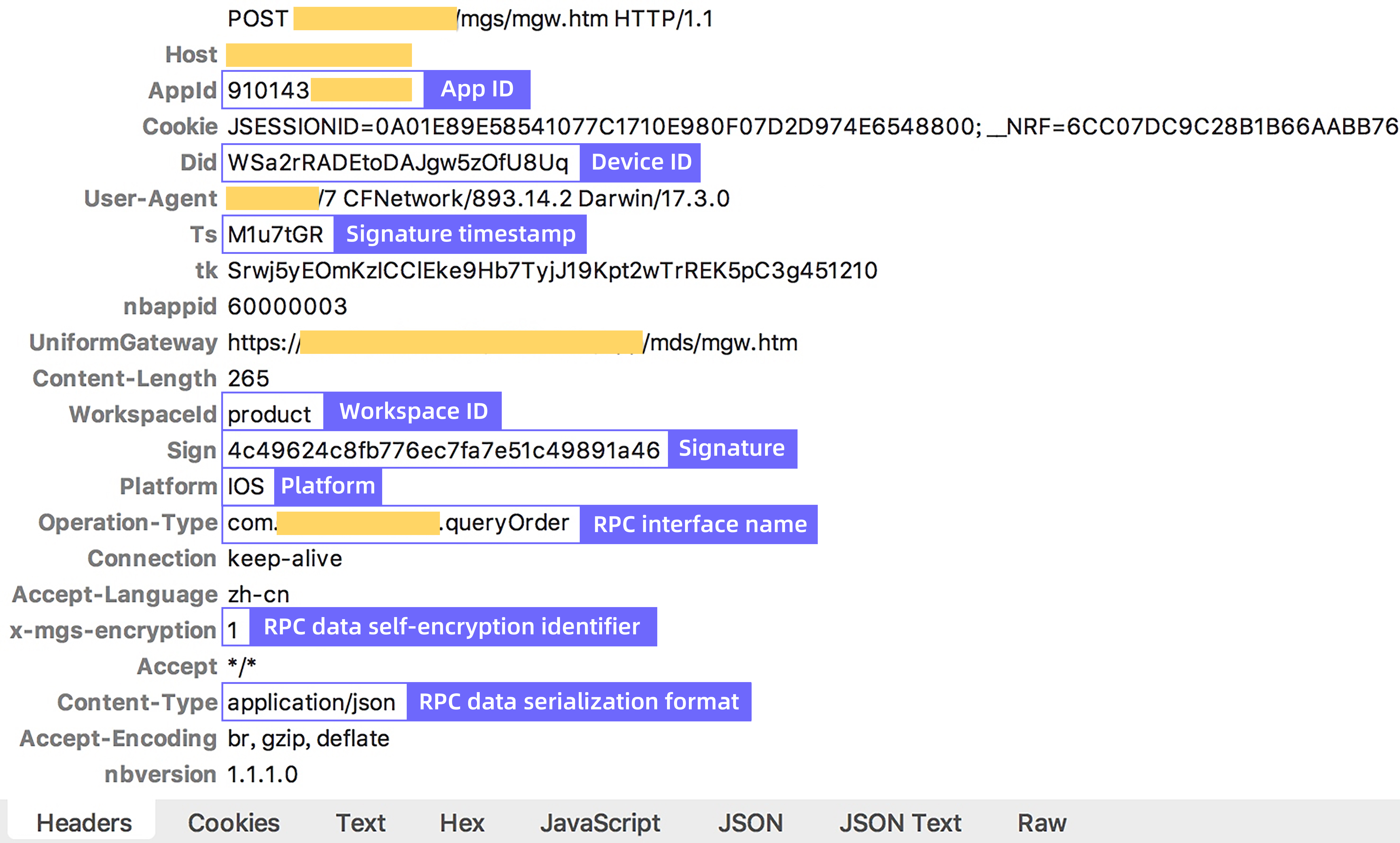
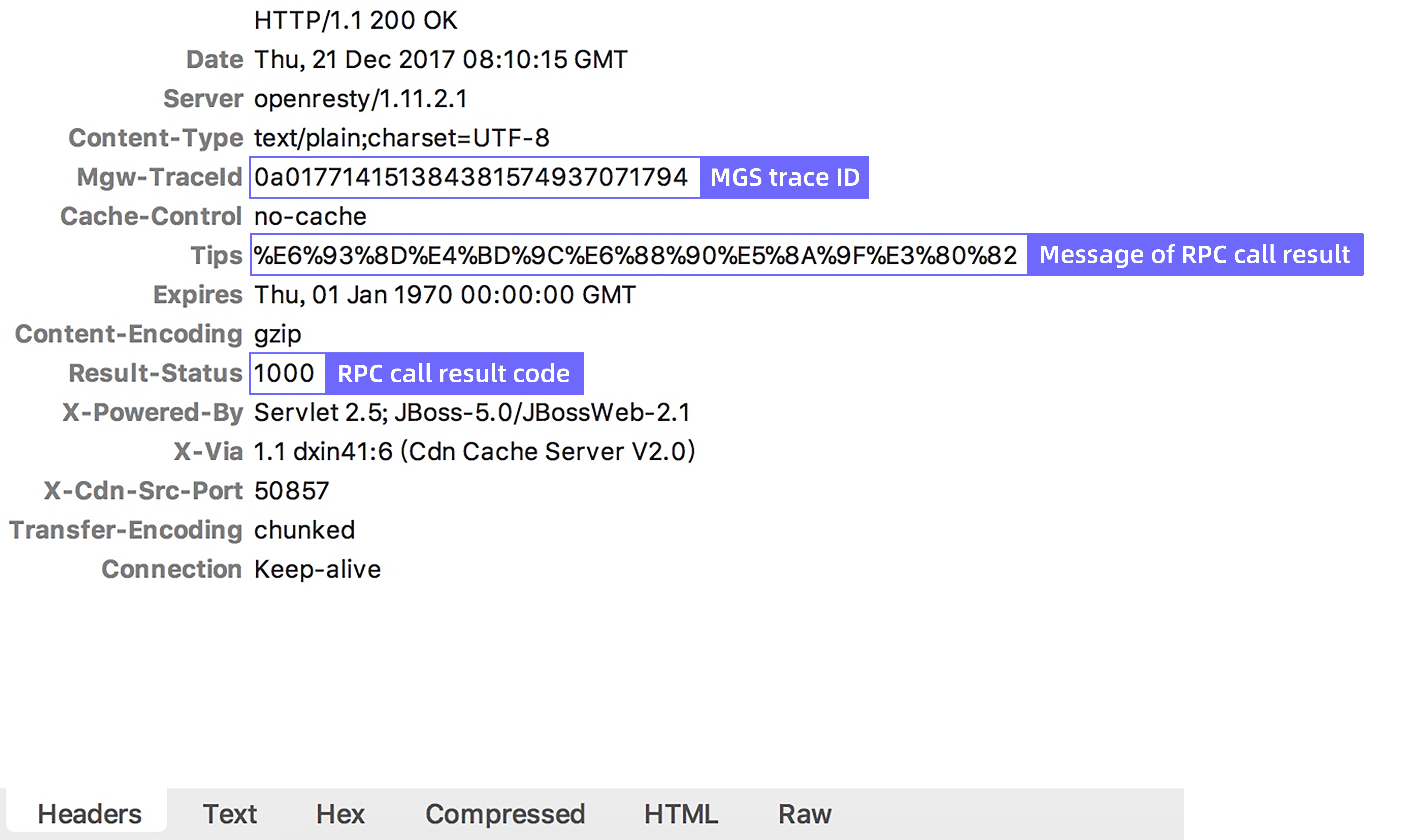
Use Charles (recommended) or Fiddler to capture client packets. Packet capture lets you inspect the URL, request headers, response headers, and payload of Remote Procedure Call (RPC) requests—giving you the raw data needed to identify where a request fails.
The following are examples of a packet capture:
-
Sample request header:
-
Sample response header:
2. Query MGS logs by TraceId (for Apsara Stack only)
Each request processed by MGS is assigned a TraceId. Use the TraceId to trace the request through MGS logs and pinpoint processing errors.
Retrieve the Mgw-TraceId from the response header.
In the mPaaS console, go to Mobile Gateway Service > Gateway management > Tools > Trace analysis. Enter the TraceId to find the IP address of the MGS server that processed the request and the processing time.
-
Connect to the MGS server using Secure Shell (SSH). Use the TraceId to query the related logs.
ssh -p2022 account@IP account/password
cd /home/admin/logs/gateway
grep #traceid# *.log
Analyze the logs. For more information, see Gateway log description and Gateway result code description.
Troubleshoot cluster GREP issues (for Apsara Stack only)
To search for a log across the MGS cluster, use the open source pssh tool.
Download the pssh tool.
-
Export all MGS server IP addresses from the Gamma platform to the
mgs_host.txtfile. The file format is as follows:log@10.2.216.33:2022 log@10.2.216.26:2022 log@10.2.216.25:2022 -
Run the following command:
pssh -i -h mgs_host.txt -A -P 'grep "xxxx" /home/admin/logs/gateway/xxx.log'