Before running vector search tasks in MaxCompute, install Proxima CE by downloading the JAR package, uploading it as a MaxCompute resource, and creating the required input tables.
Prerequisites
Complete Preparations before proceeding.
Download the package
Download proxima-ce-aliyun-1.0.2.jar.
The package contains the Proxima CE executable JAR file. After you upload it to your MaxCompute project as a resource, Proxima CE tasks can call it directly.
Upload the JAR file as a MaxCompute resource
Upload the JAR file to your MaxCompute project using either DataWorks or the MaxCompute client (odpscmd). Both methods register the file as a callable resource in your project.
Option 1: DataWorks
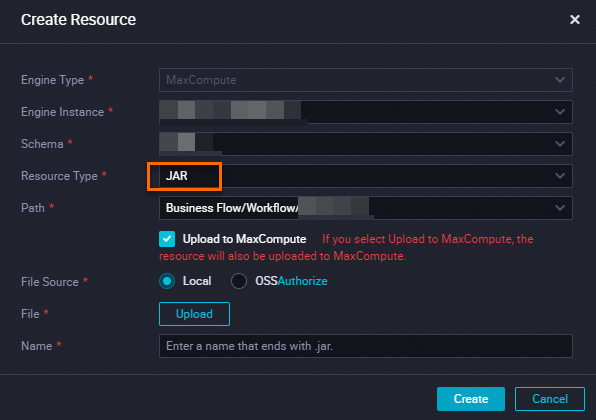
On the Data Development page of DataWorks, upload the JAR file as a JAR resource.
NoteFor resources that are created or uploaded through the DataWorks visual interface:
If the resource has not been uploaded, you must select Upload to MaxCompute. If the resource has already been uploaded to MaxCompute, you must clear this checkbox. Otherwise, the upload fails.
If you select Upload to MaxCompute during the upload, the resource is stored in both DataWorks and MaxCompute. If you later delete the resource from MaxCompute by using a command, the resource in DataWorks still exists and can be viewed.
The resource name does not have to match the uploaded file name.
Commit and deploy the resource. Click the
 icon in the top toolbar of the resource configuration tab to commit the resource to the development environment.Note
If a production task needs to use this resource, you must also deploy the resource to the production environment. For more information, see Deploy a task.
Option 2: odpscmd
Use the odpscmd command-line client to add the JAR file as a resource. See Add resources for the full command syntax.
Prepare input tables
Proxima CE requires two input tables for every vector search task:
Doc table — the base table that contains all the vectors to search through.
Query table — the table that contains the vectors you want to find nearest neighbors for.
Both tables share the same schema. Create them with the following SQL:
-- Create a doc table
CREATE TABLE doc_table_float_smoke(pk STRING, vector STRING <,category BIGINT>) PARTITIONED BY (pt STRING);

-- Create a query table
CREATE TABLE query_table_float_smoke(pk STRING, vector STRING <,category BIGINT>) PARTITIONED BY (pt STRING);
Table name constraints
Table names must meet the following requirements. If a table name violates a constraint, rename the table before running the task.
Names cannot contain
tmp_. Tasks fail at runtime if this string appears in a table name or partition value.Names must be 1–64 characters long. This limit applies to both table names and partition values.
Required fields
Both tables must contain the following fixed fields. The field names must match exactly.
| Field | Description | Data type |
|---|---|---|
pk | Primary key value used in queries. Values can be strings (for example, 1.nid,2.nid,3.nid,...) or INT64 integers (for example, 123,456,789,...). If all values are INT64, specify BIGINT for the column and set the -pk_type startup parameter to INT64 to improve performance. | STRING (default); BIGINT if all values are INT64 |
vector | Vector field. | STRING |
category | Category identifier for multi-category search. Required only when running multi-category search tasks. | BIGINT |
pt | Partition field. | STRING |
Input table examples
Doc table
| pk | vector | pt |
|---|---|---|
| id1 | 0\~1\~1\~5 | 20190322 |
| id2 | 0\~1\~1\~2 | 20190322 |
| id3 | 3\~2\~1\~1 | 20190322 |
| ... | ... | ... |
Query table
| pk | vector | pt |
|---|---|---|
| id8 | 0\~1\~1\~5 | 20190322 |
| id9 | 0\~1\~1\~2 | 20190322 |
| id10 | 3\~2\~1\~1 | 20190322 |
| ... | ... | ... |
Output table format
After a vector search task completes, Proxima CE automatically writes results to an output table in MaxCompute — do not create it manually. Specify the table name using the -output_table parameter in the Proxima CE code.
Output table name constraints
Names cannot contain a period (
.). MaxCompute treats.as a special character and fails to parse table names containing it.Names cannot contain
tmp_. Tasks fail at runtime if this string appears in an output table name.Names of output tables and names of partitions in output tables must be 1–64 characters long.
Output table fields
| Field | Description | Data type |
|---|---|---|
pk | Primary key value from the query table. Values can be strings or INT64 integers (same format as the input pk field). If all values are INT64, specifying BIGINT for the column and setting -pk_type to INT64 improves performance. | STRING (default); BIGINT if all values are INT64 |
knn_result | Primary key value of the matching doc table record. | STRING |
score | Similarity score of the retrieved result. Results are always sorted in descending order of similarity scores, regardless of the distance algorithm used. For inner_product and mips_squared_euclidean algorithms, a larger distance means higher similarity, so score values are sorted descending. For all other distance algorithms, a smaller distance means higher similarity, so score values are sorted ascending — consistent with the Proxima2 kernel. | STRING |
category | Category identifier for multi-category search. Present only for multi-category search tasks. | BIGINT |
pt | Partition field. | STRING |
Output table example
| pk | knn_result | score | pt |
|---|---|---|---|
| id8 | id1 | 0.1 | 20190322 |
| id8 | id2 | 0.2 | 20190322 |
| id9 | id1 | 0.1 | 20190322 |
| id9 | id3 | 0.3 | 20190322 |
| ... | ... | ... | ... |
What's next
With Proxima CE installed and your input tables ready, run your first vector search task. Choose a scenario based on your use case:
| Scenario | Description | Reference |
|---|---|---|
| Basic vector search | Search for the top K nearest neighbors across millions of records. | Basic vector search |
| Multi-category search | Run searches across multiple categories, including queries that span different category groups or belong to multiple categories. | Multi-category search |
| Cluster sharding | Build indexes using cluster sharding to reduce computation volume and accelerate queries. | Cluster sharding |
| Inner product and cosine distance | Use inner-product distance for similarity search. | Inner product and cosine distance |
| Converters | Apply converters to reduce index size and improve performance. Retrieval accuracy varies by use case. | Converters |