Learn why Real-Time Streaming (RTS) latency occurs and how to reduce it.
Common causes of RTS latency
|
Stage |
Common causes |
|
|
|
Network transmission |
|
|
|
|
Stream ingest
OBS Studio settings
Configure OBS Studio as follows:
In OBS Studio, navigate to the Settings > Output page. Set Output Mode to Advanced and select the Streaming tab. Set Encoder to x264, Rate Control to CBR, and Bitrate to 2500 Kbps. Set Keyframe Interval to 1 second, CPU Usage Preset to ultrafast, Profile to baseline, and Tune to zerolatency.
vMix settings
Configure vMix as follows:
In the Streaming Quality dialog box, set Video Bit Rates to 1500, Encode Size to 1920 x 1080, and Audio Bit Rate to 128. In the Video section, set Profile to Baseline, Level to 3.1, and Preset to ultrafast. Then, set Keyframe Frequency to 1 second, Threads to 4, and Network Buffer to 20 seconds. Key parameters: Level, Preset, Threads, and Network Buffer.
Push SDK configuration
Set the video GOP to 1 and keep other settings at defaults:
Android
mAlivcLivePushConfig = new AlivcLivePushConfig();
mAlivcLivePushConfig.setVideoEncodeGop(AlivcVideoEncodeGopEnum.GOP_ONE);
iOS
AlivcLivePushConfig *pushConfig = [[AlivcLivePushConfig alloc] init];
pushConfig.videoEncodeGop = AlivcLivePushVideoEncodeGOP_1;
Web
The Push SDK for Web is optimized by default.
Ingest network
A stable ingest network is essential. To isolate network issues, switch networks and re-ingest from the same device. If latency drops, the original network was the cause.
Device load
High CPU or memory usage on the ingest device reduces capture and encoding efficiency, increasing latency. To isolate this, test with a different device using the same network and configuration.
Playback
Native Player SDK configuration
RTS uses the WebRTC protocol, which handles packet loss and jitter well. To reduce latency further, optimize the player buffering strategy.
ApsaraVideo Player SDK v5.5.6.0 and later, or the player demo, applies the optimal latency configuration by default. No adjustments are needed.
If latency persists, analyze the RTS SDK logs:
-
Stream latency: Enable logging for the ApsaraVideo Player SDK for Android or ApsaraVideo Player SDK for iOS. Find the
code=154entry to check end-to-end latency (ms):-
gd (globalDelayMS): The end-to-end latency.
-
td (transDelayMS): Sum of ingest and CDN transmission latency. Values above 800 ms suggest high ingest or CDN latency.
-
nd (network delay): Network latency from CDN to player. Values above 800 ms suggest a network issue.
-
jd (jitterDelayMS): De-jitter buffer latency. Values above 800 ms suggest a network issue.
-
ud (user buffer length): User buffer length. Typically 0; can be ignored.
-
dd (decoder delay): Decoding latency. Values above 800 ms suggest a player decoding issue.
-
rd (render delay): Rendering latency. Values above 800 ms suggest a player rendering issue.
-
ut: This field can be ignored.
-
-
First frame latency: Find the
code=161entry in the SDK log:st:0,init:1,sdns:0,rdns:2,sc:0,ced:12,sub:5,frsp:309,si:8,fp:13,ffc:5,ffo:416,sum:763If
sumdiffers significantly from the measured first frame latency, suspect a decoding or rendering issue. Ifsumis close to the measured value, check individual fields to find the bottleneck. Highced,frsp, orffcvalues typically indicate a network problem.
Web Player SDK configuration
The ApsaraVideo Player SDK for Web relies on the browser's default buffer policy and requires no extra configuration. To diagnose high latency, open chrome://webrtc-internals in Chrome.
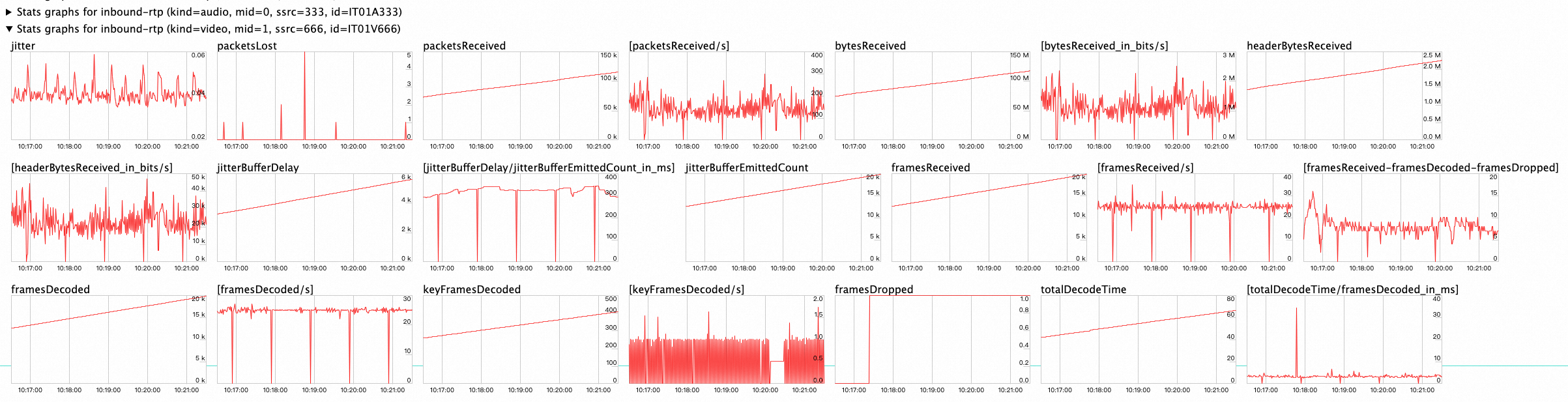
Key metrics:
-
inbound-rtp (kind=audio) and inbound-rtp (kind=video): Shows real-time data reception and decoding status. High
framesDroppedor unexpectedframesDecoded/svalues indicate a decoding problem — check ingest and transcoding settings. -
candidate-pair: Shows connection status. High
currentRoundTripTimeor highpacketsLostininbound-rtpindicates a network issue.
Audio-only and video-only stream latency
If a source stream is audio-only or video-only, Alibaba Cloud waits 5 seconds by default for the missing track. This delay can cause a black screen or silence at the start of playback. To avoid this delay, unsubscribe from the missing track by appending @subvideo=no or @subaudio=no to the streaming URL.
-
For a video-only stream with the URL
artc://example.aliyundoc.com/app/stream?auth_key={your_auth_key}, modify the URL toartc://example.aliyundoc.com/app/stream?auth_key={your_auth_key}@subaudio=no. -
For an audio-only stream with the URL
artc://example.aliyundoc.com/app/stream?auth_key={your_auth_key}, modify the URL toartc://example.aliyundoc.com/app/stream?auth_key={your_auth_key}@subvideo=no.
Playback network
Ensure a stable playback network. On unstable networks, the ApsaraVideo Player SDK increases the local buffer to maintain smooth playback, which adds latency.
Transcoding
Transcoding adds 300 to 500 ms of latency to your live stream. RTS supports two types of transcoding:
-
H5 auto transcoding: Applies when an RTMP stream is ingested for web playback. The added latency is minimal and unavoidable.
-
Custom transcoding templates: Playing a transcoded stream can introduce latency in two ways:
-
Processing latency: Adds 300–500 ms of unavoidable latency to transcoded streams.
-
Initiation latency: With triggered transcoding enabled, transcoding starts only when the first viewer requests the stream, adding about 200 ms of startup latency.
NoteTriggered transcoding is configured when creating a transcoding template. To disable it, create a new template, restart stream ingest, and retest latency.
-
Contact us
If high latency persists after these troubleshooting steps, submit a ticket. Include the following information:
-
The ingest and streaming URLs used for testing.
-
The ingest and playback tools used (for example, OBS Studio and ApsaraVideo Player SDK for Web).
-
A summary of the troubleshooting steps you have completed.