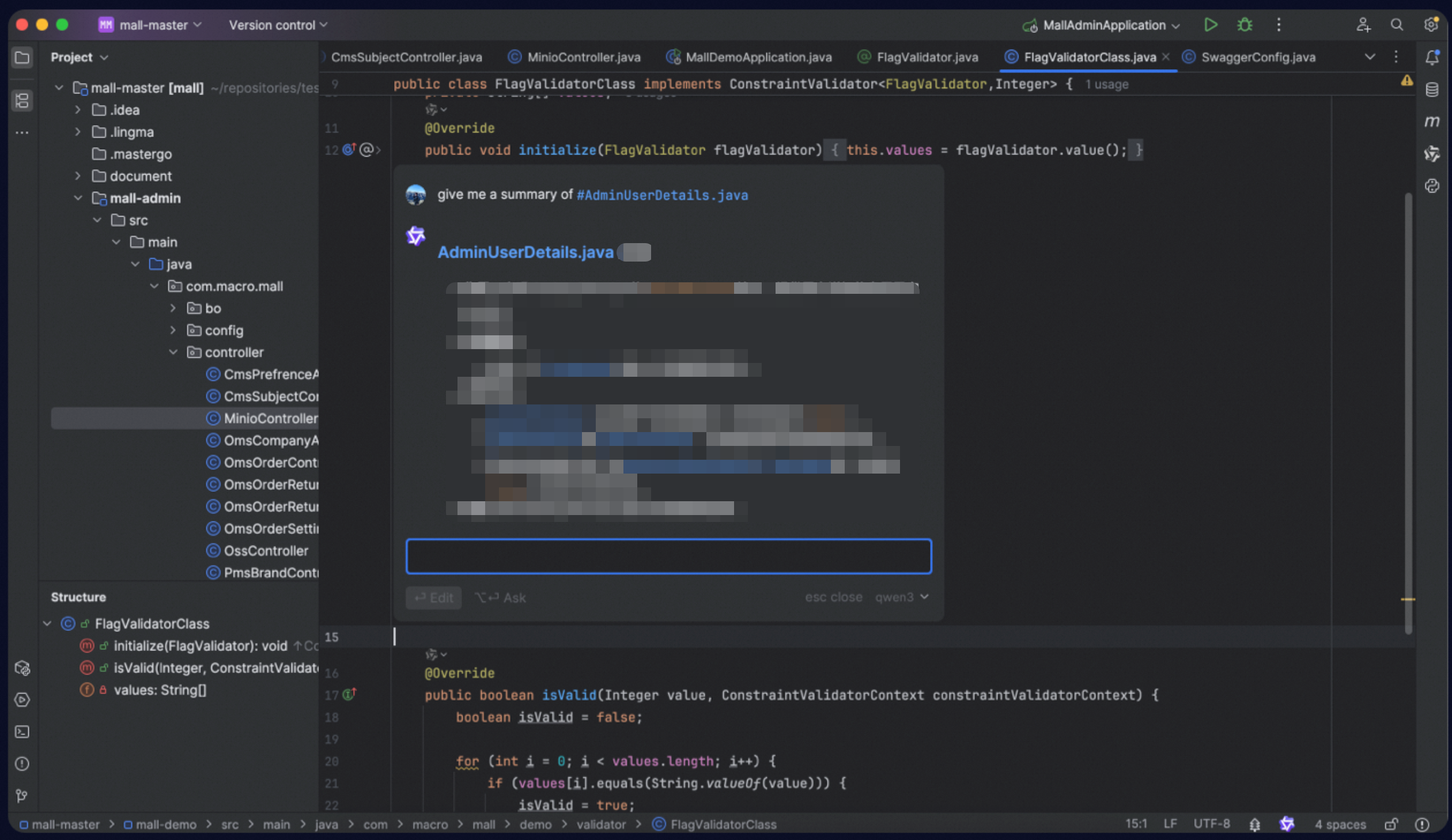
Inline chat allows developers to chat in the code editing area. Developers can ask questions, or modify code within a single file through natural language conversations.
To experience the inline chat feature, update Qoder CN to version 2.5.3 in VS Code, 2.5.2 or above in JetBrains IDEs.
Open the inline chat window
After installing Qoder CN in your IDE, you can open the inline chat window in two ways:
-
Use the keyboard shortcut
⌘⇧I(CtrlShiftI). -
In JetBrains IDEs only: Select code snippet in a file, and then click the Qoder CN icon in front of the code to open the inline chat window.
|
Action |
macOS |
Windows |
|
Open the inline chat window |
|
|
Select a chat mode
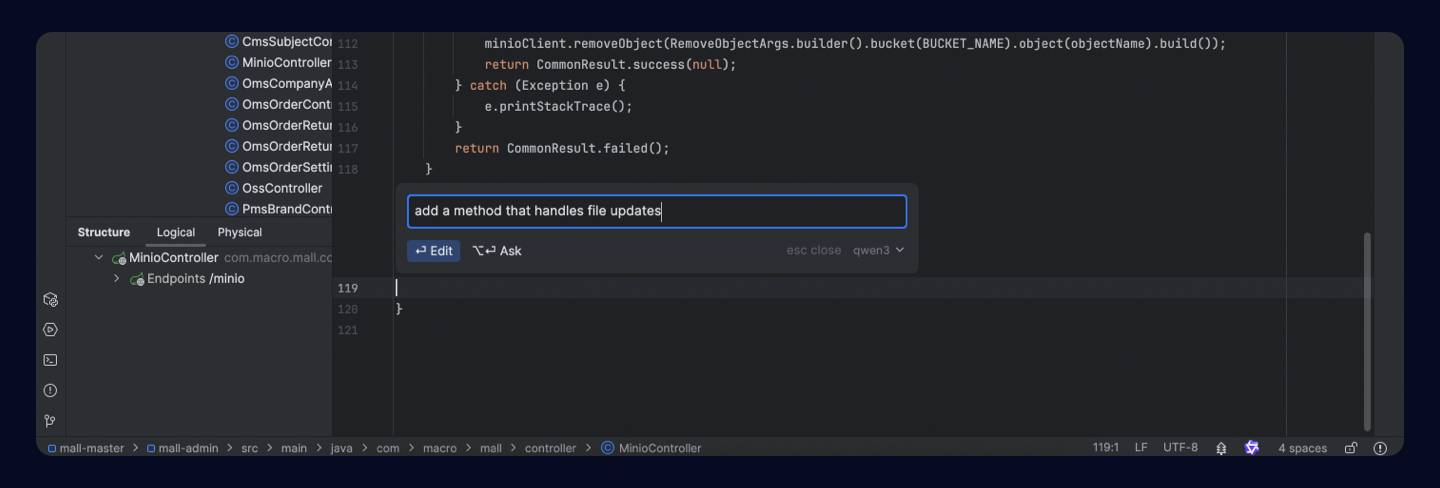
After opening the inline chat window and entering your request, you can interact with Qoder CN in two modes:
-
In Qoder CN IDE and VS Code, only the Edit mode is supported when invoking the inline conversation window via shortcut keys.
-
In the JetBrains IDE plugin, both Edit and Ask modes are supported.
-
Edit: Enter your request in the chat window, then press
Enter(CtrlEnter). Qoder CN will modify the current code file based on your request, the selected code snippet, and relevant context. -
Ask: Enter your request in the chat window, then press
⌘Enter(CtrlEnter) to ask questions.
The following picture shows both the Edit mode and Ask mode are available in JetBrains IDEs.
Add context
In the inline chat window, type # (in VS Code or JetBrains IDEs) or @ (in Qoder CN IDE) to add relevant context, such as files, images, or enterprise knowledge base content. And Qoder CN will combine your request with selected contexts to modify the current code file or answer your questions.
Use commands
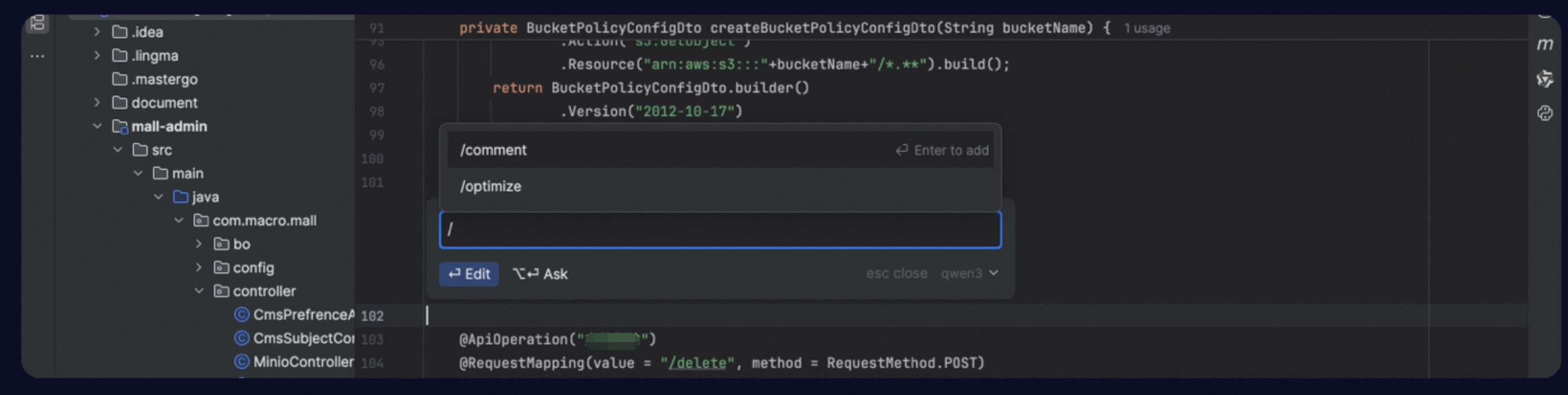
In the inline chat window, type / to select commands. Currently, /comment and /optimize are supported.
Example scenarios
Example 1: Modifying code snippets
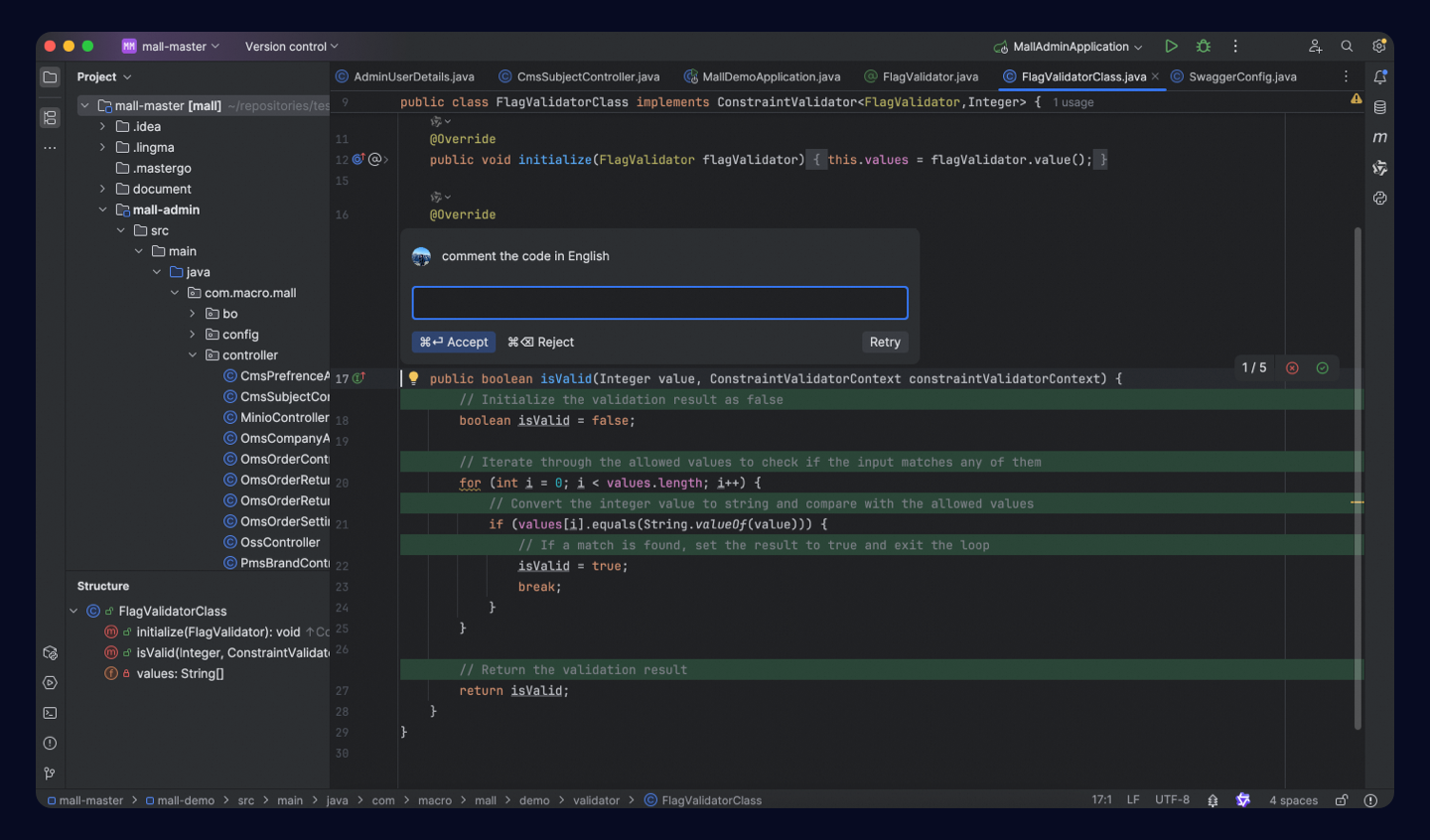
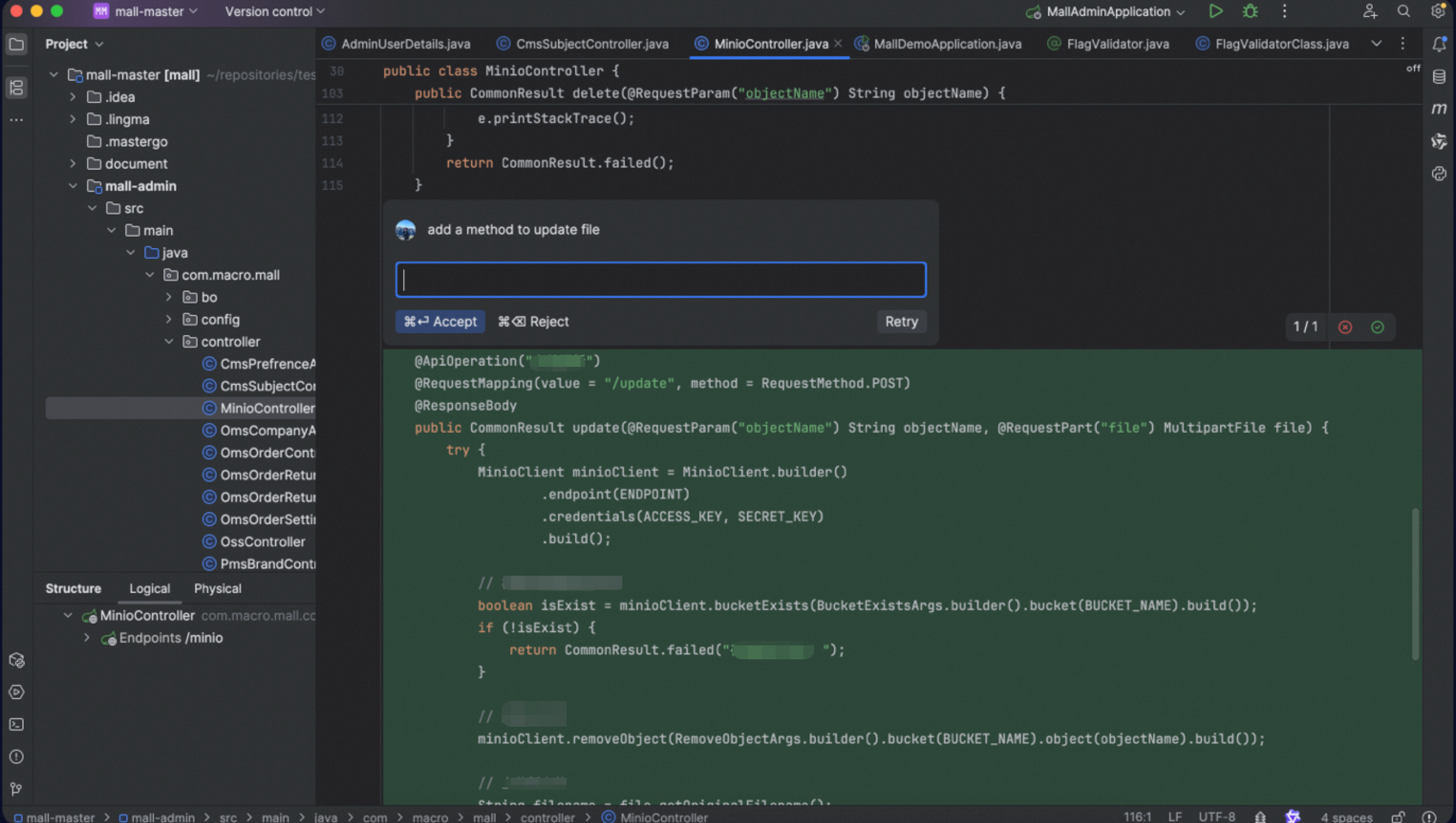
When you need to modify a code file or snippet, select the code snippet and open the inline chat window. Enter code modification requirements, such as adding comments or refactoring code. Qoder CN will generate code changes in the code editor.
Example 2: Adding new code snippets
When you need to add a code snippet, open the inline chat window and enter your coding requirements. Qoder CN will generate the relevant code suggestions based on your request.
Example 3: Inquiring about code implementation within the project
When you need to instantly query certain methods in the current project during coding, open the inline chat window and provide the file and requirements you want to inquire about. You can quickly obtain this information from Qoder CN.