Modify the Timeline parameter of SubmitMediaProducingJob to configure subtitles, word art, bubble text, and scrolling effects in your video productions.
Usage notes
-
Intelligent production supports editing and compositing, effect rendering, and templates for live streams, VOD files, and material files from Object Storage Service (OSS). For more information, see Overview of intelligent production.
-
You can produce a video from one or more videos, audio files, images, and subtitle materials by configuring Timeline parameters and calling the SubmitMediaProducingJob operation.
-
A timeline is created when you add materials and configure effects to create a video. A timeline consists of tracks, materials, and effects. For more information, see Timeline configurations.
-
For more information about how to use the IMS SDK to edit audio and video files, see Get started.
Add subtitles to a video
-
Add subtitles via a `SubtitleTracks` track or under `Effects`.
-
Use `TimelineIn` and `TimelineOut` to define subtitle timing. Without these parameters, track subtitles span the full video duration. `Effects` subtitles default to the parent clip duration.
-
Use `\N` or `\n` for multiline subtitles.
|
Effect |
Timeline example |
|
Font, outline, shadow, and rotation
-
`FontSize` sets subtitle font size. Under `Effects`, use `FixedFontSize` to keep the size fixed regardless of video dimensions.
-
Use `Font` for system fonts or `FontURL` for custom font files from OSS. When both are set, `FontURL` takes precedence.
-
Use `Outline`, `OutlineColour`, `Shadow`, and `BackColour` for single-layer outline and shadow effects. For multilayer effects, see the custom word art example in the word art section.
-
`Angle` sets the counterclockwise rotation angle.
|
Effect |
Timeline example |
|
Word art and custom word art
-
Use `EffectColorStyleId` to apply word art effects. Available styles are listed in Word art effect examples.
-
Use `SubtitleEffects` for multilayer outline and shadow effects. For more information about the fields, see the SubtitleEffect section.
|
Effect |
Timeline example |
|
Partial subtitle overrides
Add override tags to the `Content` field to apply effects to specific parts of a subtitle:
-
Override tags start with two backslashes (\\).
-
Enclose local override tags in braces (`{}`). Multiple tags can share one pair of braces.
-
Each tag applies to the text that follows it. Add a closing tag to end the effect.
Override parameters:
|
Override parameter |
Description |
Content parameter example |
|
|
"Set the text to {\\1c&00FF7F&}green{\\1c}" |
|
`bord`, `xbord`, and `ybord` specify the width of the border, the border along the x-axis, and the border along the y-axis, respectively. The unit is pixels. |
"Set the {\\bord3\\3c&EBCE87&}outline width{\\bord\\3c}, color, and size" |
|
\\b1 \\b0 |
`b1` applies bold. `b0` removes bold. |
"Apply a {\\b1}bold{\\b0} effect", |
|
\\i1 \\i0 |
`i1` applies italics. `i0` removes italics. |
"Apply an {\\i1}italic{\\i0} effect" |
|
\\u1 \\u0 |
`u1` applies an underline. `u0` removes the underline. |
"Apply an {\\u1}underline{\\u0} effect" |
|
\\s1 \\s0 |
`s1` applies a strikethrough. `s0` removes the strikethrough. |
"Apply a {\\s1}strikethrough{\\s0} effect" |
|
\\fs[font size] |
The font size of the subtitle. The unit is pixels. |
"Set the font size to {\\fs100}100{\\fs}" |
|
\\fn[font name] |
Custom fonts are not supported for caption names. |
"Set the font to {\\fnKaiTi}Heiti{\\fn}" |
|
Effect |
Timeline example |
|
Subtitle auto-wrapping
-
Set `AdaptMode` to `AutoWrap` to wrap subtitles that exceed canvas boundaries. Use `TextWidth` to control wrapping within a specific width (absolute pixels or percentage of canvas width).
-
For English text, set `AdaptMode` to `AutoWrapAtSpaces` to break lines at spaces only.
|
Effect |
Timeline example |
|
Subtitle alignment
-
Subtitle positioning depends on the `Alignment` value. Alignment modes and default anchor points:
Alignment
Alignment
Default position
TopLeft
Align left
Top-left corner of the video
TopCenter
Align center
Top edge, centered horizontally
TopRight
Align right
Top-right corner of the video
CenterLeft
Align left
The left side of the horizontal central axis of the video
CenterCenter
Align center
On the horizontal axis, to the right of the center of the video.
CenterRight
Align right
To the right of the video's horizontal centerline
BottomLeft
Align left
Bottom-left corner of the video
BottomCenter
Align center
Bottom edge, centered horizontally
BottomRight
Align right
Bottom-right corner of the video
-
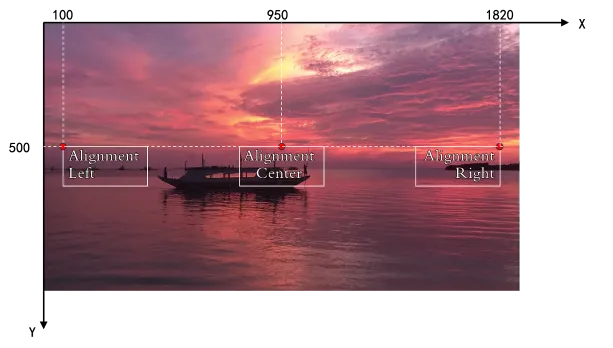
For precise positioning, set `Alignment` to `Left`, `Center`, or `Right`. Anchor points:
Alignment
Alignment
Positioning anchor point
Left
Align left
Top-left vertex of the subtitle text box
Center
Align center
Midpoint of the top border of the subtitle text box
Right
Align right
Top-right vertex of the subtitle text box
-
Positioning anchor points for each `Alignment` value:
|
Effect |
Timeline example |
|
Entrance, exit, and loop effects
-
Specify duration for entrance and exit effects, or speed for loop effects.
-
Entrance/exit effects and loop effects are mutually exclusive.
|
Effect |
Timeline example |
|
Subtitle background
Use the `Box` field in `SubtitleEffects` to add a solid color background. Combine with word art and line wrapping as needed.
|
Effect |
Timeline example |
|
Bubble text
-
Set `BubbleStyleId` to apply a bubble style. For more information about bubble styles, see Text bubble effect examples.
-
Set `BubbleWidth` and `BubbleHeight` to control bubble dimensions. `X` and `Y` specify the top-left corner of the bubble relative to the video origin.
-
Under `SubtitleEffects`, use the `Box` type with an image to create custom bubble text. Specify `Width` and `Height` for the bubble image, and `TextArea` (top-left x, top-left y, width, height) for the text box position within the bubble.
-
Bubble text auto-wraps and scales within the bubble.
|
Effect |
Timeline example |
|
Subtitle scrolling examples
-
Set `ScrollStartY` and `ScrollEndY` for vertical scroll boundaries. `ScrollSpeed` controls speed in pixels.
-
For vertical scrolling, if `TimelineOut` is omitted, duration is auto-estimated from the scroll period. Configure positions (`ScrollStartY`, `ScrollEndY`), freeze times (`ScrollStartFreeze`, `ScrollEndFreeze`), offsets (`ScrollStartShift`, `ScrollEndShift`), and speed (`ScrollSpeed`).
-
For horizontal scrolling, configure positions (`ScrollStartX`, `ScrollEndX`), speed (`ScrollSpeed`), and loop mode (`ScrollLoop`).
-
To align assets with vertical scrolling subtitles, set `ClipId` to `ScrollSubtitle` on the subtitle clip. Other assets (background image, audio, banner text) must set `ReferenceClipId` to `ScrollSubtitle`. The subtitle start time must equal the opening sequence duration, or alignment fails.
|
Effect |
Timeline example |
|
Consistent font size across resolutions (FECanvas)
`FontSize` is the subtitle height in pixels. The same value occupies different proportions at different resolutions — for example, 100px appears larger in 480p than 720p. To maintain consistent proportions across resolutions, set `FECanvas` in the timeline.
|
Effect |
Timeline example |
|