Configure DNS over HTTPS (DoH) endpoints in Chrome, Firefox, and Edge, and troubleshoot common issues.
Introduction
In web applications, DNS resolution is handled by the runtime environment (WebView, CEF, or browser) and is transparent to the web layer. JavaScript can retrieve IP addresses through HTTPDNS, but web standards prevent direct IP connections with custom Host headers.
Embedded web containers (WebView, CEF, Electron) support local DNS bypass. In third-party browsers, configure DoH manually to prevent DNS hijacking and pollution.
The following sections cover Chrome, Firefox, and Edge.
Prerequisites
Complete the steps in Configure the DoH service.
Configure a DoH endpoint in Chrome
These steps use Chrome 131.0.6778.265 as an example.
Open Chrome. Go to Preferences > Privacy and security > Security. You can also enter
chrome://settings/securityin the address bar.In the Advanced section, configure the DoH endpoint.
Turn on Use secure DNS.
Select a custom DNS provider.
In the text box, enter the DoH endpoint.
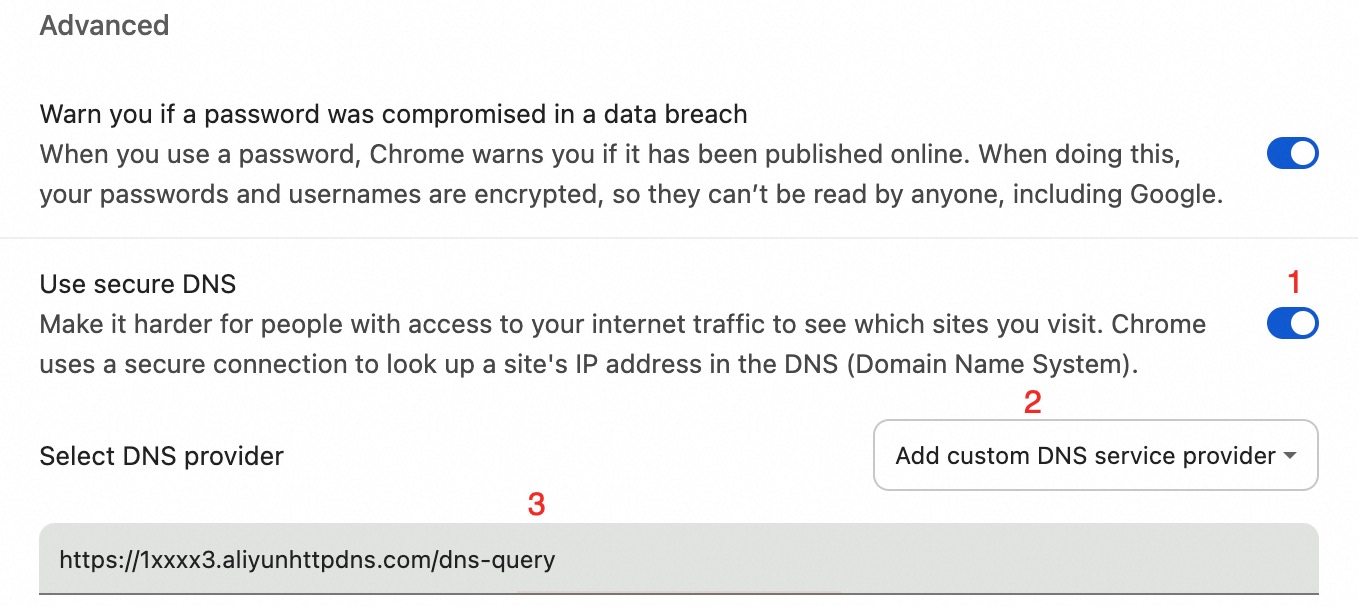
Enter a URL in the address bar to verify the configuration.
If the domain name is on the accessible domain name list and the page loads, the configuration is successful.
If the domain name is not on the accessible domain name list or is blocked, the page fails to load, which confirms that DoH is working.
ImportantEnsure that Chrome's DoH probe domain, google.com, is resolvable.
Configure a DoH endpoint in Firefox
These steps use Firefox 132.0.2 as an example.
Open Firefox. Go to Preferences > Privacy & Security. You can also enter
about:preferences#privacyin the address bar.In the DNS over HTTPS section, configure DoH.
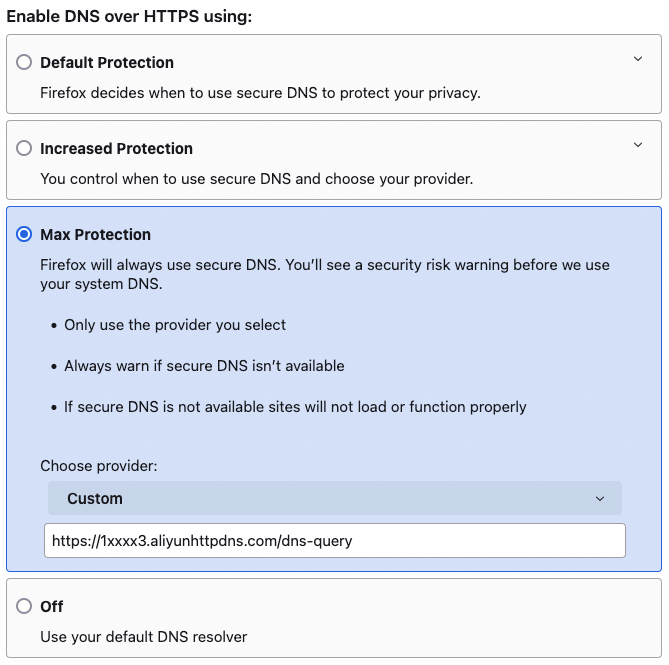
Select Max Protection. From the drop-down menu, select Custom, and then enter the DoH endpoint.
Enter a URL in the address bar to verify the configuration.
If the domain name is on the accessible domain name list and the page loads, the configuration is successful.
If the domain name is not on the accessible domain name list or is blocked, the page fails to load, which confirms that DoH is working.
On success, Firefox displays the result in the DNS over HTTPS section.
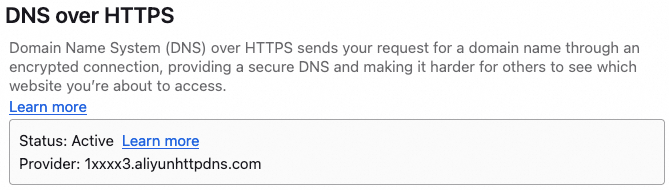
Configure a DoH endpoint in Edge
These steps use Edge 132.0.2957.140 as an example.
Add the probe domain
google.comto the accessible domain name list in the console. Skip this step if resolution for all domain names is enabled.Open Edge. Go to Preferences > Privacy, search, and services. You can also enter
edge://settings/privacyin the address bar.In the Security section, configure the DoH endpoint.
Turn on Use secure DNS to specify how to look up the network address for websites.
Select Choose a service provider.
In the text box below, enter the DoH endpoint.
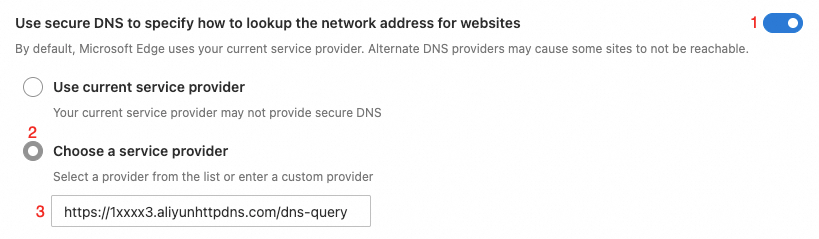
Enter a URL in the address bar to verify the configuration.
If the domain name is on the accessible domain name list and the page loads, the configuration is successful.
If the domain name is not on the accessible domain name list or is blocked, the page fails to load, which confirms that DoH is working.
Ensure that Edge's DoH probe domain, google.com, is resolvable. Add it to the accessible domain name list or enable resolution for all domain names.
FAQ
Webpage fails to open
Symptom

Causes and solutions
Cause
Solution
The DoH service is not enabled.
Enable the DoH service. Configure the DoH service.
An incorrect DoH endpoint address is used.
Get the correct DoH endpoint address from Configure the DoH service.
The primary site domain name is not in the accessible domain name list.
Solution 1: Add the primary site domain name to the accessible domain name list. Accessible domain names.
Solution 2: Enable resolution for all domain names. Use this option with caution.
Some elements on the webpage fail to render
Symptom
Causes and solutions
Cause
Solution
Related domain names are not in the accessible domain name list.
Solution 1: Add the related domain names to the accessible domain name list. Domain name management.
NoteA website may require multiple domain names to render fully. Add all required domain names.
Solution 2: Enable resolution for all domain names. Evaluate this option carefully.