Add a site to connect a root domain and all its subdomains to ESA at once. You can then view, disable, delete, and tag sites for resource classification, cost allocation, and access control.
Before you begin
Ensure the following before you add and manage sites:
Permission preparation: Ensure that the current account has site management permissions for ESA. RAM (Resource Access Management) users must be granted one of the following permissions: Full permissions:
esa:*Read-only permissions:esa:ListSites,esa:DescribeSiteAccount status: The Alibaba Cloud account must have completed identity verification. Unverified accounts cannot add or manage sites.
Domain preparation: For NS access, prepare to change your domain NS records to the ESA-assigned DNS servers. For CNAME access, prepare the required CNAME records.
Add a site
Use the Add Website feature to connect a site to ESA.
View site details
View a site's access method, region, and traffic data.
Go to Websites in the ESA console.
View the site name, access method, region, and other details on the page.
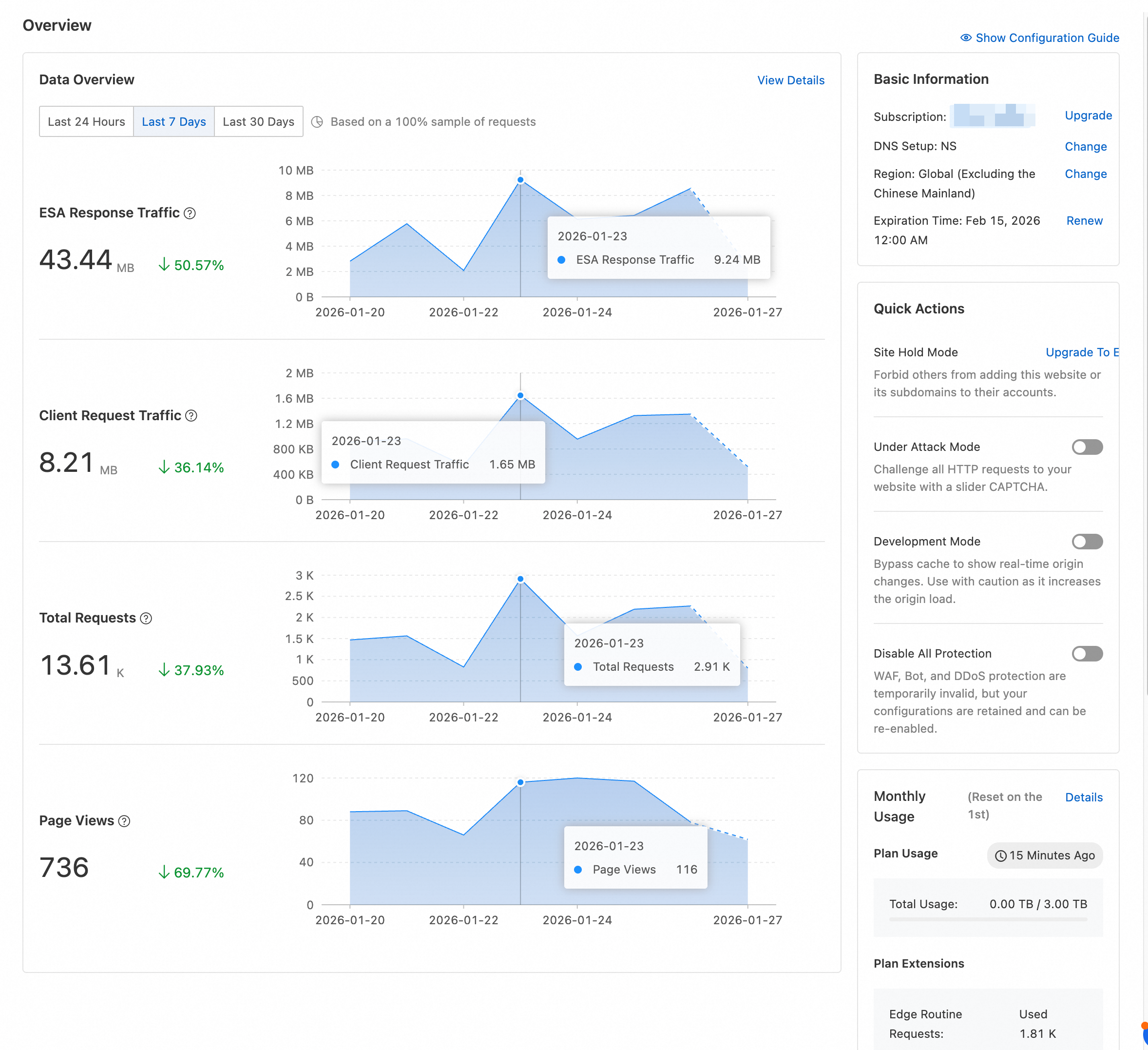
In the Website column, click a site name to view its data overview, response traffic, and client request traffic.
Delete a site
Before deleting a site, ensure that the following prerequisites are met:
For sites using NS access: Log on to your domain registrar and delete the NS records assigned by ESA. If the NS records are not removed before you delete the site, the system returns a
NameServerNotDeleteerror and the deletion is blocked.Live service migration: Ensure that your live services have been migrated away from ESA.
After deletion, configuration is permanently removed and monitoring data is retained for 180 days. You can re-add the site to view historical traffic data.
Go to Websites in the ESA console.
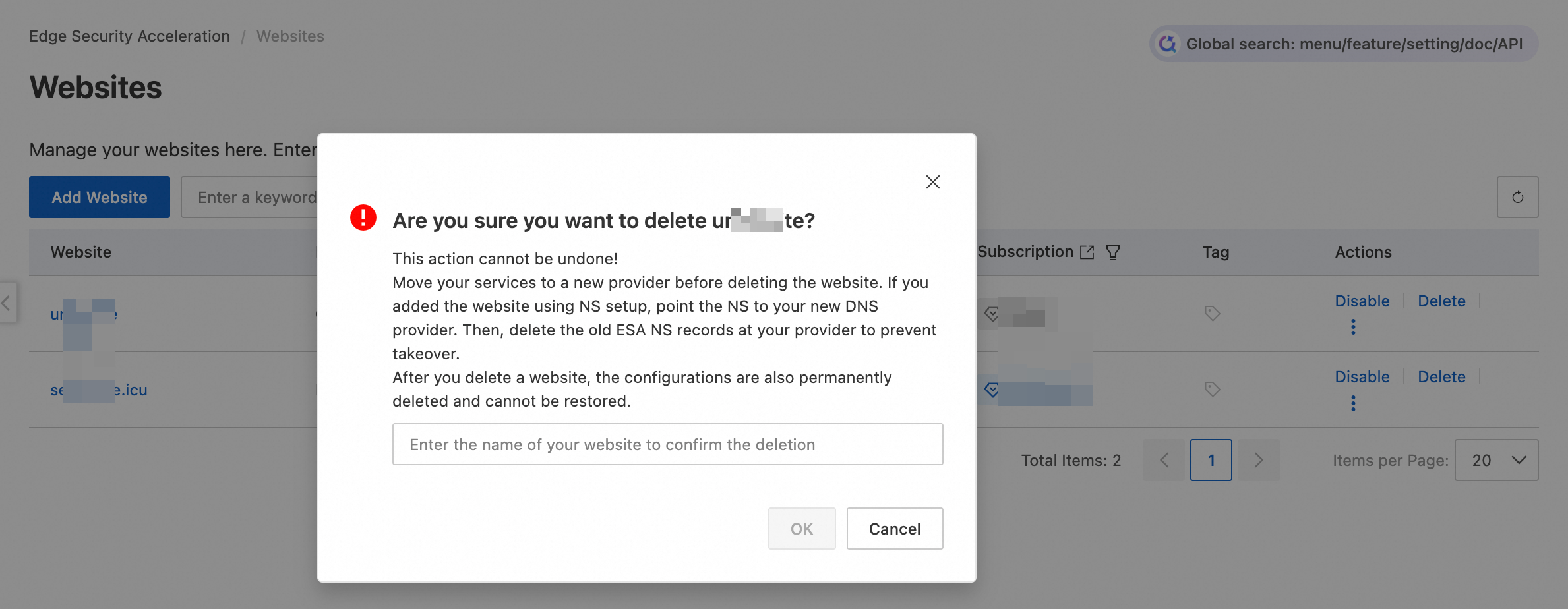
On the page, find the target site and click Delete in the Actions column.
Read the prompt, manually enter the site name, and then click OK to confirm deletion.
Deleting a site removes all resources under the site, and billable items such as WAF stop being billed. Disabling or deleting WAF rules alone does not stop billing: WAF is a site-level resource, and its billing is tied to the site. To fully stop pay-as-you-go billing for ESA, you must delete all your sites.
Disable a site
New sites default to the Active state. Disabling a site stops all DNS resolutions and causes edge nodes to reject requests. Disable a site when you temporarily do not need it to serve traffic.
Alibaba Cloud automatically disables sites with overdue payments, expired plans, or policy violations. Re-enable the site after resolving the issue.
Go to Websites in the ESA console.
On the page, find the target site, click Disable in the Actions column, and then click OK to confirm.
The site enters the Suspended state. Click Enable to restore DNS and proxy acceleration services.
Tag management
Tag overview
Tags are key-value labels that you bind to sites for classification and management.
Each tag consists of a tag key and a tag value, in the format tagKey:tagValue. For example, project:website indicates site resources for the project "website".
Resource tags versus cache tags: resource tags classify sites for billing and access control (configured on the site management page); cache tags refresh cache by tag (configured in cache policies).
Tags are primarily used for:
Resource classification and search: Categorize sites by business type, environment, or owner to quickly filter targets.
Cost allocation: Split and analyze resource costs by tag for granular cost accounting.
Access control: Use tags with RAM to restrict specific users or roles to sites with designated tags.
Each site supports up to 20 tags. Tag keys and values must not exceed 128 characters.
Edit tags for a site
Add, modify, or delete tags for a single site.
Go to Websites in the ESA console and find the target site.
In the Tag column of the target site, click
 and click Edit.
After completing the tag configuration, click OK to save the configuration.
Tag changes typically take effect within 5 minutes. Resource filtering or access control based on tags may require a brief wait for synchronization.
Use tags for cost allocation
Split and analyze ESA site costs by tag to track resource consumption across business lines, projects, or environments.
Recommended tag keys for cost allocation:
Recommended Tag Key | Purpose | Example Tag Value |
| Identifies the responsible cost center | marketing, rd |
| Identifies the project a site belongs to | website, api-gateway |
| Distinguishes production, testing, and development environments | prod, dev |
The workflow is as follows:
Bind tags to sites that need cost allocation. Ensure tag keys and values accurately identify the allocation dimension (for example,
cost-center:marketing).Log on to the Expenses and Costs console.
In the left-side navigation pane, choose Cost Analysis > Cost Details.
On the cost details page, select Tag as the statistical dimension and choose the tag key to analyze. The system splits costs by tag value, showing the cost proportion and trend for each dimension.
Tag-based cost allocation data is updated daily. For real-time costs, check the billing details.
Use tags to control resource access
Use RAM tag-based policies to restrict users or roles to operating only on sites with specific tags.
Typical scenarios:
Project isolation: Project A operators can only access sites tagged
project:project-a.Environment isolation: Development operators can only access sites tagged
env:dev, preventing changes to production sites.
Configuration steps:
Create a custom policy in the RAM console. Use the
acs:ResourceTagcondition key to limit which tagged resources can be operated. Example policy:{ "Version": "1", "Statement": [ { "Effect": "Allow", "Action": "esa:*", "Resource": "*", "Condition": { "StringEquals": { "acs:ResourceTag/project": "website" } } } ] }Attach the policy to the target RAM user or group. The user can then only operate on sites matching the tag conditions.
Common ESA actions used in tag-based access control:
Operation (Action) | Description |
| All ESA operation permissions |
| Site query permissions |
| Tag binding and unbinding permissions |
Ensure sites have the correct tags before enabling tag-based access control. Without matching tags, authorized users cannot access expected resources.
Related operations
The Websites page provides quick access to the following features:
DNS Records: Click DNS Records in the Actions column to add or modify DNS resolution records.
SSL/TLS: Click SSL/TLS in the Actions column to view and configure SSL/TLS link status, edge certificates, client certificates, and more.
Cache Settings: Click Cache Settings in the Actions column to view and configure resource cache policies.
WAF: Click WAF in the Actions column to view and configure WAF rules.
Change Plan: Click Change Plan in the Actions column to change the plan bound to the site.
FAQ
How do I turn off ESA and stop pay-as-you-go billing?
The ESA console does not provide a dedicated service shutdown option. If you are on the pay-as-you-go billing method and want to stop being billed, delete all your sites on the Site management page:
Go to Websites in the ESA console.
Find the target site and click Delete in the Actions column, then confirm the deletion.
After you delete all your sites, billable items such as WAF stop being billed.
Disabling or deleting WAF rules alone does not stop billing. WAF is a site-level resource, and its billing is tied to the site. You must delete all sites to fully stop pay-as-you-go billing for ESA.
Why does adding a site fail?
Possible causes and solutions:
Domain already added: The root domain or subdomain is already added through ESA or another CDN product. Confirm the domain is not used by another product.
Insufficient permissions: Confirm the account has
esa:*oresa:AddSitepermissions. RAM users must be authorized by the Alibaba Cloud account.Domain verification failed: Add the specified TXT record as prompted and retry.
What should I do if DNS does not take effect after adding a site?
DNS propagation time depends on your access method:
NS access: Global DNS propagation may take 0–48 hours after modifying NS records, depending on the registrar and local DNS cache.
CNAME access: Usually takes effect within minutes to a few hours.
If DNS has not taken effect after 48 hours, verify that your DNS records are correct, or clear the local DNS cache and retry.
Can a site be recovered after deletion?
No. After deletion, all configuration is permanently removed and monitoring data is retained for only 180 days. To use the same domain again, you must re-add the site and reconfigure it from scratch. Back up important configurations (DNS records, cache policies, etc.) before deletion.