All Products
Search
Document Center

Edge Security Acceleration:Create a Page from a template

Last Updated:Dec 04, 2025

Edge Security Acceleration (ESA) provides templates for most major frontend frameworks. Use these templates to launch and deploy projects.

Prerequisites

Create a Page from a template

  1. Log on to the ESA console. In the navigation pane on the left, choose Edge Computing > Functions and Pages.

  2. On the Functions and Pages page, click Create.

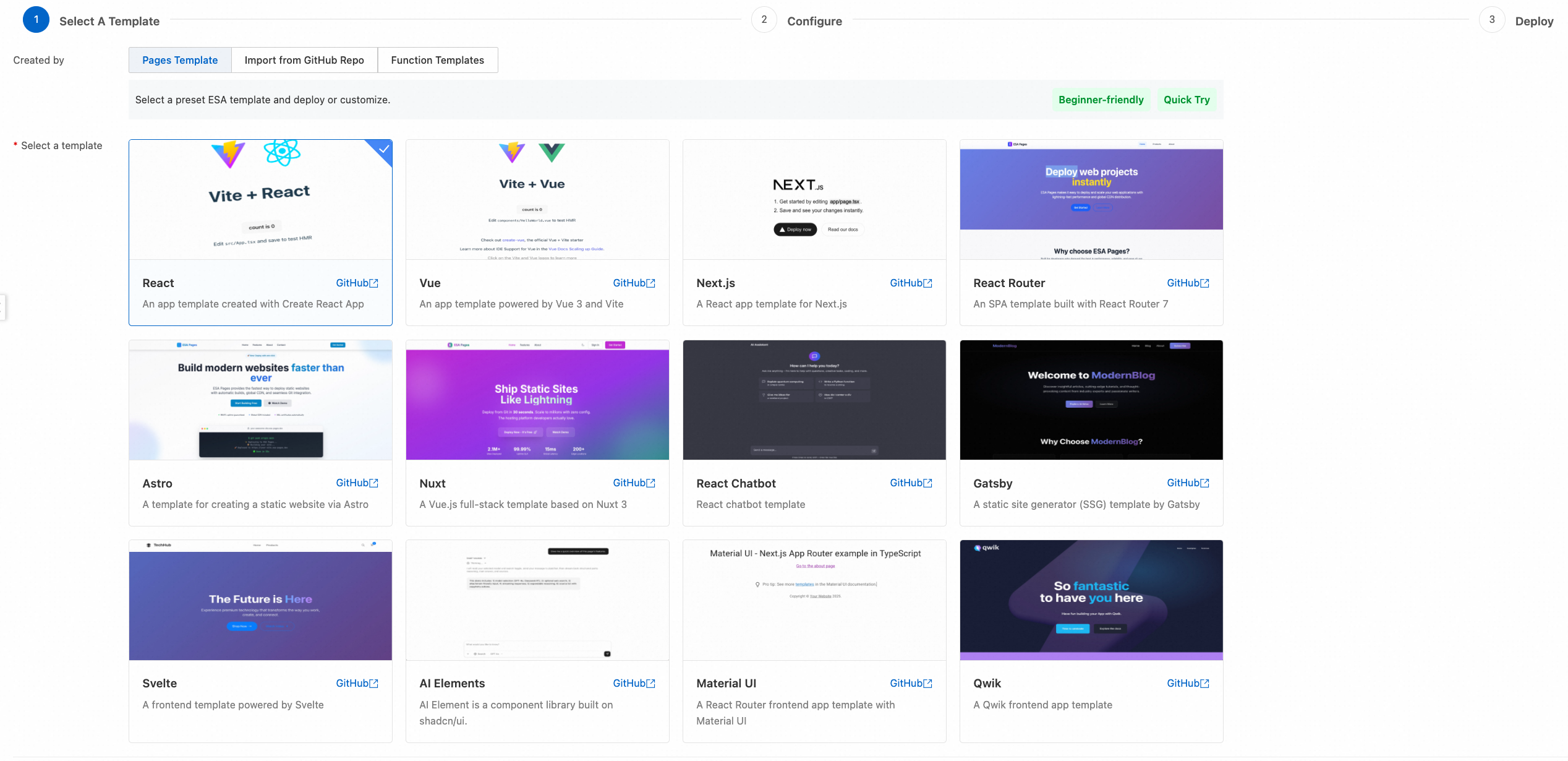
  3. On the Pages Template tab, select a framework template and click Next.

    image

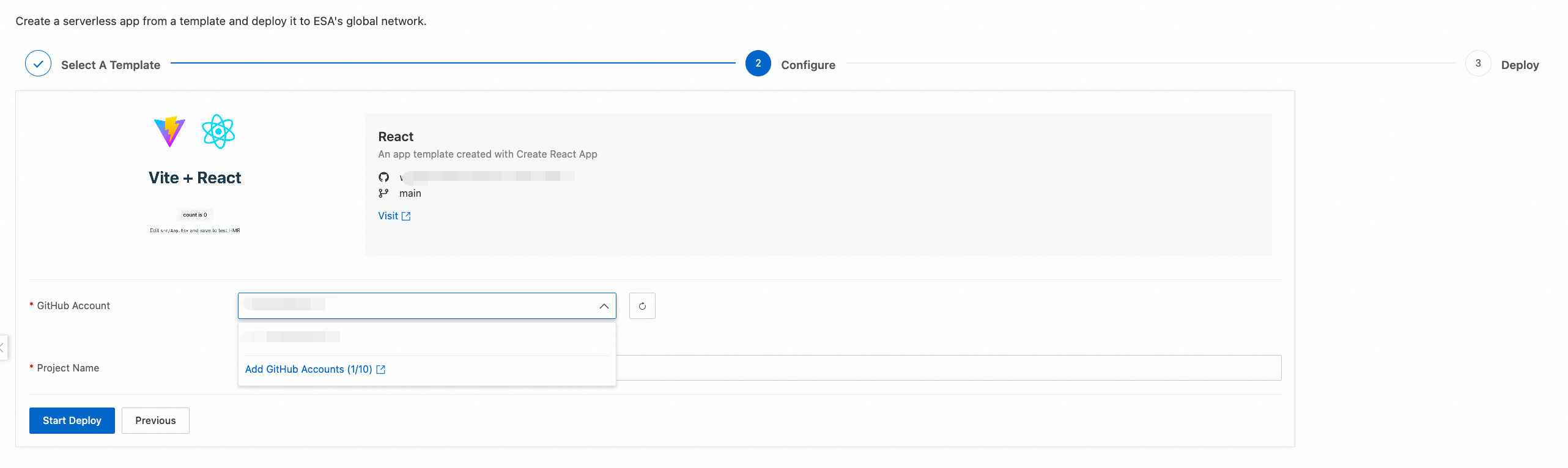
  4. Click Add GitHub Accounts to go to the GitHub authorization page.

    image

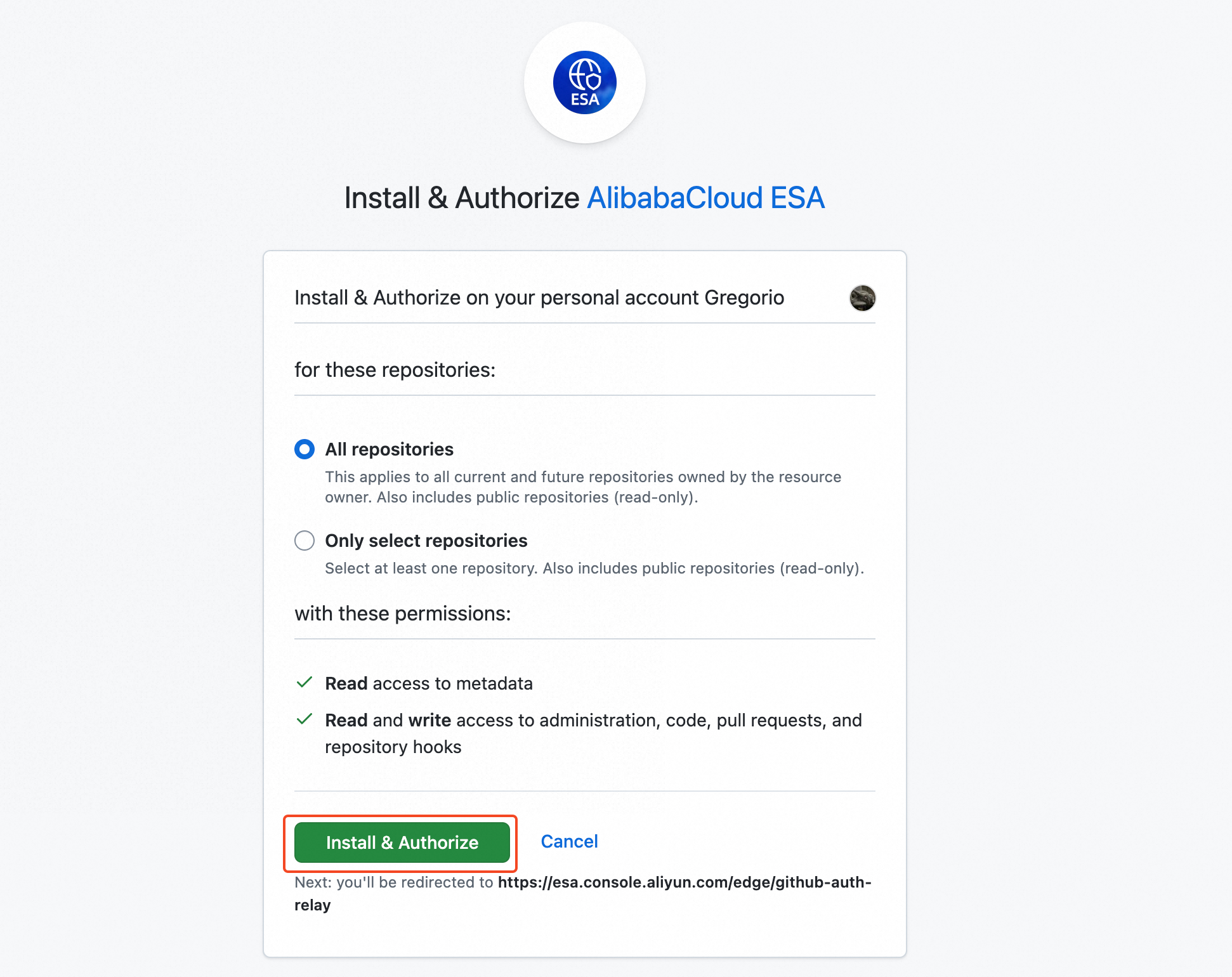
  5. Log on to your GitHub account. On the authorization page, select All repositories and click Install & Authorize to grant repository authorization.image

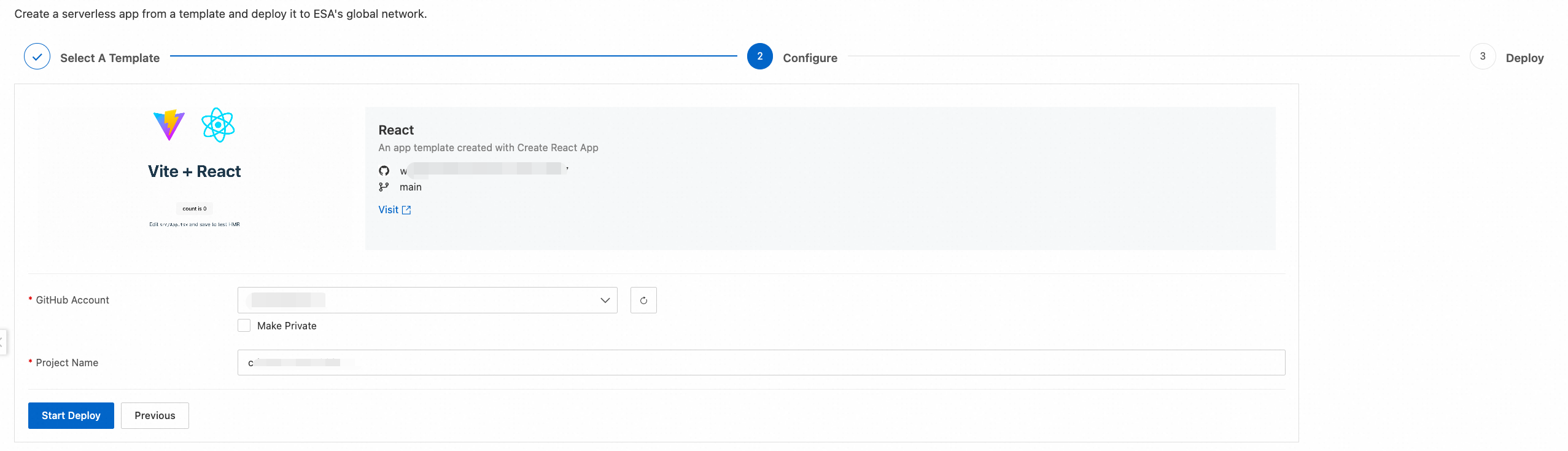
  6. Select the added GitHub account, enter a Project Name, and click Start Deploy to start an automatic build.

    image

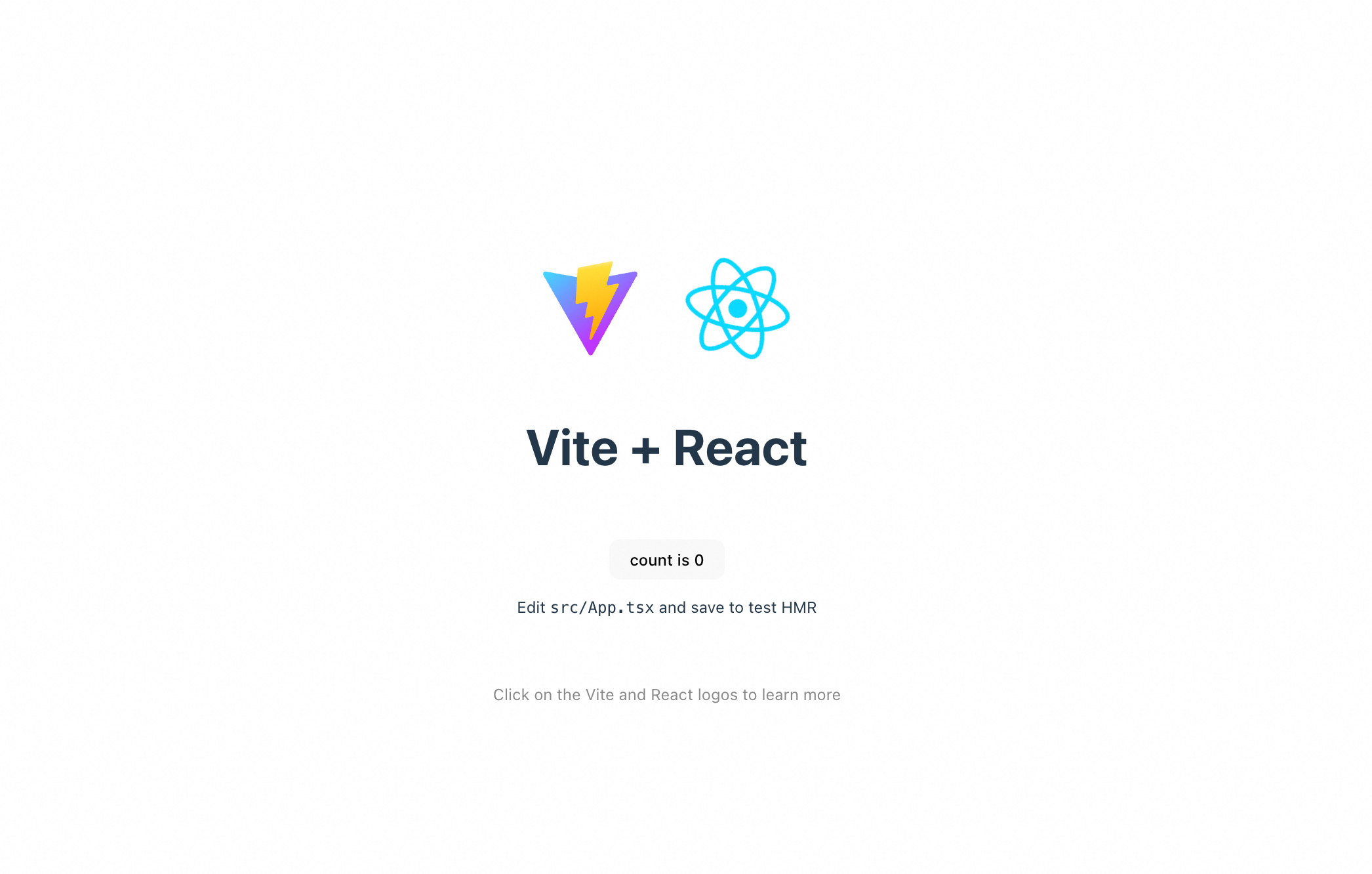
  7. After the build is complete, a public domain name is generated. You can use this domain name to preview the Page.

    image

    image

Bind a custom domain name

After you create the Page, add your site to ESA. Then, add a DNS record for your domain name that points to the public access link. This lets you access the Page using your custom domain name.

  1. After the build is complete, click Associate Domain Name to associate a domain name from your site with the Page.

    image

  2. On the Domains page, you can bind a custom domain name by configuring a Custom Domains or a Routes.

    Domain name

    The domain binding feature associates a Page with your website's domain name. After the association is complete, you can use the domain name to access the Page.

    1. In the Custom Domains section, click Add Domain Name.

    2. Enter the custom domain name to bind, such as page.example.com, and click OK.image

    Note

    For domain names added using NS records, a DNS record is automatically created to point to the edge function.

    For domain names added using a CNAME record, a CNAME value is automatically generated. You must manually add a CNAME record at your DNS provider.

    Configuration via routing

    You can use a route to map specific URLs to Pages. For example, if you configure a routing rule example.com/a* for the example.com site, all requests for paths that match the rule, such as /a, /a1, and /a2, are processed by Pages. Other requests for paths that do not match the rule, such as /b, /c, and /d, continue to follow the acceleration, origin fetch, or caching flow.

    image
    1. In the Routes section, click Add Route.

    2. Enter a Route Name, such as Pages. From the Select Website list, select the target site, such as example.com. Simple Mode is selected by default. You can configure the prefix and suffix for the route as needed. The following are some examples:

      • Example 1: If you set the route to *.example.com/*, any request sent to http://pages.example.com/ or http://example.com/ is forwarded to Pages.

      • Example 2: If you set the route to example.com/a*, any request sent to http://example.com/a, http://example.com/a1, or http://example.com/api is forwarded to Pages.

      • Example 3: If you set the route to pages.example.com/api/*, any request sent to http://pages.example.com/api/ and its subpaths, such as http://pages.example.com/api/users or http://pages.example.com/api/products/123, is forwarded to Pages.

      image

      Note
      • If the route you enter is a domain name with a prefix, such as *.example.com or pages.example.com, you must also manually add a record to the DNS records in ESA. Otherwise, access will fail.

      • If multiple function route rules are configured, they are matched from top to bottom. When a rule is matched, the system stops processing and does not check the remaining rules.

  3. After the binding is complete, a DNS record is automatically generated for the corresponding site. If the site is added using NS records, it can be accessed directly with the custom domain name. If the site is added using a CNAME record, you must add a CNAME record at your DNS provider.image

  4. In a browser, access the custom domain name to view the created Page.image