Enterprise Distributed Application Service (EDAS) sends alert notifications to DingTalk groups through custom chatbots. To receive EDAS alerts in a DingTalk group or from a contact, add a custom chatbot to the group and copy its webhook URL.
Prerequisites
Before you begin, make sure that you have:
A DingTalk group designated to receive alert notifications
The DingTalk desktop client installed on your PC
Add a custom chatbot and get the webhook URL
- Open the DingTalk desktop client, go to the group where you want to receive alerts, and click the Group Settings icon in the upper-right corner.
- In the Group Settings panel, click Group Assistant.
- In the Group Assistant panel, click Add Robot.
- In the ChatBot dialog box, click the + icon on the Add Robot card, and then click Custom.
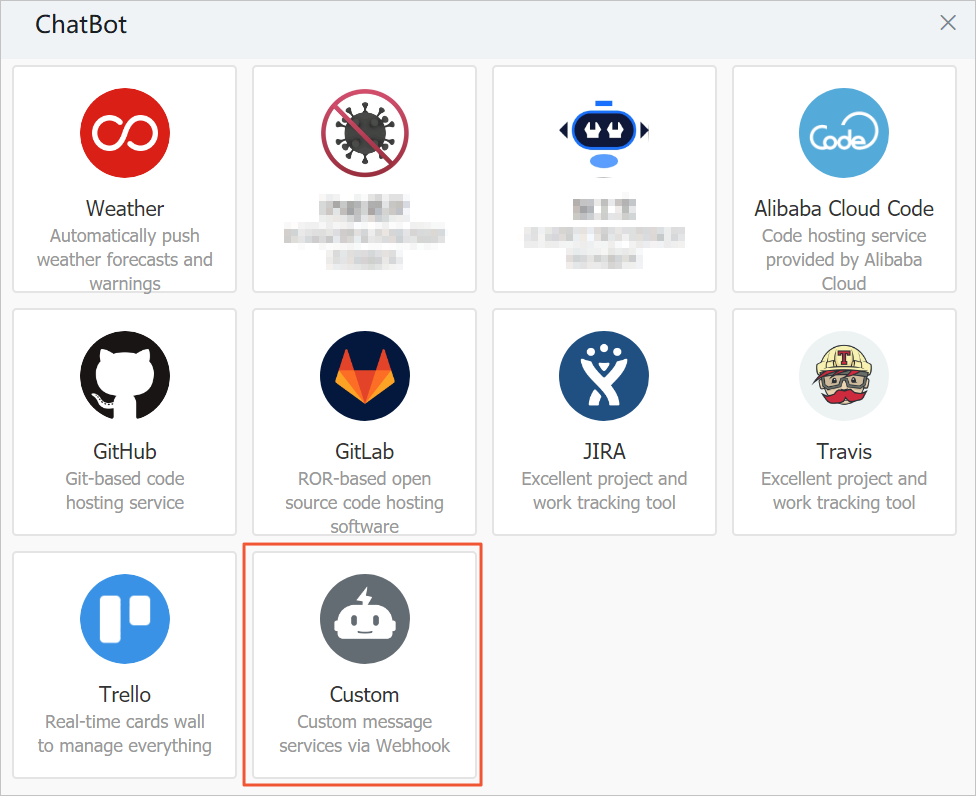
- In the Robot details dialog box, click Add.
- In the Add Robot dialog box, configure the chatbot:
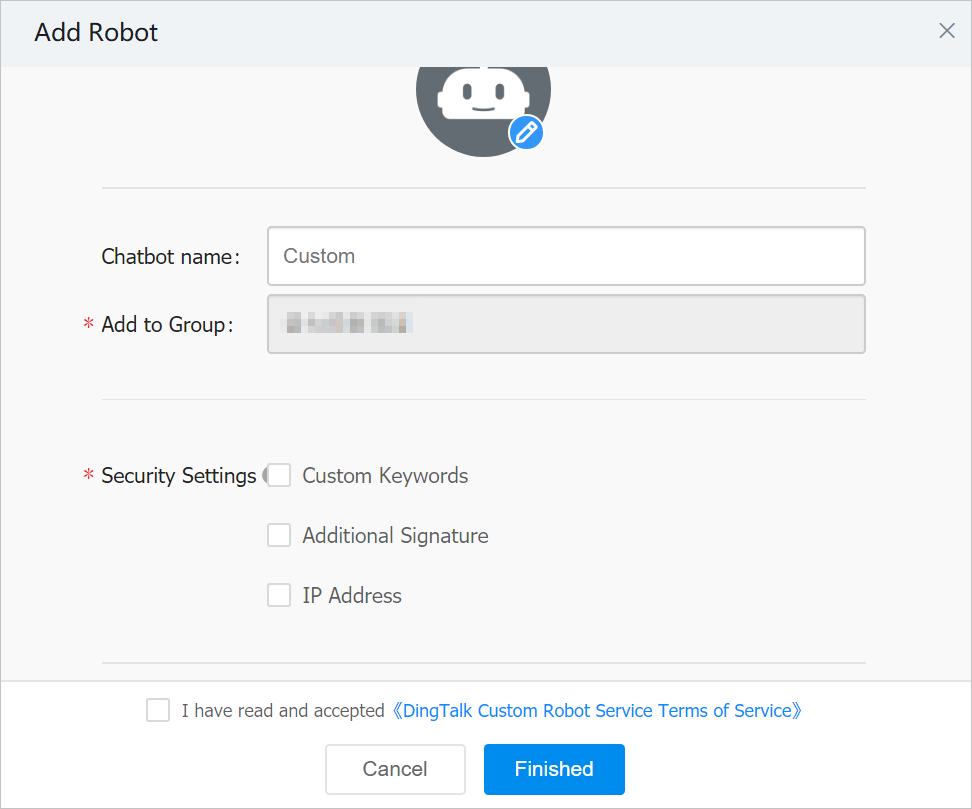
- Set a profile picture and a name for the chatbot.
- In the Security Settings section, select Custom Keywords and set two keywords:
alertanddispatch. - Select I have read and accepted \<\<DingTalk Custom Robot Service Terms of Service\>\>.
- Click Finished.
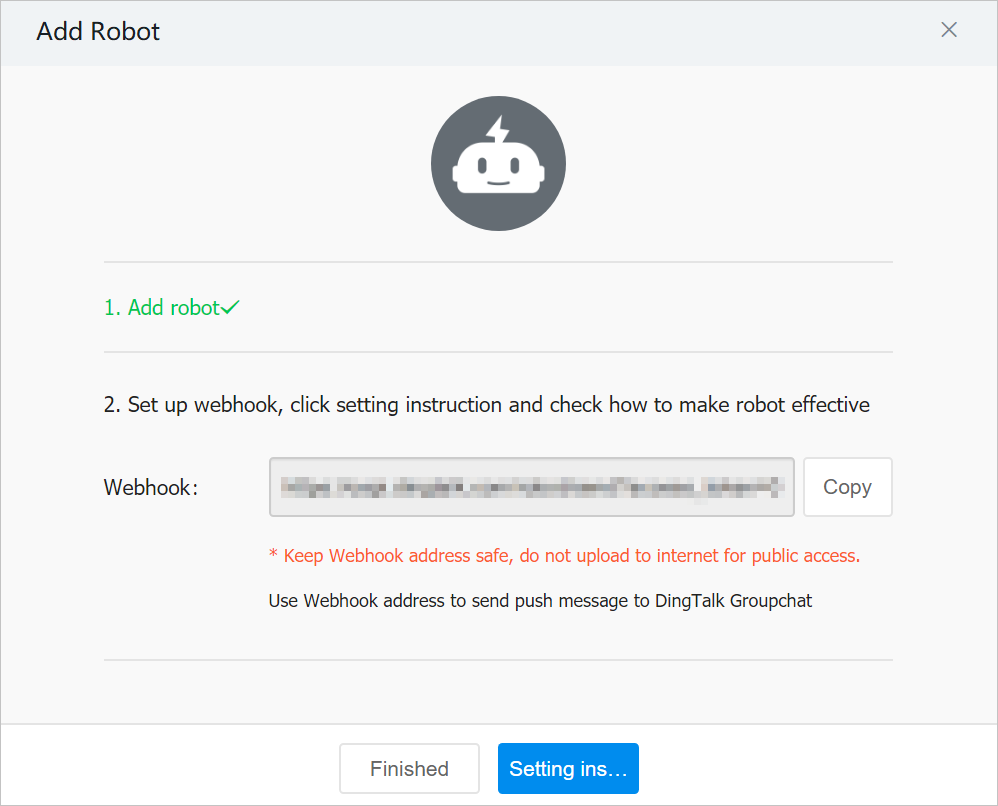
- Copy the webhook URL displayed in the dialog box and click Finished.
What to do next
Paste the webhook URL into the EDAS alert notification settings to start receiving alerts in your DingTalk group.
References
Custom robot access in the DingTalk developer documentation