Upgrade the Cloud Assistant Agent to access newer features, or disable auto-upgrade to pin a specific version.
Limitations
-
The ECS instance must be in the Running state.
-
The Cloud Assistant Agent is installed. See Install the Cloud Assistant Agent.
Automatic upgrades
In the Mexico and China (Zhongwei) regions, Cloud Assistant does not auto-upgrade instances running versions earlier than those listed below. To use newer features, call InstallCloudAssistant to install the latest version, or perform a manual upgrade. See Install the Cloud Assistant Agent.
-
Linux: 2.2.3.515
-
Windows: 2.1.3.515
By default, the Cloud Assistant Agent runs the aliyun_assist_update program every 30 minutes. The program path:
-
Windows instances: C:\ProgramData\aliyun\assist\{VERSION}\aliyun_assist_update.exe
-
Linux instances:
/usr/local/share/aliyun-assist/{VERSION}/aliyun_assist_update
{VERSION} represents the version number of the Cloud Assistant Agent. To view the version number, see Install the Cloud Assistant Agent.
Configure an upgrade policy to control upgrade time windows and avoid disruptions during peak hours.
-
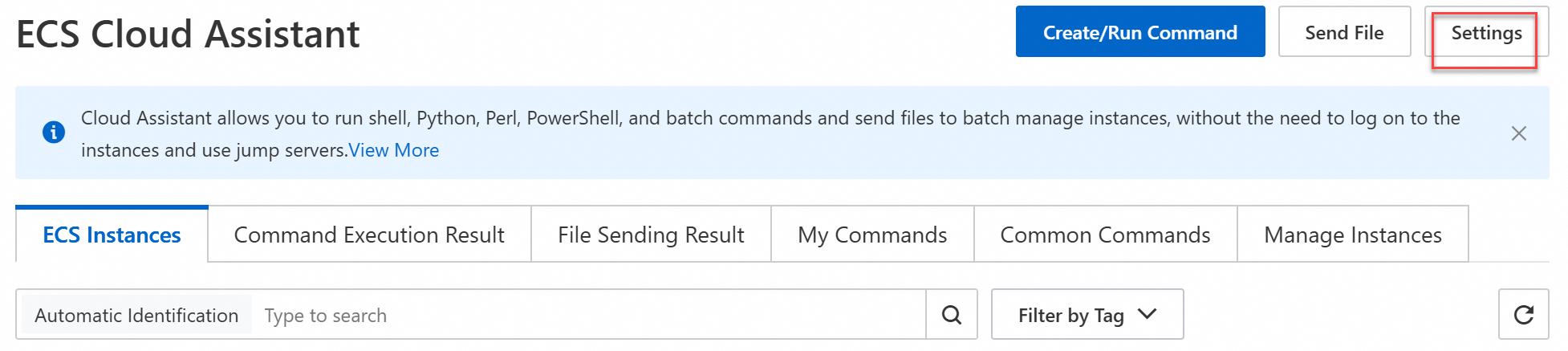
In the upper-right corner, click Settings.
-
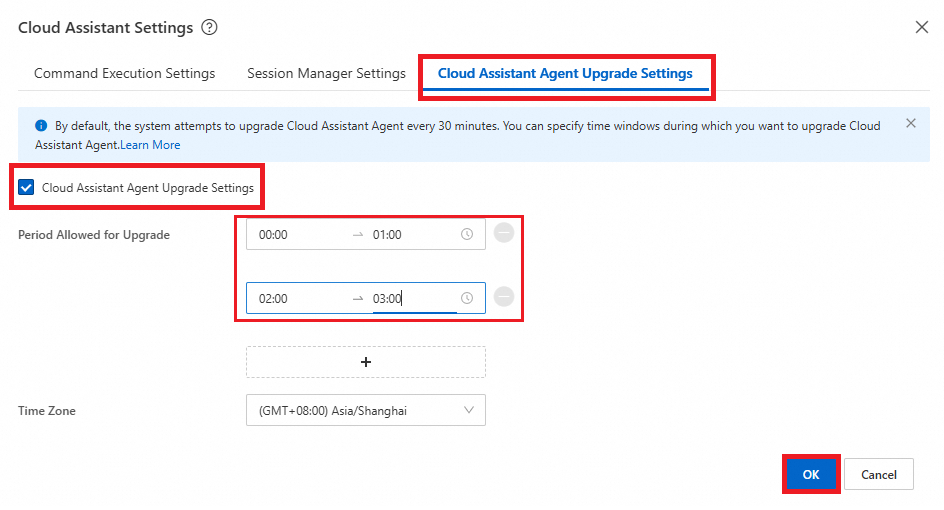
In the Cloud Assistant Settings dialog box, click the Cloud Assistant Agent Upgrade Settings tab.
-
Select Cloud Assistant Agent Upgrade Settings, set Period Allowed for Upgrade and Time Zone, and click OK.
NoteYou can specify up to five time periods. The minimum interval between any two periods is 1 hour.
Disable automatic upgrades
-
To disable auto-upgrade for a specific version, create configuration files to disable automatic upgrades or rename the automatic upgrade program.
-
To disable auto-upgrade for all versions, create configuration files to disable automatic upgrades.
Rename the automatic upgrade program
Rename the aliyun_assist_update file to disable auto-upgrade for the Cloud Assistant Agent.
VERSION represents the version number of the Cloud Assistant Agent. For more information about how to view the version number, see Install the Cloud Assistant Agent.
-
Windows Server: Rename
aliyun_assist_updatetoaliyun_assist_update.bk.Rename-Item -Path 'C:\ProgramData\aliyun\assist\VERSION\aliyun_assist_update.exe' -NewName 'C:\ProgramData\aliyun\assist\VERSION\aliyun_assist_update.exe.bk' -
Linux: Rename
aliyun_assist_updatetoaliyun_assist_update.bk.mv /usr/local/share/aliyun-assist/VERSION/aliyun_assist_update /usr/local/share/aliyun-assist/VERSION/aliyun_assist_update.bk
To resume auto-upgrade, rename the file back to aliyun_assist_update.
-
Windows Server:
Rename-Item -Path 'C:\ProgramData\aliyun\assist\VERSION\aliyun_assist_update.exe.bk' -NewName 'C:\ProgramData\aliyun\assist\VERSION\aliyun_assist_update.exe' -
Linux:
mv /usr/local/share/aliyun-assist/VERSION/aliyun_assist_update.bk /usr/local/share/aliyun-assist/VERSION/aliyun_assist_update
Create configuration files to disable automatic upgrades
For Cloud Assistant Agent 2.2.1.140 or later on Linux and Cloud Assistant Agent 2.1.1.140 or later on Windows, create configuration files to disable auto-upgrade:
Step 1: Disable the Cloud Assistant Agent from checking for upgrades on startup
Create an empty disable_bootstrap_update file in the `config` directory of the Cloud Assistant Agent installation directory. This disables the startup upgrade check for the current version. To disable it for all versions, create the file in the shared `config` directory instead.
-
Windows Server:
# For example, the following command disables the upgrade check on startup for a specific version of the Cloud Assistant Agent. New-Item -Path 'C:\ProgramData\aliyun\assist\VERSION\config\disable_bootstrap_update' # For example, the following command disables the upgrade check on startup for all versions of the Cloud Assistant Agent. New-Item -Path 'C:\ProgramData\aliyun\assist\config\disable_bootstrap_update' -
Linux:
# For example, the following command disables the upgrade check on startup for a specific version of the Cloud Assistant Agent.
touch /usr/local/share/aliyun-assist/VERSION/config/disable_bootstrap_update
# For example, the following command disables the upgrade check on startup for all versions of the Cloud Assistant Agent.
touch /usr/local/share/aliyun-assist/config/disable_bootstrap_update
VERSION represents the version number of the Cloud Assistant Agent. For more information about how to view the version number, see Install the Cloud Assistant Agent.
Step 2: Disable the Cloud Assistant Agent's automatic update check
Create an empty disable_update file in the `config` directory of the Cloud Assistant Agent installation directory. This disables periodic auto-upgrade for that version. To disable it for all versions, create the file in the shared `config` directory instead.
-
Windows Server:
# For example, the following command disables automatic upgrades for a specific version of the Cloud Assistant Agent. New-Item -Path C:\ProgramData\aliyun\assist\VERSION\config\disable_update # For example, the following command disables automatic upgrades for all versions of the Cloud Assistant Agent. New-Item -Path C:\ProgramData\aliyun\assist\config\disable_update -
Linux:
# For example, the following command disables automatic upgrades for a specific version of the Cloud Assistant Agent.
touch /usr/local/share/aliyun-assist/VERSION/config/disable_update
# For example, the following command disables automatic upgrades for all versions of the Cloud Assistant Agent.
touch /usr/local/share/aliyun-assist/config/disable_update
VERSION represents the version number of the Cloud Assistant Agent. For more information about how to view the version number, see Install the Cloud Assistant Agent.
To resume auto-upgrade, delete the disable_update and disable_bootstrap_update files.
-
Windows Server:
Remove-Item -Path C:\ProgramData\aliyun\assist\VERSION\config\disable_update Remove-Item -Path C:\ProgramData\aliyun\assist\config\disable_update Remove-Item -Path C:\ProgramData\aliyun\assist\VERSION\config\disable_bootstrap_update Remove-Item -Path C:\ProgramData\aliyun\assist\config\disable_bootstrap_update -
Linux:
rm /usr/local/share/aliyun-assist/VERSION/config/disable_update
rm /usr/local/share/aliyun-assist/config/disable_update

rm /usr/local/share/aliyun-assist/VERSION/config/disable_bootstrap_update
rm /usr/local/share/aliyun-assist/config/disable_bootstrap_update
Manual upgrade
For supported features and minimum agent versions, see Supported features and versions.
Upgrade using public commands
If auto-upgrade fails, run public commands to upgrade the agent.
The following steps use the console. To run public commands with OpenAPI or CLI, see View and run public commands.
-
On the Cloud Assistant page, click the Common Commands tab.
-
Find the latest version of the applicable public command and click Run.
-
Linux instances:
ACS-ECS-UpdateAliyunAssist-linux.sh. -
Windows instances:
ACS-ECS-UpdateAliyunAssist-windows.ps1.
In the ECS Cloud Assistant console, click the Public Commands tab, search for the target command (such as
ACS-ECS-UpdateAliyunAssist-linux.sh), and click Execute next to the desired version. -
-
In the Run Command panel, configure the parameters and click Run.
-
Execution Plan: Select a time to run the command. See Execution plan details.
-
Select Instance: Select instances to upgrade. The instances must be in the Running state with the agent installed.
For parameter details, see View and run public commands.
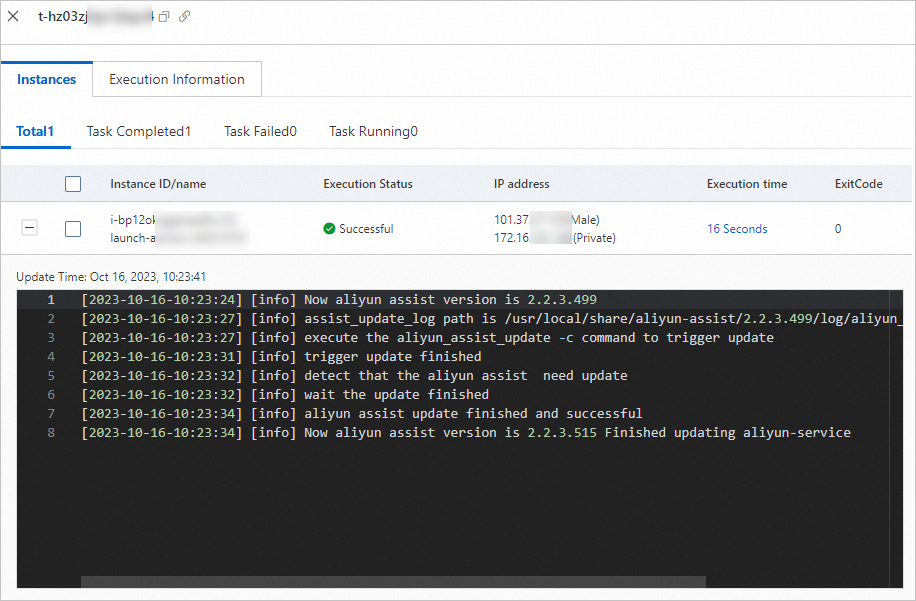
If the output is similar to the following figure, the Cloud Assistant Agent is upgraded.
-
If the public command fails, check the error message. See Common errors and troubleshooting for failed executions.
Upgrade by manually downloading the installation package
Download the latest installation package to upgrade the agent. For installation methods, see Install the Cloud Assistant Agent.
For example, on a Linux x86 instance, download and install the latest agent RPM package:
wget "https://aliyun-client-assist.oss-accelerate.aliyuncs.com/linux/aliyun_assist_latest.rpm" && sudo rpm -ivh --force aliyun_assist_latest.rpmMaximum agent versions by kernel version
|
Kernel version |
Maximum agent version |
|
Linux kernel earlier than 2.6.32 |
|
|
FreeBSD 11 or earlier (kernel version earlier than 12.x) |
2.3.3.529 |