Identify and resolve RDP port conflicts that prevent remote desktop connections to a Windows ECS instance.
Symptom
When you connect to a Windows ECS instance by using MSTSC on your on-premises device or Workbench in the ECS console, a session-disconnected error appears and the connection fails. The following figure shows a sample MSTSC error.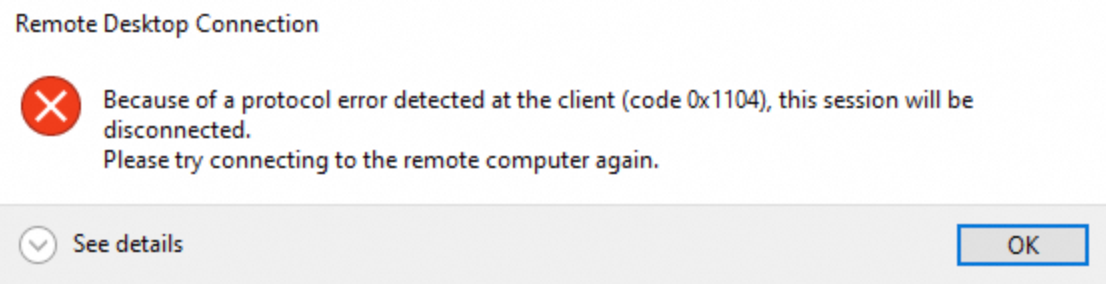
Cause
Another process or service is using the default RDP port (3389).
Solution
Either terminate the process occupying the RDP port or change the RDP port number.
Before you modify instance configurations or data, check the disaster recovery and fault tolerance capabilities of the instance. For snapshots, see Overview.
If you granted access permissions on or submitted sensitive information (such as usernames and passwords) in the Alibaba Cloud Management Console, modify the information promptly.
Connect to the Windows ECS instance by using VNC.
Identify the process using the RDP port. In this example, Windows Server 2022 is used.
Open the Command Prompt window.
Run the
netstat -ano|findstr "3389"command to identify the process using port 3389.
Run the
tasklist /FI "PID eq <PID that you obtained in the previous step>"command to view the process details. In this example, thetasklist /FI "PID eq 4176"andtasklist /FI "PID eq 7164"commands are run. In the output, svchost.exe is the RDP process and python.exe occupies port 3389.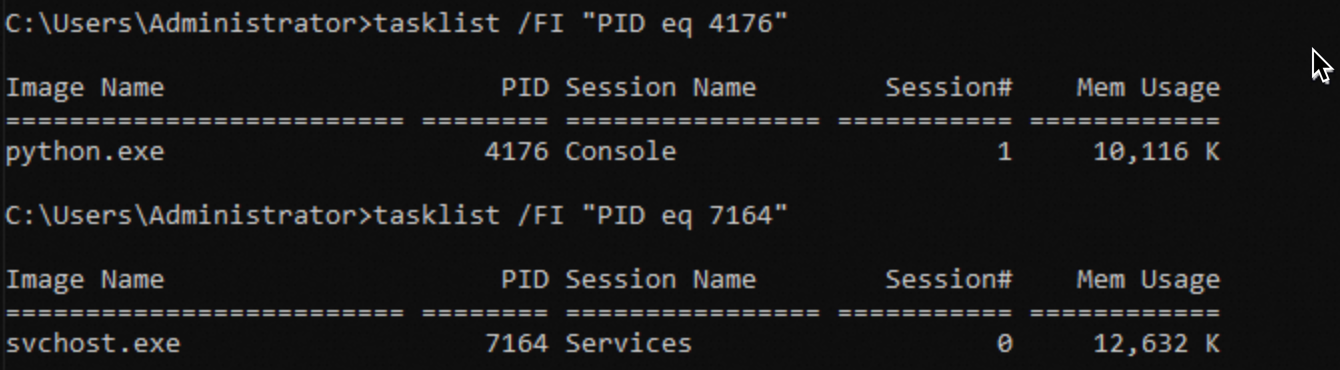
Method 1: Terminate the process occupying port 3389.
Run the
taskkill /PID <PID of the process to be terminated> /Fcommand. In this example, thetaskkill /PID 4176 /Fcommand is run.ImportantUnderstand the features of a process before terminating it. Stopping a key business or system process may cause a business interruption, system crash, or connection failure.
Use MSTSC or Workbench to reconnect to the instance.
Method 2: Change the RDP port number.
Open Registry Editor.
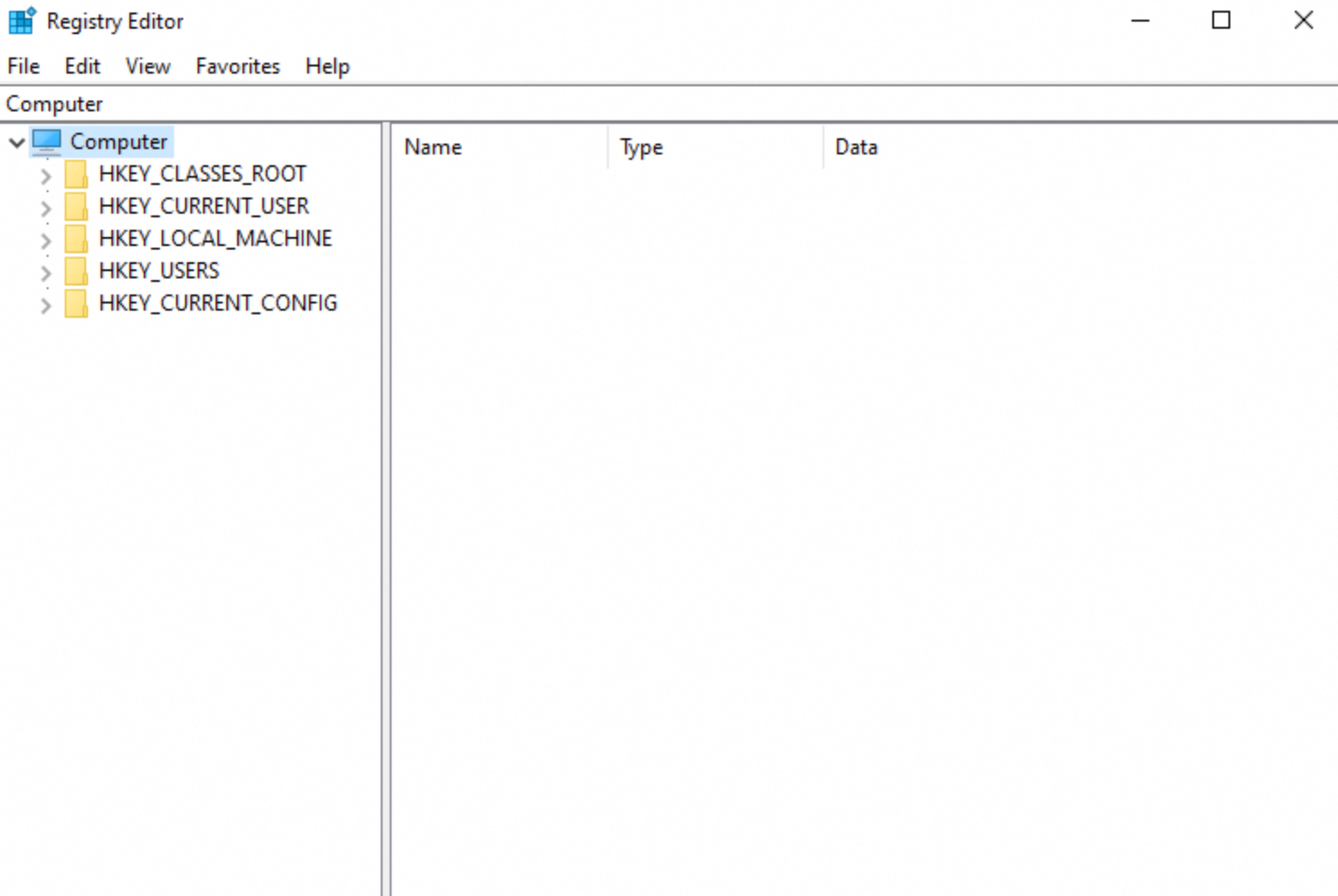
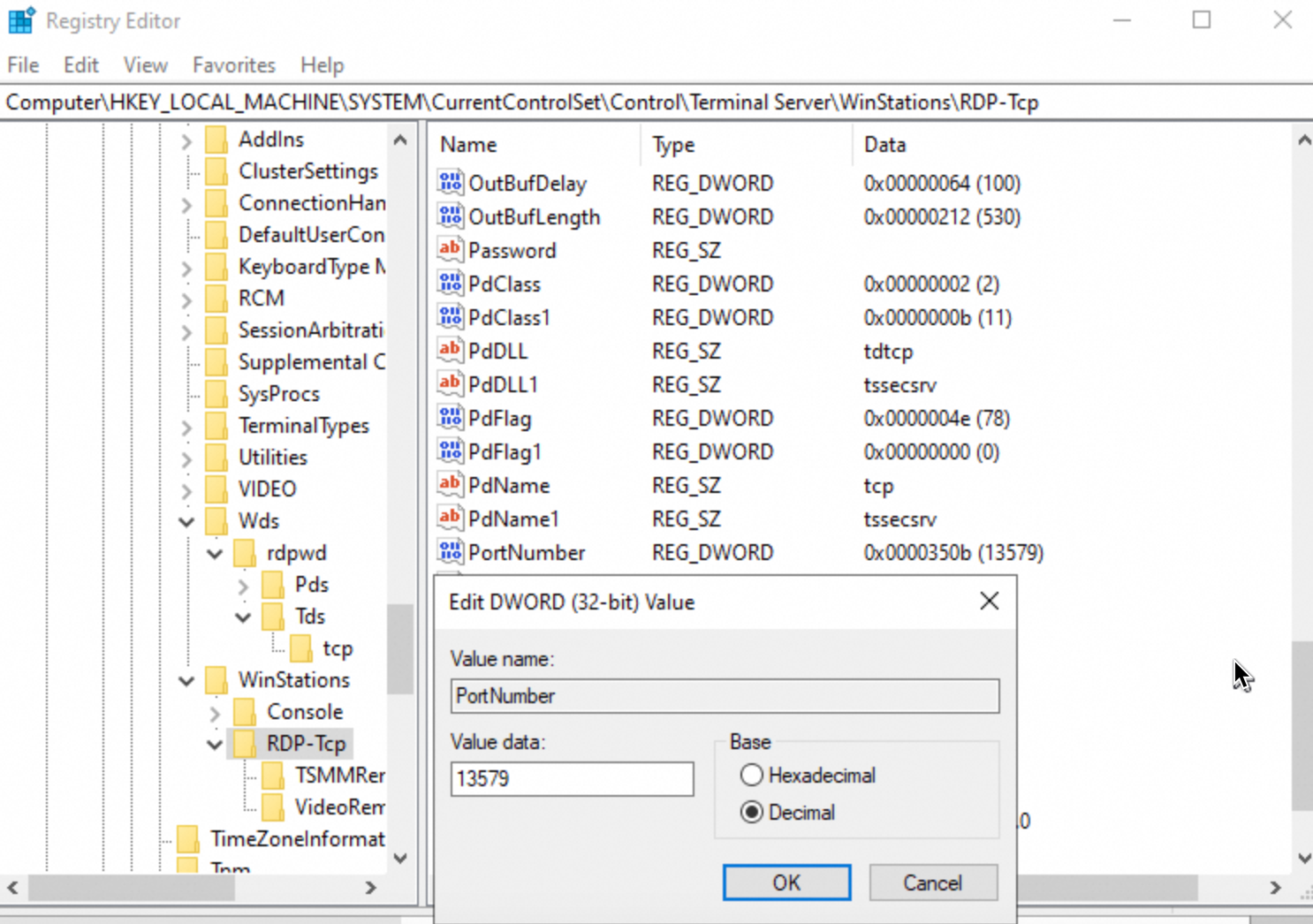
Go to HKEY_LOCAL_MACHINE\SYSTEM\CurrentControlSet\Control\Terminal Server\Wds\rdpwd\Tds\tcp, right-click PortNumber, and change the Value data to your desired port number.
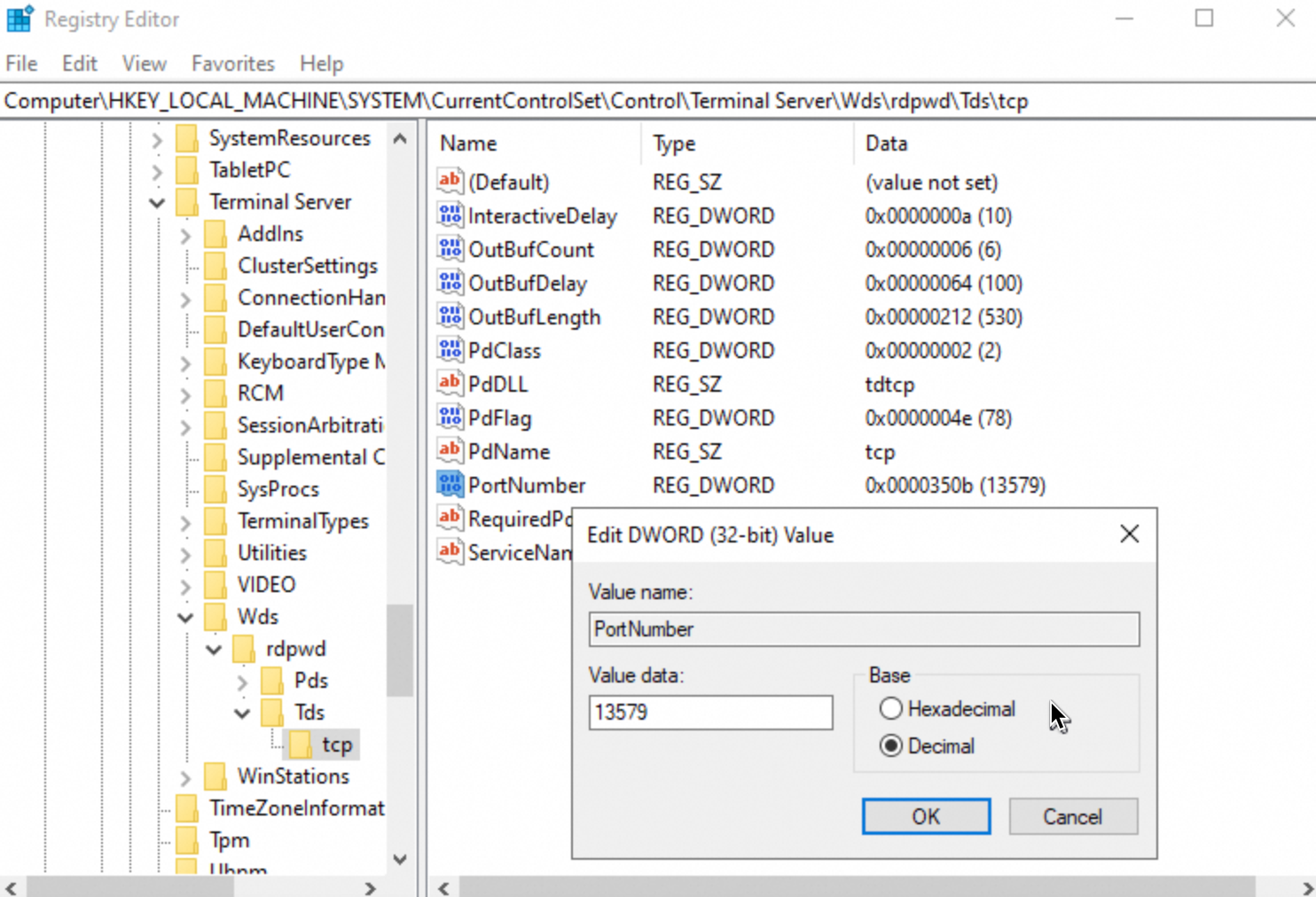
Go to HKEY_LOCAL_MACHINE\SYSTEM\CurrentControlSet\Control\Terminal Server\WinStations\RDP-Tcp, right-click PortNumber, and change the Value data to the same port number.
NoteThe Value data for PortNumber must match in both the tcp and RDP-Tcp registry keys.
 Windows automatically recognizes the new RDP port number.
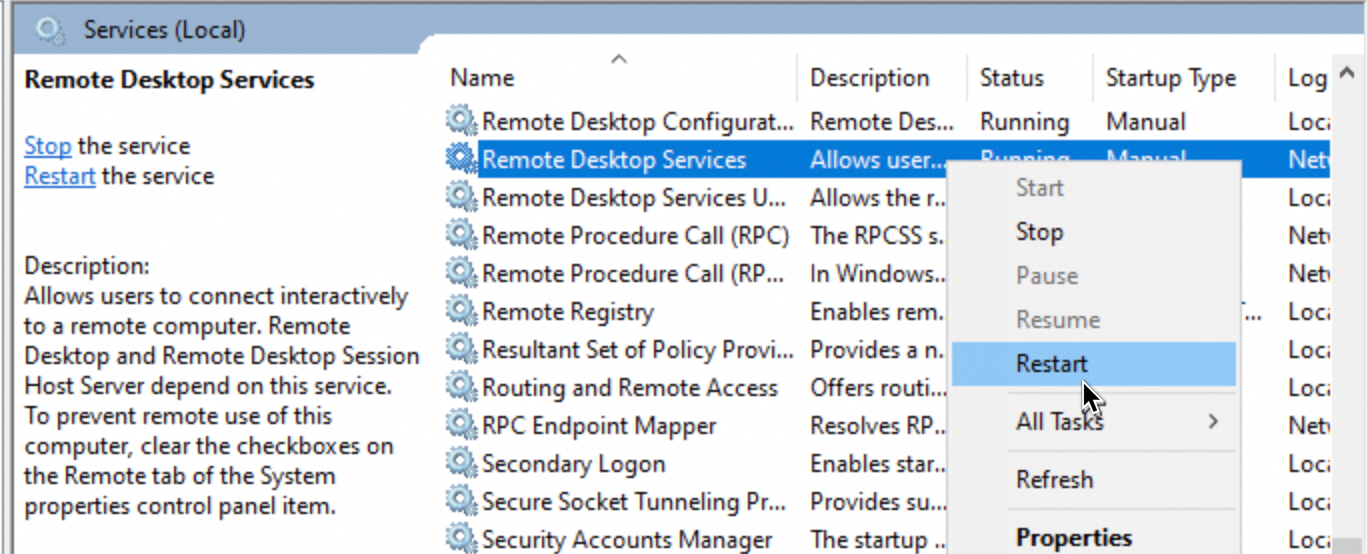
Open the Services window.
Right-click Remote Desktop Services and select Restart.
Configure security group rules to allow traffic on the new RDP port.
To add a security group rule, see Add a security group rule.
Use MSTSC or Workbench to reconnect to the instance.