Alibaba Cloud Log Service allows you to use the sidecar pattern to collect logs of containers in an elastic container instance. This topic describes how to deploy a sidecar container and configure Logtail to collect logs of containers.
Prerequisites
Simple Log Service is activated for the ACK Serverless cluster. Log on to the Simple Log Service console. If Simple Log Service is not activated for the cluster, you are prompted to follow on-screen instructions to activate the service.
Background information
Alibaba Cloud Log Service allows you to collect logs of containers in elastic container instances by using sidecar containers. You can create an application container and a sidecar container in an Elastic Container Instance pod. The sidecar container is used to run a logging agent and collect the logs of the application container.
To use a sidecar container to collect container logs, you must enable Logtail. Logtail and the application container must share a directory that is used to store log files. This way, Logtail can monitor the changes of log files in the shared directory and collect logs after the application container writes log data to the shared directory.
The logs collected by Log Service can be classified into:
stdout logs
To collect stdout logs, you must use the stdlog volume of the elastic container instance. When you create an Elastic Container Instance pod, you can mount the stdlog volume to the sidecar container. The sidecar container can access stdout logs that are collected by basic components of Elastic Container Instance as files.
Text logs
To collect text logs, you must use a shared volume on a pod. A volume can be mounted to multiple containers in a pod. The sidecar container can collect text logs that are stored by the application container in the shared volume.
Step 1: Deploy a sidecar container
Create a Deployment that contains a sidecar container.
The following code provides an example of the YAML file. Replace the placeholder variables with the actual values based on your business requirements.
apiVersion: apps/v1
kind: Deployment
metadata:
  labels:
    app: nginx-log-sidecar-demo
  name: nginx-log-sidecar-demo
spec:
  replicas: 2
  selector:
    matchLabels:
      app: nginx-log-sidecar-demo
  template:
    metadata:
      labels:
        app: nginx-log-sidecar-demo
        alibabacloud.com/eci: "true"
    spec:
      containers:
        - name: nginx-log-demo
          image: registry-vpc.${RegionId}.aliyuncs.com/eci_open/nginx:1.14.2
          command:
            - /bin/sh
          args:
            - -c
            - while true; do echo hello world; date; echo hello sls >> /var/log/nginx/test.log; sleep 1;done
          imagePullPolicy: Always
          volumeMounts:
            - mountPath: /var/log/nginx
              name: nginx-log
        - name: logtail
          image: registry-vpc.${RegionId}.aliyuncs.com/log-service/logtail:latest
          env:
            - name: ALIYUN_LOGTAIL_USER_ID
              value: "${Aliuid}"
            - name: ALIYUN_LOGTAIL_USER_DEFINED_ID
              value: nginx-log-sidecar
            - name: ALIYUN_LOGTAIL_CONFIG
              value: /etc/ilogtail/conf/${RegionId}/ilogtail_config.json
            - name: aliyun_logs_machinegroup
              value: k8s-group-app-alpine
          imagePullPolicy: Always
          volumeMounts:
            - mountPath: /var/log/nginx
              name: nginx-log
            - mountPath: /stdlog
              name: stdlog
      volumes:
        - emptyDir: {}        # Store text logs in the emptyDir volume.
          name: nginx-log
        - name: stdlog        # Store stdout logs in the stdlog volume.
          csi:
            driver: stdlogplugin.csi.alibabacloud.com
Obtain information about the pod.
kubectl get pods -l app=nginx-log-sidecar-demoExpected output:
NAME                                      READY   STATUS    RESTARTS   AGE
nginx-log-sidecar-demo-5d85d8497c-jzvpg   2/2     Running   0          21m
nginx-log-sidecar-demo-5d85d8497c-tkpk8   2/2     Running   0          21m
View logs.
View logs by running the kubectl command
After you run the exec command to access the container, run the tail command to view the content of log files in the stdlog volume.
kubectl exec -it nginx-log-sidecar-demo-5d85d8497c-jzvpg -c logtail -- bash
ls /stdlog
tail /stdlog/nginx-log-demo/0.log -n 5
Example:

View logs by using the Elastic Container Instance console
On the instance details page, click the Logs tab and select the container to view logs of the container.

Step 2: Configure Logtail and collect logs
After you deploy the sidecar container, you need to configure Logtail in the Log Service console to collect logs.
Log on to the Log Service console.
In the Import Data section, click RegEx - Text Log.
In the Specify Logstore step, set the project and Logstore, and then click Next.
Select a project and Logstore. If no project or Logstore is available, you can click Create Now to create a project or Logstore.
Create a machine group.
If a machine group is available, click Use Existing Machine Groups to skip this step.
In the Create Machine Group step, follow the on-screen instructions to create a machine group. Then, click Complete Installation.
Configure the machine group parameters and click Next.
Select Custom ID for the Identifier parameter. Enter the value of the
ALIYUN_LOGTAIL_USER_DEFINED_IDenvironment variable that you configured in Step 1 in the Custom ID field. Then, click Next. In this example, the value of ALIYUN_LOGTAIL_USER_DEFINED_ID isnginx-log-sidecar.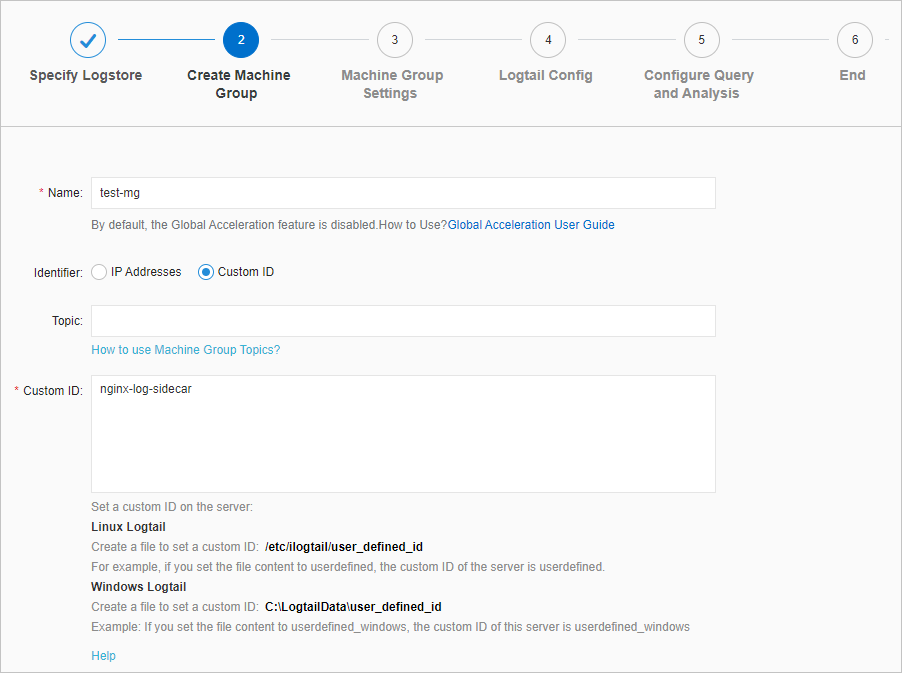
Configure the machine group.
Select and move the new machine group from Source Server Groups to Applied Server Groups. Then, click Next.
Configure Logtail.
Logtail can collect text logs in a variety of modes such as Simple Mode, Full Regex Mode, Delimiter Mode, and JSON Mode. For more information, see Collect text logs from servers.
NoteTurn off Docker File.
Example: Collect stdout logs
The log path of std logs is the same as the mount path of the stdlog volume. In this example, the log path is
/stdlog.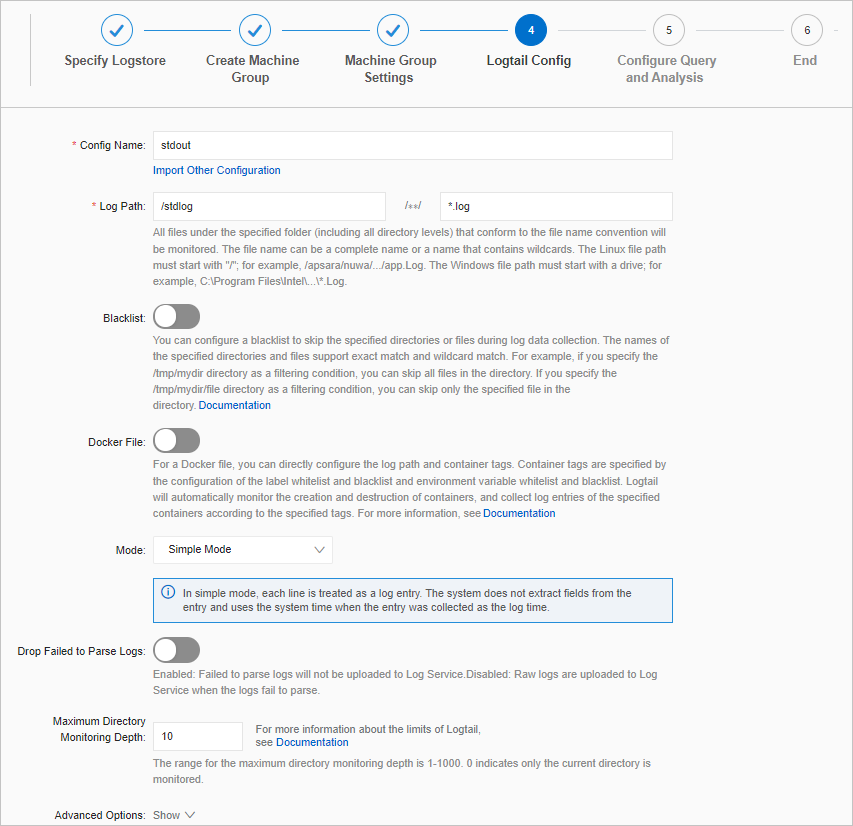
Example: collect text logs
The log path of text logs is the same as the mount path of the shared volume. In this example, the log path is
/var/log/nginx.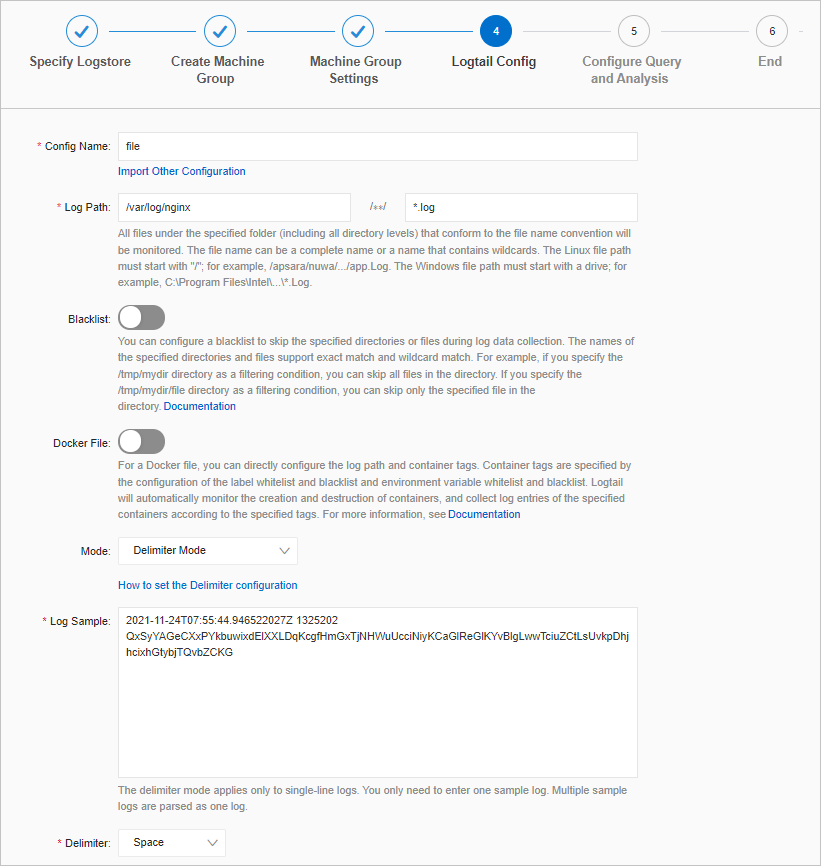
Configure log query and analysis.
By default, indexes are configured. You can modify the indexes based on your business requirements. For more information, see Create indexes.
View the logs that are collected from the elastic container instance.
After you complete the preceding configurations, Log Service starts to collect logs of containers in the elastic container instance. The following figure shows an example effect after stdout logs are collected to the Logstore of Log Service.
