After you configure a subscription instance, you can use the flink-dts-connector to consume data from the instance with a Flink client. This topic describes how to use the flink-dts-connector.
Usage notes
-
This connector supports Flink clients that use the DataStream API, Table API, or SQL.
-
If your Flink client uses the Table API or SQL, you can consume data from only a single table per configuration. To consume data from multiple tables, you must configure and run multiple independent tasks.
Procedure
This topic uses IntelliJ IDEA Community Edition 2020.1 for Windows to demonstrate how to use the flink-dts-connector to consume data from a subscription instance.
- Create a change tracking task. For more information, see the relevant topics in Change tracking overview.
- Create one or more consumer groups. For more information, see Add a consumer group.
-
Download and decompress the flink-dts-connector.
-
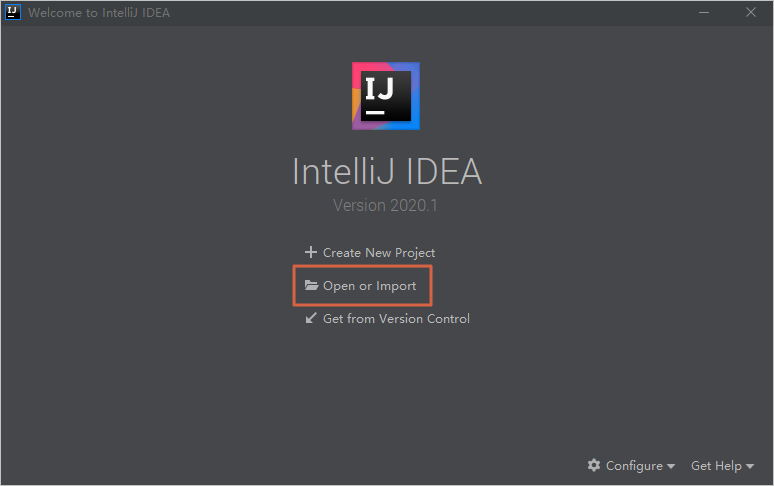
Open IntelliJ IDEA and click Open or Import.
-
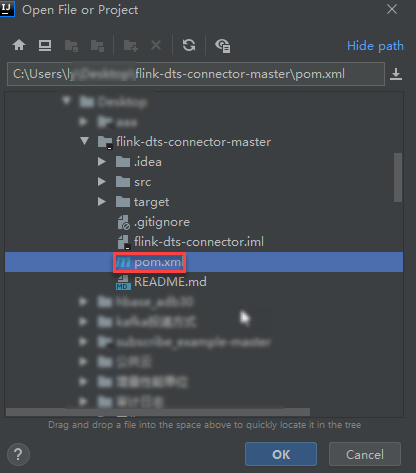
In the dialog box that appears, navigate to the decompressed flink-dts-connector directory, expand the folders, and then find the Project Object Model (pom.xml) file.
- In the dialog box that appears, select Open as Project.
-
Add the following dependency to the pom.xml file:
<dependency> <groupId>com.alibaba.flink</groupId> <artifactId>flink-dts-connector</artifactId> <version>1.1.1-SNAPSHOT</version> <classifier>jar-with-dependencies</classifier> </dependency> -
In IntelliJ IDEA, expand the folders and select the Java file that corresponds to the program type of your Flink connector.
-
If your Flink client uses the DataStream API, double-click the flink-dts-connector-master\src\test\java\com\alibaba\flink\connectors\dts\datastream\DtsExample.java file and perform the following steps:
-
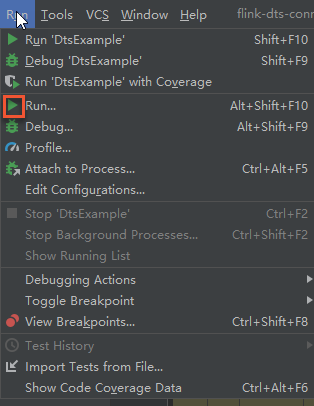
At the top of the IntelliJ IDEA window, click the Run icon.
-
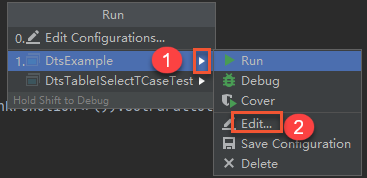
In the menu that appears, click .
-
In the Program arguments field, enter the parameters and their values based on the following example. Then, click Run to start the flink-dts-connector.
NoteFor more information about the parameters and how to obtain their values, see Parameters.
--broker-url dts-cn-******.******.***:****** --topic cn_hangzhou_rm_**********_dtstest_version2 --sid dts****** --user dtstest --password Test123456 --checkpoint 1624440043 -
The output confirms that the client can subscribe to data changes from the source database.
 Note
NoteTo query specific data change records, log on to the Task Manager UI of your Flink client.
-
-
If your Flink client uses the Table API or SQL, double-click the flink-dts-connector-master\src\test\java\com\alibaba\flink\connectors\dts\sql\DtsTableISelectTCaseTest.java file and perform the following steps:
NoteEach
DtsTableISelectTCaseTest.javafile can be configured to consume data from only one table. To configure and consume data from multiple tables, you must repeat the configuration and run multiple independent tasks.-
Add two forward slashes (
//) to comment out the specified line of code.
-
Configure the information for the single table from which you want to consume data. SQL statements are supported.
-
Configure the parameters for the subscription instance. For more information about the parameters and how to obtain their values, see Parameters.
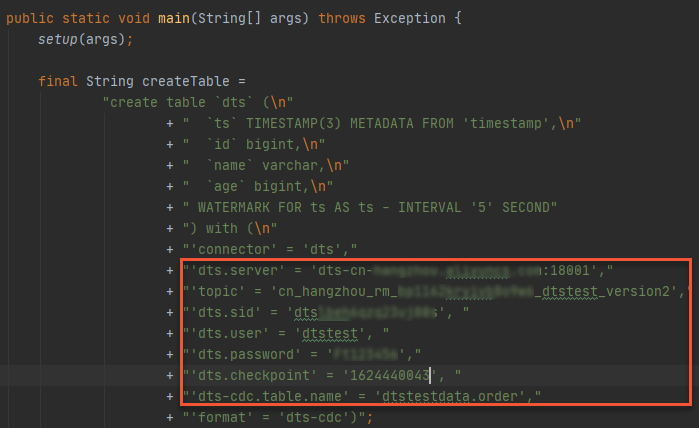
-
At the top of the IntelliJ IDEA window, click Run'DtsTableISelectTCaseTest' to start the flink-dts-connector.
-
The output confirms that the client can subscribe to data changes from the source database.
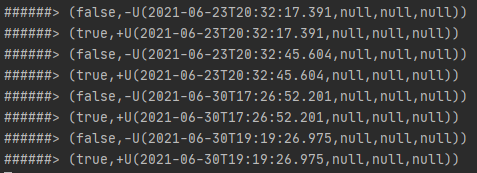 Note
NoteTo query specific data change records, log on to the Task Manager UI of your Flink client.
-
-
Parameters
|
DtsExample.java |
DtsTableISelectTCaseTest.java |
Description |
Query method |
|
|
|
The network endpoint and port of the subscription instance. Note
|
In the DTS console, click the ID of the target subscription instance. On the Basic Information page, you can obtain the Topic and Network information. |
|
|
|
The topic of the subscription instance. |
|
|
|
|
The consumer group ID. |
In the DTS console, click the ID of the target subscription instance. In the left-side navigation pane, click Consume Data. You can obtain the Consumer Group ID/Name and the Account of the consumer group. Note
The password for the consumer group account is specified when you create the consumer group. |
|
|
|
The account of the consumer group. Warning
If you are not using the flink-dts-connector provided in this topic, you must set the username in the |
|
|
|
|
The password of the account. |
|
|
|
|
The consumer offset. This parameter specifies the Unix timestamp of the first data record to consume. Example: 1624440043. Note
You can use the consumer offset to:
|
The start time for consumption must be within the data range of the subscription instance and must be converted to a Unix timestamp. Note
|
|
N/A |
|
The subscribed object. You can specify only a single table. The format requirements are as follows:
|
In the DTS console, click the ID of the target subscription instance. At the top of the Basic Information or Task Management page, click View Objects to find the subscribed database and table. |
FAQ
|
Error message |
Possible cause |
Solution |
|
A switchover in the DStore module, which Data Transmission Service (DTS) uses to read incremental data, causes the Flink client's consumer offset to be lost. |
Do not restart the client. Instead, query the client's consumer offset and pass the value again to the |