Add image resizing parameters to a GetObject request to resize images on the fly.
Scenarios
-
Web design: Adapt images for different screen sizes and resolutions in web and mobile applications.
-
Social media: Convert user-uploaded images to standard preview dimensions.
-
Image recognition and analysis: Scale images to improve processing efficiency in computer vision and machine learning pipelines.
Limits
|
Limit |
Item |
Description |
|
Source image limits |
Image format |
The source image must be in JPG, PNG, BMP, GIF, WebP, TIFF, or HEIC format. |
|
File size |
The source image cannot exceed 20 MB. To increase this limit, submit a request in Quota Center. |
|
|
Width and height |
The width or height of the source image cannot exceed 30,000 px, and its total pixels cannot exceed 250 million px. Note
For animated images, such as GIFs, total pixels are calculated as |
|
|
Scaled image limits |
Image scaling |
A scaled image's width or height cannot exceed 16,384 px, and its total pixels cannot exceed 16,777,216 px. |
Procedure
Append ?x-oss-process=image/resize,parameter_value to an image URL. OSS processes the image in real time and returns the result. image/resize specifies a resize operation, where parameter is a supported resizing parameter and value is its corresponding value. All available parameters are listed in the Parameters. You can combine multiple parameters.
For public-read images, append parameters directly to the URL. For private images, generate a signed URL using an SDK or call an API operation.
Public-read images
Add ?x-oss-process=image/resize,parameter_value to a public-read image URL. Replace parameter_value with your required parameters and values.
|
Original image URL |
Image URL with resizing parameters |
|
https://oss-console-img-demo-cn-hangzhou-3az.oss-cn-hangzhou.aliyuncs.com/example1.jpg |
Private images
Use an OSS SDK to generate a signed URL that includes image resizing parameters. The following examples generate a signed URL with ?x-oss-process=image/resize,parameter_value for a private image:
Java
package com.aliyun.oss.demo;
import com.aliyun.oss.*;
import com.aliyun.oss.common.auth.*;
import com.aliyun.oss.common.comm.SignVersion;
import com.aliyun.oss.model.GeneratePresignedUrlRequest;
import java.net.URL;
import java.util.Date;

public class Demo {
    public static void main(String[] args) throws Throwable {
        // This example uses the endpoint of the China (Hangzhou) region. Replace the value with the actual endpoint.
        String endpoint = "https://oss-cn-hangzhou.aliyuncs.com";
        // Obtain credentials from environment variables. Ensure that the OSS_ACCESS_KEY_ID and OSS_ACCESS_KEY_SECRET variables are configured before running the code.
        EnvironmentVariableCredentialsProvider credentialsProvider = CredentialsProviderFactory.newEnvironmentVariableCredentialsProvider();
        // Specify the bucket name. Example: examplebucket.
        String bucketName = "examplebucket";
        // Specify the object's full path. If the object is not in the bucket's root directory, you must include its full path, such as exampledir/exampleobject.png.
        String objectName = "exampledir/exampleobject.png";
        // Specify the region ID where the bucket is located. For example, the region ID for China (Hangzhou) is cn-hangzhou.
        String region = "cn-hangzhou";

        // Create an OSSClient instance.
        // Call the shutdown method to release resources when the OSSClient instance is no longer needed.
        ClientBuilderConfiguration clientBuilderConfiguration = new ClientBuilderConfiguration();
        clientBuilderConfiguration.setSignatureVersion(SignVersion.V4);
        OSS ossClient = OSSClientBuilder.create()
                .endpoint(endpoint)
                .credentialsProvider(credentialsProvider)
                .clientConfiguration(clientBuilderConfiguration)
                .region(region)
                .build();

        try {
            // Resize the image. Replace parameter_value with a specific parameter and value. For example, p_50 proportionally scales the image to 50% of its original size.
            String style = "image/resize,parameter_value";
            // Specify the expiration time of the signed URL. In this example, the signed URL expires in 3,600 seconds.
            Date expiration = new Date(new Date().getTime() + 3600 );
            GeneratePresignedUrlRequest req = new GeneratePresignedUrlRequest(bucketName, objectName, HttpMethod.GET);
            req.setExpiration(expiration);
            req.setProcess(style);
            URL signedUrl = ossClient.generatePresignedUrl(req);
            System.out.println(signedUrl);
        } catch (OSSException oe) {
            System.out.println("Caught an OSSException, which means your request made it to OSS, "
                    + "but was rejected with an error response for some reason.");
            System.out.println("Error Message:" + oe.getErrorMessage());
            System.out.println("Error Code:" + oe.getErrorCode());
            System.out.println("Request ID:" + oe.getRequestId());
            System.out.println("Host ID:" + oe.getHostId());
        } catch (ClientException ce) {
            System.out.println("Caught an ClientException, which means the client encountered "
                    + "a serious internal problem while trying to communicate with OSS, "
                    + "such as not being able to access the network.");
            System.out.println("Error Message:" + ce.getMessage());
        } finally {
            if (ossClient != null) {
                ossClient.shutdown();
            }
        }
    }
}
Python
# -*- coding: utf-8 -*-
import oss2
from oss2.credentials import EnvironmentVariableCredentialsProvider

# Obtain credentials from environment variables. Before you run this sample code, make sure that the OSS_ACCESS_KEY_ID and OSS_ACCESS_KEY_SECRET environment variables are configured.
auth = oss2.ProviderAuthV4(EnvironmentVariableCredentialsProvider())

# Specify the bucket name.
bucket = 'examplebucket'

# Specify the endpoint of the region where the bucket is located. This example uses the China (Hangzhou) region.
endpoint = 'https://oss-cn-hangzhou.aliyuncs.com'

# Specify the region ID.
region = 'cn-hangzhou'
bucket = oss2.Bucket(auth, endpoint, bucket, region=region)

# Specify the name of the source image. If the image is not in the root directory of the bucket, include the full path, such as exampledir/exampleobject.jpg.
key = 'exampledir/exampleobject.png'

# Specify the expiration time in seconds.
expire_time = 3600

# Resize the image. Replace parameter_value with a specific parameter and value. For example, p_50 proportionally scales the image to 50% of its original size.
image_process = 'image/resize,parameter_value'

# Generate a signed URL that includes image processing parameters.
url = bucket.sign_url('GET', key, expire_time, params={'x-oss-process': image_process}, slash_safe=True)

# Print the signed URL.
print(url)
PHP
<?php
if (is_file(__DIR__ . '/../autoload.php')) {
    require_once __DIR__ . '/../autoload.php';
}
if (is_file(__DIR__ . '/../vendor/autoload.php')) {
    require_once __DIR__ . '/../vendor/autoload.php';
}

use OSS\Credentials\EnvironmentVariableCredentialsProvider;
use OSS\OssClient;

// Obtain credentials from environment variables. Before you run this sample code, make sure that the OSS_ACCESS_KEY_ID and OSS_ACCESS_KEY_SECRET environment variables are configured.
$provider = new EnvironmentVariableCredentialsProvider();
// Set $endpoint to your bucket's region endpoint. For example, for a bucket in the China (Hangzhou) region, use https://oss-cn-hangzhou.aliyuncs.com.
$endpoint = "yourEndpoint";
// Specify the bucket name. Example: examplebucket.
$bucket= "examplebucket";
// Specify the full path of the object, such as exampledir/exampleobject.jpg. The full path cannot contain the bucket name.
$object = "exampledir/exampleobject.jpg";

$config = array(
        "provider" => $provider,
        "endpoint" => $endpoint,
        "signatureVersion" => OssClient::OSS_SIGNATURE_VERSION_V4,
        "region"=> "cn-hangzhou"
    );
    $ossClient = new OssClient($config);

// Generate a signed URL with image processing parameters. The URL is valid for 3,600 seconds and can be directly accessed in a browser.
$timeout = 3600;

$options = array(
    // Resize the image. Replace parameter_value with a specific parameter and value. For example, p_50 proportionally scales the image to 50% of its original size.
    OssClient::OSS_PROCESS => "image/resize,parameter_value");

$signedUrl = $ossClient->signUrl($bucket, $object, $timeout, "GET", $options);
print("signed url: \n" . $signedUrl);
Go
package main

import (
	"fmt"
	"os"

	"github.com/aliyun/aliyun-oss-go-sdk/oss"
)

func HandleError(err error) {
	fmt.Println("Error:", err)
	os.Exit(-1)
}

func main() {
	// Obtain credentials from environment variables. Before you run this sample code, make sure that the OSS_ACCESS_KEY_ID and OSS_ACCESS_KEY_SECRET environment variables are configured.
	provider, err := oss.NewEnvironmentVariableCredentialsProvider()
	if err != nil {
		fmt.Println("Error:", err)
		os.Exit(-1)
	}

	// Create an OSSClient instance.
	// Set yourEndpoint to the endpoint for your bucket's region. This example uses https://oss-cn-hangzhou.aliyuncs.com for the China (Hangzhou) region. Replace it with your actual endpoint.
	// Set yourRegion to the region where your bucket is located. This example uses cn-hangzhou for the China (Hangzhou) region. Replace it with your actual region.
	clientOptions := []oss.ClientOption{oss.SetCredentialsProvider(&provider)}
	clientOptions = append(clientOptions, oss.Region("yourRegion"))
	// Set the signature version.
	clientOptions = append(clientOptions, oss.AuthVersion(oss.AuthV4))
	client, err := oss.New("yourEndpoint", "", "", clientOptions...)
	if err != nil {
		HandleError(err)
	}

	// Specify the bucket name.
	bucketName := "examplebucket"
	bucket, err := client.Bucket(bucketName)
	if err != nil {
		HandleError(err)
	}
	// Specify the image's full path. If the image is not in the bucket's root directory, include the full path (e.g., exampledir/exampleobject.png).
	ossImageName := "exampledir/exampleobject.png"
	// Generate a signed URL that is valid for 3,600 seconds. The maximum validity period is 32,400 seconds.
	// Resize the image. Replace parameter_value with a specific parameter and value. For example, p_50 proportionally scales the image to 50% of its original size.
	signedURL, err := bucket.SignURL(ossImageName, oss.HTTPGet, 3600, oss.Process("image/resize,parameter_value"))
	if err != nil {
		HandleError(err)
	} else {
		fmt.Println(signedURL)
	}
}
The following is an example of a generated signed URL:
https://examplebucket.oss-cn-hangzhou.aliyuncs.com/exampledir/exampleobject.png?x-oss-process=image%2Fresize%2Cp_50&x-oss-date=20241111T113707Z&x-oss-expires=3600&x-oss-signature-version=OSS4-HMAC-SHA256&x-oss-credential=LTAI********************%2F20241111%2Fcn-hangzhou%2Foss%2Faliyun_v4_request&x-oss-signature=6fd07a2ba50bf6891474dc56aed976b556b6fbcd901cfd01bcde5399bf4802cbAdditional SDK examples are available in the SDK reference.
Parameters
Operation: resize
Proportional scaling
The p parameter scales an image by a percentage of its original size.
|
Parameter |
Description |
Value |
|
p |
The scaling factor as a percentage. |
An integer in the range [1, 1000]. A value less than 100 scales the image down, and a value greater than 100 scales it up. |
Animated images do not support this proportional scaling.
Scaling by width and height
Use the w and h parameters to specify the width and height, and the m parameter to control the scaling mode. To control the longest or shortest side, use the l or s parameter. To allow upscaling, set the parameter limit to 0.
|
Parameter |
Description |
Value |
|
w |
Specifies the width of the output image, in pixels. |
[1,16384] |
|
h |
Specifies the height of the output image, in pixels. |
[1,16384] |
|
m |
Specifies the scaling mode. |
Each mode is illustrated in Scaling calculation methods. Note
If you specify the |
|
l |
Specifies the longest side of the output image, in pixels. Note
The longest side is the greater of the width and height. For example, for a 100 px × 200 px image, its longest side is 200 px and its shortest side is 100 px. |
[1,16384] |
|
s |
Specifies the shortest side of the output image, in pixels. |
[1,16384] |
|
limit |
Specifies whether to allow upscaling when the target dimensions are larger than the original image dimensions. Important
By default, if the target dimensions are larger than the original, the original image is returned. To allow upscaling, set the parameter |
Note
For animated images, you can only scale them down by specifying a width and height. Proportional scaling and upscaling are not supported. |
|
color |
Sets the padding color when the scaling mode is pad. |
The RGB color value. For example, 000000 represents black and FFFFFF represents white. Default value: FFFFFF (white) |
-
If you specify only the width or only the height:
-
When the scaling mode is lfit, mfit, or fixed, the image is scaled proportionally. For example, if the source image is 256 px × 144 px and you scale its height to 100 px, the width is scaled to 178 px.
-
When the scaling mode is pad or fill, the width and height of the source image are scaled to the specified values. For example, if the source image is 256 px × 144 px and you scale the height to 100 px, the width is also scaled to 100 px.
-
-
If you specify only the
lorsparameter, the image is scaled proportionally to the specified side length. Themparameter is ignored. -
When both
landsare specified, themparameter determines the scaling behavior. The aspect ratio is always preserved. If themparameter is not specified, the defaultlfitmode is used.
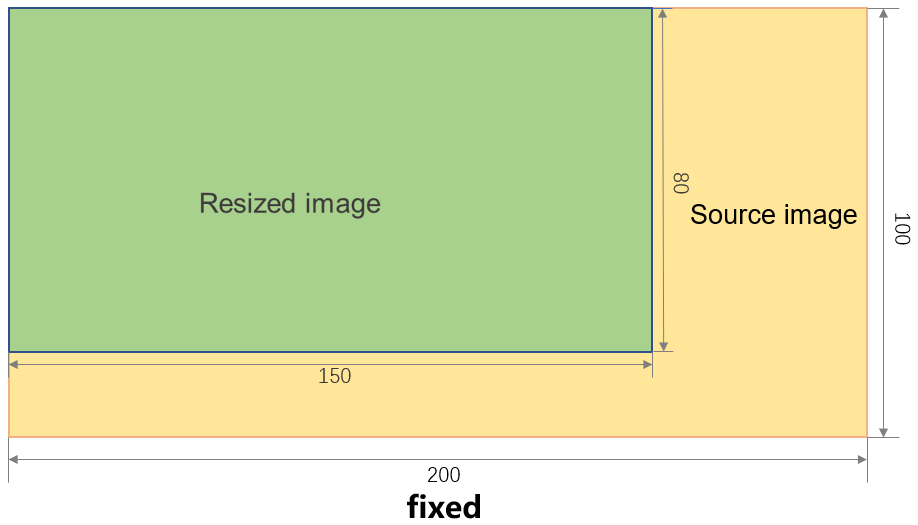
Scaling methods
|
Original image size |
Target size |
Scaling mode |
Scaled size |
|
200 px × 100 px |
150 px × 80 px |
lfit (default) Scales the image proportionally to create the largest thumbnail that fits within the target dimensions. |
150 px × 75 px
|
|
mfit Scales the image proportionally to create the smallest thumbnail that completely covers the target dimensions. |
160 px × 80 px
|
||
|
fill Scales the image proportionally to completely cover the target width and height, then crops the excess to match the target dimensions. |
150 px × 80 px
|
||
|
pad Scales the image proportionally to fit within the target width and height, then pads the remaining area with a solid color to match the target dimensions. |
150 px × 80 px
|
||
|
fixed Scales the image to the exact width and height, ignoring its aspect ratio. This may distort the image. |
150 px × 80 px
|
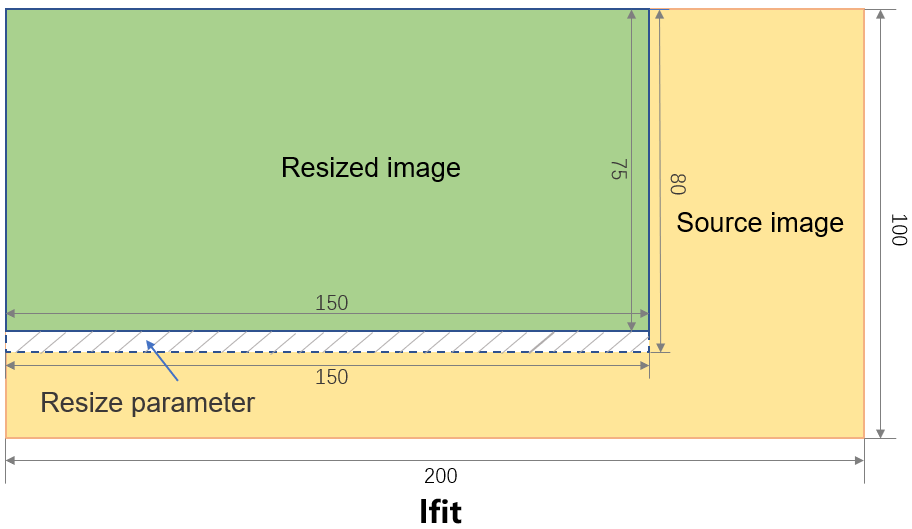
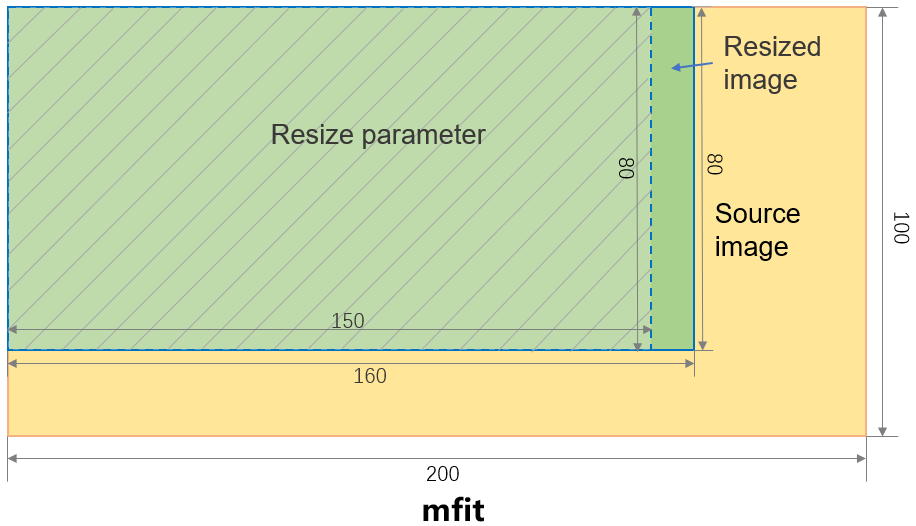
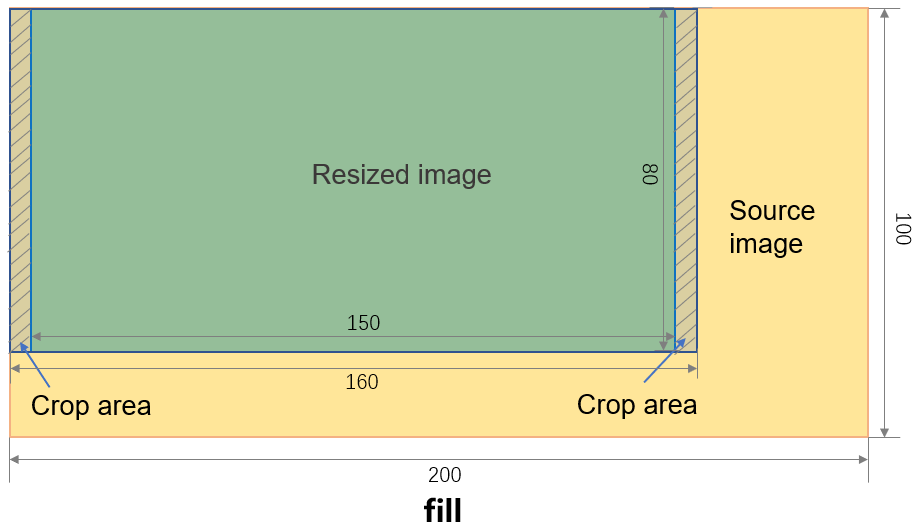
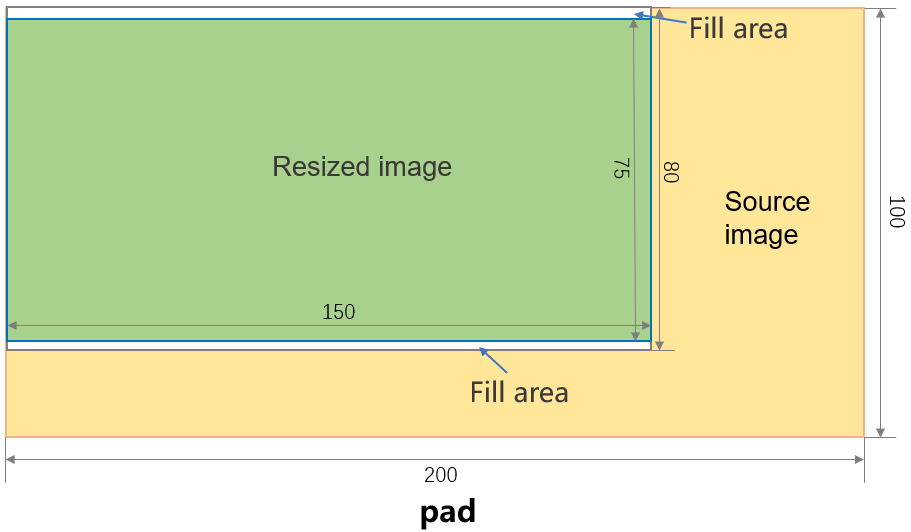
For the lfit and mfit modes, if a scaling calculation results in a decimal value, the dimensions are rounded to the nearest integer.
Examples
Scale down proportionally
Append ?x-oss-process=image/resize,p_{percentage} to an image URL to scale it proportionally. image/resize specifies the resize operation; p specifies the percentage. A p value in [1, 100] scales the image down. The value of p must be a positive integer.
Example
The following is an example of using ?x-oss-process=image/resize,p_50 to resize an image to 50% of its original size:
|
Item |
Source image |
Processed image |
|
Preview |
|
|
|
URL |
Source image URL: https://oss-console-img-demo-cn-hangzhou-3az.oss-cn-hangzhou.aliyuncs.com/example1.jpg |
Processed image URL: https://oss-console-img-demo-cn-hangzhou-3az.oss-cn-hangzhou.aliyuncs.com/example1.jpg?x-oss-process=image/resize,p_50 |
|
Dimensions |
2500 x 1875 px |
1250 x 938 px |


Scale up proportionally
Append ?x-oss-process=image/resize,p_{percentage} to an image URL to scale it proportionally. image/resize specifies the resize operation; p specifies the percentage. A p value in [100, 1000] scales the image up. The value of p must be a positive integer.
Example
The following is an example of using ?x-oss-process=image/resize,p_120 to scale up an image to 120% of its original size:
|
Item |
Source image |
Processed image |
|
Preview |
|
|
|
URL |
Source image URL: https://oss-console-img-demo-cn-hangzhou-3az.oss-cn-hangzhou.aliyuncs.com/example1.jpg |
Processed image URL: https://oss-console-img-demo-cn-hangzhou-3az.oss-cn-hangzhou.aliyuncs.com/example1.jpg?x-oss-process=image/resize,p_120 |
|
Dimensions |
2500 x 1875 px |
3000 x 2250 px |


Fixed-width scale down
Append ?x-oss-process=image/resize,w_{width} to an image URL to scale it proportionally to the specified width. image/resize specifies the resize operation; w specifies the desired width. The value range of w is [1,16384]. The value of w must be a positive integer.
Example
The following is an example of using ?x-oss-process=image/resize,w_200 to scale down an image to a fixed width of 200 pixels and a proportional height:
|
Item |
Source image |
Processed image |
|
Preview |
|
|
|
URL |
Source image URL: https://oss-console-img-demo-cn-hangzhou-3az.oss-cn-hangzhou.aliyuncs.com/example1.jpg |
Processed image URL: https://oss-console-img-demo-cn-hangzhou-3az.oss-cn-hangzhou.aliyuncs.com/example1.jpg?x-oss-process=image/resize,w_200 |
|
Dimensions |
2500 x 1875 px |
200 x 150 px |


Fixed-width scale up
Append ?x-oss-process=image/resize,w_{width} to an image URL to scale it proportionally to the specified width. image/resize specifies the resize operation; w specifies the desired width. The value of w must be in the range of [1,16384]. The value of w must be a positive integer.
By default, if the target dimensions are larger than the source image, OSS returns the source image. To allow upscaling, you must add the limit_0 parameter.
Example
The following is an example of using ?x-oss-process=image/resize,w_3000,limit_0 to scale up an image to a fixed width of 3000 pixels while scaling the height proportionally:
|
Item |
Source image |
Processed image |
|
Preview |
|
|
|
URL |
Source image URL: https://oss-console-img-demo-cn-hangzhou-3az.oss-cn-hangzhou.aliyuncs.com/example1.jpg |
Processed image URL: https://oss-console-img-demo-cn-hangzhou-3az.oss-cn-hangzhou.aliyuncs.com/example1.jpg?x-oss-process=image/resize,w_3000,limit_0 |
|
Dimensions |
2500 x 1875 px |
3000 x 2250 px |

Fixed-height scale down
Append ?x-oss-process=image/resize,h_{height} to an image URL to scale it proportionally to the specified height. image/resize specifies the resize operation; h specifies the desired height. The value range for h is [1,16384]. The value of h must be a positive integer.
Example
The following example uses ?x-oss-process=image/resize,h_100 to scale down an image to a fixed height of 100 pixels and a proportional width:
|
Item |
Source image |
Processed image |
|
Preview |
|
|
|
URL |
Source image URL: https://oss-console-img-demo-cn-hangzhou-3az.oss-cn-hangzhou.aliyuncs.com/example1.jpg |
Processed image URL: https://oss-console-img-demo-cn-hangzhou-3az.oss-cn-hangzhou.aliyuncs.com/example1.jpg?x-oss-process=image/resize,h_100 |
|
Dimensions |
2500 x 1875 px |
133 x 100 px |

Fixed-height scale up
Append ?x-oss-process=image/resize,h_{height} to an image URL to scale it proportionally to the specified height. image/resize specifies the resize operation; h specifies the desired height. The value of h is in the range of [1,16384]. The value of h must be a positive integer.
By default, if the target dimensions are larger than the source image, OSS returns the source image. To allow upscaling, you must add the limit_0 parameter.
Example
The following example uses ?x-oss-process=image/resize,h_2000,limit_0 to set the image height to 2000 pixels and scale the width proportionally.
|
Item |
Source image |
Processed image |
|
Preview |
|
|
|
URL |
Source image URL: https://oss-console-img-demo-cn-hangzhou-3az.oss-cn-hangzhou.aliyuncs.com/example1.jpg |
Processed image URL: https://oss-console-img-demo-cn-hangzhou-3az.oss-cn-hangzhou.aliyuncs.com/example1.jpg?x-oss-process=image/resize,h_2000,limit_0 |
|
Dimensions |
2500 x 1875 px |
2667 x 2000 px |

Scale by longer edge
Scales the image based on the specified longer edge. The shorter edge adjusts proportionally. The m parameter has no effect in this mode.
Append image/resize,l_{length} to an image URL. image/resize specifies the resize operation; l specifies the longer edge. The value range for l is [1,16384], and the value of l must be a positive integer.
By default, if the target dimensions are larger than the source image, OSS returns the source image. To allow upscaling, you must add the limit_0 parameter.
Example
The following is an example of using ?x-oss-process=image/resize,l_200 to scale an image by setting the longer edge to 200 and proportionally scaling the shorter edge:
|
Item |
Source image |
Processed image |
|
Preview |
|
|
|
URL |
Source image URL: https://oss-console-img-demo-cn-hangzhou-3az.oss-cn-hangzhou.aliyuncs.com/example1.jpg |
Processed image URL: https://oss-console-img-demo-cn-hangzhou-3az.oss-cn-hangzhou.aliyuncs.com/example1.jpg?x-oss-process=image/resize,l_200 |
|
Dimensions |
2500 x 1875 px |
200 x 150 px |

Scale by shorter edge
Scales the image based on the specified shorter edge. The longer edge adjusts proportionally. The m parameter has no effect in this mode.
Append image/resize,s_{length} to an image URL. image/resize specifies the resize operation; s specifies the shorter edge. The value of s must be in the range of [1,16384], and the value of s must be a positive integer.
By default, if the target dimensions are larger than the source image, OSS returns the source image. To allow upscaling, you must add the limit_0 parameter.
Example
The following is an example of using ?x-oss-process=image/resize,s_200,limit_0 to set the shorter edge to 200 and scale the longer edge proportionally:
|
Item |
Source image |
Processed image |
|
Preview |
|
|
|
URL |
Source image URL: https://oss-console-img-demo-cn-hangzhou-3az.oss-cn-hangzhou.aliyuncs.com/example1.jpg |
Processed image URL: https://oss-console-img-demo-cn-hangzhou-3az.oss-cn-hangzhou.aliyuncs.com/example1.jpg?x-oss-process=image/resize,s_200 |
|
Dimensions |
2500 x 1875 px |
267 x 200 px |

Scale and pad
Resizes an image to fit within the specified width and height while preserving its aspect ratio, then pads the remaining space with a color.
Append image/resize,m_pad,w_{width},h_{height},color_{RGB} to an image URL. image/resize specifies the resize operation; m_pad scales the image to fit within the specified w and h. The color parameter sets the padding color (default: white). w is the desired width and h is the desired height. Both w and h accept values in [1,16384]. The values of w and h must be positive integers.
Examples
The following is an example of using ?x-oss-process=image/resize,m_pad,w_100,h_100 to resize an image by padding to a fixed width and height of 100 pixels:
|
Item |
Source image |
Processed image |
|
Preview |
|
|
|
URL |
Source image URL: https://oss-console-img-demo-cn-hangzhou-3az.oss-cn-hangzhou.aliyuncs.com/example1.jpg |
|
|
Dimensions |
2500 x 1875 px |
100 x 100 px |

The following is an example of using ?x-oss-process=image/resize,m_pad,w_100,h_100,color_FF0000 to scale an image by padding, fixing both the width and height at 100 pixels and setting the padding color to red:
|
Item |
Source image |
Processed image |
|
Preview |
|
|
|
URL |
Source image URL: https://oss-console-img-demo-cn-hangzhou-3az.oss-cn-hangzhou.aliyuncs.com/example1.jpg |
|
|
Dimensions |
2500 x 1875 px |
100 x 100 px |

Scale and crop
Proportionally scales an image to cover the target dimensions, then crops excess from the center.
Append image/resize,m_fill,w_{width},h_{height} to an image URL. image/resize specifies the resize operation; m_fill scales the image to cover the rectangle defined by w and h, then crops the excess. w specifies the width and h specifies the height. Both w and h accept values in [1,16384]. The values of w and h must be positive integers.
Example
The following is an example of using ?x-oss-process=image/resize,m_fill,w_100,h_100 to center-crop and scale an image to a fixed width and height of 100 pixels:
|
Item |
Source image |
Processed image |
|
Preview |
|
|
|
URL |
Source image URL: https://oss-console-img-demo-cn-hangzhou-3az.oss-cn-hangzhou.aliyuncs.com/example1.jpg |
|
|
Dimensions |
2500 x 1875 px |
100 x 100 px |

Force-scale
Resizes an image to the exact specified width and height, ignoring the original aspect ratio. This may distort the image.
Append image/resize,m_fixed,w_{width},h_{height} to an image URL. image/resize specifies the resize operation; m_fixed applies forced scaling. w represents the desired width and h represents the desired height. Both w and h accept values in [1,16384]. The values of w and h must be positive integers.
Example
The following is an example of using ?x-oss-process=image/resize,m_fixed,w_100,h_100 to force-scale an image to a fixed width and height of 100 pixels:
|
Item |
Source image |
Processed image |
|
Preview |
|
|
|
URL |
Source image URL: https://oss-console-img-demo-cn-hangzhou-3az.oss-cn-hangzhou.aliyuncs.com/example1.jpg |
|
|
Dimensions |
2500 x 1875 px |
100 x 100 px |


Billing
Image scaling incurs the following fees. For pricing details, see OSS Pricing.
-
API
Billable item
Description
GetObject
GET requests
You are charged request fees based on the number of successful requests.
Outbound traffic over the Internet
If you call the GetObject operation by using a public endpoint, such as oss-cn-hangzhou.aliyuncs.com, or an acceleration endpoint, such as oss-accelerate.aliyuncs.com, you are charged fees for outbound traffic over the Internet based on the data size.
Retrieval of IA objects
If IA objects are retrieved, you are charged IA data retrieval fees based on the size of the retrieved IA data.
Retrieval of Archive objects in a bucket for which real-time access is enabled
If you retrieve Archive objects in a bucket for which real-time access is enabled, you are charged Archive data retrieval fees based on the size of retrieved Archive objects.
Transfer acceleration fees
If you enable transfer acceleration and use an acceleration endpoint to access your bucket, you are charged transfer acceleration fees based on the data size.
Related APIs
For advanced customization, make REST API requests directly. This requires manually calculating the signature. Signature Version 4 (Recommended).
To process an image, add image resizing parameters to the GetObject operation. For more information, see the GetObject operation.
GET /oss.jpg?x-oss-process=image/resize,p_50 HTTP/1.1
Host: oss-example.oss-cn-hangzhou.aliyuncs.com
Date: Fri, 28 Oct 2022 06:40:10 GMT
Authorization: SignatureValue