Dify on DMS FAQ
This topic covers common issues with Dify instances on DMS and how to resolve them.
Basic Dify usage
Why do I receive the "No dify api key found in request" error when I call a Dify API?
The request is missing the API key in its headers. Get the API key (DifyApiKey) for Dify on DMS, then add DifyApiKey to your request headers.
Why can't I set the API key for a model provider plugin?
Plugins are workspace-scoped resources that affect all members. Because of this, only owners and administrators can install and configure them. Your account doesn't have sufficient permissions.
Ask an administrator to grant you administrator permissions on the Settings > Members page.
For details on role permissions, seeTeam Members Management.
Plugin installation from the Marketplace fails
If the Marketplace download fails due to a network issue, download the plugin locally and install it as a local plugin instead.
Step 1: Download the plugin
Go to the Explore Marketplace tab.
Find the target plugin and click Details on the plugin card.
Click the
 icon in the upper-right corner to download.
Step 2: Install the plugin
In the upper-right corner, choose Install Plugin > Local Package File and follow the on-screen instructions.
A Dify instance with public NAT enabled cannot access the Internet
The virtual private cloud (VPC) route table for the Dify instance isn't pointing to the Internet NAT gateway, so outbound traffic can't reach the Internet. Fix this by attaching the correct route table.
Log on to the VPC console.
In the navigation pane, choose NAT Gateway > Internet NAT Gateway.
In the Instance ID/Name column, click the instance ID of the Internet NAT gateway that belongs to the Dify instance.
On the Basic Information tab, go to the VPC routes that point to the NAT gateway section and check whether a route table in the Route Table column points to the NAT gateway.
If no route table is listed, click Configure Routes and attach the route table to the Internet NAT gateway.
How do I view the VPC and CIDR block of a Dify instance?
Go to the workspace that contains the Dify instance.
Log on to the DMS console V5.0.
In the upper-left corner, click the
 icon and choose Shortcuts > Data+AI > Workspace.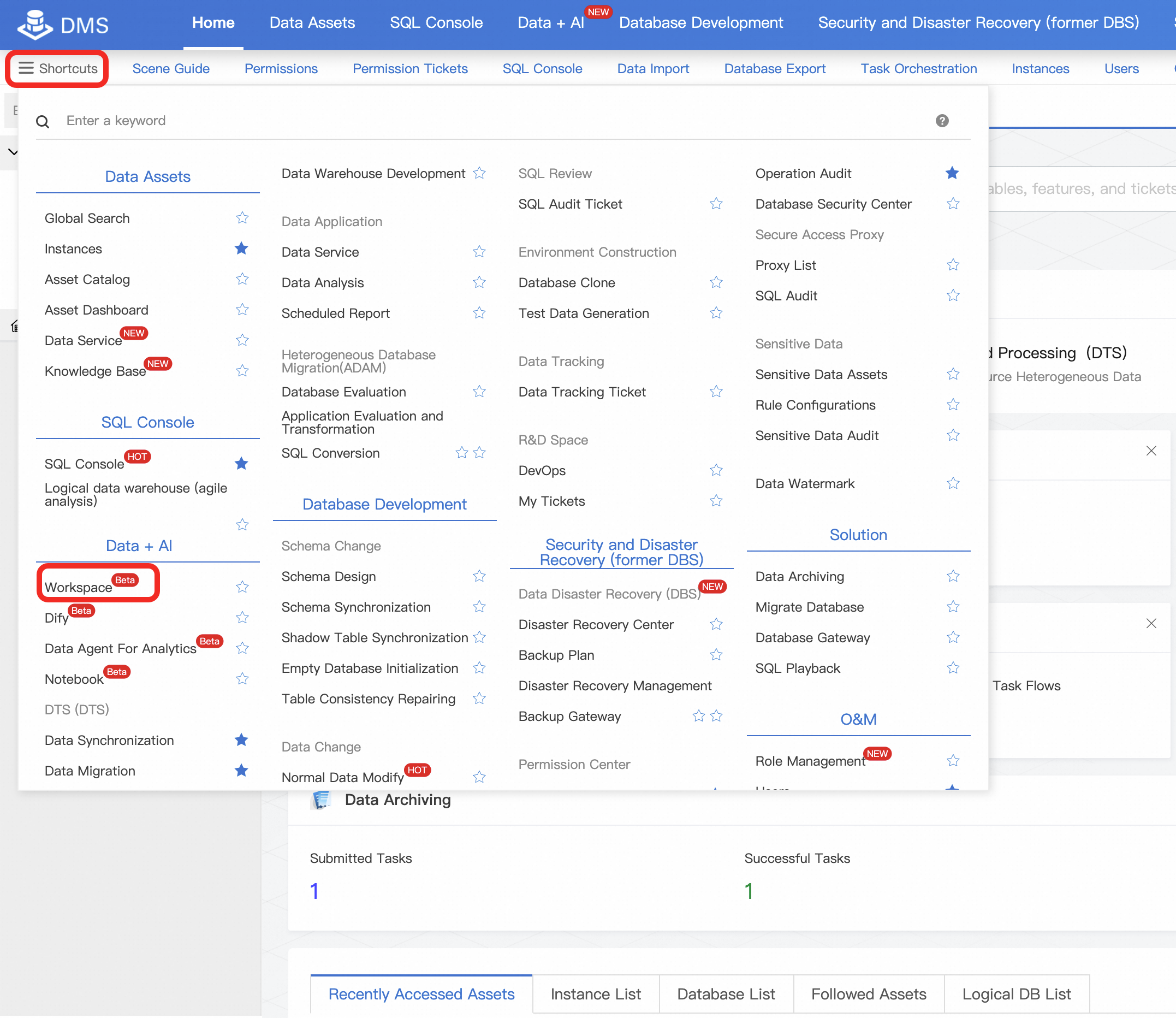
Click the target workspace name.
In the navigation pane, choose
 > Dify Resources.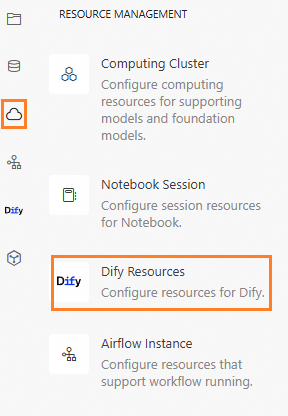
On the Modify Configuration tab, find the Network Information section on the right:
VPC ID: The ID is shown in the VPC ID field.
VPC CIDR block: Click the link next to vSwitch ID. On the vSwitch details page, find the IPv4 CIDR Block in the vSwitch Basic Information section.