Data Disaster Recovery backs up third-party cloud and self-managed Redis databases and restores them to a point in time you choose. Supported operations include full backup, incremental backup, geo-redundancy, single-database restoration, and long-term archiving.
Prerequisites
Before you begin, make sure you have:
-
A Redis 4.0 standard database using the master-replica architecture
Redis 5.0 or later is not supported. Redis cluster instances are not supported. Only standard master-replica instances are supported.
-
A backup schedule purchased with Data Source Type set to Redis and Backup Method set to Logical Backup. See Create a backup schedule
Configure a backup schedule
-
Log on to the DMS console V5.0.
-
In the top navigation bar, choose Security and Specifications (DBS) > Disaster Recovery for Data (DBS) > Backup Plan.
In simple mode, move the pointer over the
 icon in the upper-left corner and choose All Features > Security and Specifications (DBS) > Disaster Recovery for Data (DBS) > Backup Plan.
 -
On the Backup Schedules page, find the backup schedule you want to configure and click Configure Backup Schedule in the Actions column.

-
In the Configure Backup Source and Destination step, configure the following parameters and click Next.
Backup source
Parameter Description Schedule name Name for the backup schedule. Data Disaster Recovery generates a name automatically. Enter a descriptive name for easier identification. Names do not need to be unique. Backup mode The backup method. Defaults to the method selected at purchase. This example uses Logical Backup. Database location How Data Disaster Recovery connects to the source database. Options: User-Created Database with Public IP Address \<IP Address:Port Number\>, No public network IP: Port's self-built database (accessed through the database gateway), ECS-Hosted Database, or Express Connect DB/VPN Gateway/Intelligent Gateway. Each option requires additional parameters described below. Instance region The region where the source database resides. Displayed only when Database location is ECS-Hosted Database, ApsaraDB for Redis, or No public network IP: Port's self-built database (accessed through the database gateway). Database type Set to Redis by default. Gateway instance ID The ID of the database gateway. Displayed only when Database location is No public network IP: Port's self-built database (accessed through the database gateway). ECS instance ID The ID of the Elastic Compute Service (ECS) instance hosting the database. Displayed only when Database location is ECS-Hosted Database. Peer VPC The Virtual Private Cloud (VPC) where the source database resides. Displayed only when Database location is Express Connect DB/VPN Gateway/Intelligent Gateway. Address The endpoint used to connect to the source database. If a firewall is configured on the server, click Set Whitelist to get the CIDR blocks for Data Disaster Recovery and add them to the server's allowlist. Displayed only for User-Created Database with Public IP Address, No public network IP (database gateway), and Express Connect DB/VPN Gateway/Intelligent Gateway options. Port number The port used to connect to the source database. Default: 6379. Password The password for the database account. Format depends on the account type:
-
Default account: enter the password only. The default username is
default, or the instance ID (for example, r-bp10noxlhcoim2****). -
Custom account: enter credentials in
<username>:<password>format. For example, if the username istestaccountand the password isRp829dlwa, entertestaccount:Rp829dlwa. This format also works for the default account.
After entering credentials, click Test Connection to verify. If the test fails, click Check next to the failure message and update the parameters accordingly.
Compliance warranty regarding cross-border data transfers Select the check box to agree to the compliance commitment. Backup destination
Parameter Description Backup storage type Where backup data is stored. DBS Storage (recommended): Data Disaster Recovery manages storage directly — no Object Storage Service (OSS) bucket required. Charged by data volume. See Storage fees. OSS For User: requires an existing OSS bucket with the Standard storage class. See Create buckets. For large data volumes, subscription storage plans are more cost-efficient than pay-as-you-go. Storage encryption Encryption method for stored backup data. Encrypted (recommended): uses AES-256 with OSS server-side encryption. OSS encrypts objects on upload and decrypts them on download. Non-encrypted: stored data is not encrypted. 
-
-
In the Edit Backup Objects step, find the database or table to back up in the Available section. Click the rightwards arrow to move it to the Selected section, then click Next.
Data Disaster Recovery supports backing up a single table, a single database, or multiple databases. Click Select All in the lower-left corner of the Available section to select all databases. Databases created after the backup schedule is set up are not included automatically — add them later via Modify backup objects.
-
In the Configure Backup Time step, configure the following parameters and click Next.
Parameter Description Full-scale backup frequency Periodic Backup: runs on a recurring schedule. Single Backup: runs once. Selecting Periodic Backup requires the two parameters below. Full data backup recurrence The days of the week to run the backup. Select at least one day. Start at The time the backup starts. Set this during off-peak hours (for example, 01:00). If a previous backup is still running at the scheduled start time, Data Disaster Recovery skips that run. Incremental backup Whether to enable incremental backup. Displayed only for Periodic Backup. Maximum concurrent threads for full data backup The number of concurrent threads for the backup. Reduce this value to minimize impact on database performance. Maximum speed for full data backup The maximum backup speed in MB/s. Limits per-thread performance impact on the Redis instance. The default value works for most cases. -
In the Edit Lifecycle step, set the retention period for full backup data. If you enabled incremental backup in step 6, also set the retention period for incremental backup data. For lifecycle rule details, see How do I manage the lifecycle rules of backup sets?
-
Click Precheck in the lower-right corner.
-
When the Precheck Passed message appears, click Start Task. When the backup schedule's state changes to Running, the schedule is active. If an error occurs, troubleshoot it immediately — see How do I fix errors for an abnormal backup schedule. If the issue persists, contact technical support in the DingTalk group (ID: 35585947).
Restore data
Data Disaster Recovery can restore your backup data to either an ApsaraDB for Redis instance or a self-managed Redis instance. To start a restore task:
-
Log on to the DMS console V5.0.
-
In the top navigation bar, choose Security and Specifications (DBS) > Disaster Recovery for Data (DBS) > Backup Plan.
In simple mode, move the pointer over the
icon in the upper-left corner and choose All Features > Security and Specifications (DBS) > Disaster Recovery for Data (DBS) > Backup Plan. -
On the Backup Schedules page, find the backup schedule and click Manage in the Actions column.
-
On the Configure Task page, click Restore Database in the upper-right corner.
-
In the Set Time Restored To step, configure the following parameters and click Next.

Parameter Description Task name Name for the restore task. Data Disaster Recovery generates a name automatically. Enter a descriptive name for easier identification. Task names do not need to be unique. Time range available to restore The restorable window — from the first full backup to the latest full backup. With incremental backup enabled, the window extends to the last incremental backup. Restore to The point in time to restore to. Must be within the time range shown above. With incremental backup enabled, restore to any point from the first full backup to the last incremental backup. Without incremental backup, restore only to a point when a full backup completed. Database location Select the connection method for the destination. See the destination-specific details below. Instance region The region where the destination database or instance resides. Database type Set to Redis by default. The remaining parameters in this step depend on your restore destination:
Restore to ApsaraDB for Redis
Create a Tair (Redis OSS-compatible) instance before you proceed. See Step 1: Create an instance.
Set Database location to ApsaraDB for Redis, then configure:
Parameter Description The ID of the Redis instance The ID of the destination ApsaraDB for Redis instance. Password The password of the account used to connect to the destination instance. Compliance warranty regarding cross-border data transfers Select the check box to agree to the compliance commitment. Restore to a self-managed Redis instance
Set Database location to the connection method for your self-managed database: User-Created Database with Public IP Address \<IP Address:Port Number\>, No public network IP: Port's self-built database (accessed through the database gateway), ECS-Hosted Database, or Express Connect DB/VPN Gateway/Intelligent Gateway. Then configure:
Parameter Description Gateway instance ID The ID of the database gateway. Displayed only when Database location is No public network IP: Port's self-built database (accessed through the database gateway). Address The endpoint used to connect to the destination database. If a firewall is configured, click Set Whitelist to get the CIDR blocks for Data Disaster Recovery and add them to the server's allowlist. Displayed only for User-Created Database with Public IP Address, No public network IP (database gateway), and Express Connect DB/VPN Gateway/Intelligent Gateway options. Port number The port used to connect to the destination database. Default: 6379. Password The password of the account used to connect to the destination database. Compliance warranty regarding cross-border data transfers Select the check box to agree to the compliance commitment. -
In the Configure Objects to Restore step, configure the following parameters and click Precheck.
Parameter Description Conflict handling By default, Rename Object with the Same Name is selected. If the database or table to be restored shares a name with an existing object in the destination, the restored object is renamed in the format <original_name>_dbs_<restore_task_ID>_<timestamp>. For example, ajob_infotable conflict producesjob_info_dbs_<restore task ID>_<timestamp>.Objects to restore Select the database or table in the Available section and click the rightwards arrow to add it to the Selected section. Data Disaster Recovery supports restoring individual databases or tables, which reduces the amount of data transferred and shortens the recovery time objective (RTO). See Supported database types and features for granularity details. -
When the Precheck Passed message appears, click Start Task. Track progress under Restore Tasks in the left-side navigation pane. Restoration duration depends on the backup schedule's specifications and the database size — higher-spec backup schedules restore faster. See Performance tests on backup and restoration.
FAQ
Why can't I select a destination instance when configuring a restore task?
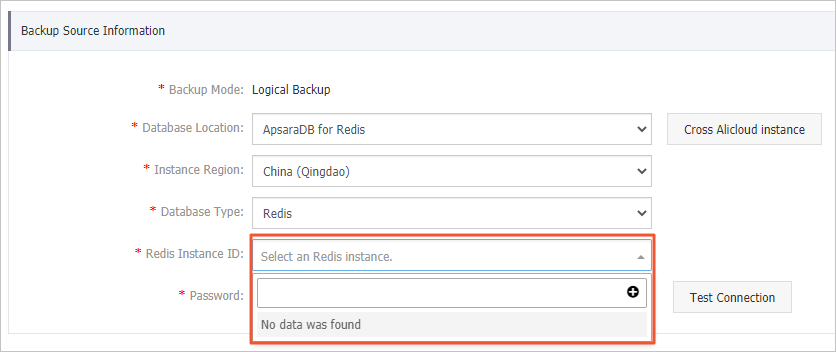
Data Disaster Recovery supports only Redis 4.0 standard databases that use the master-replica architecture. Redis 5.0 or later and Redis cluster instances are not supported.
What's next
-
Manage a backup schedule: modify the backup source, backup objects, or backup policy (schedule and retention). See Manage a backup schedule.
-
Pause a schedule: pause a backup schedule you don't currently need to avoid unnecessary charges. See Pause or start a backup schedule.
-
Review billing: understand what fees apply to your backup schedule. See Billing FAQ.
-
Use the API: call
CreateBackupPlanto create a backup schedule, orCreateAndStartBackupPlanto create, configure, and start one in a single operation. See CreateBackupPlan and CreateAndStartBackupPlan.