Data Disaster Recovery supports single-table restoration, geo-redundancy, and long-term archiving for PostgreSQL databases. This topic describes how to configure a logical backup schedule for a PostgreSQL database hosted on a third-party cloud or as a self-managed database, and how to restore data from that backup.
Incremental backup is not supported for PostgreSQL. Only full backups are available. Schedule your backup window during off-peak hours to minimize the data loss window.
Prerequisites
Before you begin, make sure that you have:
-
A backup schedule already purchased. When purchasing, set Data Source Type to Oracle and Backup Method to Logical Backup. For details, see Create a backup schedule. For information about the granularity based on which Data Disaster Recovery backs up and restores PolarDB for PostgreSQL (Compatible with Oracle) databases, see Supported database types and features.
-
A database account with read permissions on the PostgreSQL database you want to back up.
-
Network connectivity between Data Disaster Recovery and your database. If a firewall is configured on the database server, add the Data Disaster Recovery CIDR blocks to the server's whitelist. Click Set Whitelist in the console to get those CIDR blocks.
-
(Required for gateway-based access) A configured Database Gateway instance.
-
(Required for VPC-based access) A configured virtual private cloud (VPC) via Express Connect, VPN Gateway, or Intelligent Gateway.
Configure a backup schedule
-
Log on to the DMS console V5.0.
-
In the top navigation bar, choose Security and Specifications (DBS) > Disaster Recovery for Data (DBS) > Backup Plan.
If you use the DMS console in simple mode, move the pointer over the
 icon in the upper-left corner and choose All Features > Security and Specifications (DBS) > Disaster Recovery for Data (DBS) > Backup Plan.
 -
On the Backup Schedules page, find the backup schedule you want to configure and click Configure Backup Schedule in the Actions column.

-
In the Configure Backup Source and Destination step, configure the following parameters and click Next.
General
Parameter Description Schedule Name A name for the backup schedule. Data Disaster Recovery generates a name automatically. Backup schedule names do not need to be unique. Backup source information
Parameter Description Backup Mode The backup method. Defaults to the method selected at purchase. This example uses Logical Backup. Database Location The network path to your database. See the table below for options and required parameters. Instance Region The region where the source database instance resides. Database Type The database type. Defaults to PostgreSQL. Port Number The port number used to connect to the source database. Default value: 1521. Database Name The name of the database to back up. Database Account The username of the account used to connect to the database. The account must have read permissions on the database. Password The password of the database account. After entering credentials, click Test Connection to validate. If Test Passed appears, the configuration is valid. If Test Failed appears, click Check to identify the issue. Compliance warranty regarding cross-border data transfers Read and accept the compliance commitment by selecting the checkbox. Database Location options
Option Additional required parameters User-Created Database with Public IP Address \<IP Address:Port Number\> Address, Port Number ECS-Hosted Database ECS Instance ID, Port Number Express Connect DB/VPN Gateway/Intelligent Gateway Peer VPC No public network IP: Port's self-built database (accessed through the database gateway) Gateway Instance ID, Address PolarDB PolarDB Instance ID Backup destination information
Parameter Description Backup Storage Type Where backup data is stored. DBS Storage (recommended) stores data directly in Data Disaster Recovery—no Object Storage Service (OSS) bucket needed, billed by volume. OSS For User requires a pre-created OSS bucket (Standard storage class only); configure OSS Bucket Name if you select this option. For large data volumes, subscription storage plans are more cost-efficient than pay-as-you-go. Storage Encryption Encrypted (recommended) uses AES-256 with OSS server-side encryption. Non-encrypted stores data without encryption. 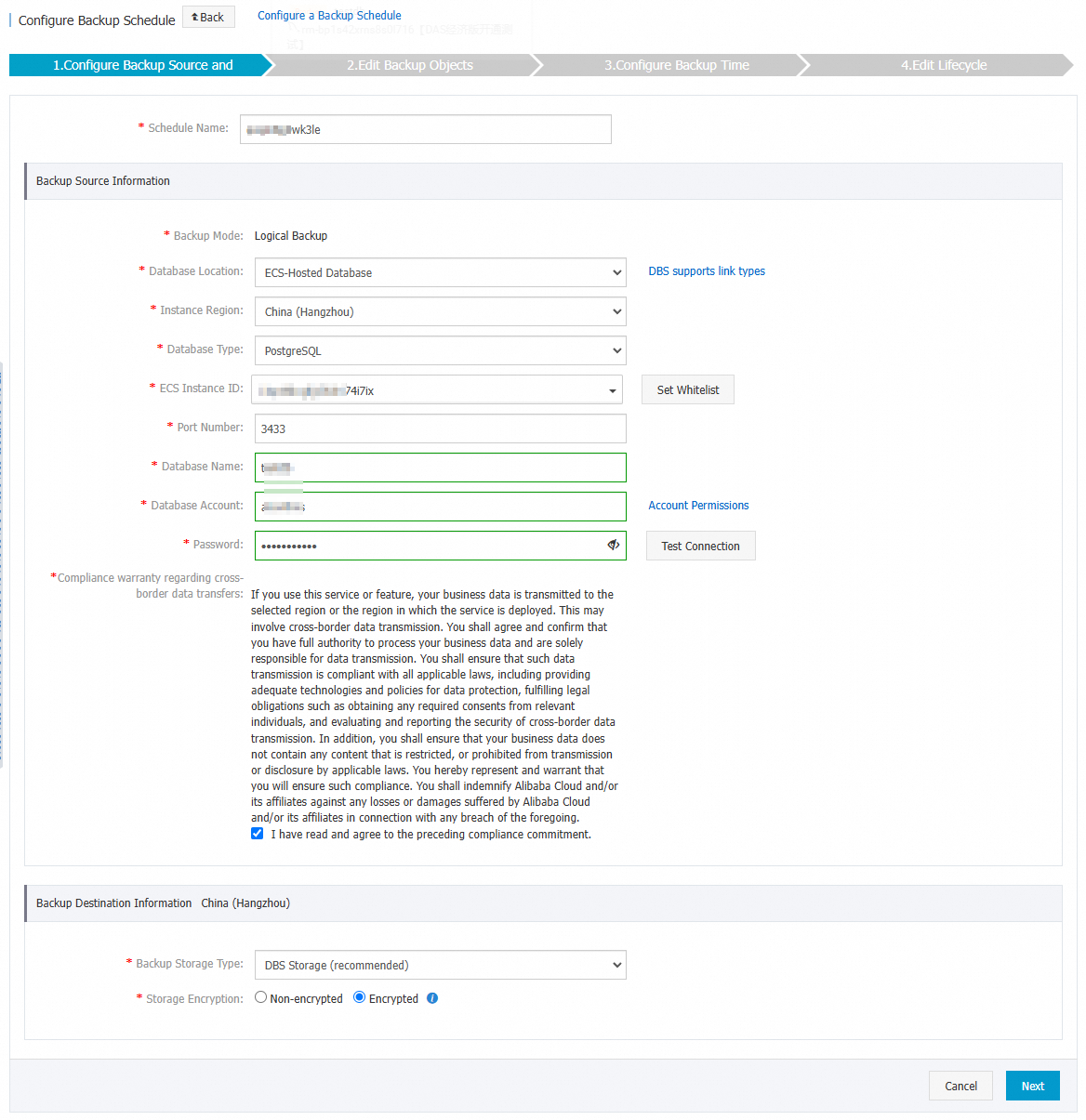
-
In the Edit Backup Objects step, select the databases or tables to back up from the Available section and click the rightwards arrow to move them to the Selected section. Then click Next.
Click Select All in the lower-left corner of the Available section to select all databases. Databases created after this backup schedule is set up are not included automatically—add them later via the Configure Task page. For details, see Modify backup objects.
-
In the Configure Backup Time step, configure the following parameters and click Next.
Parameter Description Full-scale Backup Frequency Periodic Backup runs on a recurring schedule. Single Backup runs once. If you select Periodic Backup, also configure Full Data Backup Recurrence and Start At. Full Data Backup Recurrence The days of the week to run the backup. Select at least one day. Start At The backup start time. Set this during off-peak hours to reduce impact on the database—for example, 01:00. If a previous full backup is still running at the scheduled start time, Data Disaster Recovery skips the next run. Incremental Backup Not supported for PostgreSQL. Maximum Concurrent Threads for Full Data Backup The maximum number of threads for a full backup. Reduce this value to minimize the impact on database performance during backup. Backup network speed limit Network bandwidth cap in MB/s. The default value 0 means unlimited. -
In the Edit Lifecycle step, configure the retention lifecycle for full backup sets in the Configure Full Data Backup Lifecycle section.
For details on managing backup set lifecycle rules, see the How do I manage the lifecycle rules of backup sets? section of the "FAQ for Data Disaster Recovery" topic.
-
After completing all steps, click Precheck in the lower-right corner.
-
When Precheck Passed appears, click Start Task. When the backup schedule status changes to Running, the schedule is active.
If an error occurs when starting the backup schedule, resolve it as soon as possible. See the How do I fix errors for an abnormal backup schedule? section of the "FAQ for Data Disaster Recovery" topic. If the issue persists, contact technical support via the DingTalk group (ID: 35585947).
Restore backup data
-
Log on to the DMS console V5.0.
-
In the top navigation bar, choose Security and Specifications (DBS) > Disaster Recovery for Data (DBS) > Backup Plan.
If you use the DMS console in simple mode, move the pointer over the
icon in the upper-left corner and choose All Features > Security and Specifications (DBS) > Disaster Recovery for Data (DBS) > Backup Plan. -
On the Backup Schedules page, find the backup schedule and click Manage in the Actions column.
-
On the Configure Task page, click Restore Database in the upper-right corner.
-
In the Set Time Restored To step of the Create Restore Task wizard, configure the following parameters and click Next.
General
Parameter Description Task Name A name for the restore task. Data Disaster Recovery generates a name automatically. Task names do not need to be unique. Configure destination database
Parameter Description Database Location The network path to the destination database. Options: User-Created Database with Public IP Address \<IP Address:Port Number\>, ECS-Hosted Database, Express Connect DB/VPN Gateway/Intelligent Gateway, PolarDB, No public network IP: Port's self-built database (accessed through the database gateway). Database Type The database type. Defaults to Oracle. Instance Region Available only if Database Location is set to ECS-Hosted Database, PolarDB, or No public network IP: Port's self-built database (accessed through the database gateway). Address Available only if Database Location is set to User-Created Database with Public IP Address \<IP Address:Port Number\>, Express Connect DB/VPN Gateway/Intelligent Gateway, or No public network IP: Port's self-built database (accessed through the database gateway). Port Number The port used to connect to the destination database. Not displayed when Database Location is set to PolarDB. ECS Instance ID Available only if Database Location is set to ECS-Hosted Database. PolarDB Cluster ID Available only if Database Location is set to PolarDB. Peer VPC Available only if Database Location is set to Express Connect DB/VPN Gateway/Intelligent Gateway. Gateway Instance ID Available only if Database Location is set to No public network IP: Port's self-built database (accessed through the database gateway). SID The system identifier (SID) of the destination database. Database Account The username of the account used to connect to the destination database. Password The password of the database account. Click Test Connection to validate after entering credentials. Compliance warranty regarding cross-border data transfers Read and accept the compliance commitment by selecting the checkbox. 
-
In the Configure Objects to Restore step, configure the following parameters and click Precheck.
Parameter Description Conflict Handling Defaults to Rename Object with the Same Name. For example, if the job_infotable conflicts with an existing table in the destination, the restored table is renamed tojob_info_dbs_<Restore task ID>_<Timestamp>.Objects to Restore Select the databases or tables to restore from the Available section and click the rightwards arrow to move them to the Selected section. You can restore at the database or table level to reduce the amount of data transferred and shorten the recovery time objective (RTO). For supported granularity, see Supported database types and features. -
When Precheck Passed appears in the Precheck dialog box, click Start Task. To track restore progress, click Restore Tasks in the left navigation pane.
Restore duration depends on the backup schedule specifications and database size. Higher-specification backup schedules complete restores faster. For performance benchmarks, see Performance tests on backup and restoration.
More operations
-
Create a backup schedule via API: Use CreateBackupPlan to create a backup schedule, or CreateAndStartBackupPlan to create, configure, and start one in a single call.
-
Manage a backup schedule: Modify the backup source, backup objects, schedule frequency, or retention policy. See Manage a backup schedule.
-
Review billing: Check fees for your backup schedule. See Billing FAQ.
-
Pause a backup schedule: Reduce costs by pausing a schedule you no longer need. See Pause or start a backup schedule.
FAQ
What do I do if the Precheck fails with a database permissions error?
The precheck fails because the database account does not have read permissions on the database. Grant read permissions to the account, or switch to a database account that already has read permissions.