Database Backup Service (DBS) lets you create custom backup policy templates. A template includes settings such as backup method, storage type, backup frequency, backup cycle, and start time. This topic describes how to create a backup policy template to streamline your database backup management.
Procedure
Log on to the DBS console.
-
In the left-side navigation pane, click Backup Strategies. Then, select a target region in the top navigation bar.
-
Click Add Backup Policy.
-
On the Create Policy Template page, enter a Backup Policy Name.
-
Configure the backup policy template and click OK.
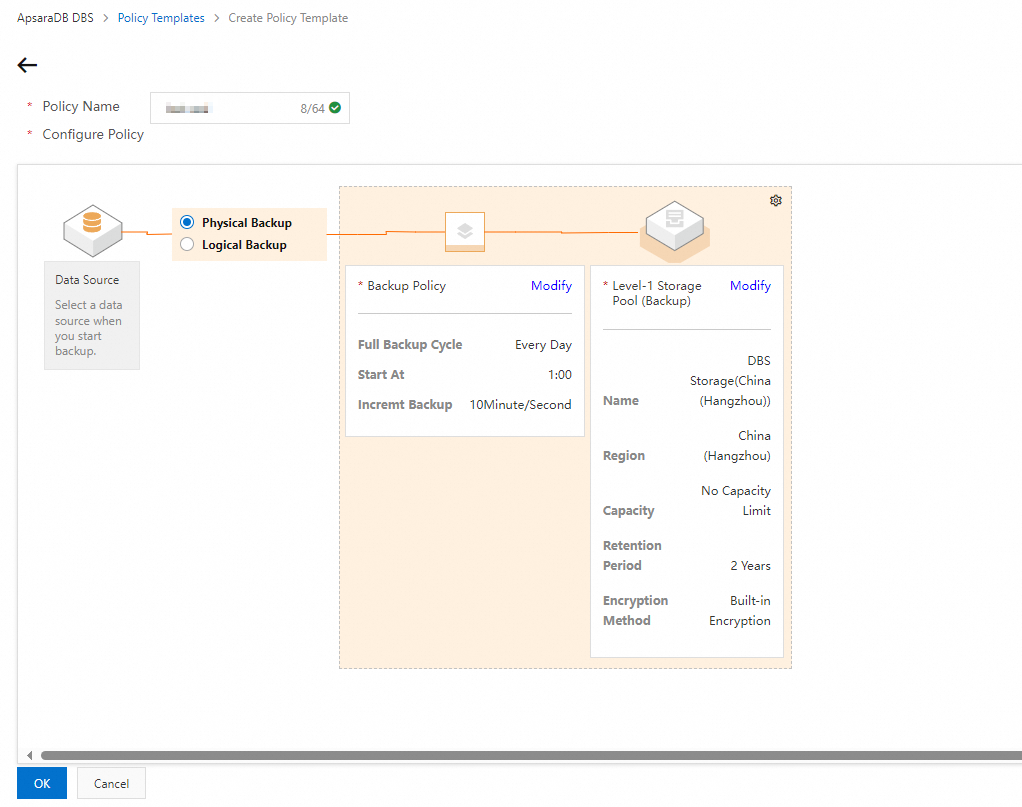
-
Select a backup method.
-
Logical Backup: Supports RDS instances, PolarDB instances, ApsaraDB for Redis, ApsaraDB for MongoDB, on-premises databases, and self-managed databases on ECS.
-
Physical Backup: Supports only self-managed databases.
NoteThis parameter cannot be modified after the template is created. For more information, see Supported database engines and features.
-
-
Next to Backup Policies, click Edit, configure the template settings, and then click OK.
Parameter
Description
Full Backup Method
The method for performing full backups. Valid values:
-
Periodic Backup: Performs full backups based on the specified cycle.
-
Single Backup
Full Backup Frequency
Default value: Every Week. You can perform one to seven backups per week.
NoteThis parameter is displayed only when Full Backup Method is set to Periodic Backup.
Full Backup Cycle
Select the days of the week to perform full backups. You can select any day from Monday to Sunday.
Start At
Select the start time for each backup.
NoteIf a previous full backup task is still running at the scheduled start time, the system automatically skips the current backup task.
Incremental Backup Interval
Set the interval for incremental backups. Default: 10 minutes. The interval can range from 10 to 60 minutes.
For example, if you set the interval to 10 minutes, the system performs an incremental backup every 10 minutes.
Note-
This parameter is displayed only when the backup method is set to Physical Backup.
-
If you select Logical Backup and DBS supports incremental backups for the database (for example, MySQL), real-time incremental backup is enabled by default. To verify support, see Supported database engines and features or Backup guides for specific database engines.
-
-
Next to Level-1 Storage Pool (Backup), click Edit, configure the storage pool settings, and then click OK.
Parameter
Description
Storage type
You can select DBS Backup Storage, Apsara File Storage NAS, or OSS For User.
Note-
To use Apsara File Storage NAS or OSS For User as the storage destination, you must use Logical Backup and join the public preview program.
-
If the primary storage pool is set to Apsara File Storage NAS, you cannot configure a secondary storage pool.
-
If you have joined the public preview program and want to select Apsara File Storage NAS or OSS For User, you must first add them to a storage pool.
Storage pool
The destination for database backups. The storage pool must be in the current region.
NoteThis parameter cannot be modified after it is configured.
Retention period
Specifies how long to retain full backup data. The retention period can be from 7 to 3650 days. The default is 2 Years.
Encryption Method
The encryption method. Valid values:
-
Built-in Encryption (default): Encrypts backup data.
Object Storage Service (OSS) provides a server-side encryption feature. When you upload an object, OSS encrypts the data before storing it. When you download the object, OSS automatically decrypts it. For more information, see Server-side encryption.
-
Non-encrypted: Disables encryption for backups.
-
-
Next steps
After you create the backup policy template, you can select it when you back up a database to apply the policy to a backup schedule. For more information, see Back up databases.
Related operations
Modify a policy template
Log on to the DBS console.
-
In the left-side navigation pane, click Backup Strategies. Then, select a target region in the top navigation bar.
-
Find the target backup policy template and click Modify in the Actions column.
 Note
Note-
Some parameters cannot be modified. The settings available in the console prevail.
-
Changes to a backup policy template apply only to new backup schedules and do not affect existing ones.
-
If you need to modify the backup policy for a running backup schedule, you must modify the schedule directly. For more information, see Modify the backup policy within a backup schedule.
-
Clone a policy template
Cloning a backup policy template lets you quickly create new templates with similar settings, which improves efficiency and consistency.
Log on to the DBS console.
-
In the left-side navigation pane, click Backup Strategies. Then, select a target region in the top navigation bar.
-
Find the target backup policy template and click Clone in the Actions column.

Delete a policy template
Log on to the DBS console.
-
In the left-side navigation pane, click Backup Strategies. Then, select a target region in the top navigation bar.
-
Find the target backup policy template and click Delete in the Actions column.
 Note
NoteYou cannot delete a backup policy template that is associated with any backup schedules.
FAQ
Q: What is the relationship between the backup time set in a backup policy template and the backup time configured in a DBS backup schedule? Can they overlap?
A: A backup policy template is a reusable set of configurations for creating backup schedules. You can use a template to create backup schedules for multiple data sources at once. This approach is useful for bulk management and must be used with the data source feature. Once a backup schedule is created from a template, it becomes independent. You can modify its settings, such as the backup time, and subsequent changes to the template will not affect the schedule. Therefore, their settings do not overlap.
You can also create a DBS backup schedule without using a template. Such schedules are also independent of any backup policy templates.