The DBS multi-level storage pool feature lets you automatically replicate backups to other storage pools. You can configure a backup policy for a multi-level storage pool to manage both on-premises and cloud-based storage pools. This enables data tiering across different storage pools to improve data security and reduce backup costs.
Prerequisites
This feature is available only in the following regions: China (Hangzhou), China (Shanghai), China (Qingdao), China (Beijing), China (Zhangjiakou), and China (Shenzhen).
Announcement
The public preview of the DBS multi-level storage pool feature ended on June 20, 2022. This feature will be upgraded to a backup infrastructure and made available for scenarios such as cross-region backup and backup download. For more information, see Notice on the end of the public preview for the multi-level storage pool feature.
Overview
Hybrid cloud environments often require storing database backups in various storage pools, such as online cloud storage and on-premises Network Attached Storage (NAS). The multi-level storage pool feature provides independent management, scheduling, validation, and retention period settings for each storage pool to meet your data management needs.
Figure 1. Example of a multi-level storage pool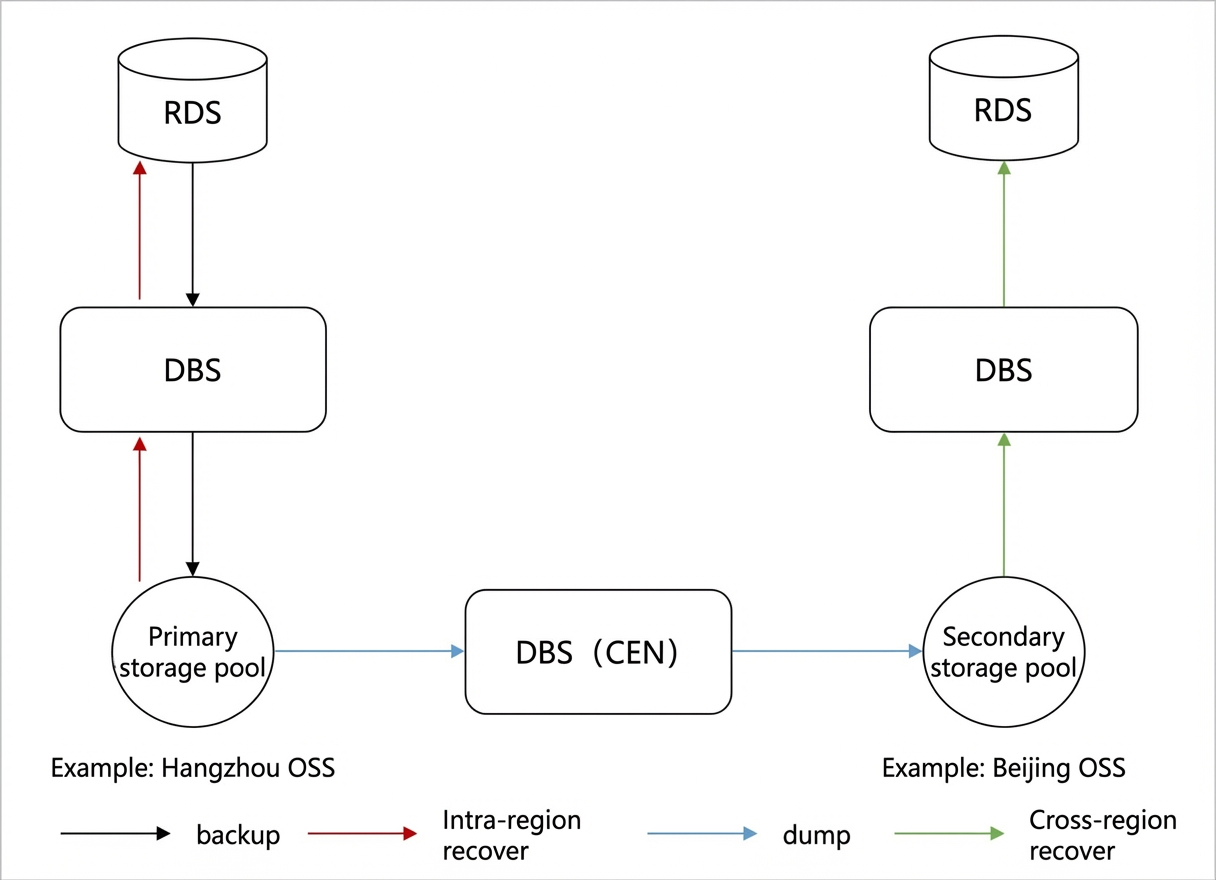
Table 1. Key concepts
|
Term |
Description |
|
data source |
The data to be backed up, such as an RDS for MySQL database, a self-managed Oracle database, or a file. For more information, see Manually add a data source. |
|
storage pool |
The storage medium for backups. Supported media include DBS built-in storage, user's OSS buckets, and self-managed NAS. For more information, see Add or delete a storage pool. |
|
backup policy |
A backup policy defines settings such as the backup cycle, retention period, and replication method for operations like full, incremental, and log backups. It allows you to perform batch backup operations for a specific type of data source based on your business scenarios. |
|
multi-level storage pool backup policy |
This policy is configured with a multi-level storage pool and applied to a target backup schedule.
|
|
dump |
Copying a backup from one storage pool to another. |
Use cases
|
Scenario |
Description |
|
geo-redundancy |
Back up data to cloud storage in a different region. For example, for a data source in Beijing, you can achieve geo-redundancy by setting the DBS built-in storage in China (Beijing) as the level-1 storage pool and the DBS built-in storage in China (Hangzhou) as the level-2 storage pool. |
|
archiving |
Archives online backups to an on-premises data center or cloud storage. For example, you can configure a daily full backup to a level-1 storage pool using DBS built-in storage in China (Beijing) with a retention period of 7 days. Then, you can configure a weekly dump to a level-2 storage pool in an on-premises data center. |
|
backup to the cloud |
|
|
On-demand archiving in the same region |
Allows you to configure multiple archiving plans with different schedules. |
Procedure
-
Go to the Backup Policies page and select a region at the top of the page.
-
In the upper-left corner of the page, click Add Backup Policy.
NoteYou can also modify an existing backup policy template. This change does not affect backup schedules already using this policy.
-
On the Create Policy Template page, configure the policy name, backup method, and the policy for the level-1 storage pool.
-
Enter a name for the backup policy.
-
Select Logical Backup or Physical Backup. This parameter cannot be changed after the policy is created.
NoteThis parameter cannot be modified after the template is created. For more information, see Supported database engines and features.
-
To the right of Backup Policy, click Modify. Configure the parameters and click OK.
Parameter
Description
Full Backup Method
The method for performing full backups. Valid values:
-
Periodic Backup: Performs full backups based on the specified cycle.
-
Single Backup
Full Backup Frequency
Default value: Every Week. You can perform one to seven backups per week.
NoteThis parameter is displayed only when Full Backup Method is set to Periodic Backup.
Full Backup Cycle
Select the days of the week to perform full backups. You can select any day from Monday to Sunday.
Start At
Select the start time for each backup.
NoteIf a previous full backup task is still running at the scheduled start time, the system automatically skips the current backup task.
Incremental Backup Interval
Set the interval for incremental backups. Default: 10 minutes. The interval can range from 10 to 60 minutes.
For example, if you set the interval to 10 minutes, the system performs an incremental backup every 10 minutes.
Note-
This parameter is displayed only when the backup method is set to Physical Backup.
-
If you select Logical Backup and DBS supports incremental backups for the database (for example, MySQL), real-time incremental backup is enabled by default. To verify support, see Supported database engines and features or Backup guides for specific database engines.
-
-
To the right of Level-1 Storage Pool (Backup), click Modify. Configure the storage pool information and click OK.
Parameter
Description
Storage type
You can select DBS Backup Storage, Apsara File Storage NAS, or OSS For User.
Note-
To use Apsara File Storage NAS or OSS For User as the storage destination, you must use Logical Backup and join the public preview program.
-
If the primary storage pool is set to Apsara File Storage NAS, you cannot configure a secondary storage pool.
-
If you have joined the public preview program and want to select Apsara File Storage NAS or OSS For User, you must first add them to a storage pool.
Storage pool
The destination for database backups. The storage pool must be in the current region.
NoteThis parameter cannot be modified after it is configured.
Retention period
Specifies how long to retain full backup data. The retention period can be from 7 to 3650 days. The default is 2 Years.
Encryption Method
The encryption method. Valid values:
-
Built-in Encryption (default): Encrypts backup data.
Object Storage Service (OSS) provides a server-side encryption feature. When you upload an object, OSS encrypts the data before storing it. When you download the object, OSS automatically decrypts it. For more information, see Server-side encryption.
-
Non-encrypted: Disables encryption for backups.
-
-
-
Hover over the
 icon and click Dump to configure the policy for the level-2 storage pool.Note
Currently, only users who participated in the public preview of the multi-level storage pool feature can configure a policy for a level-2 storage pool. If you did not participate in the public preview, this feature is unavailable. For more information, see Notice on the end of the public preview for the multi-level storage pool feature.
-
To the right of Dump Policy, click Modify. Configure the parameters and click OK.
Table 2. Parameters for level-2 storage pool (dump)
Parameter
Description
Full Dump Method
The dump method. Valid values:
-
Periodic Backup: Periodically dumps the latest backup set that has not yet been dumped to the level-2 storage pool. If no eligible backup sets are available at the scheduled time, DBS monitors for a new backup set and dumps it as soon as it is created.
For example, if the level-1 backup policy is set to perform a full backup daily, and the level-2 dump policy is set to dump every Sunday, DBS dumps only the latest full backup set to the level-2 storage pool each Sunday.
-
Event Trigger: After a full or incremental backup is completed in the level-1 storage pool, the system immediately dumps the completed backup to the level-2 storage pool.
NoteIf you select Periodic Backup, you must also configure Full Dump Cycle and Full Dump Start At.
Full Dump Frequency
Select the frequency for dumping backups.
-
If Full Dump Method is set to Periodic Backup, the following options are available:
-
Every Week (Default): You can select one or more days from Monday to Sunday.
-
Every Month: You can select one or more days from 1 to 28.
-
Every Year: You can select a specific month and day, such as January 1. Multiple selections are not supported.
-
-
If Full Dump Method is set to Event Trigger, the frequency defaults to Event Trigger.
Full Dump Cycle
Select the days for the full dump cycle.
This parameter is displayed only when Full Dump Method is set to Periodic Backup.
Full Dump Start At
Select the start time for the full dump.
This parameter is displayed only when Full Dump Method is set to Periodic Backup.
Incremental Dump
Specifies whether to dump incremental backup data. If enabled, the system dumps incremental backup data from the level-1 storage pool to the level-2 storage pool.
-
-
To the right of Level-2 Storage Pool (Dump), click Modify. Configure the storage pool information and click OK.
Table 3. Parameters for the storage pool
Parameter
Description
Storage Type
You can select DBS Built-in Storage, NAS, or OSS For User.
If you select NAS or OSS For User, you must first add it to a storage pool. For more information, see Add or delete a storage pool.
Currently, you can select NAS or OSS For User only for Logical Backup.
Storage pool
The level-2 storage pool where backup data is dumped. You cannot change this parameter after creating the policy.
-
Cross-region storage is supported. For example, you can set the level-1 storage pool to DBS built-in storage in China (Hangzhou) and the level-2 storage pool to DBS built-in storage in China (Beijing).
-
Heterogeneous storage is supported. For example, you can set the level-1 storage pool to DBS built-in storage in China (Hangzhou) and the level-2 storage pool to your on-premises NAS.
Retention Period
Enter the retention period for the dumped data. The default is 2 Years. The maximum is 10 Years, and the minimum is 1 Week. For more information, see Manage the data lifecycle.
Storage Method
The storage method. Valid values:
-
Built-in Encryption (default): Encrypts backup data.
Object Storage Service (OSS) provides a server-side encryption feature. When you upload an object, OSS encrypts the data before storing it. When you download the object, OSS automatically decrypts it. For more information, see Server-side encryption.
-
Non-encrypted: Disables encryption for backups.
-
-
-
Optional: Repeat Step 4 to create multiple level-2 storage pools.
-
Click OK.
The backup policy for the multi-level storage pool is created.
Related operations
Modify a policy template
Log on to the DBS console.
-
In the left-side navigation pane, click Backup Strategies. Then, select a target region in the top navigation bar.
-
Find the target backup policy template and click Modify in the Actions column.
 Note
Note-
Some parameters cannot be modified. The settings available in the console prevail.
-
Changes to a backup policy template apply only to new backup schedules and do not affect existing ones.
-
If you need to modify the backup policy for a running backup schedule, you must modify the schedule directly. For more information, see Modify the backup policy within a backup schedule.
-
Clone a policy template
Cloning a backup policy template lets you quickly create new templates with similar settings, which improves efficiency and consistency.
Log on to the DBS console.
-
In the left-side navigation pane, click Backup Strategies. Then, select a target region in the top navigation bar.
-
Find the target backup policy template and click Clone in the Actions column.

Delete a policy template
Log on to the DBS console.
-
In the left-side navigation pane, click Backup Strategies. Then, select a target region in the top navigation bar.
-
Find the target backup policy template and click Delete in the Actions column.
 Note
NoteYou cannot delete a backup policy template that is associated with any backup schedules.