All Products
Search
Document Center

DataWorks:DataService Studio API

Last Updated:Jun 25, 2026

Data Map lets you find DataService Studio APIs across all workspaces within the current tenant, enabling efficient discovery.

API search page

  1. Go to the Data Map page.

    Log on to the DataWorks console. In the target region, click Data Governance > Data Map in the left-side navigation pane. On the page that appears, click Go to Data Map.

  2. Above the search box, select the API category.

    image.png

Find an API

  1. In the search box under the API category, enter keywords such as API ID, APIPath, API Name, or API Description.

    As you type a keyword, a drop-down list shows the top 10 matching APIs.image.png

  2. If the API you want is not in the drop-down list, click Search to view all matches.
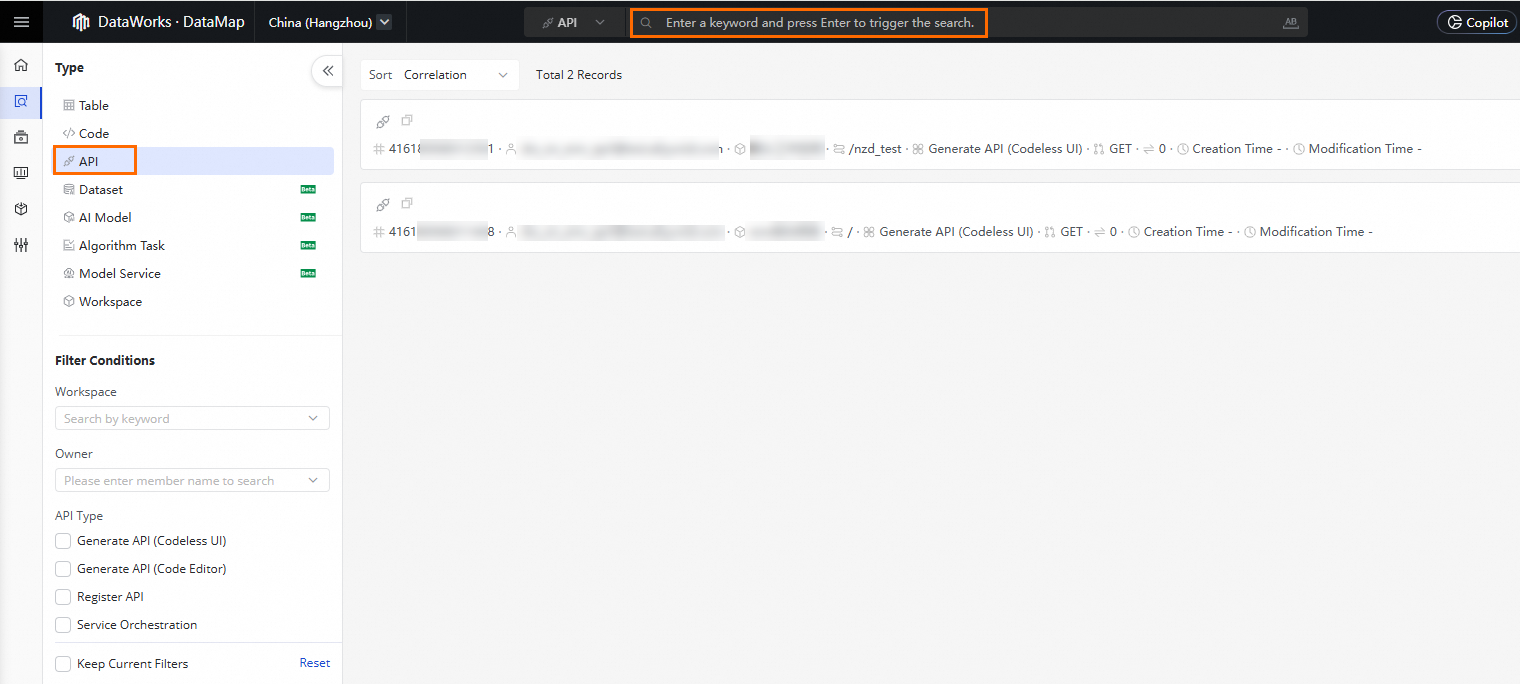
    image.png

  3. In the left-side pane, you can filter the search results by API Type, Workspace, or Owner.

  4. After you find the target API, you can click it to go to the details page. For more information, see View API details.

API details

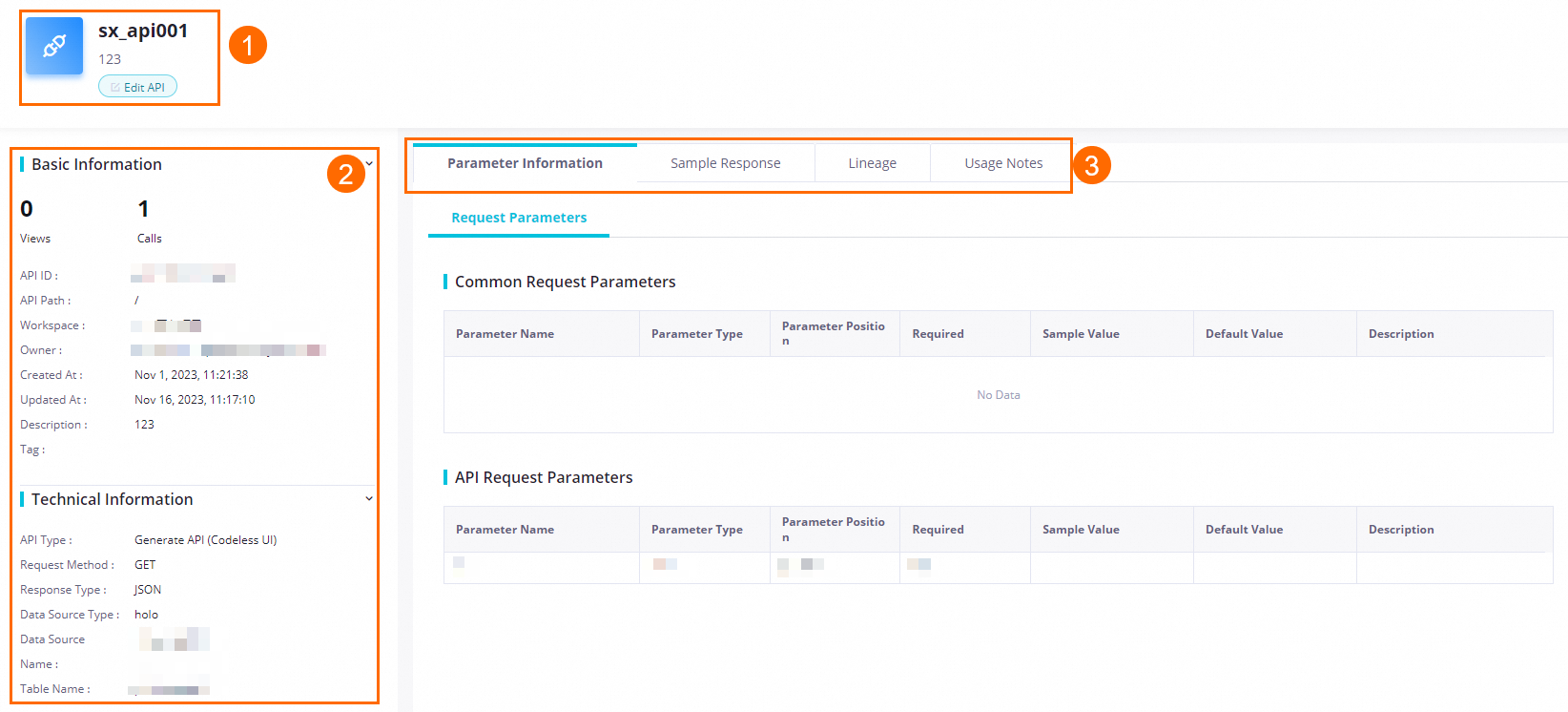
The API details page provides the API's Basic Information, Technical Information, Parameter Information, Sample Response, and Instructions. When the API is a Script Mode, the additional Code tab is also displayed.image
Area

Description

Click Edit API to open the editing window in the API's workspace. For more information, see API testing, publishing, and version management and Register an external API service.

Note

If your account is not a member of the API's workspace, contact the workspace owner and ask them to add your account as a member with the Developer role. For more information, see Manage permissions on workspace-level services.

This area shows the following API information:

  • Basic Information: Includes details such as the API's Views, Number of Calls, API ID, Workspace, Owner, Created At, Last Updated, and Description.

  • Technical Information: Includes details such as the API Type, Request Method, Response Type, Data Source Type, Data Source Name, and Table Name.

This area shows the following API information:

  • Parameter Information: Shows the Request Parameters and Response Parameters of the API.

    • Request Parameters: Includes details for Common Request Parameters and API Request Parameters, including Parameter Name, Parameter Type, Parameter Position, Sample Value, Default Value, Description, and Label.

    • Response Parameters: Includes details for Common Response Parameters and API Response Parameters, including Parameter Name, Parameter Type, Sample Value, and Description.

  • Sample Response: Before you publish an API, if you test it and select Save the correct response example automatically during the test, the sample response is updated based on the test results. For more information, see Test an API. The content and structure in the Sample Response demonstrate the API's response format.

  • Lineage Information: Shows the complete data lineage among data tables, APIs, and apps. The upstream data lineage for DataService Studio APIs supports the following data source types: Hologres, MySQL, PostgreSQL, SQL Server, Oracle, AnalyticDB for MySQL 3.0, and AnalyticDB for PostgreSQL.

    Note
    • A API Generation is created by encapsulating a data source or table. Therefore, its data lineage includes data tables, the API, and apps.

    • A Register API is created by encapsulating a backend address. Therefore, its data lineage includes only the API and apps.

    • Data lineage is generated and updated on a T+1 basis.

  • Instructions: You can Edit the notes or View Versions to review historical changes.

  • Code: This tab appears only when the API is a Script Mode. It lets you view the custom query code (such as SQL) written by the developer. The tab is not displayed for other API types (wizard-mode APIs, registered APIs, or orchestrated service APIs); for wizard-mode APIs, you can review the SQL in the DataService API development editor.

    Note

    If you locate a script-mode API by searching for a code snippet in the Data Map global search box, the system automatically lands on the Code tab.