This topic uses a MySQL database on an Alibaba Cloud ECS instance as an example to describe how to connect your data source to DataWorks.
Use cases
Use this solution if your data source meets the following condition.
-
The data source is deployed on an Alibaba Cloud ECS instance.
Solution
Same account and region
If the ECS instance that hosts your data source and your DataWorks workspace are in the same account and region, we recommend using a VPC connection. You can deploy the resource group for your DataWorks workspace and the ECS instance in the same VPC to establish network connectivity.
Different accounts or regions
If the ECS instance that hosts your data source and your DataWorks workspace are in different accounts or the same account but different regions, we recommend using a VPC connection. Use a network connectivity tool, such as Cloud Enterprise Network (CEN) or a vpc peering connection, to connect the VPC of the DataWorks resource group with the VPC of the ECS instance.
Same account and region
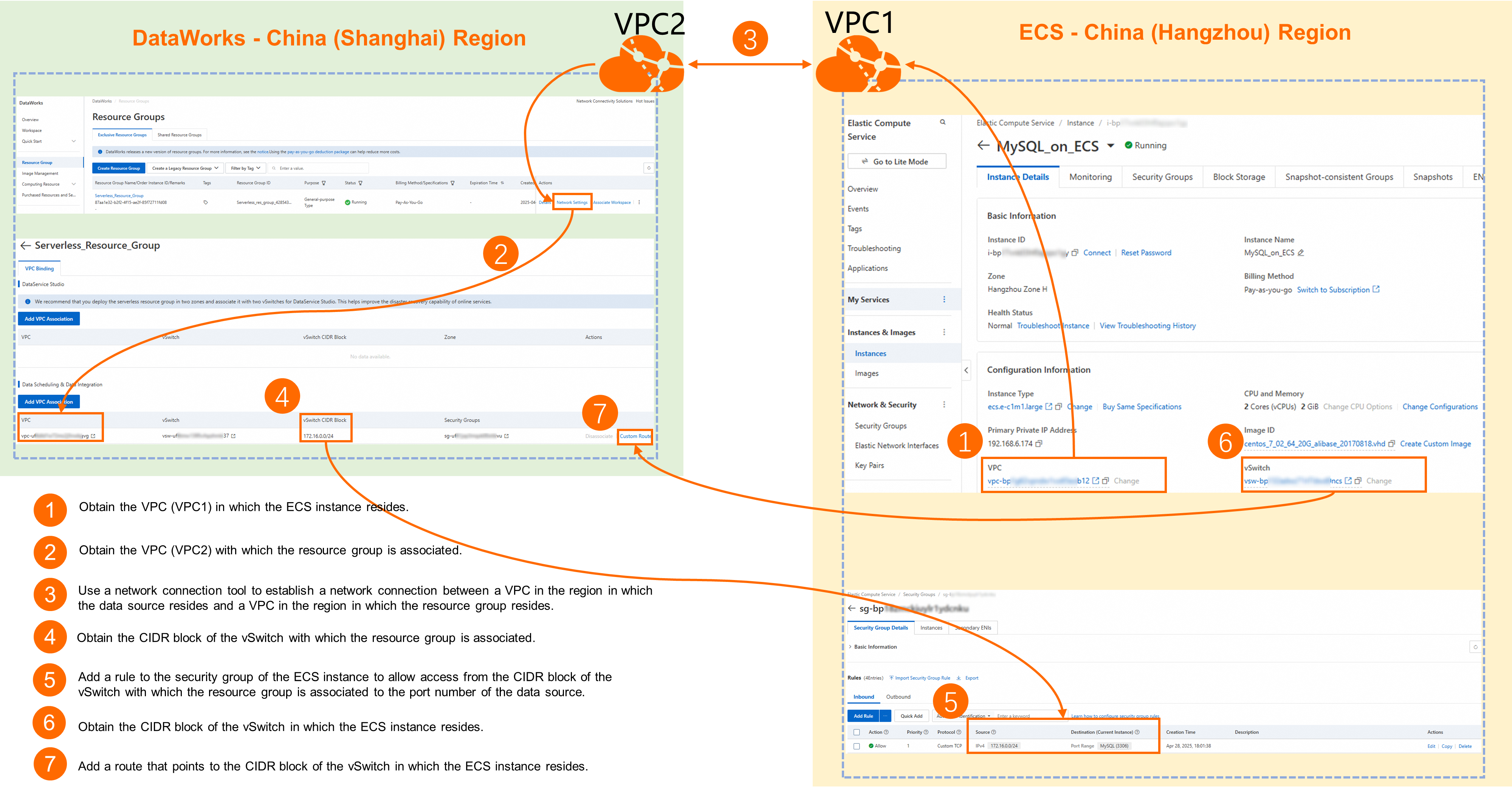
If your ECS instance and DataWorks workspace are in the same region and under the same account, you can configure the network in four steps. Step 1: In the ECS console, go to the details page of your instance, such as MySQL_on_ECS. Obtain the VPC (for example, vpc-ufi***gvg) and vSwitch (for example, vsw-ufi***37) to which the instance is bound. Step 2: In the DataWorks console, go to the Resource Group List page. Find the target serverless resource group, such as Serverless_Resource_Group, and click Network Configuration. Confirm that the VPC bound to the resource group is the same as the VPC of the ECS instance. Step 3: In the Data Integration & Data Service section of the network details page for the resource group, obtain the vSwitch CIDR block, such as 172.16.0.0/24. Step 4: In the inbound rules of the ECS security group, click Add Security Group Rule and add a rule. Set Authorization Policy to Allow and Protocol Type to Custom TCP. For Port Range, enter 3306 (MySQL). For Source, enter the vSwitch CIDR block that you obtained in Step 3, such as 172.16.0.0/24. This allows the DataWorks resource group to access the MySQL service on the ECS instance.
Same account, different regions
Different accounts
Prerequisites
A DataWorks-supported data source is deployed on an ECS instance.
-
You have created a workspace.
-
You have created a resource group and bound it to the workspace.
Billing
Billing varies depending on the network connectivity tool you choose. For details, see Cloud Enterprise Network billing or VPC peering connection billing.
A vpc peering connection between different accounts in the same region is free of charge.
Configure network connectivity
The following steps provide a general workflow for establishing network connectivity between a data source and DataWorks to help you understand the core process. For more detailed steps, see the configuration example provided in this topic.
Step 1: Get basic information
Same account and region
Data source side
VPC and vSwitch information for the ECS instance:
Go to the ECS console and select the region of your target ECS instance in the top navigation bar.
In the left-side navigation pane, choose Instances & Images > Instance. Find the ECS instance where your MySQL database is deployed and click the instance name to go to the Instance Details page.
In the Configuration Information area, obtain the VPC (named
VPC 1in this example) and vSwitch information.
DataWorks side
VPC and vSwitch information for the associated resource group:
Go to the DataWorks resource groups page. Find the target resource group and click Network Settings in the Operation column.
Under the relevant feature module, view the associated VPC and vSwitch information.
For example, if you need to synchronize data between a MySQL database on an ECS instance and DataWorks, view the information for the corresponding VPC (named
VPC 2in this example) and vSwitch under Data Scheduling & Data Integration.
Same account, different regions
Data source side
Region information: This example uses an ECS instance in the China (Hangzhou) region.
VPC and vSwitch information for the ECS instance:
Go to the ECS console and select the region of your target ECS instance in the top navigation bar.
In the left-side navigation pane, choose Instances & Images > Instance. Find the ECS instance where your MySQL database is deployed and click the instance name to go to the Instance Details page.
In the Configuration Information section, get the VPC and vSwitch information.
DataWorks side
Region information: This example uses a DataWorks workspace and resource group in the China (Shanghai) region.
VPC and vSwitch information for the associated resource group:
Go to the DataWorks resource groups page. Find the target resource group and click Network Settings in the Operation column.
Under the relevant feature module, view the associated VPC and vSwitch information.
For example, if you need to connect your MySQL database on an ECS instance to DataWorks for data synchronization, check the corresponding VPC and vSwitch information under Data Scheduling & Data Integration.
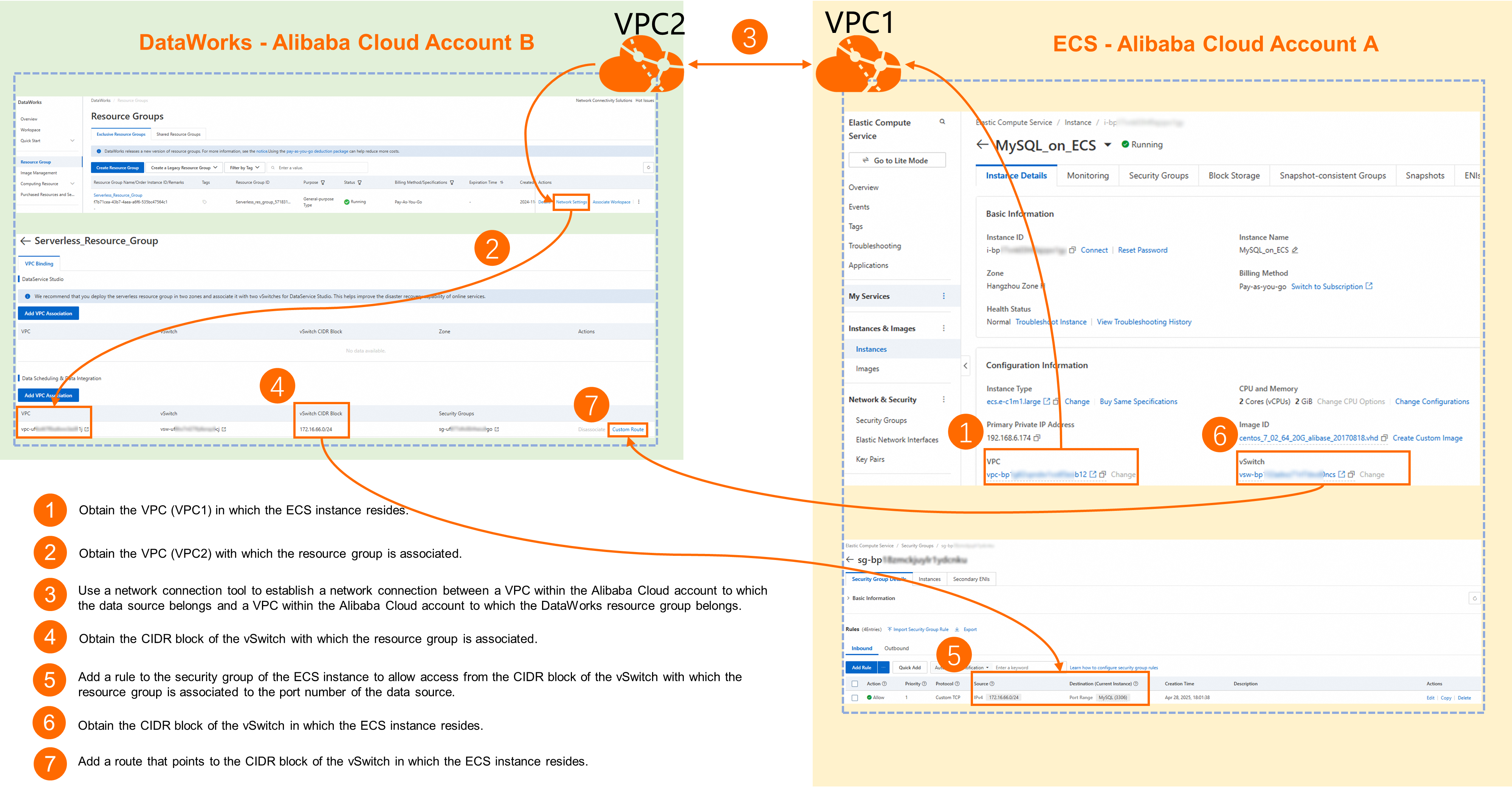
Different accounts
Data source side
Account information: This example uses Account A.
Region information: This example uses an ECS instance in the China (Hangzhou) region.
VPC and vSwitch information for the ECS instance:
Go to the ECS console and select the region of your target ECS instance in the top navigation bar.
In the left-side navigation pane, choose Instances & Images > Instance. Find the ECS instance where your MySQL database is deployed and click the instance name to go to the Instance Details page.
In the Configuration Information section, get the VPC and vSwitch information.
DataWorks side
Account information: This example uses Account B.
Region information: This example uses a DataWorks workspace and resource group in the China (Shanghai) region.
VPC, vSwitch, and vSwitch CIDR block information for the associated resource group:
Go to the DataWorks resource groups page. Find the target resource group and click Network Settings in the Operation column.
Under the relevant feature module, view the associated VPC and vSwitch information.
For example, if you need to connect your MySQL database on an ECS instance to DataWorks for data synchronization, check the corresponding VPC and vSwitch information under Data Scheduling & Data Integration.
This information is available on the Network Settings > VPC Binding tab of the resource group details page. In addition to the VPC and vSwitch, the table also includes the vSwitch CIDR block and security group fields.
Step 2: Establish network connectivity
Same account and region
If
VPC 1is the same asVPC 2, the ECS instance and the DataWorks resource group are deployed in the same VPC, and the network is connected by default.If
VPC 1is different fromVPC 2, go to the network settings page for the DataWorks resource group and click Add Binding to bindVPC 1to the resource group. This ensures that the DataWorks resource group and the ECS instance are deployed in the same VPC.
Same account, different regions
Cloud Enterprise Network (CEN): Suitable for complex enterprise networks that require connectivity across multiple VPCs. For configuration details, see Connect VPCs across regions.
vpc peering connection: Suitable for point-to-point connectivity between two VPCs. For configuration details, see Use a vpc peering connection to achieve private connectivity between VPCs.
If you encounter issues during network configuration, submit a ticket to contact Alibaba Cloud technical support.
Different accounts
Cloud Enterprise Network (CEN): Suitable for complex enterprise networks that require connectivity across multiple VPCs. For configuration details, see Connect VPCs across accounts.
vpc peering connection: Suitable for point-to-point connectivity between two VPCs. For configuration details, see Use a vpc peering connection to achieve private connectivity between VPCs.
If you encounter issues during network configuration, submit a ticket to contact Alibaba Cloud technical support.
Step 3: Add a route to the resource group
For cross-account scenarios or same-account cross-region scenarios, you must also add a route in the DataWorks resource group to the vSwitch CIDR block of the ECS instance.
Go to the DataWorks resource groups page. Find the target resource group and click Network Settings in the Operation column.
Under the relevant feature module, find the bound VPC and click Custom Route in the Operation column.
Click Add Route, select CIDR Block for CIDR Block, and set Destination CIDR Block to the vSwitch CIDR block of the ECS instance.
Step 4: (Optional) Enable remote database access
Some databases require you to enable remote access in a configuration file to allow specific users to connect from external sources through an IP address and port. The configuration method varies by database. Refer to the official documentation for your database.
For an example, see 4. Enable remote access for MySQL.
Step 5: Configure the ECS security group
ECS uses security groups for firewall protection. You must add a rule to the security group of the ECS instance to allow access from the DataWorks resource group over the database port.
Go to the ECS console and select the region of your target ECS instance in the top navigation bar.
In the left-side navigation pane, choose Instances & Images > Instance. Find the ECS instance where your MySQL database is deployed and click the instance name to go to the Instance Details page.
Switch to the Security Group tab and click the security group name to go to the Security Group Details page.
In the Access Rules section, click Add Rule and configure the following key parameters. Keep the default values for other parameters.
Source: Enter the vSwitch CIDR block that is bound to the DataWorks resource group.
Port: Enter the port of the database on your ECS instance. For example, port
3306must be open for MySQL.
Verify network connectivity
Log on to the DataWorks console. In the target region, click in the left-side navigation pane. Select a workspace from the drop-down list and click Go to Data Integration.
In the left-side navigation pane, click Data Sources. On the data sources page, click Add Data Source, select your data source, and configure the connection parameters.
In the resource group list at the bottom, select the resource group that is connected to the data source and click Test Connectivity. In the Connection Configuration section of the data source, select a resource group, click Test Connectivity, and confirm that the connectivity status is displayed as Connected.
NoteIf the connectivity test returns Failed, use the Network Connectivity Diagnostic Tool to identify the problem. If the issue persists, submit a ticket for assistance.
Configuration example
This example shows how to connect a MySQL database on an ECS instance (Account A, China (Hangzhou)) to a DataWorks workspace (Account B, China (Shanghai)).
1. Basic information
Parameter | Data source (ECS instance with MySQL) | DataWorks resource group |
Account | Account A | Account B |
Region | China (Hangzhou) | China (Shanghai) |
VPC |
The ECS instance is configured with 2 cores (vCPU) and 2 GiB, uses the |
On the Network Settings page of the resource group details, select VPC Binding. In the Data Scheduling & Data Integration section, click Add Binding to bind the corresponding VPC, vSwitch, and security group. After the binding is complete, the VPC ID displayed in the list must match that of |
2. Establish network connectivity
This example uses a vpc peering connection to establish network connectivity between the ECS instance and DataWorks.
If you encounter issues during network configuration, submit a ticket to contact Alibaba Cloud technical support.
Log on to Account A and go to the VPC Peering Connection console. In the top navigation bar, select the China (Hangzhou) region, then click Create Peering Connection and configure the parameters.
The following table describes the key parameters for this example. Keep the default values for other parameters.
Parameter
Configuration and example
Peering connection name
Enter a custom name. For this example, set it to
Account_A to Account_B.Requester VPC
In this example, the VPC that contains the ECS instance in Account A is
Account_A_hangzhou_VPC.Accepter account type
In this example, select
Cross-account.Accepter Alibaba Cloud account UID
Enter the UID of the main account for Account B.
Accepter region type
This example selects
Cross-region.Accepter region
For the region of the DataWorks workspace and resource group in Account B, select
China (Shanghai).Accepter VPC
Manually enter the VPC ID of the VPC (
Account_B_shanghai_VPC) that contains the DataWorks resource group in Account B.Click Determine to complete the peering connection configuration. You are automatically redirected to the peering connection's basic information page. At this point, the Status of the peering connection is Accepting.
Log on to Account B and go to the VPC Peering Connection console. In the top navigation bar, select the China (Shanghai) region. Find the peering connection request and click Receiver in the Operation column. After you accept the request, the Status of the peering connection changes to Activated.
Click Configure Route Entry under Destination VPC Instance. In the Configure Route Entry dialog box, specify a Name and set Destination CIDR Block to the VPC CIDR block of the source (ECS). In this example, the value is
192.168.0.0/16.Log on to Account A and go to the VPC Peering Connection console. In the top navigation bar, select the China (Hangzhou) region and find the peering connection that you created.
Click Configure Route Entry under Source VPC Instance. In the Configure Route Entry dialog box, enter a custom Name, and set Destination CIDR Block to the VPC CIDR block of the destination (DataWorks resource group). In this example, the value is set to
172.16.0.0/12.
3. Add a route to the resource group
Log on to Account B and go to the DataWorks resource groups page. Find the target resource group and click Network Settings in the Operation column.
Under the relevant feature module, find the bound VPC and click Custom Route in the Operation column.
Click Add Route, set the connection method to CIDR Block, and set Destination CIDR Block to the vSwitch CIDR block of the ECS instance (in this example,
192.168.6.0/24).
4. Enable remote access for MySQL
Connect to the ECS instance where the MySQL database is deployed and enable remote access for the database.
These commands are for MySQL 8.0 on a Linux environment. You may need to adapt the steps for other operating systems or MySQL versions.
Find the location of the
my.cnfconfiguration file (the default location is/etc/my.cnf).find / -name my.cnfRun the
vim /etc/my.cnfcommand to edit the configuration file (replace themy.cnfpath with the actual path from the previous step).At the end of the configuration file, press the
ikey to add the following configuration under[mysqld]:bind-address=0.0.0.0Press
Esc, then type:wq!to save and exit.Run the
systemctl restart mysqldcommand to restart the service.Create a database user for the DataWorks remote connection.
Use the
mysql -u root -pcommand to log in to the database as an administrator.Create a user and set a password.
-- "dataworks_user" is the username, which you can customize.
-- "%" allows access from any IP address. You can also specify an IP address for fine-grained control.
-- "StrongPassword123!" is the user's password, which you can customize.
CREATE USER 'dataworks_user'@'%' IDENTIFIED BY 'StrongPassword123!';
Grant database permissions to the user.
-- Run one of the following commands.

-- Grant all privileges to the user. Use with caution.
GRANT ALL PRIVILEGES ON *.* TO 'dataworks_user'@'%' WITH GRANT OPTION;

-- Grant the user privileges on a specific database, such as mydatabase.
GRANT ALL PRIVILEGES ON mydatabase.* TO 'dataworks_user'@'%' WITH GRANT OPTION;
Run the
FLUSH PRIVILEGES;command to flush the privileges, and then exit the database (exit).Verify the remote connection.
mysql -u dataworks_user -h <ECS_private_IP_address> -p
5. Configure the ECS security group
Log on to Account A and go to the ECS console. In the top navigation bar, select the China (Hangzhou) region.
In the left-side navigation pane, choose Instances & Images > Instance. Find the ECS instance where your MySQL database is deployed and click the instance name to go to the Instance Details page.
Switch to the Security Group tab and click the security group name to go to the Security Group Details page.
In the Access Rules section, click Add Rule and configure the following key parameters. Keep the default values for other parameters.
Source: Enter the vSwitch CIDR block of the DataWorks resource group (for example,
172.16.66.0/24).Port: Select the port for the database deployed on the ECS instance (in this case,
3306).
6. Test connectivity
Log on to Account B.
Log on to the DataWorks console. In the target region, click in the left-side navigation pane. Select a workspace from the drop-down list and click Go to Data Integration.
In the left-side navigation pane, click Data Sources to go to the Data Sources page, and then click Add Connection.
Select the MySQL data source type and configure its connection parameters.
For Configuration Mode, select User-created Data Store with Public IP Addresses.
For Host Address ID, enter the private IP address of the ECS instance (in this example,
192.168.6.172).Set Port Number to
3306.For Database Name, enter the name of your existing database.
Set Username and Password to the username and password of the
dataworks_useruser that were created in the 4. Enable remote access for the MySQL database step.
In the Connection Configuration section, select the resource group and click Test Connectivity. Confirm that the connectivity status is Connectable.
In the Connection Configuration section of the data source, select a resource group, click Test Connectivity, and confirm that the connectivity status is Connected.
NoteIf the test result shows Failed, use the Network Connectivity Diagnostic Tool to troubleshoot. If connectivity still fails, submit a ticket for assistance.
Related documents
For frequently asked questions about network connectivity, see Resource group operations and network connectivity.