DataWorks Data Integration offers real-time, single-table Synchronization Tasks for low-latency, high-throughput data replication between different Data Sources. This feature runs on an advanced real-time computing engine that captures data changes (inserts, deletes, and updates) at the Source and applies them to the Destination. This topic uses a Kafka-to-MaxCompute synchronization example to explain the configuration process.
Prerequisites
Prepare Data Sources
Create the source and destination Data Sources. For more information, see Data Source Management.
Ensure the Data Sources support real-time synchronization. For more information, see Supported data sources and synchronization solutions.
Some Data Sources, such as Hologres and Oracle, require you to enable logging. The method for enabling logs varies by Data Source. For more information, see Data source list.
Resource Group: Purchase and configure a Serverless Resource Group.
Network Connectivity: Complete the network connectivity configuration between the Resource Group and the Data Sources.
Step 1: Create a synchronization task
Log on to the DataWorks console. In the top navigation bar, select the desired region. In the left-side navigation pane, choose . On the page that appears, select the desired workspace from the drop-down list and click Go to Data Integration.
In the left-side navigation pane, click Sync Tasks. At the top of the page, click Create Synchronization Task and configure the Task parameters. This topic uses an example of synchronizing data from Kafka to MaxCompute.
Source type:
Kafka.Destination type:
MaxCompute.Task type:
Single-table Real-time.Synchronization Mode:
Schema Migration: Automatically creates database objects (such as tables, Fields, and data types) in the destination that match the source, but does not include data.
Incremental Sync (Optional): After Full Synchronization is complete, this step continuously captures data changes (inserts, updates, and deletes) from the source and synchronizes them to the destination.
If the source is Hologres, Full Synchronization is also supported, which means that existing data is first fully synchronized to the destination table, followed by automatic Incremental Synchronization.
For more information about supported data sources and synchronization solutions, see Supported data sources and synchronization solutions.
Step 2: Configure data sources and runtime resources
For Source Information, select your configured
KafkaData Source. For Destination, select your configuredMaxComputeData Source.In the Running Resources section, select the Resource Group for the Synchronization Task and allocate Resource Group CUs for the Task. You can set CUs separately for Full Synchronization and Incremental Synchronization to precisely control resources and prevent waste. If your Synchronization Task encounters an out-of-memory (OOM) error due to insufficient resources, increase the CU value for the Resource Group.
Ensure that both the source and destination Data Sources pass the Connectivity Check.
Step 3: Configure the synchronization plan
1. Configure the source
On the Configuration tab, select the topic in your Kafka Data Source that you want to synchronize.
You can use the default values for other settings or modify them as needed. For parameter details, see the official Kafka documentation.
Click Data Sampling in the upper-right corner.
In the dialog box that appears, specify the Start time and Sampled Data Records, and then click Start Collection. This samples data from the specified Kafka topic and allows you to preview the data, which provides input for data preview and visual configuration in subsequent Data Processing nodes.
On the Configure Output Field tab, select the Fields you want to synchronize.
By default, Kafka provides six Fields.
Parameter
Description
__key__
The key of the Kafka record.
__value__
The value of the Kafka record.
__partition__
The partition number where the Kafka record is located. Partition numbers are integers starting from 0.
__headers__
The headers of the Kafka record.
__offset__
The Offset of the Kafka record in its partition. Offsets are integers starting from 0.
__timestamp__
The 13-digit integer millisecond Timestamp of the Kafka record.
You can also perform further transformations on these Fields in the Data Processing node.
2. Data processing
Enable Data Processing. Five data processing methods are available: Data Masking, String Replace, Data Filtering, JSON Parsing, and Edit and Assign Fields. You can arrange these steps in any order. At runtime, the processing steps are executed in the specified sequence.

After configuring each data processing node, click Preview Data Output in the upper-right corner.
The table under the input data displays the results from the Data Sampling step. You can click Re-obtain Output of Ancestor Node to refresh the results.
If there is no upstream output, you can use Manually Construct Data to simulate the preceding output.
Click Preview to view the output from the upstream stage after it has been processed by the Data Processing component.

Data output preview and data processing strongly depend on Data Sampling from the Kafka Source. Before you configure data processing, you must first complete data sampling in the Kafka source configuration.
3. Configure the destination
In the Destination area, select a Tunnel resource group. By default, "Public transfer resources" is selected, which refers to the free quota for MaxCompute.
Choose whether to write to a new table or an existing table. Select Create or Use Existing Table.
If you select to create a new table, a table with the same schema as the Source is created by default. You can manually modify the destination table name and schema.
If you select to use an existing table, select the target table from the drop-down list.
(Optional) Edit the table schema.
Click the edit icon next to the table name to edit the table schema. You can click Re-generate Table Schema Based on Output Column of Ancestor Node to automatically generate a schema based on the output columns from the upstream node. You can then select a Field in the auto-generated schema to be the Primary Key.
4. Configure field mapping
After selecting the source and destination, you must specify the mapping between the Source and Destination Fields. The Task writes data from the source Fields to the corresponding destination Fields based on the Field Mapping.
The system automatically generates a mapping between the upstream Fields and the target table Fields based on the Same Name Mapping rule. You can adjust the mapping as needed. You can map one upstream Field to multiple target table Fields, but you cannot map multiple upstream Fields to a single target table Field. If an upstream Field is not mapped to a target table column, the data from that Field is not written to the target table.
You can configure custom JSON Parsing for Kafka Fields. Use the data processing component to extract the content of the value field for more granular field configuration.

Configure partitions (Optional).
Automatic Time-based Partitioning creates partitions based on the business time Field (in this case,
__timestamp__). The first-level partition is by year, the second by month, and so on.Dynamic Partitioning by Field Content writes data rows from a specified source Field to the corresponding partition in the MaxCompute table by defining a mapping between the source Field and the target partition Field.
Step 4: Configure advanced parameters
Synchronization Tasks provide advanced parameters for fine-grained configuration. The system provides default values, and you usually do not need to change them. If necessary, follow these steps:
In the upper-right corner of the interface, click Advanced Settings to go to the Advanced Parameters configuration page.
NoteAdvanced parameters for data development are located in the right-side tab of the task configuration interface.
You can set parameters for the reader and writer of the Synchronization Task separately. To customize Runtime settings, set Auto-configure Runtime Settings to false.
Modify parameter values based on their tooltips and descriptions. For configuration recommendations for some parameters, see Advanced parameters for real-time Synchronization.
To avoid unexpected errors or data quality issues, modify these parameters only if you fully understand their purpose and consequences.
Step 5: Test run
After you complete all the task configurations, click Perform Simulated Running in the lower-left corner to debug the task. This simulates the entire Task's processing of a small sample of data and allows you to view a preview of the results for the target table. If there are configuration errors, exceptions during the Test Run, or Dirty Data, the system provides real-time feedback. This helps you quickly assess the correctness of your Task configuration and determine if it produces the expected results.
In the dialog box that appears, set the sampling parameters (Start time and Sampled Data Records).
Click Start Collection to get the sample data.
Click Preview Result to simulate the task run and view the output results.
The output of a Test Run is for preview only and is not written to the destination Data Source. It does not affect production data.
Step 6: Publish and run the task
After you complete all configurations, click Save at the bottom of the page.
Data Integration Tasks must be published to the production environment to run. Therefore, whether you are creating a new Task or editing an existing one, you must perform the Deploy operation for the changes to take effect. During publication, if you select Start immediately after deployment, the task starts automatically after it is published. Otherwise, after publication, you need to go to the page and manually start the Task from the Actions column.
In the Tasks, click the Name/ID of the corresponding Task to view the detailed execution process.
Step 7: Configure alert rules
After a task is published and running, you can configure Alert Rules for it. This allows you to receive notifications immediately if an exception occurs, ensuring the stability and timeliness of your production environment. In the Data Integration Task list, click in the Actions column for the target task.
1. Add an alert rule
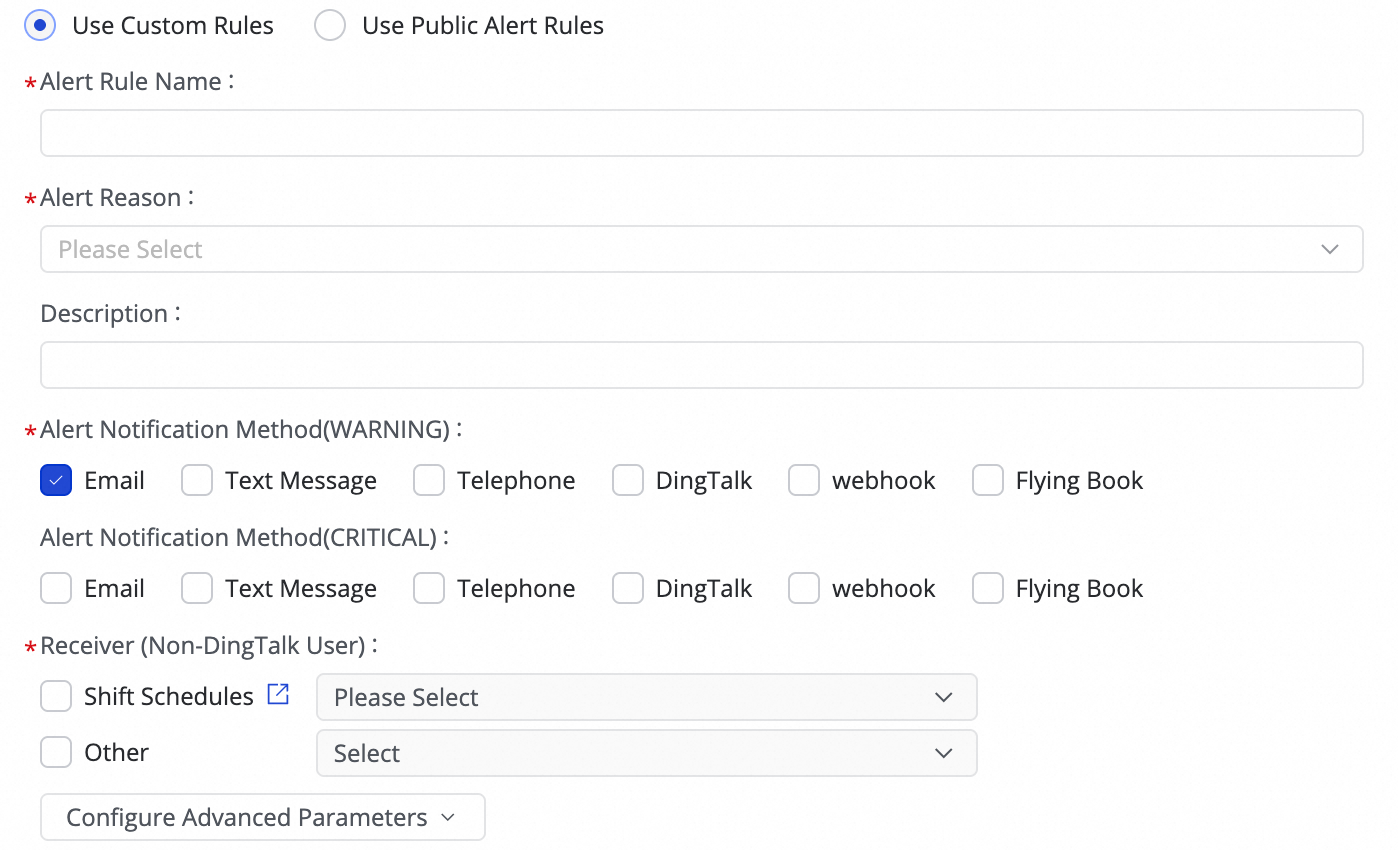
(1) Click Create Rule to configure an Alert Rule.
By setting the Alert Reason, you can monitor metrics such as Business delay, Failover, Task status, DDL Notification, and Task Resource Utilization. You can set CRITICAL or WARNING level alerts based on specified thresholds.
After setting the alert method, you can use Configure Advanced Parameters to control the interval for sending alert messages. This prevents excessive notifications, which can be wasteful and lead to backlogs.
If the alert condition is set to Business delay, Task status, or Task Resource Utilization, you can also enable recovery notifications to inform recipients when the task returns to normal.
(2) Manage alert rules.
For created Alert Rules, you can use the alert switch to enable or disable them. You can also send alerts to different personnel based on the alert level.
2. View alerts
In the task list, click and go to the Alert Events tab to view a history of triggered alerts.
Next steps
After the task starts, you can click the task name to view its running details for Task operations, maintenance, and optimization.
FAQ
For frequently asked questions about real-time Synchronization Tasks, see FAQ about real-time synchronization.
More examples
Real-time synchronization of a single table from Kafka to ApsaraDB for OceanBase
Real-time ingestion of a single table from Log Service (SLS) to Data Lake Formation
Real-time synchronization of a single table from Hologres to Doris
Real-time synchronization of a single table from Hologres to Hologres
Real-time synchronization of a single table from Kafka to Hologres
Real-time synchronization of a single table from Log Service (SLS) to Hologres
Real-time synchronization of a single table from Kafka to Hologres
Real-time synchronization of a single table from Hologres to Kafka
Real-time synchronization of a single table from Log Service (SLS) to MaxCompute
Real-time synchronization of a single table from Kafka to an OSS data lake
Real-time synchronization of a single table from Kafka to StarRocks
Real-time synchronization of a single table from Oracle to Tablestore