Operation Center is a one-stop platform for big data operations and maintenance (O&M). It allows you to view the runtime status of tasks in real time and provides O&M capabilities, such as intelligent diagnosis and rerun, to handle task exceptions. With intelligent baseline, you can manage unpredictable completion times for critical tasks and efficiently monitor large numbers of tasks, ensuring timely data output. The platform also offers comprehensive O&M features for compute engines, resources, and scheduling.
Operation Center modules
After you develop, submit, and deploy a task in Data Studio, you can go to Operation Center to perform O&M operations on scheduled tasks, manual tasks, and real-time tasks. These operations include running production tasks, locating and resolving task issues, monitoring task run statuses, viewing key O&M metrics, and checking engine task lists.

Operation Center is supported only on desktop versions of Chrome 69 or later.
Note
Tasks are automatically scheduled and run only after you deploy them to the production environment. Tasks in the development environment are not automatically scheduled.
Access Operation Center
Log on to the DataWorks console. In the top navigation bar, select the desired region. In the left-side navigation pane, choose . On the page that appears, select the desired workspace from the drop-down list and click Go to Operation Center.
Task O&M
The Task O&M module provides O&M capabilities for three types of tasks: scheduled tasks, real-time tasks, and manual tasks. You can use the O&M Dashboard to view key metrics for task execution and use features in O&M Assistant, such as Data Backfill, Intelligent Diagnosis, and Automated O&M, to perform a wide range of O&M operations.
|
Module |
Description |
Availability |
|
|
Displays key O&M metrics for scheduled tasks in reports. It also provides dedicated O&M pages for batch and real-time synchronization tasks in Data Integration. |
This module is not available in the Operation Center for the development environment. |
||
|
Auto Triggered Task O&M |
Scheduled Tasks provides DAG views, task Test, Run, and other operations for scheduled tasks. |
The Operation Center for the development environment cannot automatically generate scheduled instances. |
|
|
Scheduled Instances displays a list of instances generated after scheduled tasks are submitted to the scheduling system. You can view the DAG, run Run Diagnostics, Rerun scheduled instances, and perform other operations in the list. |
|||
|
The Test Instances list displays test instances that are generated after you perform a test operation on scheduled tasks. You can check the execution status of test instances and view the DAG, run Run Diagnostics, Rerun instances, and perform other operations in the list. |
|||
|
Real-time Task O&M |
The Real-time Computing Tasks page allows you to Start, Stop, and Undeploy real-time computing tasks, and configure Monitoring Setting alerts to promptly detect and handle task exceptions. |
- |
|
|
The Real-time Synchronization Tasks page allows you to Start, Stop, Undeploy, and Change Owner for real-time synchronization tasks. It supports Alert Conditions to promptly detect and handle task exceptions. |
- |
||
|
Manually Triggered Task O&M |
In Manual Tasks, you can query manual tasks, manual workflows, and trigger-based workflows, and perform operations such as viewing the DAG, manually triggering Run, View Instances, and more. |
- |
|
|
In Manual Instances, you can quickly view detailed instance information through the DAG and perform operations such as View Runtime Log, View Code, and View Lineage. |
- |
||
|
O&M Assistant |
The Data Backfill page allows you to manage data backfill tasks. |
- |
|
|
Intelligent Diagnosis provides full-link analysis capabilities for tasks, allowing you to quickly locate issues. You can view Operation Details, General, Influenced Baseline, and Historical instance. |
This module is not available in the Operation Center for the development environment. |
||
|
Automated O&M provides custom O&M rules. You can define monitoring metrics and custom O&M rules for instances running on target resource groups. When a rule is triggered, the corresponding O&M action is automatically executed to achieve automated O&M. |
- |
||
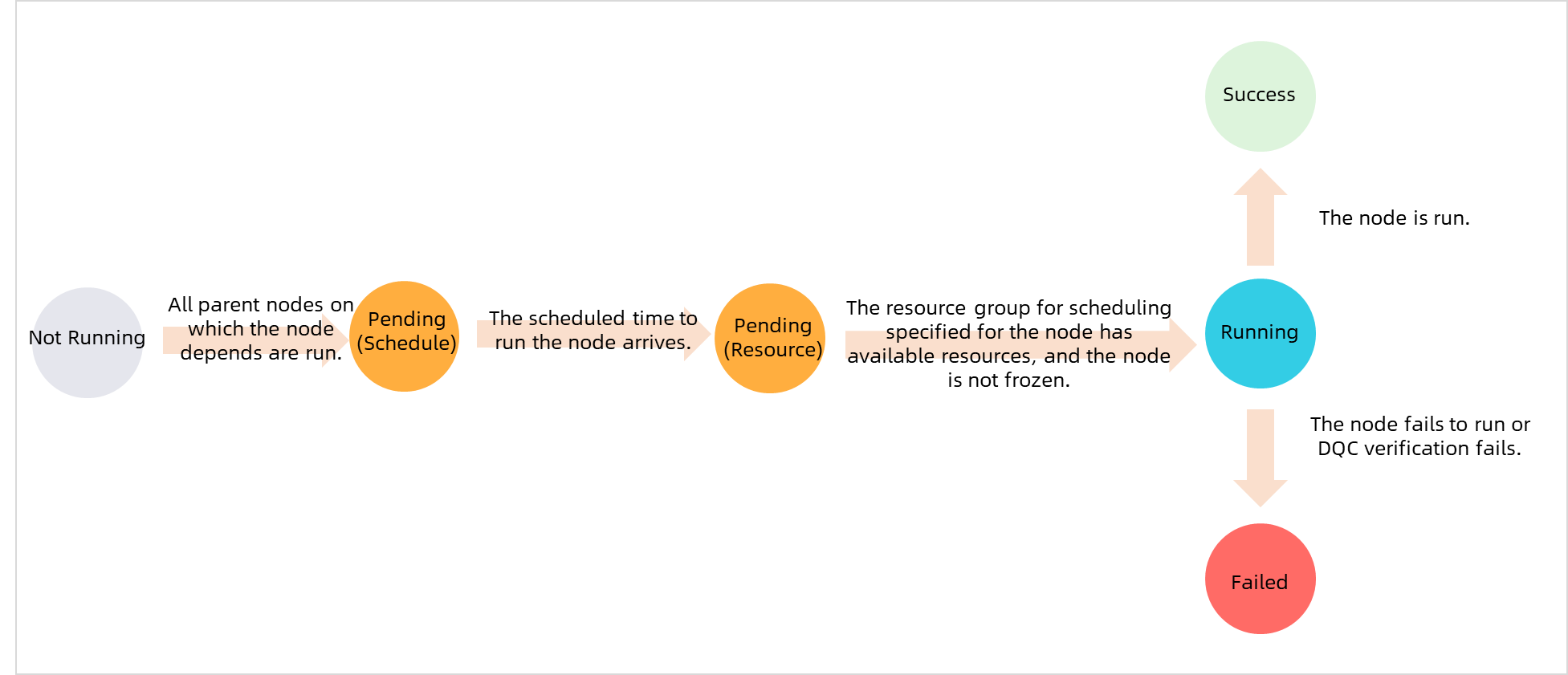
Take the tasks in scheduled instances as an example. The following conditions must be met before a task starts running:
-
All parent node instances that the task depends on are in the successful state.
-
The scheduled run time configured for the task node has been reached.
-
Sufficient scheduling resources are available.
-
The task is not in the frozen state.
In Operation Center, different instance colors represent different instance statuses. For details about instance run statuses, see Instance run statuses and diagnostics.
Task monitoring
The Task Monitoring module includes intelligent baseline and monitoring alert features. You can configure the intelligent baseline feature to detect task exceptions and send early warnings. You can also configure and manage monitoring rules, alert information, and duty rosters to handle O&M alerts in a timely manner.
|
Module |
Description |
Availability |
|
|
Intelligent Baselines can promptly detect exceptions that may prevent tasks on a baseline from being completed on time and send early warnings to ensure that critical data is produced within the expected time. This feature helps you reduce configuration costs, avoid unnecessary alerts, and automatically monitor all critical tasks. |
This module is not available in the Operation Center for the development environment. |
||
|
Monitoring and Alerting |
Rule Management allows you to configure custom monitoring rules. You can use monitoring rules to monitor task run statuses or resource usage and promptly detect and handle task exceptions. |
||
|
The Alerts feature provides unified management of all alerts generated by the Task Monitoring module, including baseline early warning alerts, event alerts, custom rule alerts, and global rule alerts generated by Intelligent Baselines. |
|||
|
The duty roster provides scheduling arrangements for handling O&M alerts, ensuring timely response when alerts are triggered or instances require maintenance. After you configure a duty roster, DataWorks sends Alerts to the corresponding on-duty personnel so that they can promptly detect and handle issues. |
|||
Other O&M
In addition to task O&M and intelligent monitoring, DataWorks allows you to view details of compute engines (E-MapReduce), monitor and manage resource group usage, and customize scheduling parameters, providing more convenient and comprehensive O&M capabilities for your daily work.
|
Module |
Description |
Availability |
|
|
Engine O&M allows you to view detailed information about compute engine (E-MapReduce) jobs, quickly identify and clean up erroneously running jobs, and prevent such jobs from blocking downstream tasks and affecting normal instance execution. |
This module is not available in the Operation Center for the development environment. |
||
|
Resource O&M provides a visual display of resource group usage and instance task execution, enabling intelligent monitoring and automated O&M of resource groups and instance tasks to reduce manual operations and improve O&M efficiency. |
- |
||
|
Scheduling Settings provides a platform for you to create and manage Scheduling Calendar and Workspace-level Parameters, making it easier to customize task scheduling. |
- |
||
Appendix: Instance run statuses and diagnostics
Operation Center uses different colors and icons to indicate the stage of a task in the run process. Different instance colors and icons represent different statuses. The following table describes the task statuses corresponding to each instance color and icon. For details about the prerequisites for running a task, see Prerequisites for running a task.
|
No. |
Status type |
Status icon |
Run flowchart |
|
1 |
Succeeded |
|
|
|
2 |
Not run |
|
|
|
3 |
Failed |
|
|
|
4 |
Running |
|
|
|
5 |
Pending |
|
|
|
6 |
Paused/Frozen |
|